


 3
3
Combo box type custom fields are used to create drop down lists, which can be activated in several different locations for different purposes.
The items in that list are custom field values, that can be added, deleted, edited, activated, or deactivated under Custom Control Setup.
Examples of locations are as follows:
- custom client tabs
- custom service tabs
- custom subform tabs
As a custom client tab combo box field, a user may create a case manager field to assign a patient to that case manager's case load.
As a custom service combo box field, a user may create a case manager field to note the case manager provided that service on that date.
As a custom subform combobox field, a user may create a case manager field so that a case manager could note they completed that form on that date.
To manage a combo box custom field list of items, follow these steps:
Click here for a video
- Click Administrative Options.
- Click Custom Features.
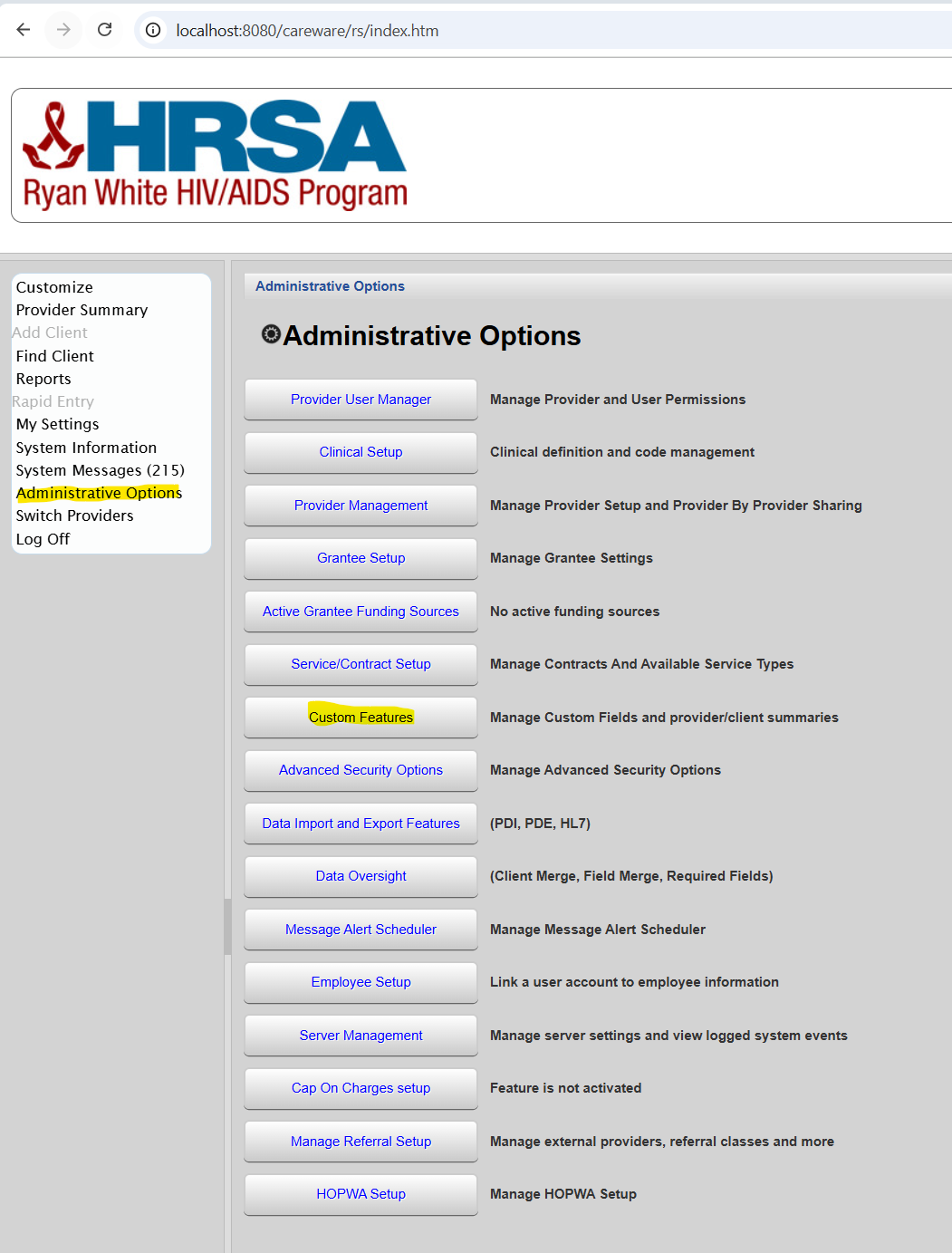
- Click Custom Fields.
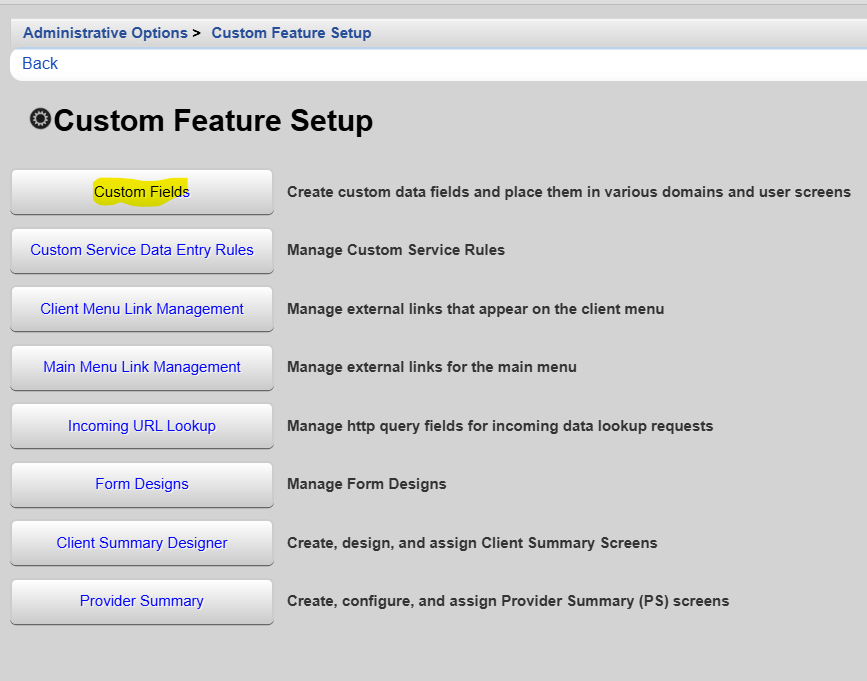
- Click Custom Control Setup.
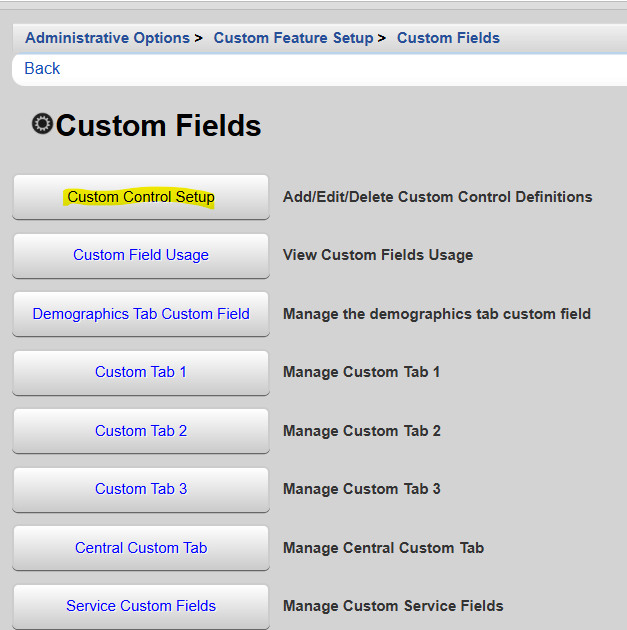
- Click the combobox custom field to highlight it.
- Click View.
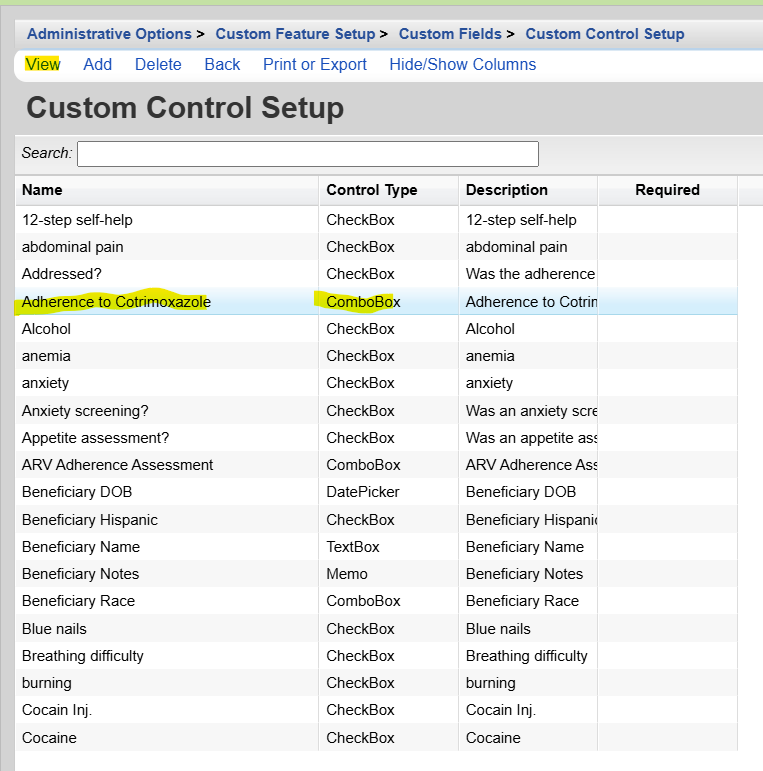
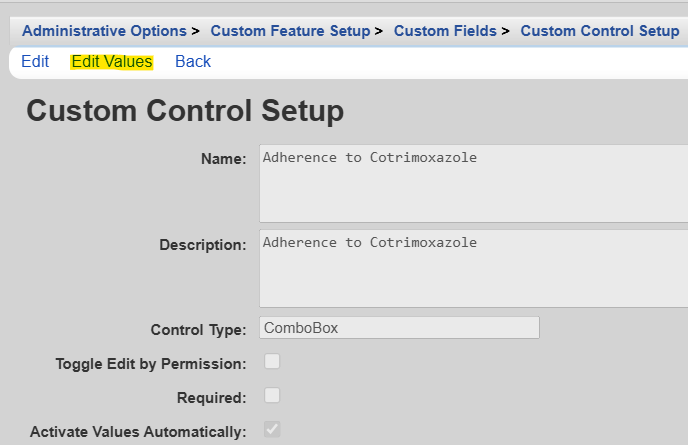
- Click Edit Values.
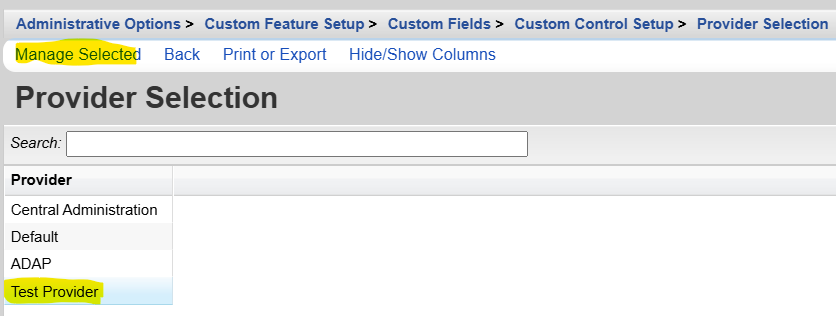
- If in Central Administration, select a provider and click Manage Selected.
Here custom field values can be added, edited, activated, and deactivated.
Note: Once a custom field value has been included in client data, that value should only be deactivated as it is associated with client records. Deleting the value could result in orphaned records, data loss, or more likely errors.
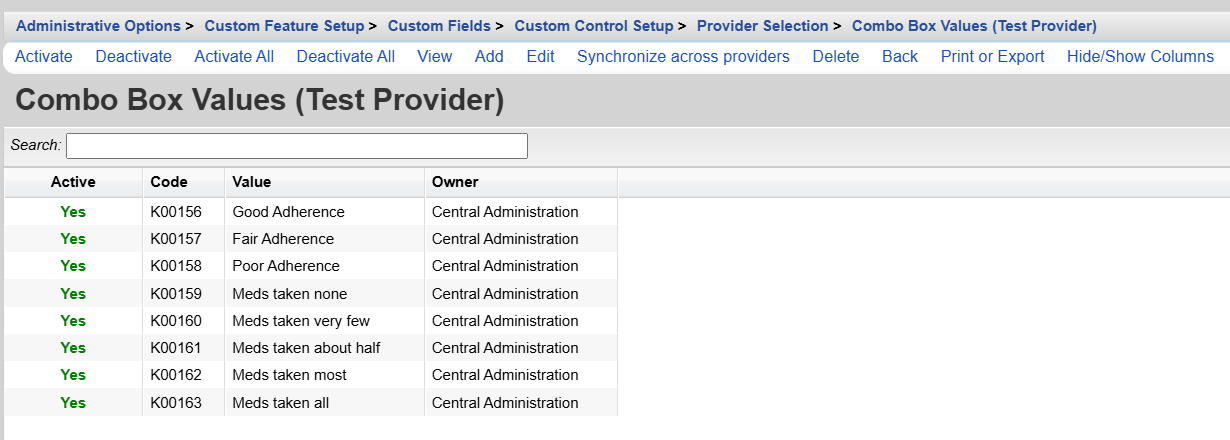
Activate – Sets the value to appear in the dropdown list in the location this field is active.
Deactivate – Sets the value to not appear in the dropdown list in the location this field is active
Activate All – Sets all values in the list to appear in the dropdown list in the location this field is active.
Deactivate All – Sets all values to not appear in the dropdown list in the location this field is active
View – Opens the value to view it.
Add – Creates a new value.
Edit – Opens the value to change it.
Synchronize across providers – Sets the values to be in the same condition for all providers.
Delete – Removes a value from the list.
Back – Returns to the previous page.
Print or Export – Opens the print menu.
Hide/Show Columns – Opens the menu customization setup to alter the columns available in the list.


