You are using an unsupported browser. Please update your browser to the latest version on or before July 31, 2020.
You are viewing the article in preview mode. It is not live at the moment.
IMPORTANT: Upcoming Changes in CAREWare > Learn More
Third Party Billing
print icon


Purpose

Set up and use CAREWare Third Party Billing.

Who should do this

Billing administrators, billing operators, and staff who enter billable services.

Use this guide when you need to

You need to configure insurers and billable services, create a claims data set, review it, or export a billing file.

Main warning

Review insurance and service records before exporting a claim. Missing or incorrect fields can cause billing errors.


Quick path

Provider > Administrative Options > Third Party Billing


Important  A service does not appear in a claim unless Third Party Billing is active, the insurer is active for the provider and client, and the service is set up as billable.

Before You Begin

  • The Third Party Billing module tracks billable services, insurance providers, and the staff who provide services. It creates claims data sets and can export HCFA 1500 reports and 837p files for health insurance billing. It also adds service fields used to track the time spent providing a service.
  • The module supports the full billing workflow: set up insurers and services, record billable services, create a claim, check the claim for missing information, and export the billing file.

Enable Third Party Billing

Step 1. Log in to the provider.

Step 2. Select Administrative Options.

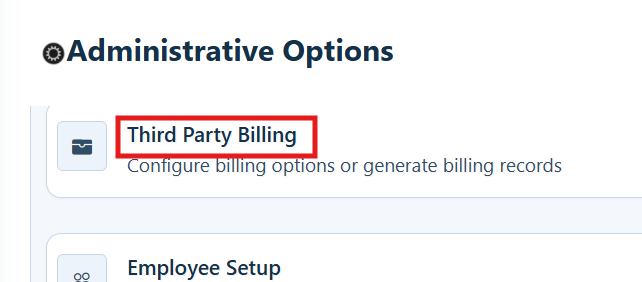
Step 3. Select Third Party Billing.
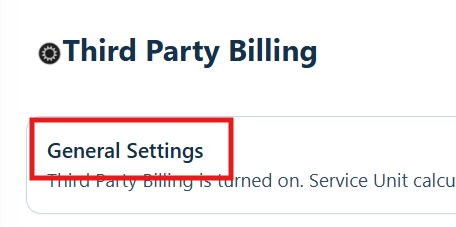
Step 4. Select General Settings.
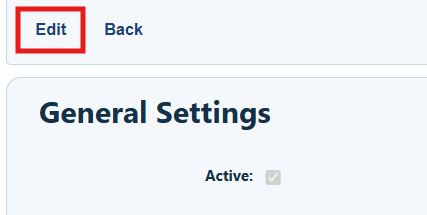
Step 5. Select Edit.
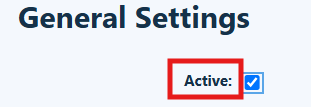
Step 6. Check Active.
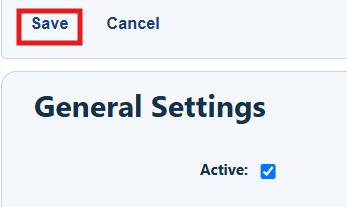
Step 7. Select Save.
 

TIP

When Third Party Billing is set to Active, CAREWare adds the fields needed for billing claims.

Fields Added by Third Party Billing

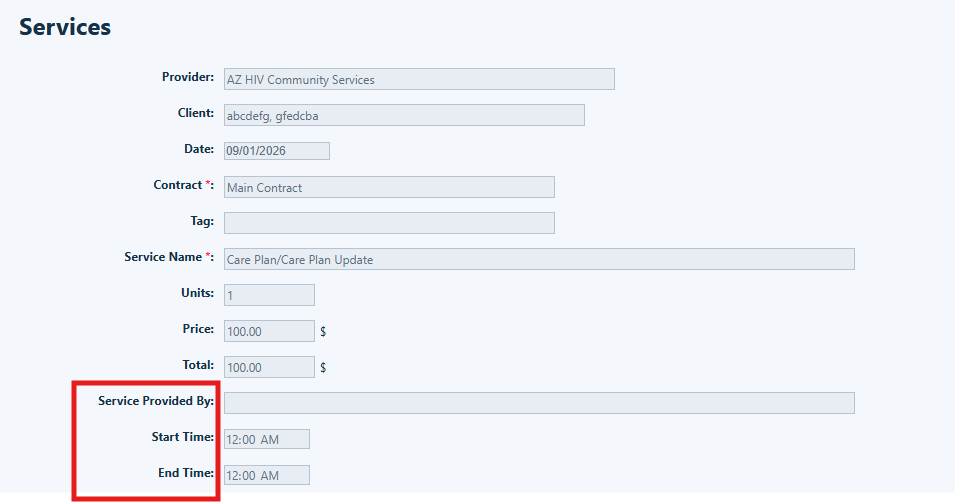
Service Tab

CAREWare adds Provided By, Start Time, and End Time to service records. Start Time and End Time are used to calculate billing units when Calculate Units is checked in General Settings. Staff listed in Provided By come from Employee Setup.
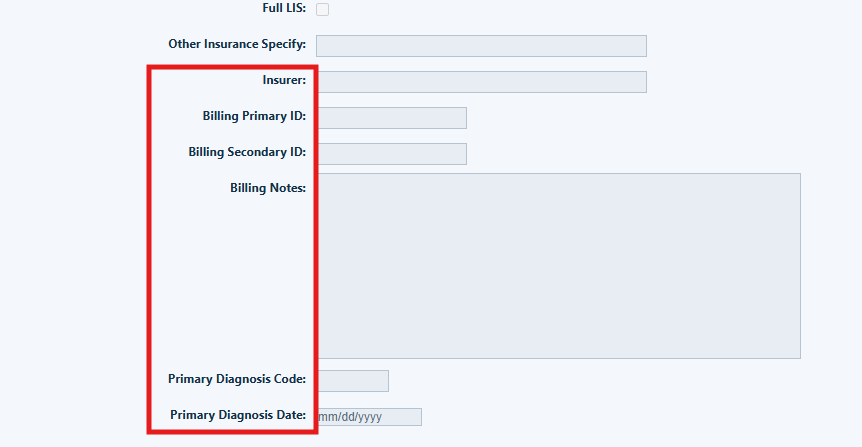
Insurance Assessment Tab

Billing uses the Insurer, Billing Provider ID, Billing Secondary ID, Billing Notes, Primary Diagnosis Code, and Primary Diagnosis Date fields. The insurer is the company billed for the service. The billing IDs identify the provider that performed or billed the service.
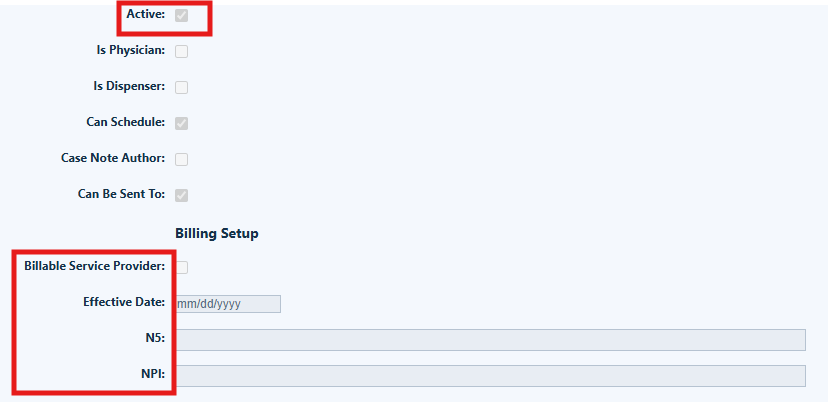
Employee Setup Tab

Employee Setup controls which staff appear in the Provided By list. A staff member must be entered as an employee, marked active, and checked for Third Party Billing. The NPI field stores the provider plan network identification number.
Set Up Insurance Providers

Add the insurance companies that your provider bills. You can also turn insurers on or off and enter the billing information used in claim files.

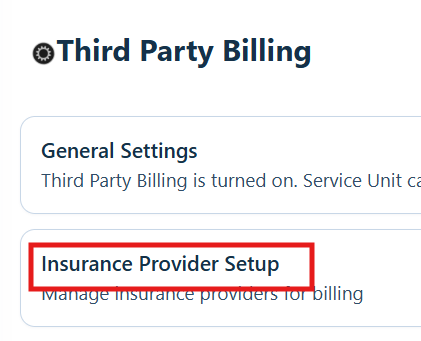
Step 1. Select Insurance Provider Setup.
Step 2. Select Add.

Step 3. Complete the form.
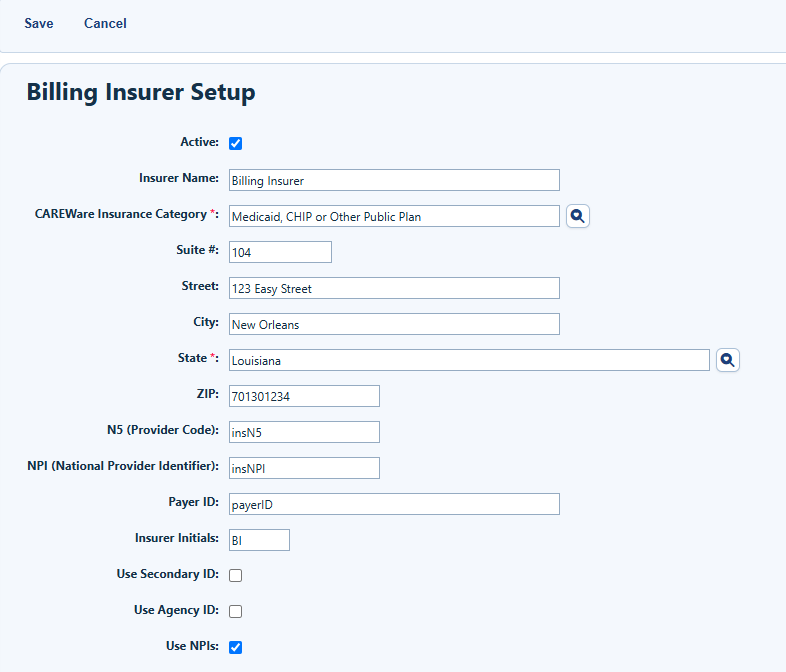
Step 4. Select Save.
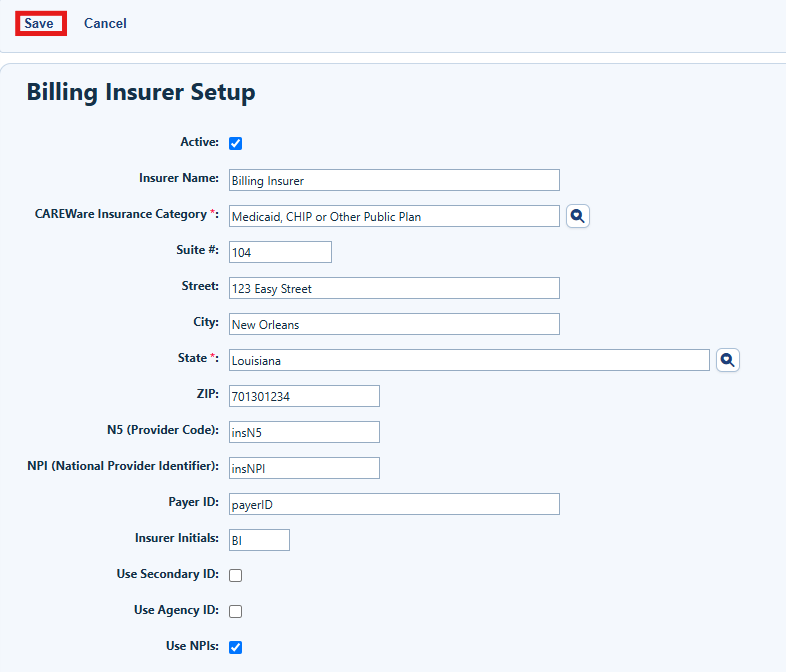
 

Important:  An insurer must be active before it can be added to a client Insurance Assessment. CAREWare builds the Insurance Category list from the options set under Insurance Setup in Central Administration.


Important:  Enter the insurer address and billing identifiers carefully. Use Billing Secondary ID when a second provider ID is required. Use Primary and Billing Secondary ID Are Identical only when both values are the same. Primary Diagnosis Date is the date the diagnosis was confirmed; if the exact date is not known, January 1 of the year may be used.


Important:  After the insurer is active, add it to the client record through an Insurance Assessment. A client must have the insurer on an assessment before a billable service can be added to a claim.


Set Up Billable Services


Important: Choose which subservices can be billed. You can connect each billable subservice to a CPT code, diagnosis code, modifier, and maximum number of units.


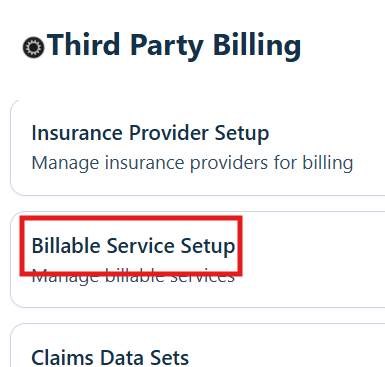
Step 1. Select Billable Service Setup.
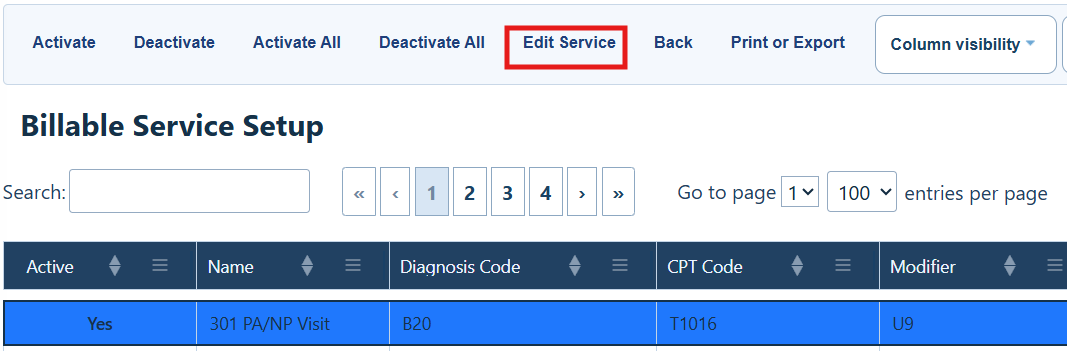
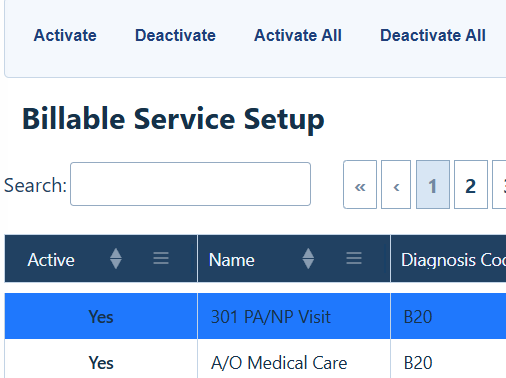
Step 2. Select a subservice to highlight it.
 

NOTE
This list comes from Subservice Manager under Service/Contract Setup.


Step 3. Select Edit Service.


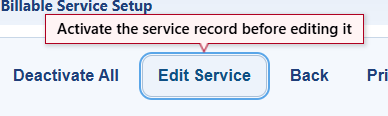
Important:  The service must be active before you can edit it.


Billable Service Setup Menu Options

Button

What it does

Activate

Activate the selected service.

Deactivate

Deactivate the selected service.

Activate All

Activate all services.

Deactivate All

Deactivate all services.

Edit Service

Edit the selected service.

Back

Return to the Third Party Billing menu.

Print or Export

Print or export the list of services.

Column Visibility

Show or hide columns in the list of services.


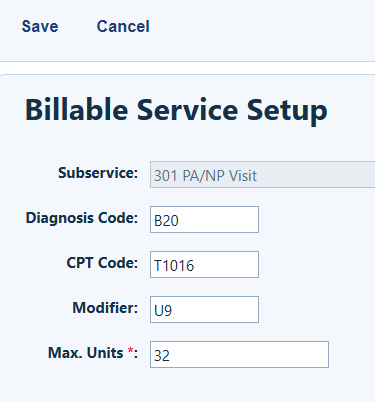
Step 4. Complete the form.


Important  Use the client primary diagnosis ICD-10 code in Diagnosis Code. Enter the billing code in CPT Code. A modifier gives more detail about the service. For example, XS means the service was provided at a separate location. Maximum Units sets the most units allowed in one service record.


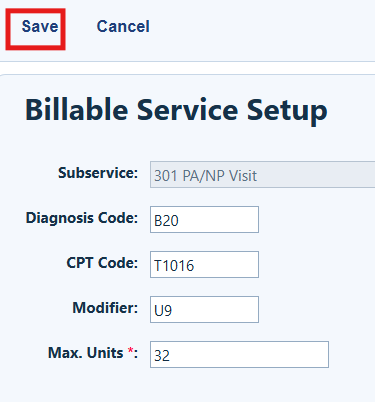
Step 5. Select Save.


Important  When the setup is complete, adding the service to an eligible client creates claim data. CAREWare can use that data to create HCFA 1500 reports and 837p files.


Create a Claims Data Set

Important: A claims data set collects billable services for a selected date range. You can also limit it to selected insurers or case managers.


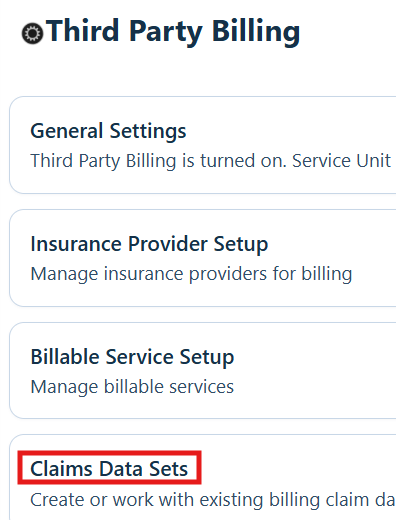
Step 1. Select Claims Data Sets.

Step 2. Select Create New Claim.
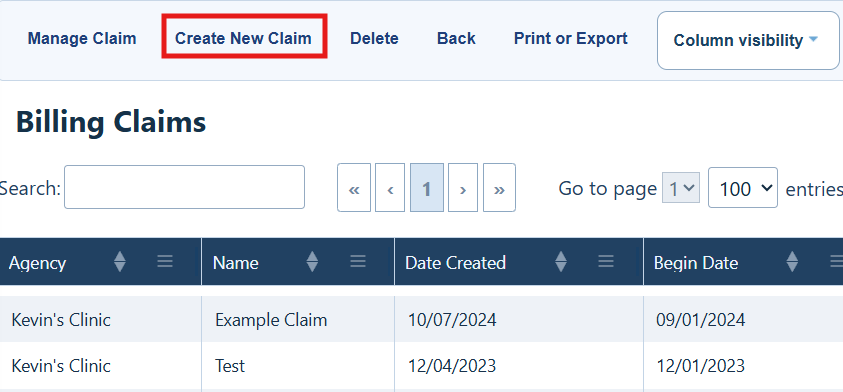
Billing Claims Menu Options

Button

What it does

Manage Claim

Manage an existing claim.

Create New Claim

Create a new claim.

Delete

Delete an existing claim.

Back

Return to the Third Party Billing menu.

Print or Export

Print or export the list of claims.

Column Visibility

Show or hide columns in the list of claims.

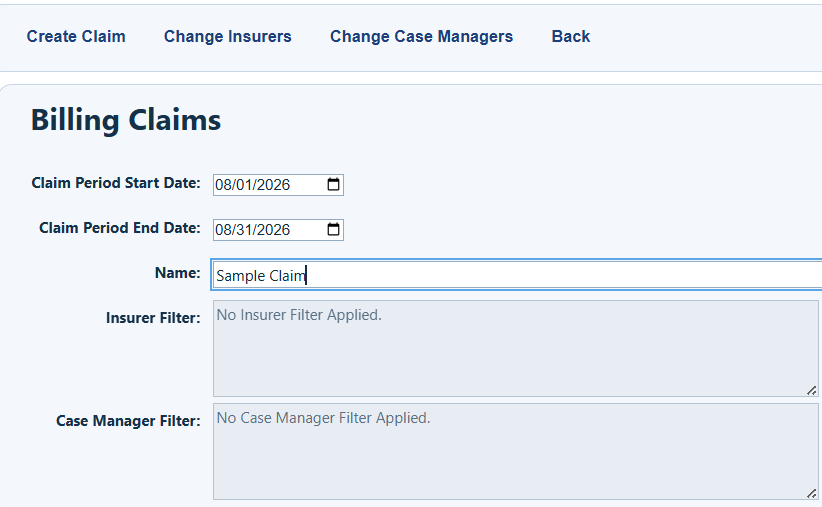
Step 3. Complete the form.

Step 4. Select Create Claim.
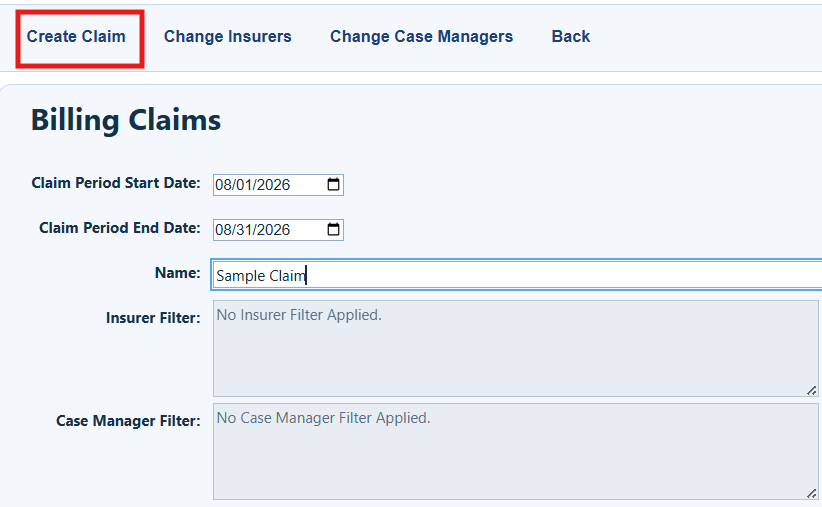
Billing Claims Menu Options

Button

What it does

Create Claim

Create a new claim.

Change Insurers

Limit the claim to one or more insurers. The list includes active insurers from Insurance Provider Setup.

Change Case Managers

Limit the claim to one or more staff. The list includes staff who appear in the Provided By field. These staff members are set up for billing under Employee Setup.

Back

Return to the Billing Claims list.


Important: After CAREWare creates the data set, review the insurance and service information before exporting it. You can then create an HCFA 1500 report or an 837p file.


Review a Claims Data Set

Step 1. Select the claim to highlight it.
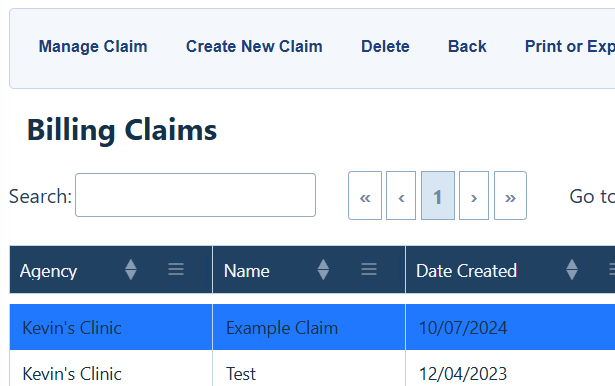
Step 2. Select Manage Claim.
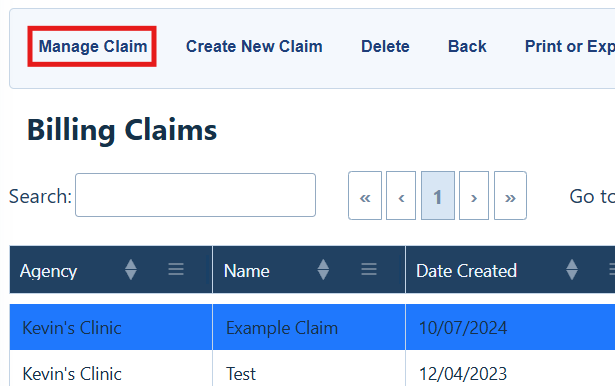
 

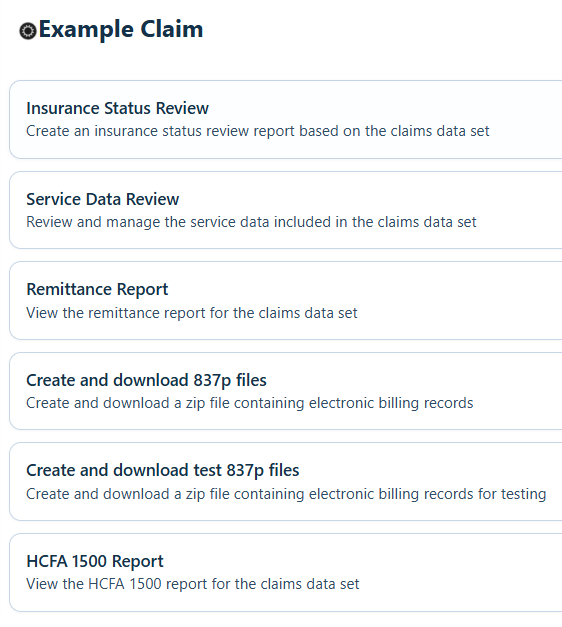
Important:  Use Insurance Status Review, Service Data Review, and Remittance Report to check the claim before downloading it.


Insurance Status Review

This page lists each Insurance Assessment for clients in the claim. Check that all required insurance fields are complete and correct.

Service Data Review

This page lists each service in the claim. Check that all required service fields are complete and correct.

NOTE
Records marked Yes in the Selected column are included in the export. To remove a service from the billing file, select the service and then select Change Selection.


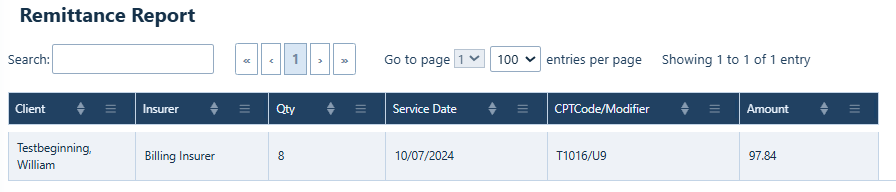
Remittance Report

This report lists the clients in the claim, their insurers, service dates, and the total cost of each billed service.
Export the Claim

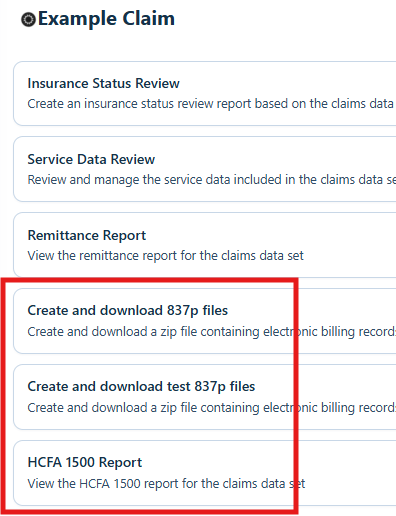
After you review the records, choose the export that matches your billing process.
Button

What it does

Create and Download 837p Files

Creates the 837p file used for billing submission.

Create and Download Test 837p Files

Creates a test 837p file so you can test the process without submitting a claim.

HCFA 1500 Report

Creates the HCFA 1500 report used for billing submission.

CMS.gov

Provides more information about the 837p file and HCFA 1500 report.

How to Confirm It Worked

•  Third Party Billing shows as active under General Settings.

•  The insurer appears in the client Insurance Assessment.

•  The billable service appears in the claims data set.

•  Insurance Status Review and Service Data Review show complete and correct information.

•  CAREWare creates the selected 837p file or HCFA 1500 report.

Troubleshooting and Common Questions

Why does a staff member not appear in Provided By?

Open Employee Setup. Make sure the staff member is entered as an employee, is active, and is checked for Third Party Billing.

Why can I not edit a billable service?

The service may be inactive. Highlight it, select Activate, and then select Edit Service.

Why is a service missing from a claim?

Check that Third Party Billing is active, the insurer is active for the provider and client, the service is set up as billable, and the service date is inside the claim date range.

Related References

Document

Use it for

Employee Setup

Setup employees for billing.

CMS.gov

Use for current information about HCFA 1500 reports and 837p claim files.


Feedback
0 out of 0 found this helpful

Attachments

CAREWare_User_Guide__Third_Party_Billing.pdf
scroll to top icon