


 354
354
CAREWare 6 includes a File Quotas feature to manage server resources needed for imports, reports, and attachments. Database administrators have options to limit, on a user level:
- Maximum upload size in MB
- Maximum daily uploads
- Maximum daily downloads
- Maximum daily report rows
- Maximum daily reports
- Benefits and Considerations for File Quotas
- Upload and Download Limits
- Daily Report Limits
- Managing File Quota Limits in CAREWare
- User-Level Permissions for File Quota Groups
- Assigning Users to More Than One File Quota Group
Benefits and Considerations for File Quotas
The overarching goal of file quotas in CAREWare is to support database and server management with limitations that preserve processing performance and hard drive space of servers used in production and testing environments. The flexibility of the feature ensures that database and network administrators can use settings that reflect the normal use of the various levels of users within their CAREWare system. For example, users who primarily perform imports/exports and run large reports can have different file quotas than staff who primarily enter data manually and upload attachments directly into client records.
Database and network administrators should consider the types of data processes and reports users need to perform before changing the default settings in CAREWare, configuring the two additional file quota groups, assigning permissions for users, and defining limitations for the uploads, downloads, report rows, and daily reports.
|
File Quota Setting |
Definition |
Default Setting |
Examples |
|
Maximum Upload Size in MB |
Maximum size of a single upload by a user |
500 MB per upload |
|
|
Maximum Daily Uploads |
Maximum number of file uploads that an individual user can perform in a single day |
100 uploads per day |
|
|
Maximum Daily Downloads |
Maximum number of file downloads that an individual user can perform in a single day |
100 downloads per day |
|
|
Maximum Daily Report Rows |
Maximum number of report rows that an individual user can generate in a single day (calculated on a cumulative basis) |
100,000 rows (cumulative) per day |
|
|
Maximum Daily Reports |
Maximum number of reports that an individual user can create in a single day (calculated on a cumulative basis) |
5 reports (cumulative) per day |
|
For most users, the default setting for Maximum Upload Size in MB may seem generous, given that the average user may only upload attachments in client records and download the occasional custom report. Yet, database and network administrators should also consider users who work with large import and export files, including CSV files and custom reports.
Example
A user is assigned to a File Quota Group with the Maximum Upload Size set to 500 MB, the Maximum Daily Uploads set to three, and the Maximum Daily Downloads set to 10. The user needs to process the following imports and exports in a single day.
- Lab import containing records for 2,300 clients (file size is 13 MB)
- CSV file import from a non-centralized provider containing demographic, annual review, case notes, insurance assessment, poverty level assessments, labs, screenings, screening labs, housing arrangement records, eligibility records, immunizations, and medications for a 12-month period (file size is 44 MB)
- Export all data elements for all clients served in the past five years (file size is 74 MB)
- CSV file import from a Pharmacy Benefits Manager that contains drug payments for 15,764 clients over a 12-month period (file size is 63 MB)
- CSV file import from the state epidemiology department that includes CD4 and viral load data for 23,786 clients (file size 14 MB)
Although the import file sizes are well within the 500 MB limit for maximum upload size, the user would not be able to complete the four imports in a single day due to the setting for Maximum Daily Uploads (three per day). The user would need to wait until the cumulative count resets the following day.
Daily Report Limits
Daily report limits are set on a cumulative basis. For example, if the Maximum Daily Reports Rows value is set to 100,000, an individual user can run a series of reports up to 100,000 rows. A row is defined as a single line in the report, which may include several columns for the client data.
Example
A user is assigned to a File Quote Group with the Maximum Daily Report Rows set at 100,000 and the Maximum Daily Reports set at five. The user needs to run the following reports in a single day.
- Demographics report with all active clients, including name, DOB, poverty level, and race/ethnicity. The report includes 5,423 rows (one row per active client).
- Service report showing all services provided for the past 12 months with the client name, date of service, subservice, and service category. The report output has 96,240 rows.
- Lab report showing all viral load and CD4 count labs for active clients in the past 12 months. The report output is 10,724 rows.
Total rows: 112,387 (5,423 + 96,240 + 10,724)
Total number of reports: 3
Although the user is within the limit for Maximum Daily Reports (set at 5), the user cannot run the third report because the cumulative row count over the three reports exceeds the Maximum Daily Report Rows limit. The user would need to wait until the cumulative count resets the following day to run the third report.
The example demonstrates the importance of database and network administrators considering individual user needs prior to setting file quote limits and assigning users to fil quota groups.
Managing File Quota Limits in CAREWare
File quotas are managed in Central Administration.
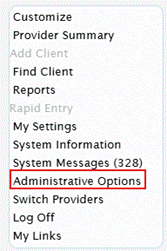
1. Click Administrative Options.
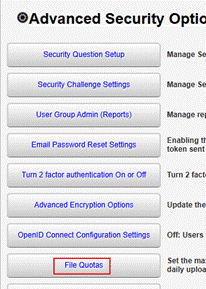
2. Click Advanced Security Options.

3. Click File Quotas.
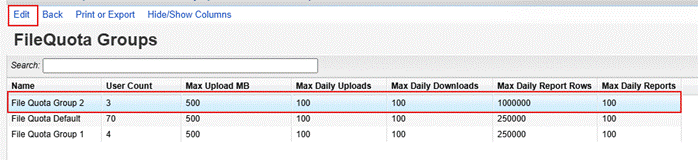
4. Select the File Quota Group and click Edit.
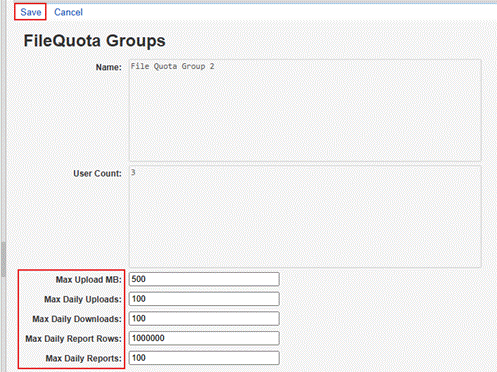
5. Edit the settings and click Save.
User-Level Permissions for File Quota Groups
CAREWare includes three permissions for file quotas.

Manage File Quotas: Granted to users who need to modify the settings for File Quota groups.
File Quota Group 1 and File Quota Group 2: All users are assigned to the File Quota Default Group. The File Quota Group 1 and File Quota Group 2 permissions can be granted to users who require different file quotas, such as staff who import files and may need a higher Max Daily Uploads limit.
Assigning Users to More Than One File Quota Group
User may be assigned to more than one file quota group. In these cases, the group with the highest settings takes precedence over other fila quota groups assigned to that user. For example, if a user is assigned to the File Quota Default group with a maximum daily upload limit of 100 and also assigned to File Quota Group 1 with a maximum daily upload limit of 250, the user can upload a maximum of 250 files per day.


