


|
|
|
|
|
|
|
|
|
|
|
|
|
|
|
Quick path
|
|
Before you begin
• Confirm the contract has been created and its date span is correct.
• Plan a unique contract item name and determine which subservices it will contain.
|
|
Create a contract item
Step 1. Click Administrative Options.
Step 2. Click Service/Contract Setup.
Step 3. Click Contract Management.
Step 4. Select the contract.
Step 5. Click Manage.
Step 6. Click Contract Items.
Step 7. Click Add.
Step 8. Enter the Contract Item name.
Step 9. Optional Contract Item details.
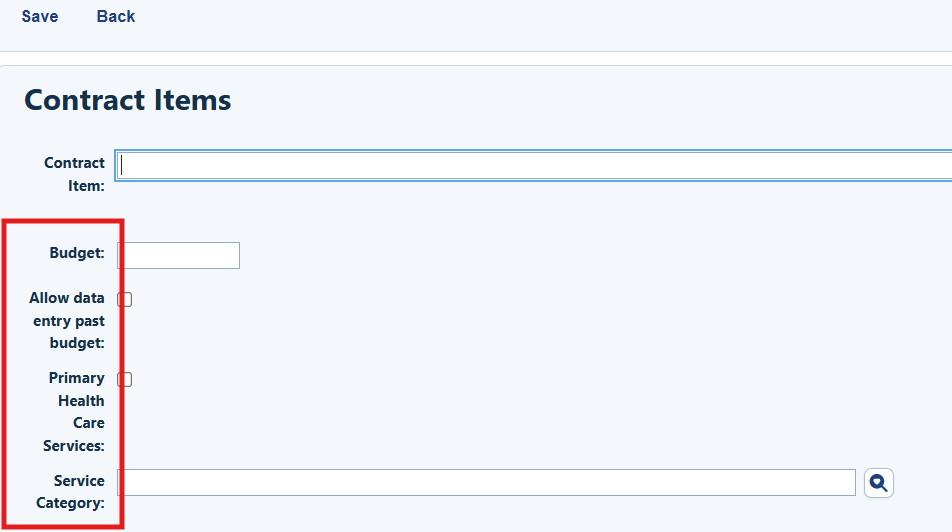
Additional contract item options
• Budget — Sets a dollar limit for the item’s services across the contract date span. This is most useful for contracts with expiration dates, such as annual awards.
• Allow data entry past budget — Allows users to continue entering services after the budget limit is reached. Without this option, users receive a budget-exceeded message.
• Primary Health Care Services — Identifies the item’s active services as primary health care services for reporting.
• Service Category — Limits subservices added to the contract item to one selected service category.
Step 9. Click Save.
How to confirm it worked
1. The contract item appears under Contract Items for the selected contract.
2. Activated subservices show as Active and are available during the contract date span.
3. Default quantity and price populate when the service is added to a client.
4. Any dependency, budget, primary-care, or service-category rules behave as configured.
Troubleshooting and common questions
Why is a subservice unavailable?
Verify that it is not already active in another contract item within the same contract and that it matches the selected service category.
Why can’t a service be entered for a client?
Confirm that the service is active, the service date is within the contract date span, and any dependency or budget requirements are satisfied.
Related References
|
|
|
|
|
|


