Author: Jennifer Eggerton
Last updated: Jul 28, 2026
 1136
views
1136
views
|
Purpose
|
Create a new contract by copying an existing contract’s setup, then update the provider, name, dates, or other details.
|
|
Who should do this
|
CAREWare administrators and staff responsible for contract setup and maintenance.
|
|
Use this guide when you need to
|
Extend a contract into a new fiscal period or create a similar contract without rebuilding it from the beginning.
|
|
Main warning
|
The new contract name must be unique. Review the copied contract before it is used for service entry or reporting.
|
|
Quick path Administrative Options > Service/Contract Setup > Contract Manager > select contract > Manage > Copy Contract.
|
Before you begin
• Identify the contract you want to copy.
• Confirm the destination provider, unique contract name, and new contract start and end dates.
Open Copy Contract
Step 1. Click Administrative Options.
Step 2. Click Service/Contract Setup.
Step 3. Click Contract Manager.
Step 4. Select the contract to highlight it.
Step 5. Click Manage.
Step 6. Click Copy Contract.
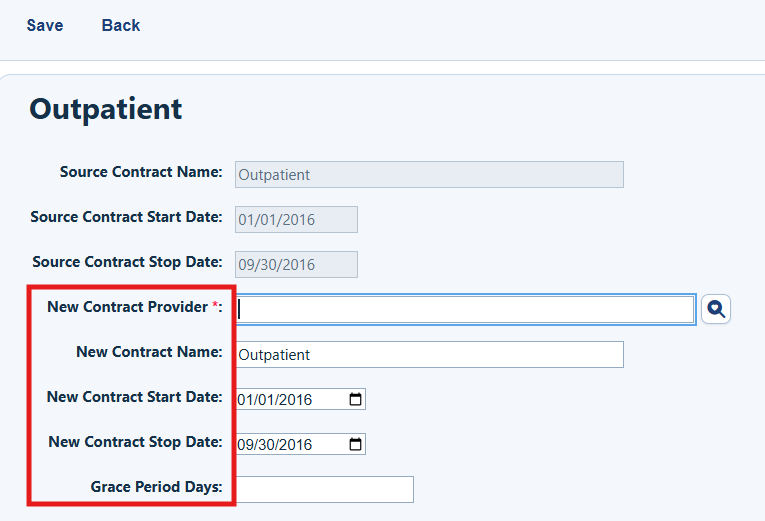
Step 7. Enter details for the new contract.
|
Field
|
What to enter
|
|
New Contract Provider
|
Select the provider that will receive the copied contract. This is often the original provider, but a contract can be copied to another provider.
|
|
New Contract Name
|
Enter a unique name that is easy to distinguish during data entry and reporting.
|
|
New Contract Start Date
|
Enter the start date for the new contract.
|
|
New Contract Stop Date
|
Enter the end date for the new contract.
|
|
Grace Period Days
|
Optional. Enter the number of days after the contract end date during which users may still add services dated within the contract period.
|
Step 8. Click Save.
How to confirm it worked
1. Return to Contract Manager and locate the new contract.
2. Confirm the provider, contract name, start date, and end date are correct.
3. Open the copied contract and review its funding sources, services, and budgetary items before use.
Related References
|
Document
|
Use it for
|
|
Contract Manager
|
Additional information about creating, editing, and maintaining contracts.
|


