


|
|
|
|
|
|
|
|
|
|
|
|
|
|
Before you begin
Clinical Setup is the master list for clinical items in CAREWare. An item must be active before staff can select it in a client record.
|
|
Open Clinical Setup
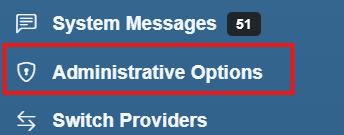
Step 1. Select Administrative Options.
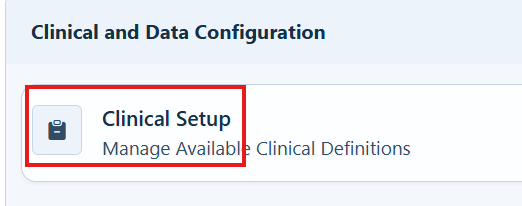
Step 2. Select Clinical Setup.
|
|
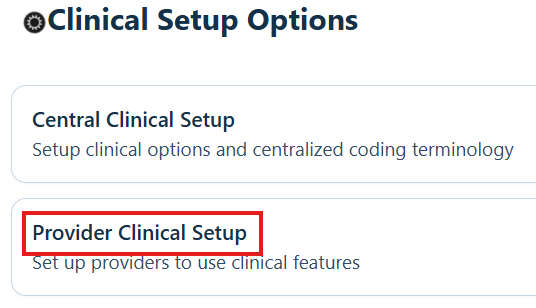
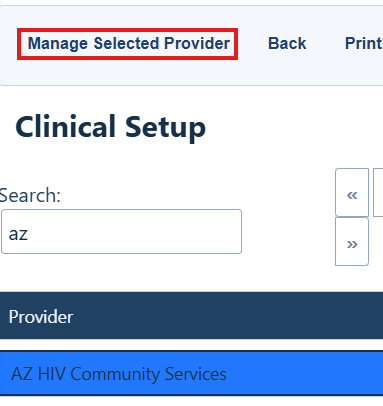
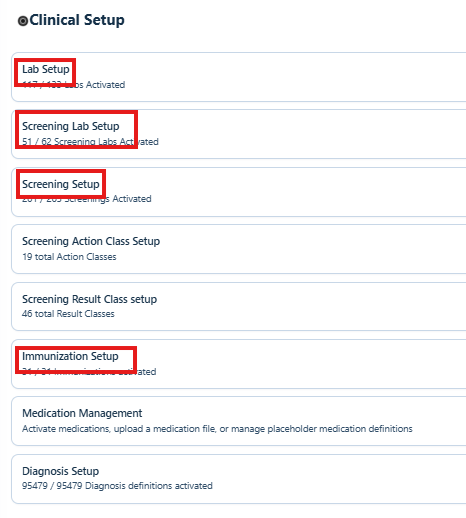
The Clinical Setup page includes setup areas for labs, screening labs, screenings, screening actions and results, immunizations, medications, and diagnoses.
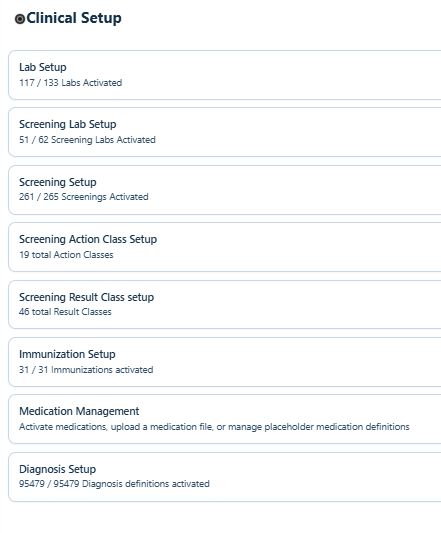
Review the built-in clinical lists
CAREWare includes common labs, screening labs, screenings, and immunizations. These lists are enough for many organizations. Add an item only when the built-in list does not include what you need.
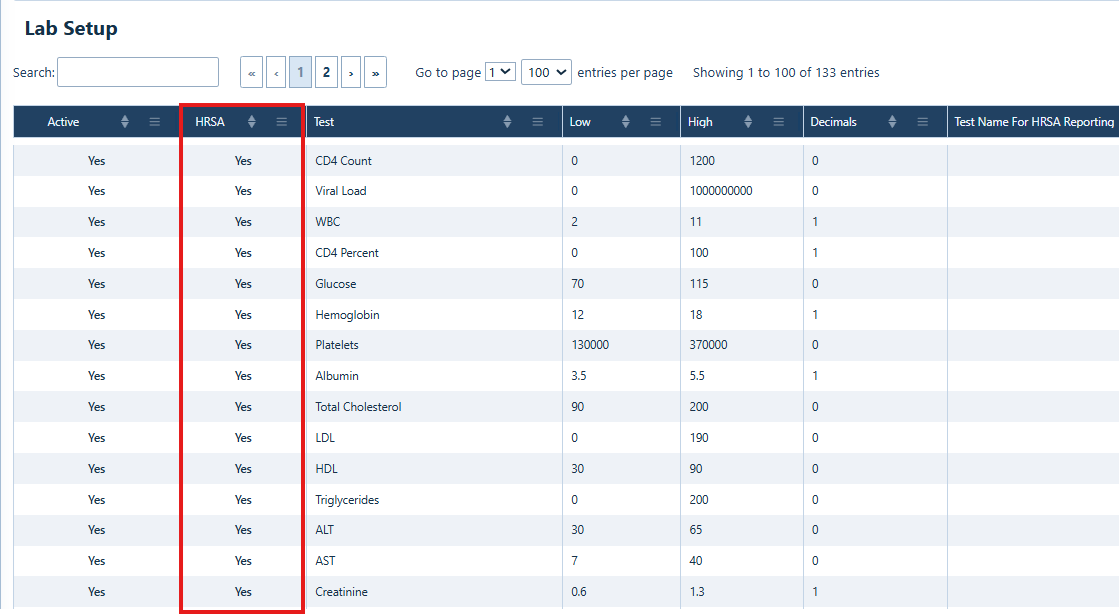
HRSA-Defined Labs
The Lab Setup list includes common HRSA-defined labs.
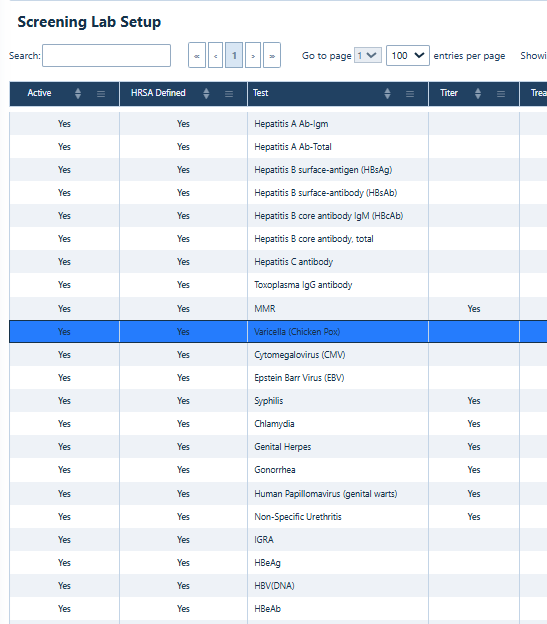
HRSA-Defined Screening Labs
The Screening Lab Setup list includes common HRSA-defined screening labs.
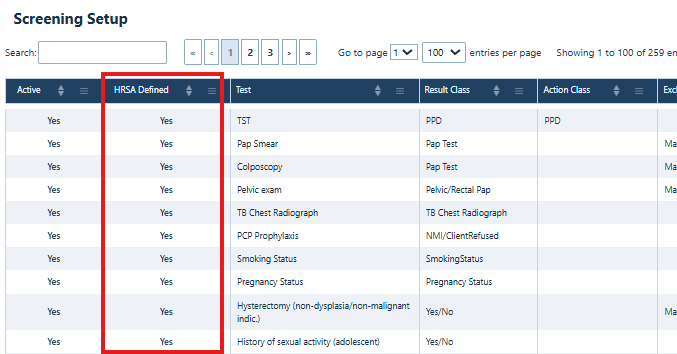
HRSA-Defined Screenings
The Screening Setup list includes common HRSA-defined screenings.
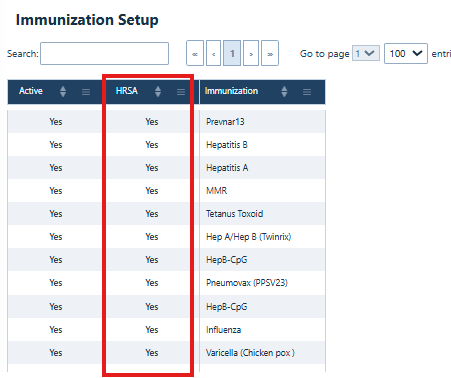
HRSA-Defined Immunizations
The Immunization Setup list includes common HRSA-defined immunizations.
Activate or deactivate an item
The steps are the same for labs, screening labs, screenings, and immunizations. This example uses Lab Setup.
Step 1. Open the setup area you want to manage. For example, select Lab Setup.
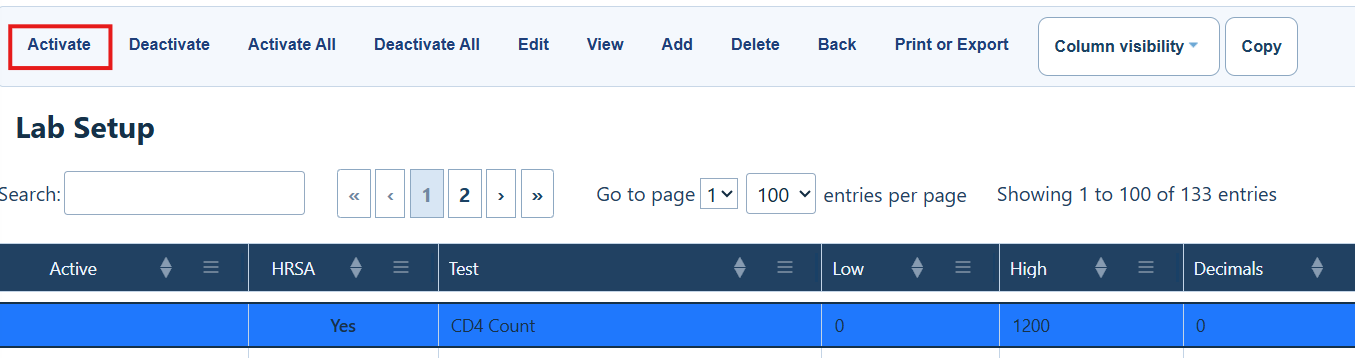
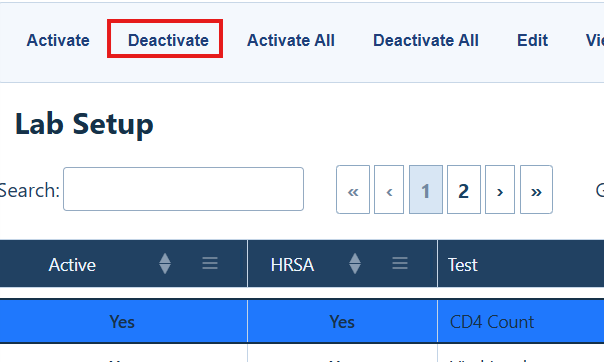
Step 2. Select the item, and then select Activate.
Menu options
|
|
|
|
|
|
|
|
|
|
|
|
|
|
|
|
|
|
|
|
|
|
|
|
|
|
|
|
|
|
|
|
|
|
|

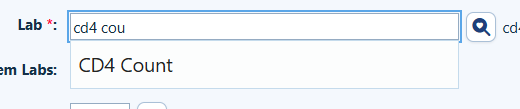
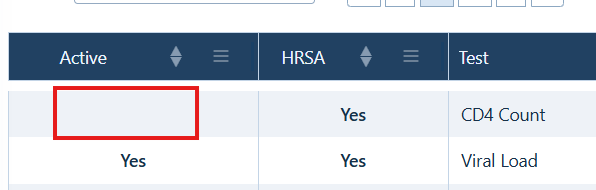
Step 3. To remove an item from the list used in client records, select it and select Deactivate.
|
|
Add a new clinical item
Use these steps when a needed lab, screening lab, screening, or immunization is not already in CAREWare.
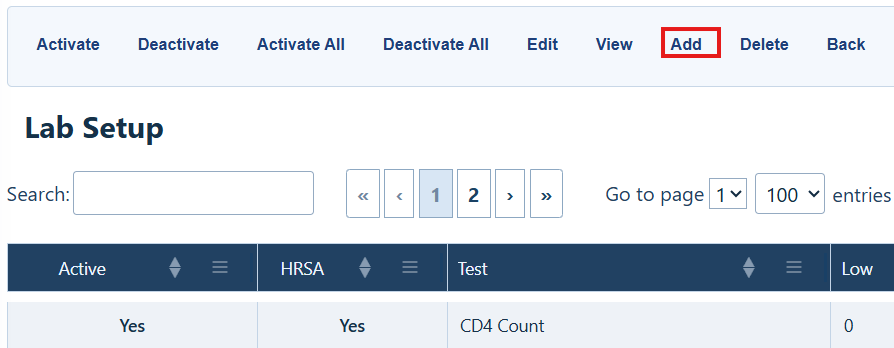
Step 1. Open the correct setup area, and select Add.
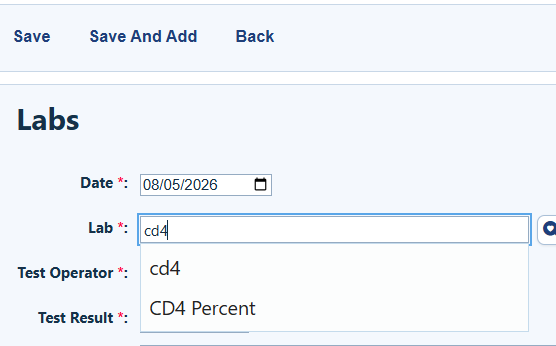
Step 2. Enter the information for the new item.
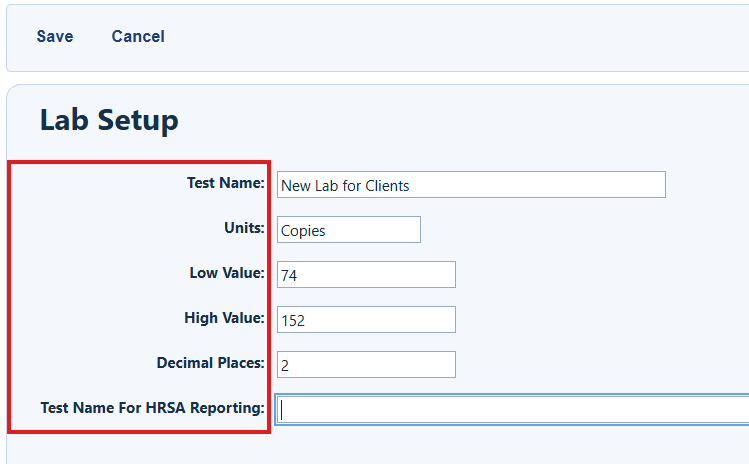
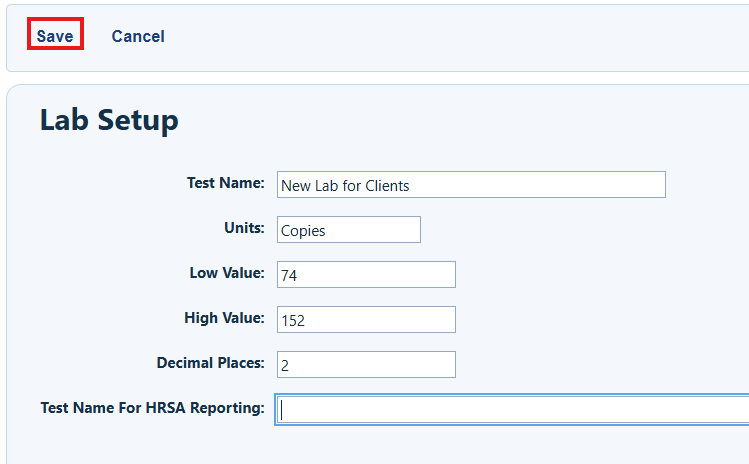
Step 3. Select Save.
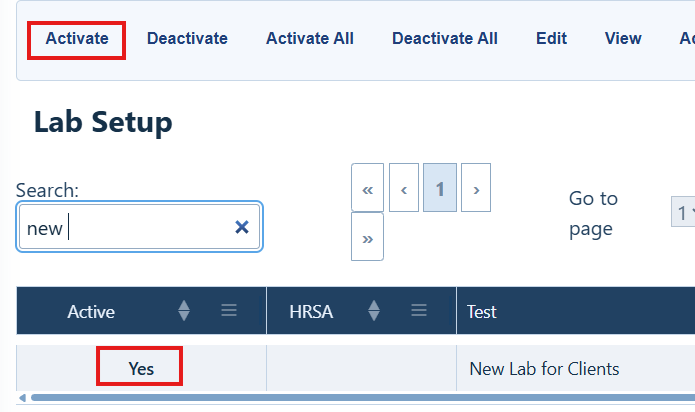
Step 4. Make sure the Active column shows Yes. If it does not, select the item and select Activate.
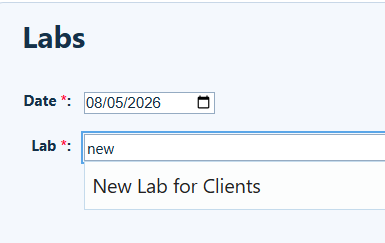
The new item now appears in the matching area of the client record.
Update medications
HRSA provides an XML file with medications that CAREWare can use. Upload the XML file before you activate medications.
|
|
Update diagnoses
Diagnosis codes are not loaded in advance. Download the current HRSA ICD-10 Diagnosis Codes XML file, upload it, and then activate the codes your organization uses.
Step 1. Download the current ICD-10 diagnosis code XML file.
Step 2. In Clinical Setup, select Diagnosis Setup.
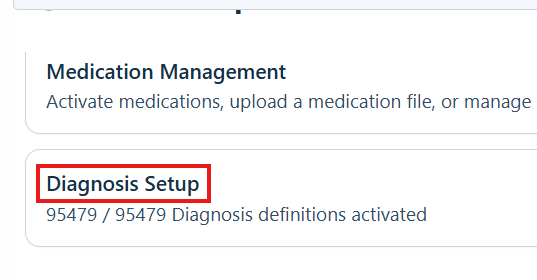
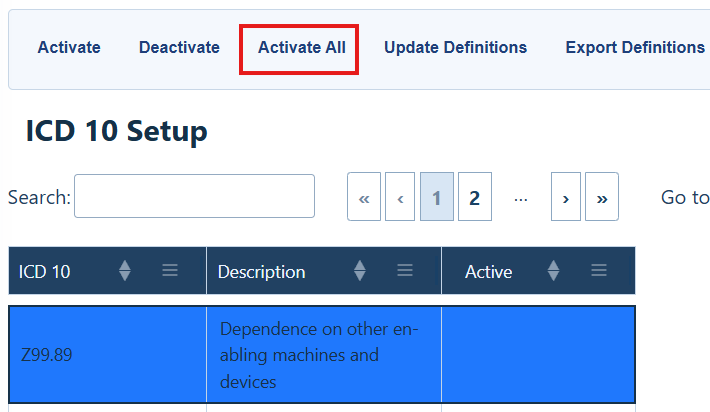
Step 3. Select Update Definitions.
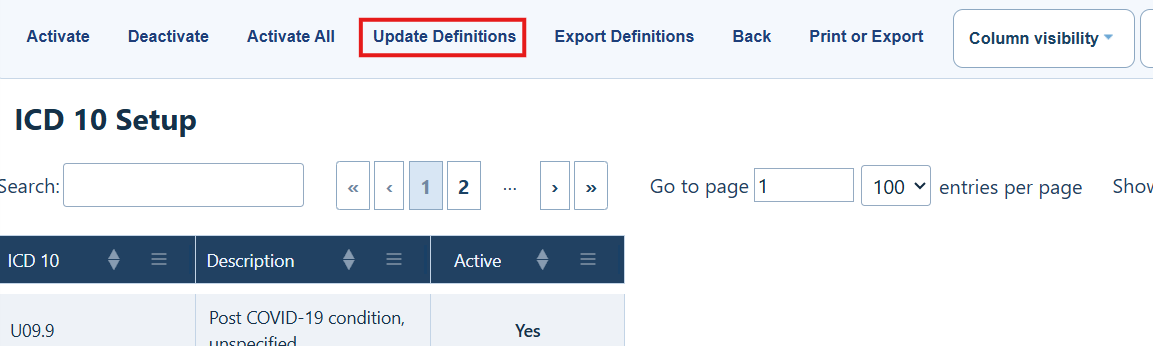
Diagnosis Setup Menu Options
|
|
|
|
|
|
|
|
|
|
|
|
|
|
|
|
|
|
|
|
|
|
|
|
|
|
|
Step 4. Select Choose File. Find the XML file in Windows File Explorer, and select Open.
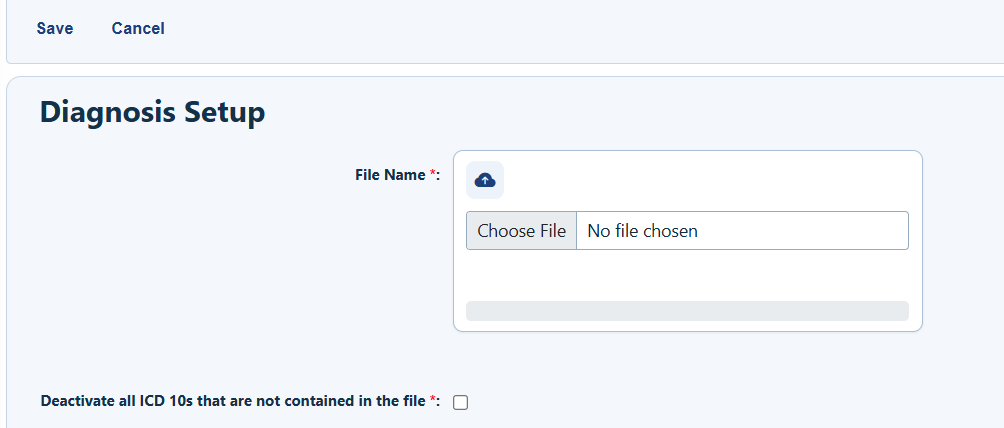
Step 5. Choose which codes to activate. The file has more than 40,000 codes, and new codes start as inactive.
To activate selected diagnoses, select the codes and then select Activate.
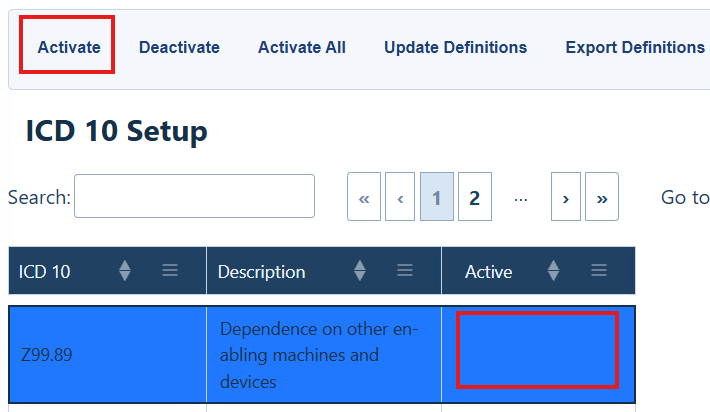
To activate every diagnosis, select Activate All. The menu may be unavailable until the process finishes.
|
|
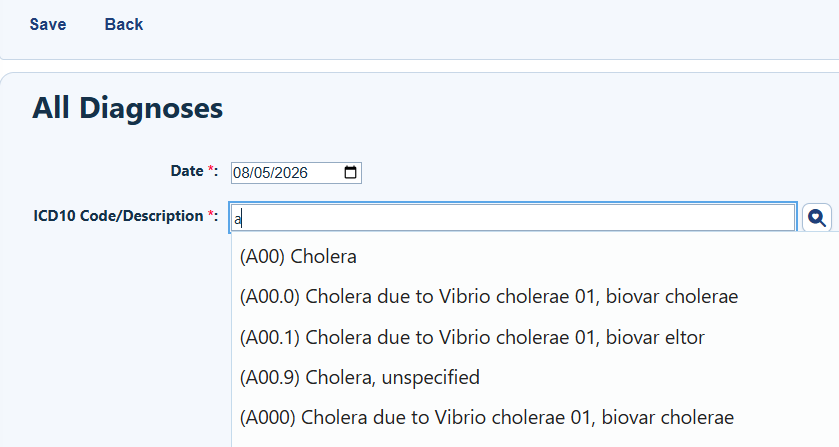
Diagnosis codes that are set Active under Clinical Setup appear in the dropdown for the Diagnoses tab in client records.
How to confirm it worked
- Open the setup list and confirm that the Active column shows Yes for each item you activated.
- Open a test client record and confirm that the item appears in the correct clinical list.
- For diagnoses, confirm that active codes appear on the Diagnoses tab.
Troubleshooting and common questions
Why can’t staff find an item in a client record?
The item may be inactive or missing. Open its Clinical Setup list. Activate the item or add it if needed.
Why is the diagnosis menu unavailable?
CAREWare may still be activating a large group of codes. Wait for the process to finish before you select another option.
Should I activate every diagnosis code?
Usually, no. Activating all codes may slow CAREWare. Activate only the codes your organization uses unless your program has a clear reason to activate all of them.
Related references
|
|
|
|
|
|


