


NASTAD Report Module User Guide
Published June 2026
Please contact the CAREWare Helpdesk with any questions regarding the NASTAD Report Module:
- Phone: 877-CWHELP1 or 877-294-3571
- Email: [email protected]
Table of Contents
- Background & Introduction
- Activating the NASTAD Report Module and Granting Permissions
- How to Access the NASTAD Report Module
- How to Upload the NASTAD Report Module Specifications File
- How to Run the NASTAD Report
- How to Transcribe the Results into the NASTAD Survey Tool
- Survey Question #6
- Survey Question #7
- Survey Question #9
- Survey Question #12
- Survey Question #14
- Survey Question #15
- Survey Question #18
- Survey Question #19
- Survey Question #23
- Client-Level Survey Questions Not Included in the NASTAD Report Module
Background & Introduction
NASTAD is a national organization that supports HIV and hepatitis programs in the U.S. One of its many initiatives is the National Ryan White HIV/AIDS Program (RWHAP) Part B AIDS Drug Assistance Program (ADAP) Monitoring Project. This project conducts an annual survey among all ADAPs that “..documents key trends, challenges, and successes faced by public health programs.”
A portion of the annual survey conducted by NASTAD requests deidentified, aggregate client-level data. ADAPs that utilize CAREWare are able to obtain most of the survey’s client-level data from their CAREWare systems. However, the process of reporting data from CAREWare can be complex. In addition, institutional knowledge on how to run the CAREWare reports and aggregate the results is frequently lost during staff turnover.
To better support ADAPs that use CAREWare in completing the National RWHAP Part B ADAP Monitoring Project survey, jProg has developed the NASTAD Report Module in consultation and collaboration with NASTAD. This module will provide aggregate results for most of the client-level data questions from the survey.
jProg will consult with NASTAD annually to ensure the CAREWare NASTAD Report Module is updated when survey changes occur.
The process of setting up and running the CAREWare NASTAD Report has five steps:
- Activating the NASTAD Report Module and Granting Permissions.
- Accessing the NASTAD Report Module in CAREWare.
- Uploading the most recent NASTAD Report Specifications file.
- Running the NASTAD Report.
- Transcribing the results into the NASTAD National RWHAP Part B ADAP Monitoring Project survey tool.
These steps are covered in detail throughout the remainder of this user guide.
Before you begin using the NASTAD Report Module, please review the following important notes and limitations:
- The NASTAD Report Module only uses built-in ADAP insurance services. Results will be inaccurate for ADAPs that utilize custom ADAP subservices in CAREWare. The standard built-in ADAP insurance services in CAREWare are:
- Medication Copayment, Coinsurance or Deductibles (ADAP)
- High-risk insurance medication co-payment (ADAP)
- High-risk insurance deductibles (ADAP)
- Medicare supplement medication deductible (ADAP)
- Medicare supplement medication co-payment (ADAP)
- Other health insurance medication deductible (ADAP)
- Other health insurance medication co-payment (ADAP)
- Medicare Part D medication co-payment (ADAP)
- Medicare Part D medication co-insurance (ADAP)
- Medicare Part D medication out-of-pocket (ADAP)
- Full Premium Payment
- High-risk insurance premiums -full payment (ADAP)
- Medicare supplement premiums -full payment (ADAP)
- Other health insurance premiums-full payment (ADAP)
- Partial Premium Payment
- High-risk insurance premiums -partial payment (ADAP)
- Medicare supplement premiums -partial payment (ADAP)
- Other health insurance premiums -partial payment (ADAP)
- Premium Payment
- High-risk insurance premiums (ADAP)
- Medicare supplement premiums (ADAP)
- Other health insurance premiums (ADAP)
- Medication Copayment, Coinsurance or Deductibles (ADAP)
- The NASTAD Report Module only uses standard, built-in CAREWare data fields. It does not reference custom fields. Results may be inaccurate for ADAPs that rely on custom fields for any of the survey questions included in the NASTAD Report Module.
Activating the NASTAD Report Module and Granting Permissions
Before you can use the NASTAD Report Module, it needs to be activated, and required permissions need to be granted. This is best accomplished through the Central Administration domain.
- Login to CAREWare and navigate from the Central Administration domain.
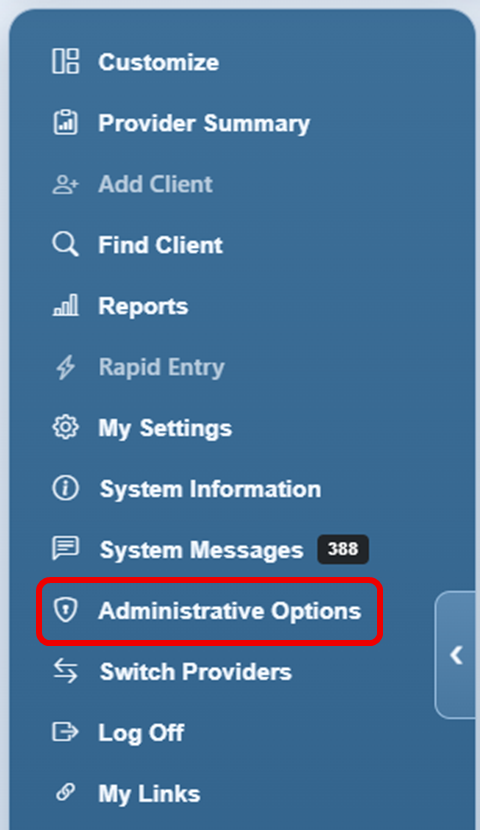
- In the left navigation panel, click Administrative Options.
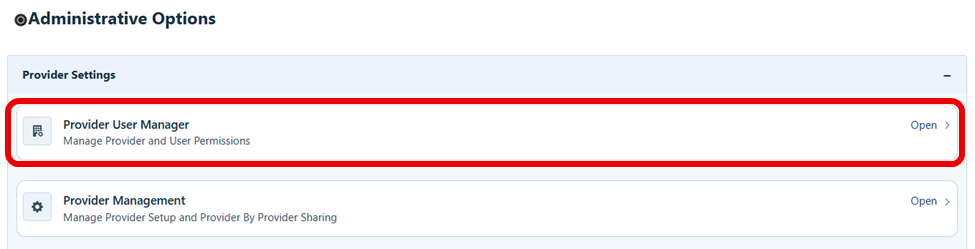
- Click Provider User Manager.
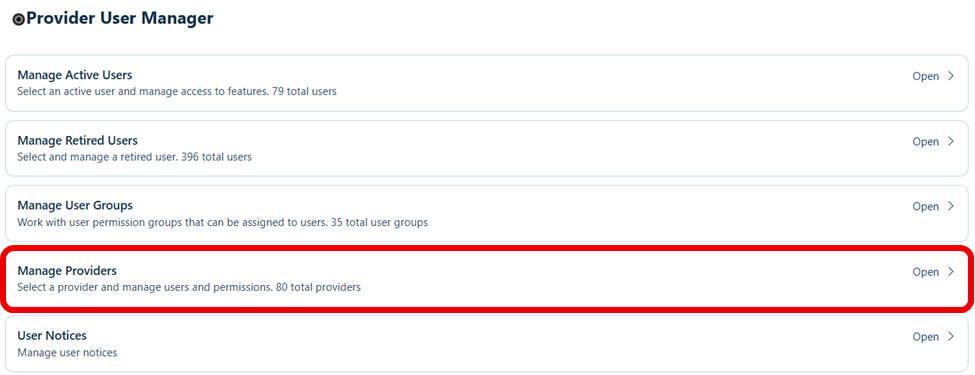
- Click Manage Providers.
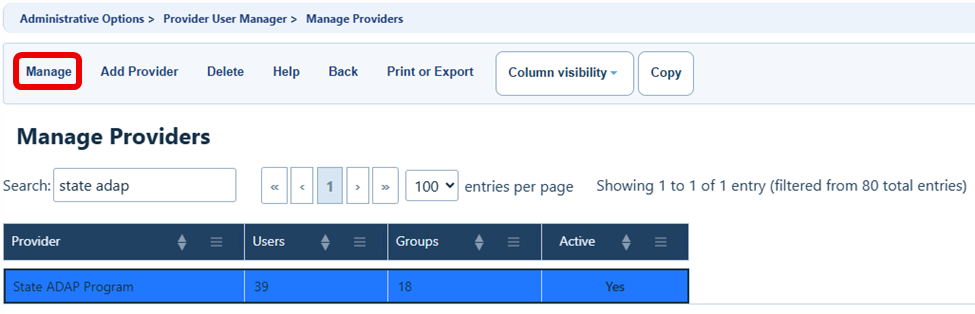
- Find your RWHAP’s ADAP domain in CAREWare, click on it once to highlight it, then click Manage.
- Click Manage Permissions.
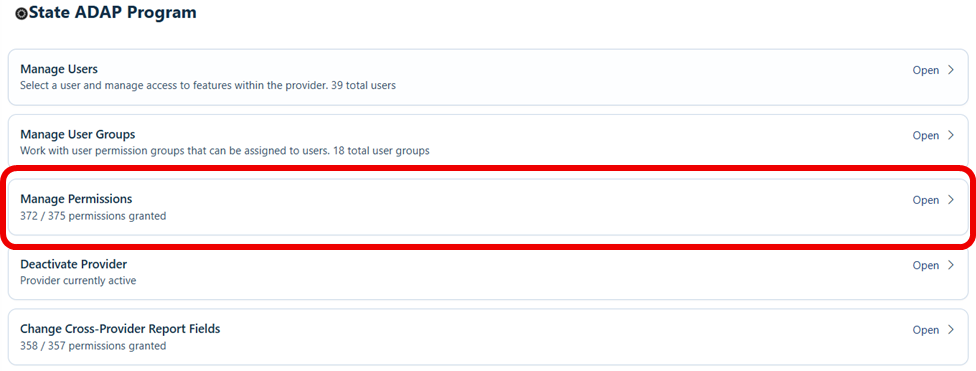
- Type “NASTAD” into the search bar, click on the permission Run NASTAD Report, then click on Grant Individual Permission.
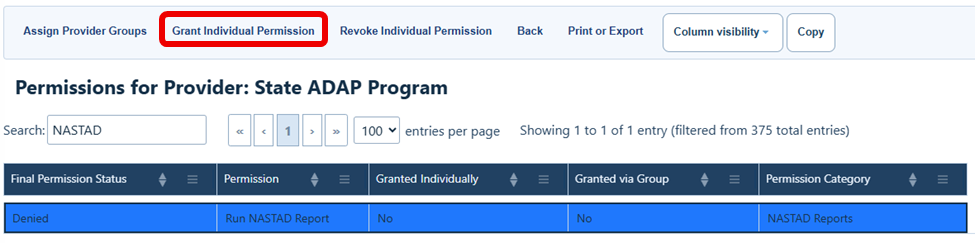
- Click Back.
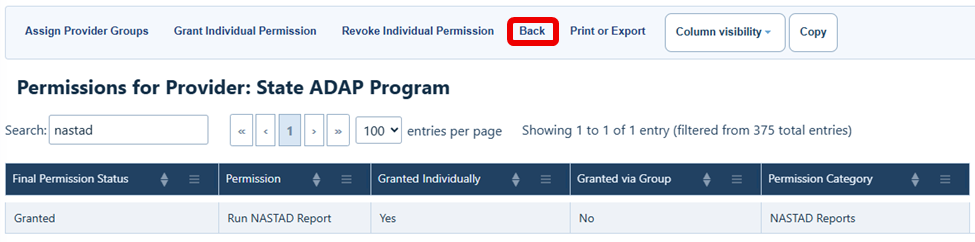
- Click Manage Users.
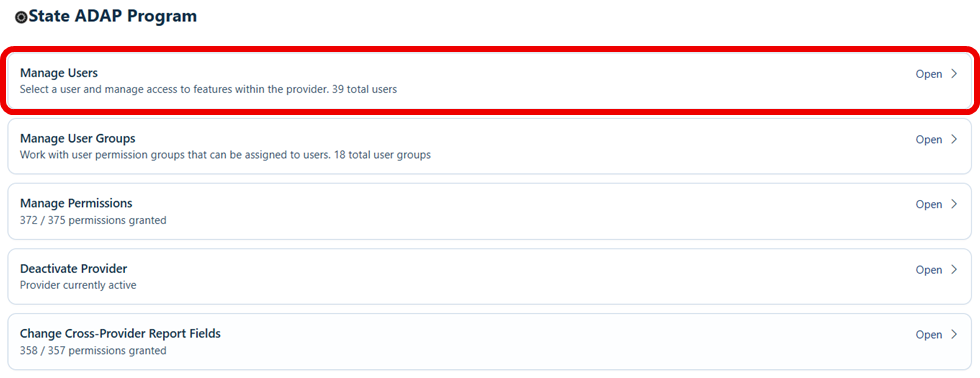
- Find the user(s) that should be able to run the NASTAD Report, click on their name to highlight the row, then click Manage.
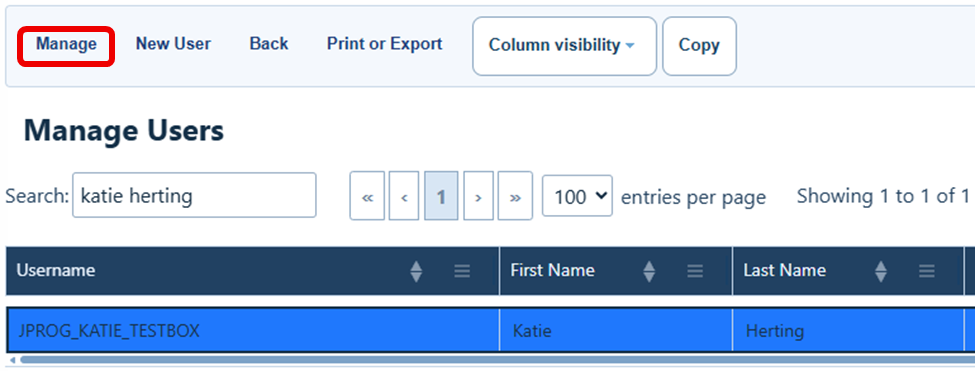
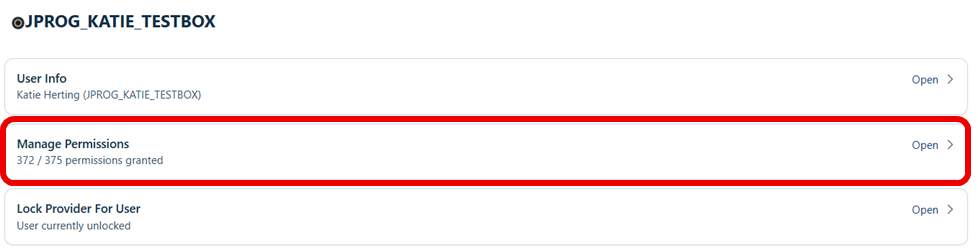
- Click Manage Permissions.
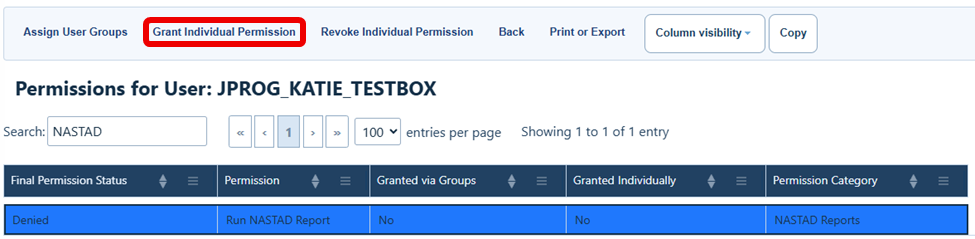
- Type “NASTAD” into the search box, click on the permission Run NASTAD Report, then click Grant Individual Permission.
- Type “Add/Edit Report Definition” into the search box and if the permission is not already granted, click on the permission Add/Edit Report Definition, then click Grant Individual Permission.
- Type “Run Custom Report” into the search box and if the permission is not already granted, click on the permission Run Custom Report, then click Grant Individual Permission.
- Repeat steps 10-14 for all users who should be able to run the NASTAD Report.
How to Access the NASTAD Report Module
- Login to CAREWare and navigate to the ADAP domain.
- In the left navigation panel, click Reports.
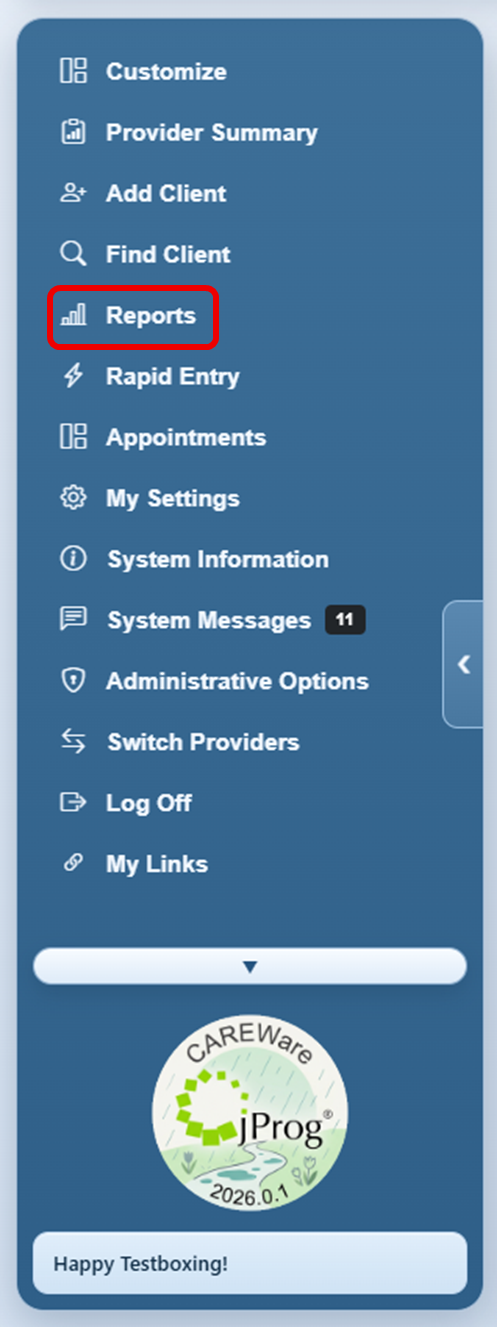
- Click NASTAD Report.
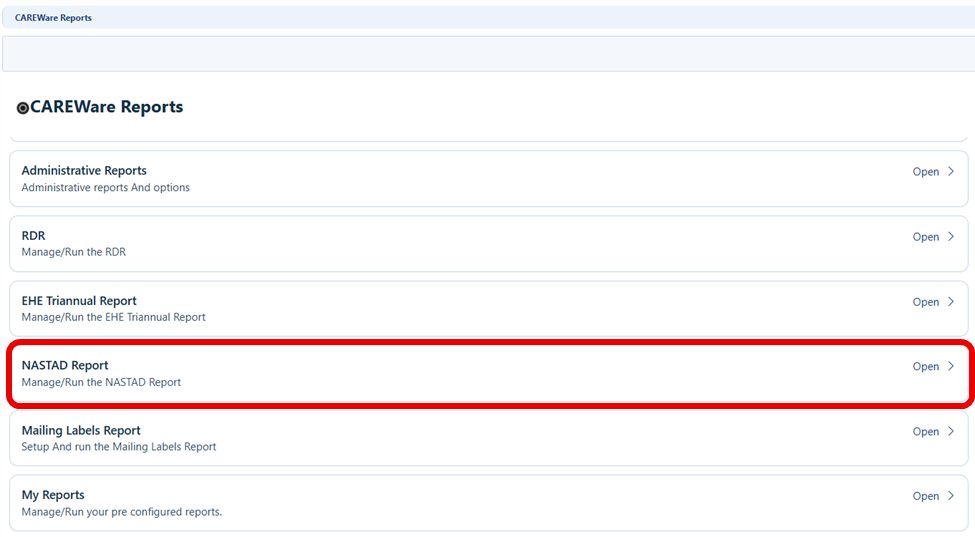
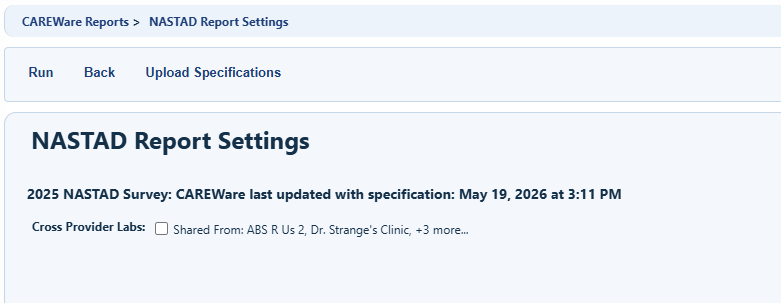
- You will land on the NASTAD Report Settings page.
How to Upload the NASTAD Report Module Specifications File
The NASTAD Report Module specifications file contains all the information CAREWare needs to know to calculate the NASTAD National RWHAP Part B ADAP Monitoring Project survey results. The specifications file will be updated annually to reflect any changes to the survey. The following instructions describe how to download the specifications file from the jProg Knowledge Base website and upload it into CAREWare.
- Go to https://jprog.happyfox.com/kb/article/351-nastad-report-module/.
- Scroll down to the NASTAD Report Specifications File section, download the specifications .zip file, and save it to your computer.
- Login to CAREWare and navigate to the NASTAD Report.
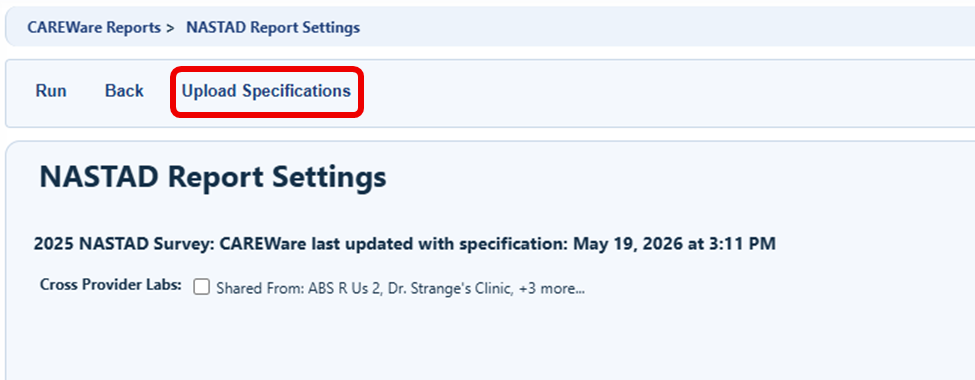
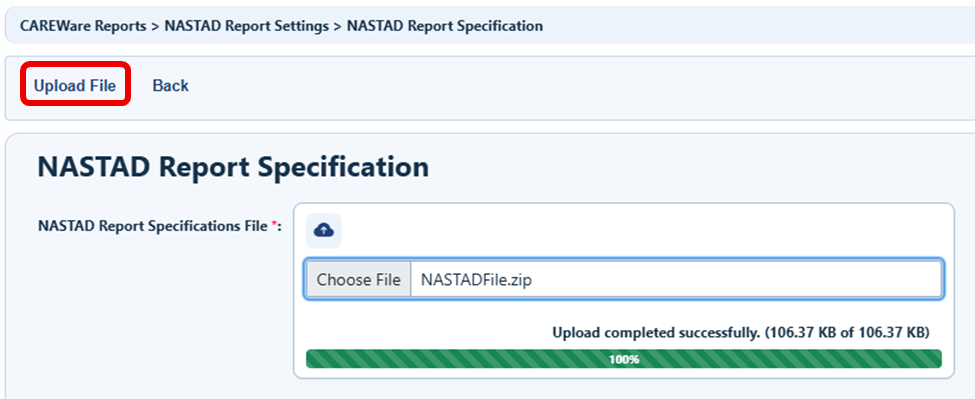
- Click Upload Specifications.
- Click Choose File.
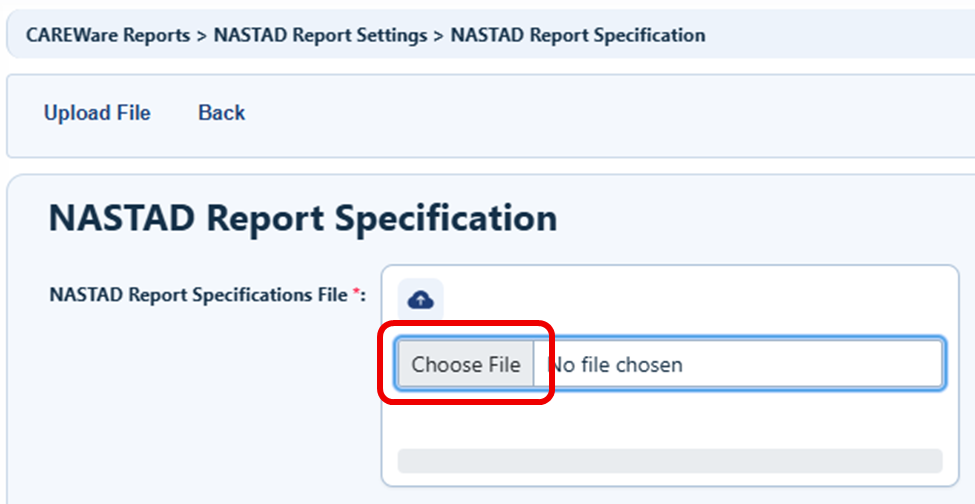
- Find the .zip file you saved in Step 2 and select it for upload.
- Once the file has been successfully loaded, click Upload File.
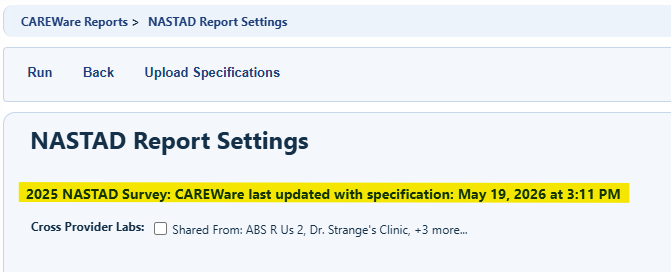
- You’ll see the date and file name just uploaded reflected in the highlighted area below.
How to Run the NASTAD Report
Before running the NASTAD Report in CAREWare, you’ll need to decide if viral load labs from other provider domains should be shared to the ADAP domain.
If Cross Provider Labs is checked, then the NASTAD Report will search all of the available domains in CAREWare for viral load results. RWHAPs should check Cross Provider Labs if lab results should be used in the NASTAD Report that are imported into a non-ADAP domain (from eHARS, an EHR, etc.), or that are manually entered into a non-ADAP domain. For more information on Cross Provider sharing, check out the Data Sharing article.
If Cross Provider Labs is not checked, then the NASTAD Report will only search the ADAP domain for viral load results.
- Login to CAREWare and navigate to the NASTAD Report.
- Click Run.
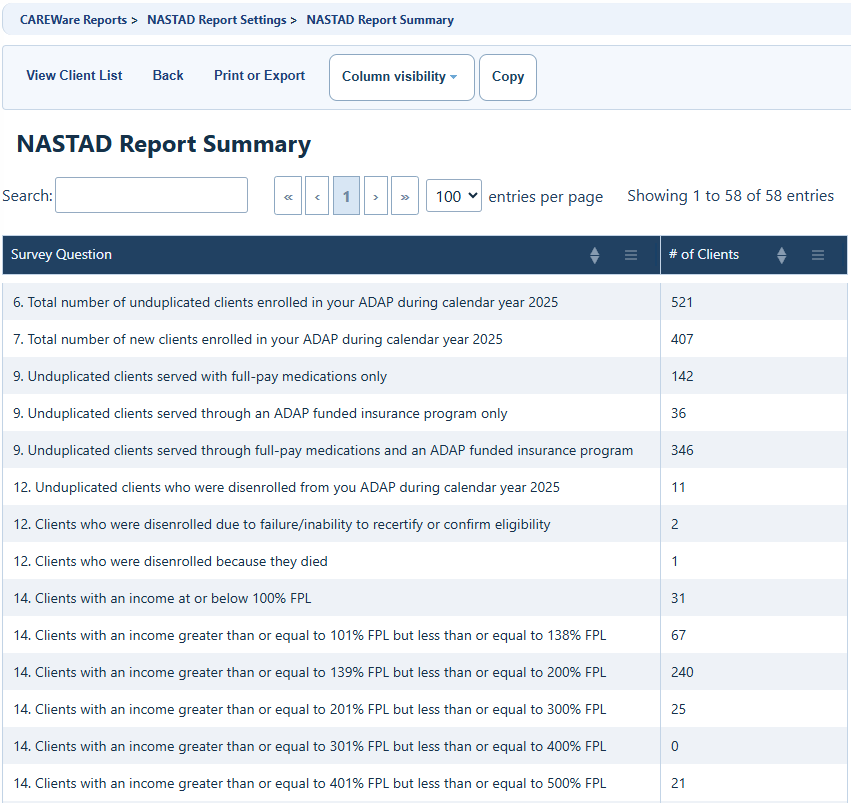
- It may take a few moments for the report to be generated. Once it’s ready, CAREWare will display the results on the NASTAD Report Summary page.
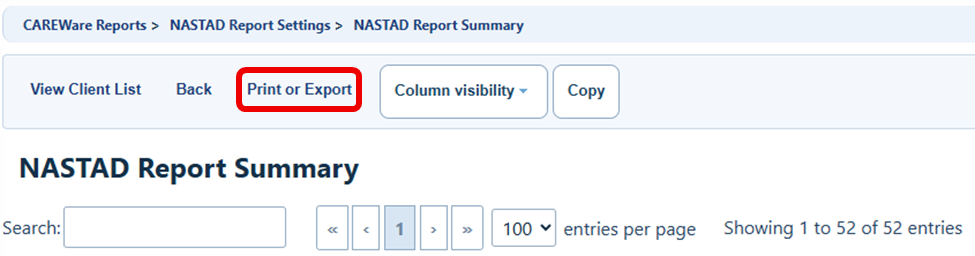
- To print or export the results, click Print or Export and select how you would like the results saved to your device (e.g., PDF, csv, etc.).
How to Transcribe the Results into the NASTAD Survey Tool
Each NASTAD survey question that can be calculated in CAREWare is identified below. Enter the CAREWare NASTAD Report result into the NASTAD survey tool question with the corresponding letter.
Survey Question #6

CAREWare NASTAD Report Result(s):
- A = 6. Total number of unduplicated clients enrolled in your ADAP during calendar year 2025
Survey Question #7

CAREWare NASTAD Report Result(s):
- B = 7. Total number of new clients enrolled in your ADAP during calendar year 2025
Survey Question #9
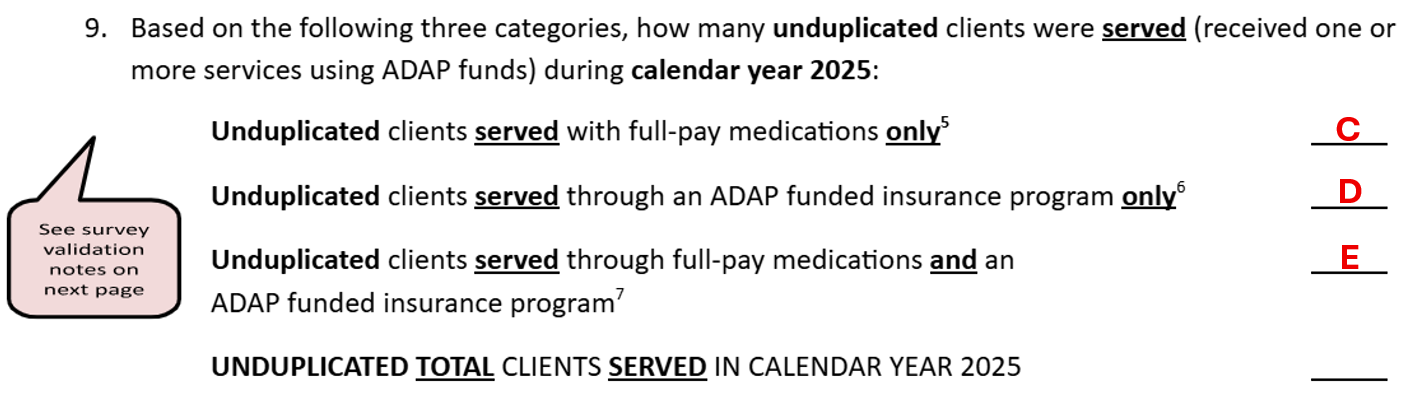
CAREWare NASTAD Report Result(s):
- C = 9. Unduplicated clients served with full-pay medications only
- D = 9. Unduplicated clients served through an ADAP funded insurance program only
- E = 9. Unduplicated clients served through full-pay medications and an ADAP funded insurance program
Survey Question #12
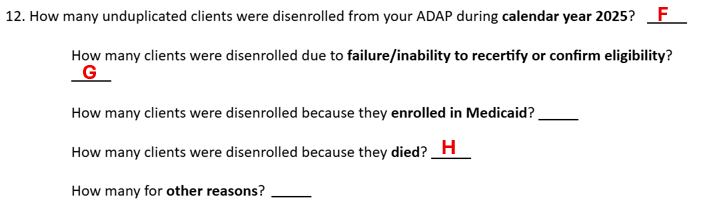
CAREWare NASTAD Report Result(s):
- F = 12. Unduplicated clients who were disenrolled from you ADAP during calendar year 2025
- G = 12. Clients who were disenrolled due to failure/inability to recertify or confirm eligibility
- H = 12. Clients who were disenrolled because they died
PLEASE NOTE: Clients disenrolled from ADAP because they were enrolled in Medicaid, or for other reasons, cannot be calculated using standard CAREWare disenrollment reasons. ADAPs will need to determine those results without using the NASTAD Report Module.
Survey Question #14
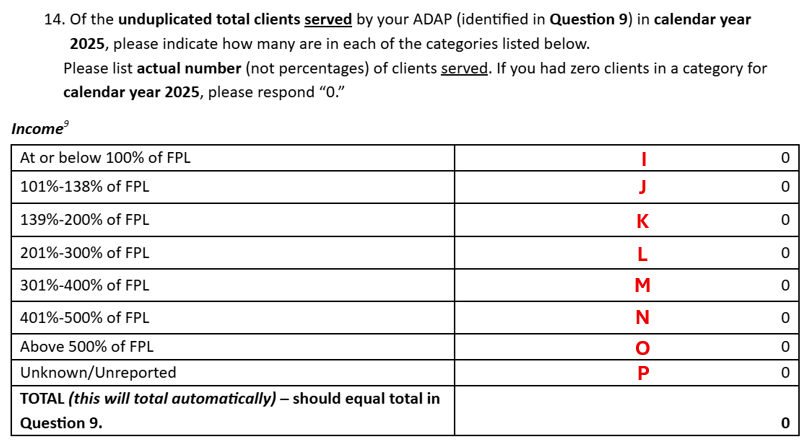
CAREWare NASTAD Report Result(s):
- I = 14. Clients with an income at or below 100% FPL
- J = 14. Clients with an income greater than or equal to 101% FPL but less than or equal to 138% FPL
- K = 14. Clients with an income greater than or equal to 139% FPL but less than or equal to 200% FPL
- L = 14. Clients with an income greater than or equal to 201% FPL but less than or equal to 300% FPL
- M = 14. Clients with an income greater than or equal to 301% FPL but less than or equal to 400% FPL
- N = 14. Clients with an income greater than or equal to 401% FPL but less than or equal to 500% FPL
- O = 14. Clients with an income greater than or equal to 501% FPL
- P = 14. Clients with unknown or unreported income
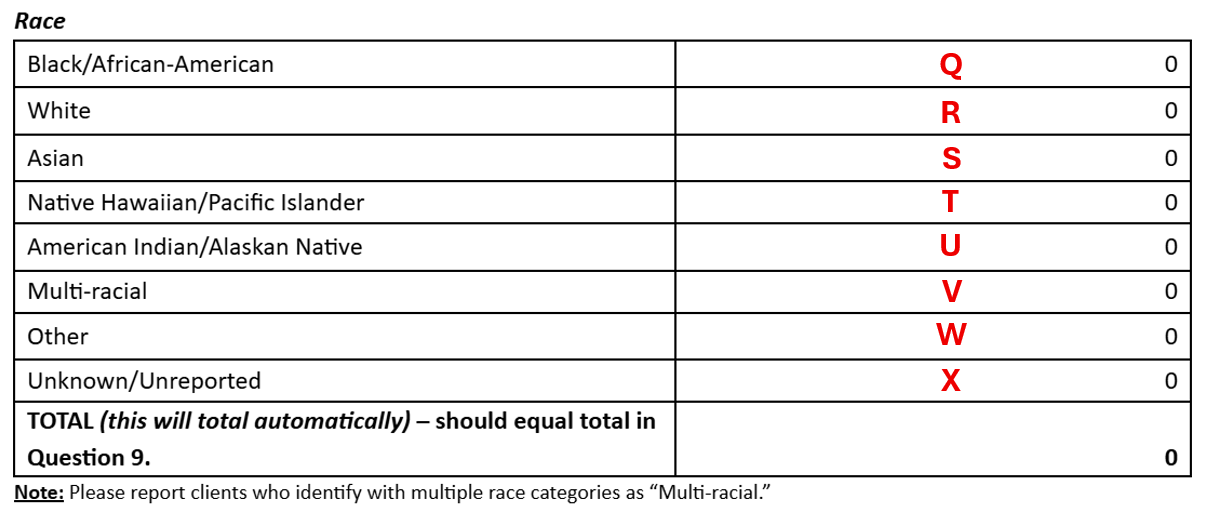
CAREWare NASTAD Report Result(s):
- Q = 14. Clients who identify as Black/African-American
- R = 14. Clients who identify as White
- S = 14. Clients who identify as Asian
- T = 14. Clients who identify as Native Hawaiian/Pacific Islander
- U = 14. Clients who identify as American Indian/Alaskan Native
- V = 14. Clients who identify as multi-racial
- W = 14. Clients who identify as another race (i.e., Other)
- X = 14. Clients with an unknown or unreported race
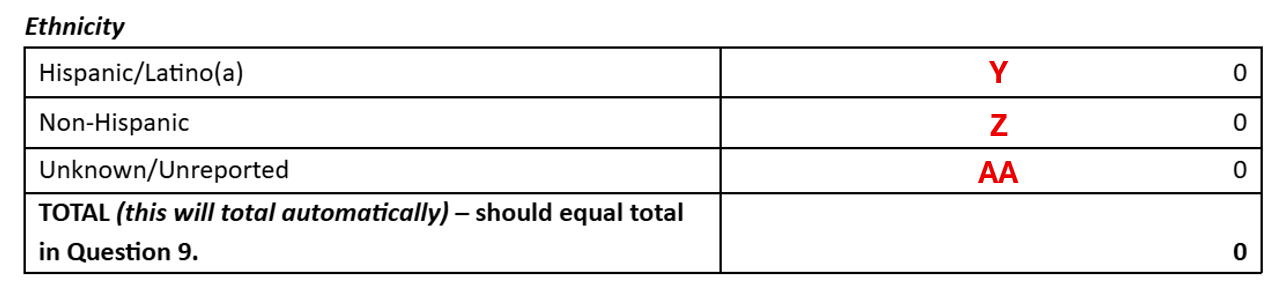
CAREWare NASTAD Report Result(s):
- Y = 14. Clients who identify as Hispanic/Latino(a)
- Z = 14. Clients who identify as non-Hispanic
- AA = 14. Clients with an unknown or unreported ethnicity
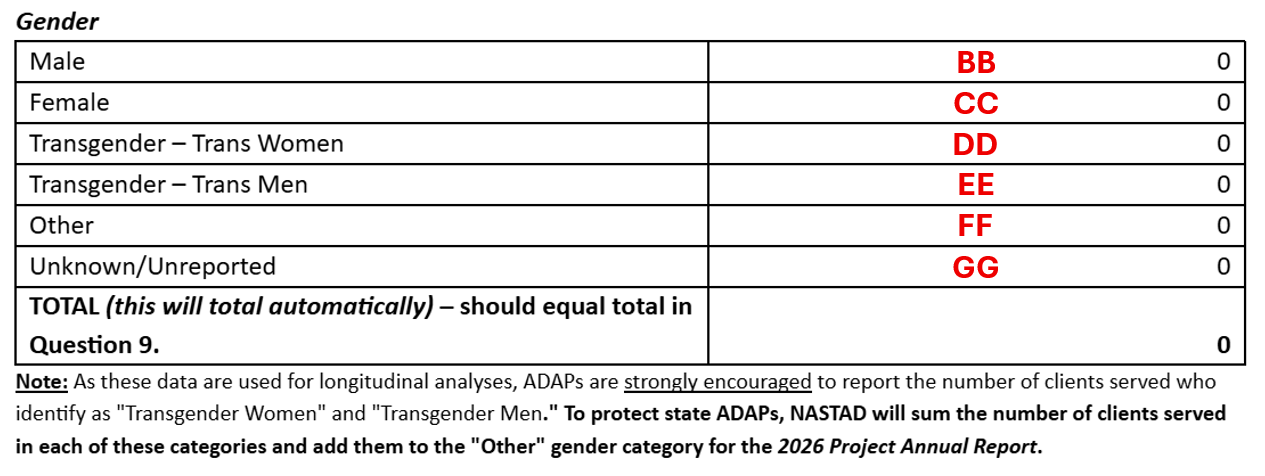
CAREWare NASTAD Report Result(s):
- BB = Clients who identify as Male
- CC = Clients who identify as Female
- DD = Clients who identify as Transgender Women
- EE = Clients who identify as Transgender Men
- FF = Clients who identify as another gender (i.e., Other)
- GG = Clients with an unknown or unreported gender
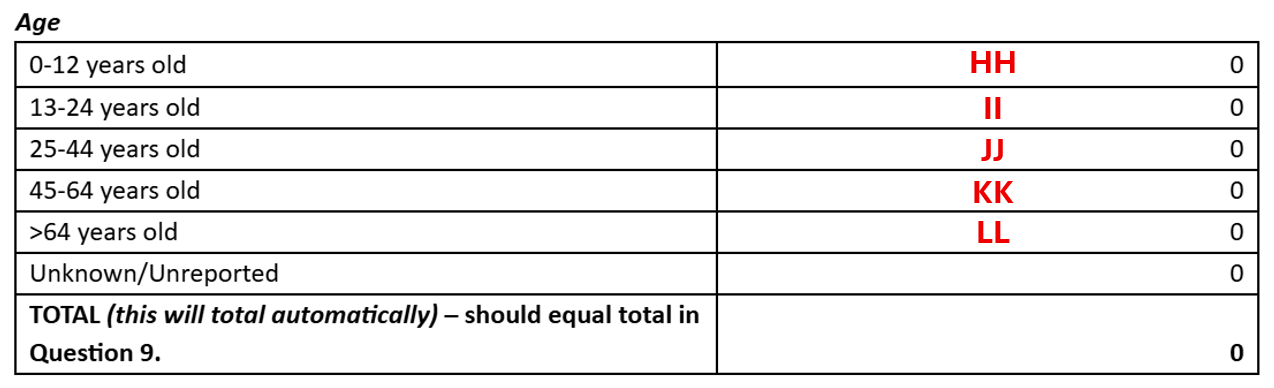
CAREWare NASTAD Report Result(s):
- HH = 14. Clients 0-12 years old
- II = 14. Clients 13-24 years old
- JJ = 14. Clients 25-44 years old
- KK = 14. Clients 45-64 years old
- LL = 14. Clients 65+ years old
PLEASE NOTE: Because date of birth is a required field in CAREWare, there will be no clients who have an unknown or unreported age.
Survey Question #15
If you are generating the responses for question 15 using the NASTAD Report Module in CAREWare, you can report viral load data by ADAP service categories (i.e., full-pay, insurance, and both full-pay and insurance).
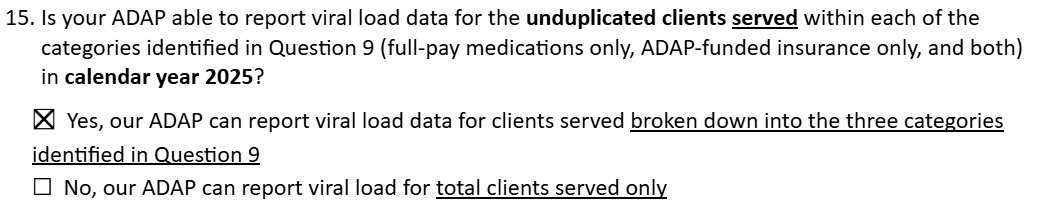
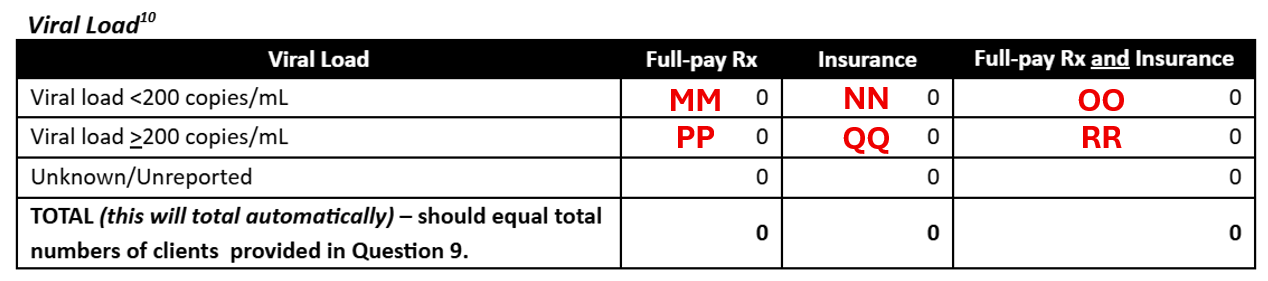
CAREWare NASTAD Report Result(s):
- MM = 15. Full-pay Rx clients with a viral load <200 copies/mL
- NN = 15. Insurance clients with a viral load <200 copies/mL
- OO = 15. Full-pay Rx AND insurance clients with a viral load <200 copies/mL
- PP = 15. Full-pay Rx clients with a viral load >=200 copies/mL
- QQ = 15. Insurance clients with a viral load >=200 copies/mL
- RR = 15. Full-pay Rx AND insurance clients with a viral load >=200 copies/mL
PLEASE NOTE: Unknown or unreported viral load results cannot be calculated as required by the survey. However, ADAPs can use the formulas below, referencing data from question 9, to manually calculate those results.
- Full-pay Rx Unknown/Unreported = C - MM - PP
- Insurance Unknown/Unreported = D - NN - QQ
- Full-pay Rx and Insurance Unknown/Unreported = E - OO - RR
Survey Question #18
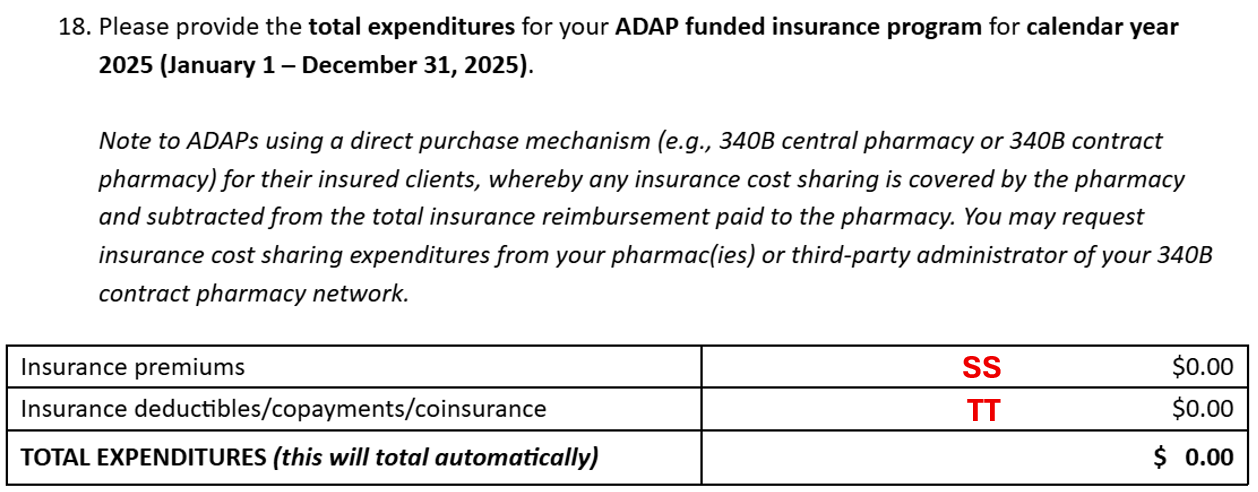
CAREWare NASTAD Report Result(s):
- SS = 18. Total insurance premium expenditures for calendar year 2025
- TT = 18. Total insurance deductibles/copayments/coinsurance for calendar year 2025
Survey Question #19
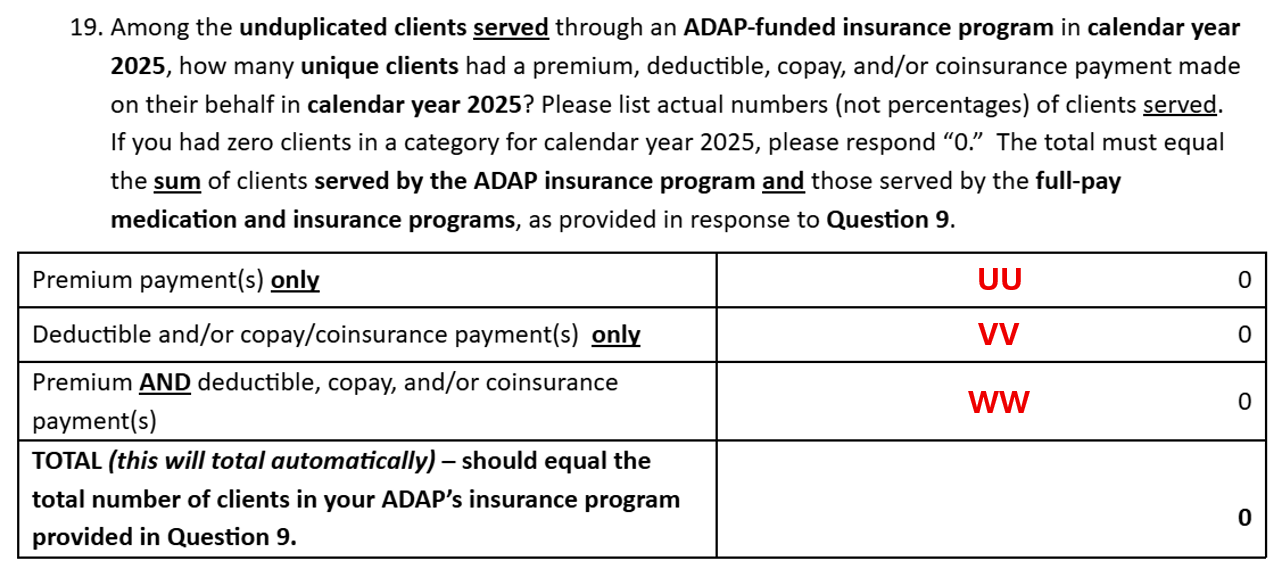
CAREWare NASTAD Report Result(s):
- UU = 19. Unduplicated clients served through an ADAP-funded insurance program with premium payments only
- VV = 19. Unduplicated clients served through an ADAP-funded insurance program with deductible and/or copay/coinsurance payments only
- WW = 19. Unduplicated clients served through an ADAP-funded insurance program with premium AND deductible and/or copay/coinsurance payments
Survey Question #23
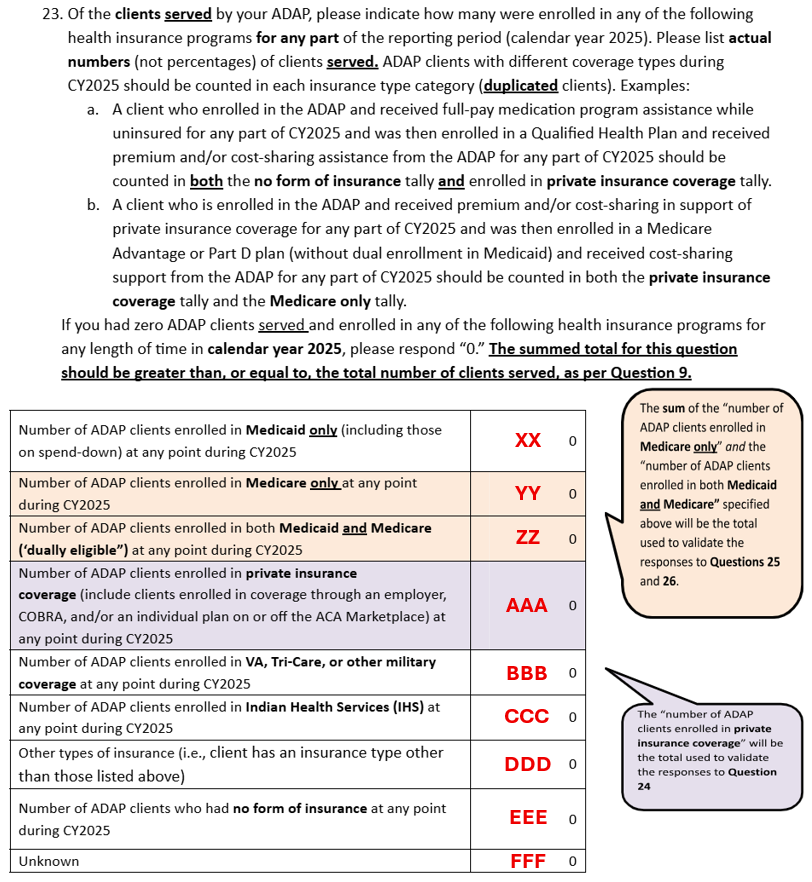
CAREWare NASTAD Report Result(s):
- XX = 23. Clients enrolled in Medicaid only
- YY = 23. Clients enrolled in Medicaid only
- ZZ = 23. Clients enrolled in both Medicaid and Medicare ("dually eligible")
- AAA = 23. Clients enrolled in private insurance coverage
- BBB = 23. Clients enrolled in VA, Tri-Care, or other military coverage
- CCC = 23. Clients enrolled in Indian Health Services (IHS)
- DDD = 23. Clients enrolled in another insurance type (i.e., Other)
- EEE = 23. Clients who had no insurance coverage
- FFF = 23. Clients with unknown insurance coverage
Client-Level Survey Questions Not Included in the NASTAD Report Module
There are a few client-level survey questions that cannot be calculated using the standard, built-in CAREWare data fields. They are:
- Question #24 - Among the unduplicated clients served by your ADAP in calendar year 2025 who had private insurance coverage (identified in Question 23), please indicate how many are in each of the categories listed below.
- Question #25 - Among the unduplicated clients served by your ADAP in calendar year 2025 who were enrolled in Medicare (identified in Question 23), please indicate how many fall into each of the categories listed below (Medicare Part B breakdown).

