

Delete Data by Date

|
|
|
|
|
|
|
|
|
|
|
|
|
|
|
|
|
|
|
|
|
|
When to use this feature
Delete Data by Date is an alternative to Undo Import or using the _delete column in CSV import files. Use it when deletion needs to be based on record types and dates. Review the scope carefully before choosing this method.
A provider with limited server space may want to use the feature to reduce the size of the database by removing older historical data for clients who have not received services in years.
Make a backup of the database before using this feature.
Before you begin
Back up the database before deleting any records. Confirm that the backup completed and that your IT staff or database administrator can use it if recovery is needed. See Managing CAREWare Data in Related References for backup instructions.
Decide which provider domain, record types, and date range to use. Check that the data can be removed under your organization’s record retention and reporting requirements. Deleted records will no longer be available in the working database for reports or review.
Understand the date range
With the exception of client deleting, CAREWare checks the date of the record, such as the service date, lab date, or assessment date. It does not use the date the record was entered or created in CAREWare.
Both the Begin Date and End Date are included. For example, a range from January 1 through January 31 includes records dated January 1 and January 31, as well as dates between them.
The date range is based on the Business Tier server’s date and time. Business Tier Server Time is shown so you can compare it with your local time. The two may differ when your CAREWare server is in another time zone.
|
|
Record types and dates used for deletion
Use this table to check what each option includes. Select only the types of records you intend to delete. The same date range applies to the selected types.
|
|
|
|
|
|
|
|
|
|
|
|
|
|
|
|
|
|
|
|
|
|
|
|
|
|
|
|
|
|
|
|
|
|
|
|
|
|
|
|
|
|
|
|
|
|
|
|
|
|
|
|
|
|
|
|
|
|
|
|
|
|
|
|
|
|
|
|
|
|
|
|
|
|
|
|
|
|
|
|
|
|
|
|
|
|
|
|
|
|
|
|
|
|
|
|
|
|
|
|
|
|
|
|
Understand the client deletion option
Deleting services, labs, case notes, or other records does not automatically remove the client from the provider domain. To request client removal, select Delete clients added within the date range when no data remains.
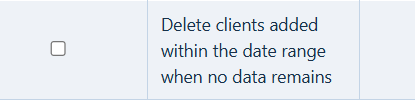
This option uses the date the client was added to the selected provider domain. A client must fall within that date range and have no remaining records that prevent deleting the client, such as services, labs, case notes, medications, or eligibility records.
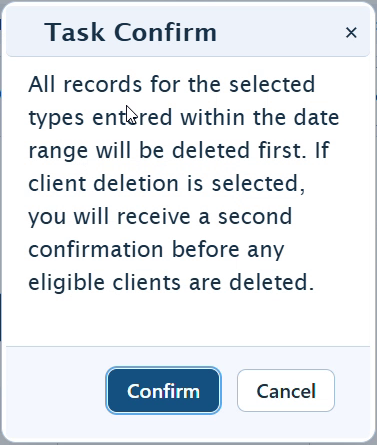
CAREWare deletes the selected records first. It then asks for a separate confirmation before removing eligible clients from the provider. A client is permanently deleted only when the selected provider is their last provider.
|
|
|
|
|
|
Open the feature and set the date range
Step 1. Back up the CAREWare database. Complete the checks in the Before you begin section of this article.
Step 2. Log in to Central Administration.
Step 3. Select Administrative Options, then Data Import and Export Features.
Step 4. Select Delete Data by Date.
Step 5. Choose the provider domain in Provider Name. Use the search button if needed.
Step 6. Enter the Begin Date and End Date. Check Business Tier Server Time and review the dates before continuing.
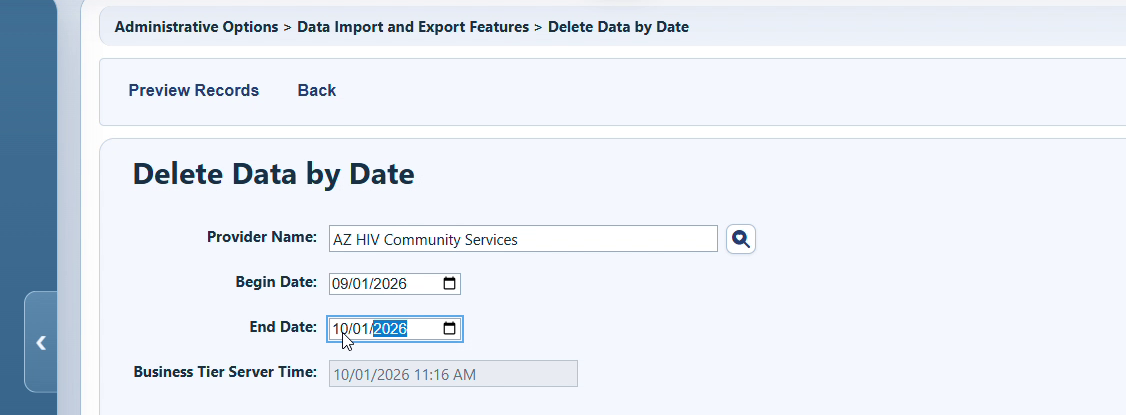
Provider and date range settings, including Business Tier Server Time.
|
|
Step 7. Select Preview Records. CAREWare opens Select Sections and shows record counts for the date range.
Preview Records does not provide a list of individual records. Review the counts against what you expect before selecting anything for deletion.
Select records and confirm deletion
Step 8. Check each section you want to delete. Scroll through the list to review all selections. Leave sections you want to keep unchecked.
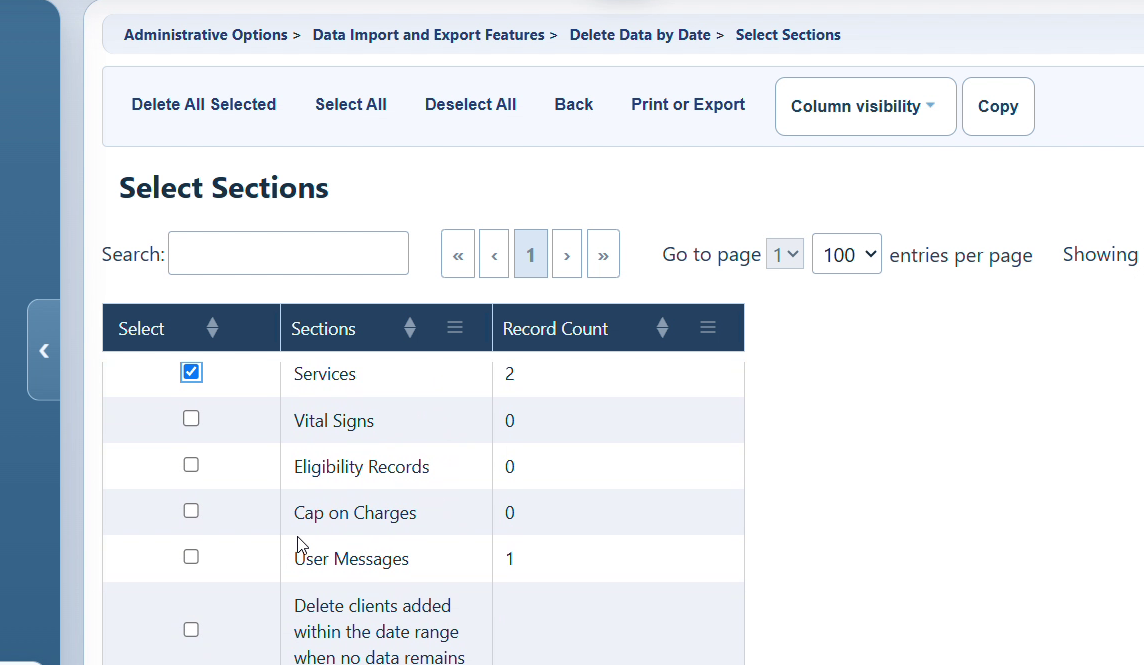
Select Sections shows checkboxes and a Record Count for each section.
If you also intend to remove clients who have no records in CAREWare (i.e., services, labs, case notes, etc.), check Delete clients added within the date range when no data remains. Read Understand the client deletion option in this article before selecting this option.
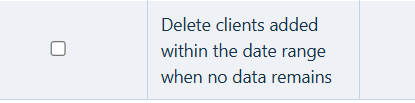
Step 9. Review the selected sections and counts, then select Delete All Selected.
Step 10. Read the Task Confirm message. Select Confirm only when you are ready to permanently delete the selected records. Select Cancel to stop before deletion begins.
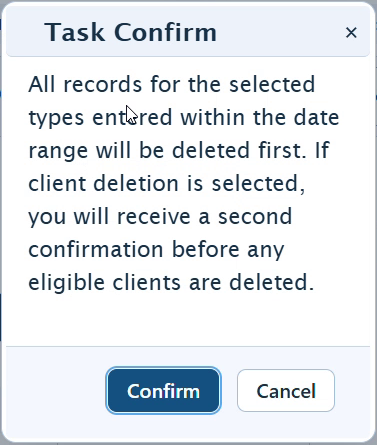
The first confirmation deletes selected record types before any client removal.
Confirm optional client removal
If you did not select the client deletion option, continue to the How to confirm it worked section in this article. If you selected this option, CAREWare checks for eligible empty client records after deleting the other types of selected records.
|
|
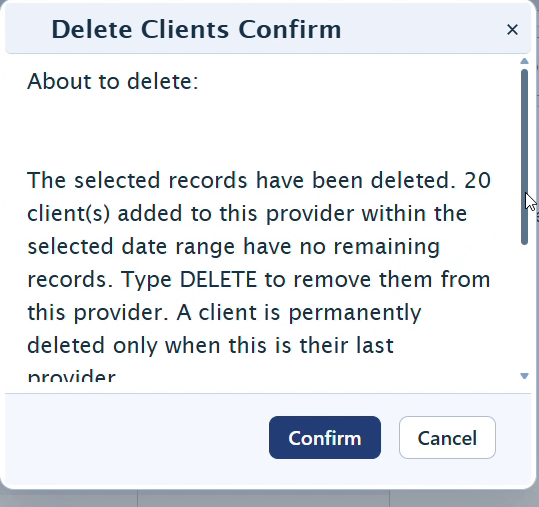
Step 11. If Delete Clients Confirm appears, read the message and review the count of eligible clients. There may be reasons why some eligible clients aren’t deleted during this process, such as an error in the Delete Client process. This may result in the count of eligible clients being higher than the total number of client records that are actually deleted. Otherwise, this stage removes clients from the selected provider domain. It will not remove the client from all domains in which the client has records.
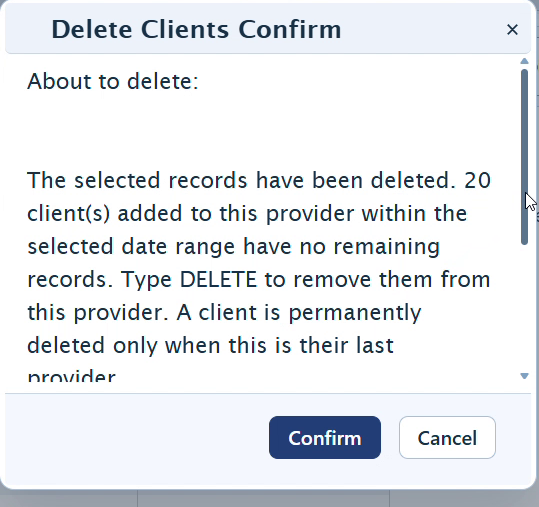
Client removal has a separate confirmation after the selected records are deleted.
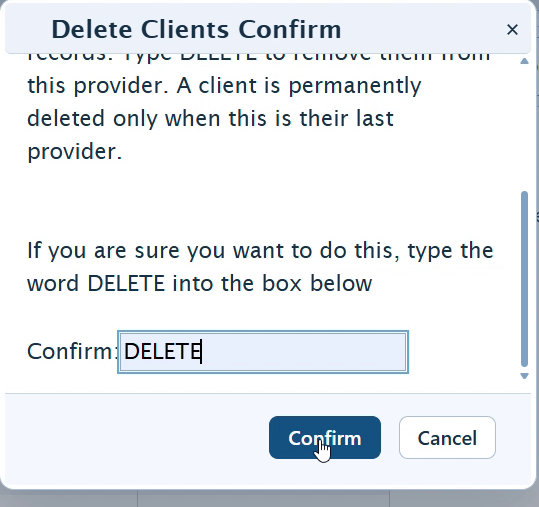
Step 12. Scroll within the message to the confirmation field. To remove the eligible clients, type DELETE and select Confirm. To keep the clients in the provider, select Cancel.
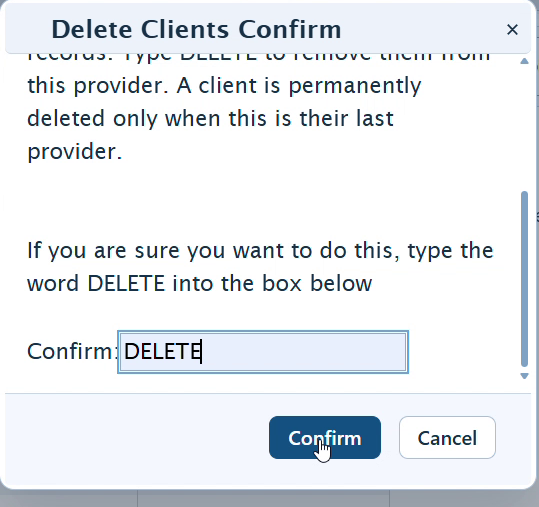
Type DELETE only when you intend to remove the eligible clients.
|
|
Menu options
|
|
|
|
|
|
|
|
|
|
|
|
|
|
|
|
|
|
|
|
|
|
|
|
How to confirm it worked
- Read the completion messages and record the results. If client removal was selected, review its result separately from record deletion.
- Use the same provider and date range to preview the records again. Check the counts for the sections you deleted.
- Review relevant client records or reports to confirm that the intended data was removed and data you meant to keep remains.
- Keep the pre-deletion backup and a record of the provider, date range, selected sections, and results.
Troubleshooting and common questions
Can this delete records for clients who still receive services?
Yes. Selection is based on record dates and selected sections. An old service date can belong to a client who still receives services.
Why does a client remain after their services were deleted?
Other records may remain, the client may have been added to the provider outside the date range, or client removal may not have been selected and confirmed.
Can I undo the deletion?
Deletion is permanent. Make a backup of the database prior to using this feature. Contact your IT staff or database administrator if recovery is needed. A database restore returns data to the backup’s point in time; work saved after that backup is not included.
Why can’t I delete an Excluded subform?
Subforms labeled Excluded are not eligible for deletion with this feature. The subform may be excluded for various reasons, such as a custom subform missing from the database tables or a subform table that lacks the default custom subform date column (cst_sb_date).
Related References
|
|
|


