

Manage NDCs

|
|
|
|
|
|
|
|
|
|
|
|
|
|
Upload the ADAP medication file
Upload the latest ADAP medication file to add new medications to the available list.
Step 1. Log in to the ADAP provider.
Step 2. Select Administrative Options.
Step 3. Select Manage NDCs.
Step 4. Select Upload New ADAP file. Download the latest ADAP Drug Import file from the CAREWare medication files article.
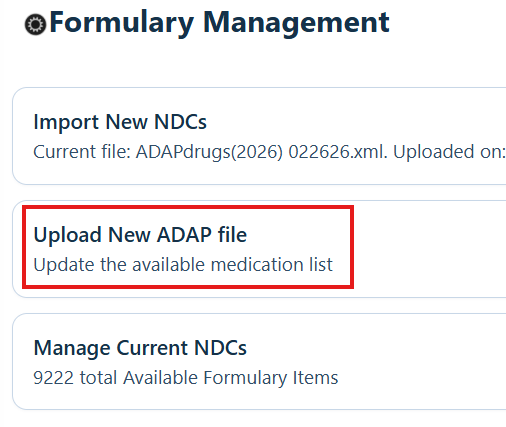
Step 5. Select Choose File.
Step 6. Find and select the ADAP Drugs import file.
Step 7. Select Open.
Step 8. Select Save.
Import new NDCs
After the upload finishes, the Import New NDCs list contains the new ADAP medications.
Step 1. Select Import New NDCs.
Step 2. Search for a medication or select one from the list and click Import.
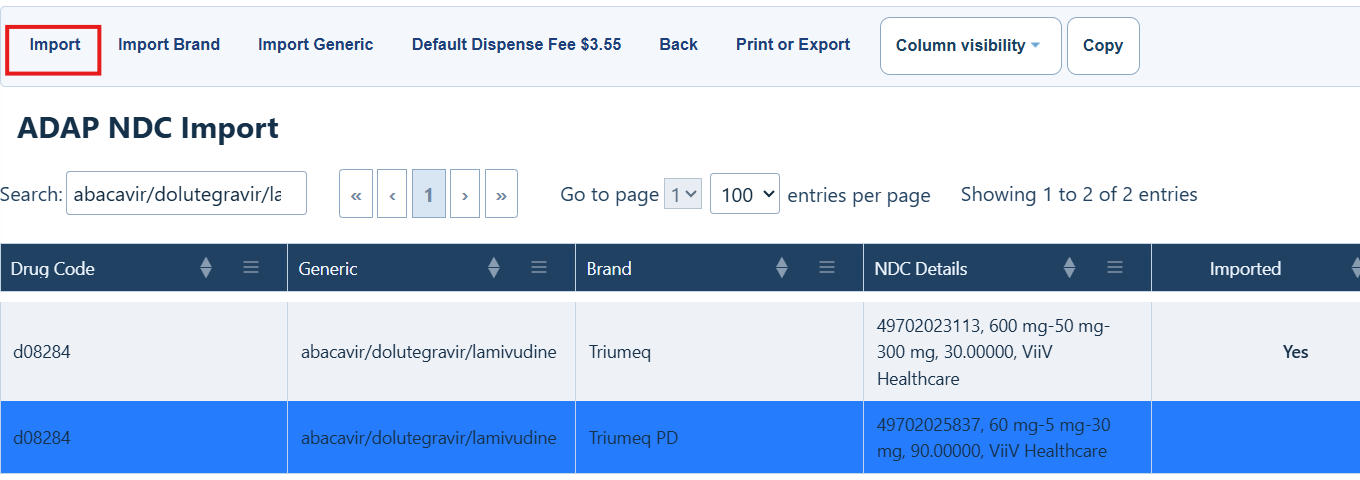
The medication is now in the ADAP provider formulary list.
Activate an NDC
Step 1. Select Manage Current NDCs.
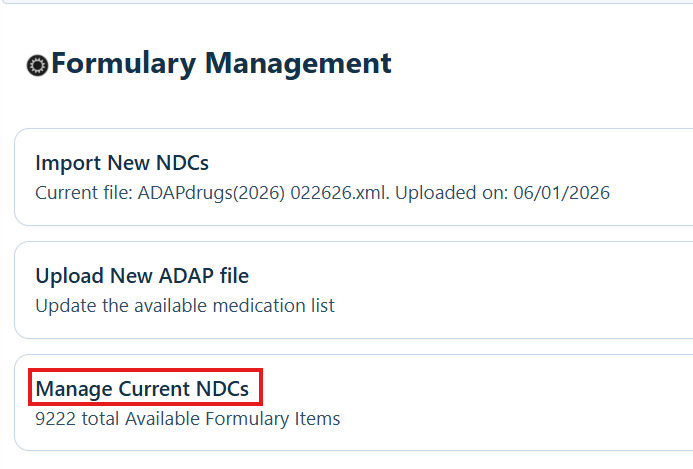
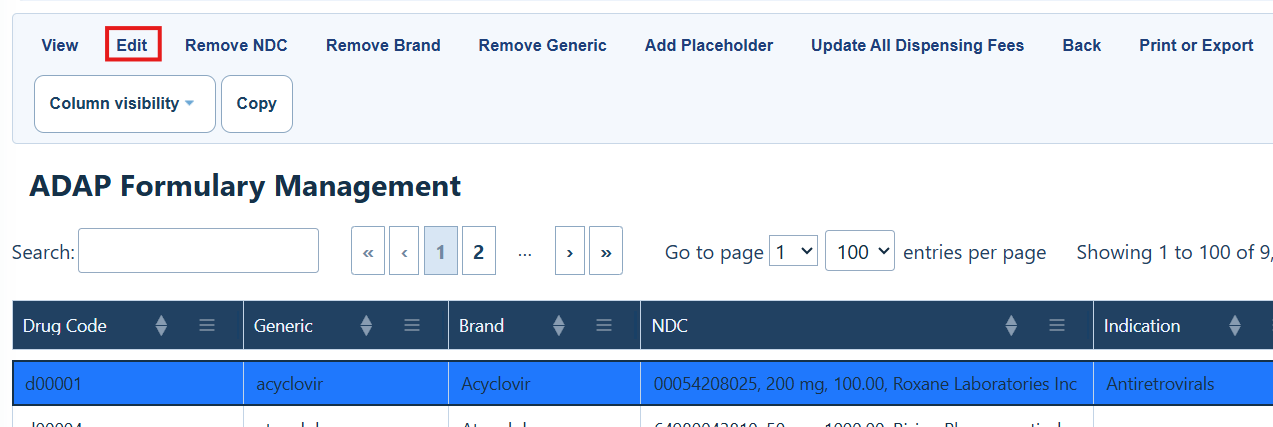
Step 2. Select an NDC.
Step 3. Select Edit.
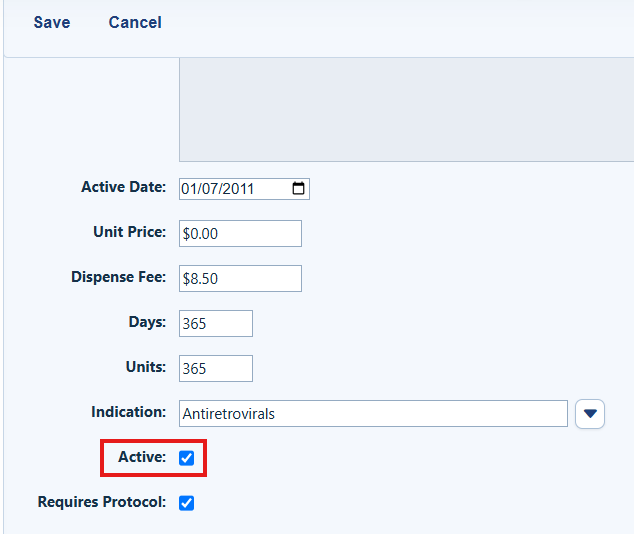
Step 4. Set the Active Date.
|
|
Step 5. Enter the Unit Price, Dispense Fee, Days, Units, and Indication.
Step 6. Check Active.
Manage NDCs Menu Options
|
|
|
|
|
|
|
|
|
|
|
|
|
|
|
|
|
|
|
|
|
|
|
|
|
|
|
|
|
|
How to confirm it worked
• The uploaded file appears as the current file on the Formulary Management page.
• The medication appears in the ADAP provider formulary list.
• The NDC shows as active after you save the setup information.
Troubleshooting and common questions
What if an NDC is not in the ADAP medication list?
Use Add Placeholder to enter the missing NDC. This allows payments until the ADAP medication list is updated.
Can I update every dispensing fee at one time?
Yes. Use Update All Dispensing Fees to set one fee for all NDCs.
Can NDCs be added automatically?
Yes. The Provider Data Import can be used to automatically add NDCs.
Related References
|
|
|
|
|
|
|
|
|


