


|
|
|
Purpose |
Prepare PDI files that import attachment records and upload the associated documents. |
|
Who should do this |
CAREWare administrators, data managers, and interface staff who build PDI import files. |
|
Use this guide when you need to |
Include attached documents in a PDI import. |
|
Main warning |
Attachment file names must match the primary key of the associated exp_attachments record. |
|
Quick path Create CSV tables and an attachments folder at the ZIP root, then upload the ZIP using Provider Data Import > New Import. |
Before you begin
Confirm the receiving custom field is an active attachment type field when importing to a custom field.
Prepare the client or record data tables that the attachments reference.
Use unique attachment primary keys and matching file names.
|
Important att_record_fk can reference records in different tables. att_field_location_rfk determines which table or custom field location the attachment is associated with. |
Build the ZIP file
1. Create the PDI CSV files needed for the import.
2. Add exp_attachments.csv with one row for each attachment.
3. Create a folder named attachments at the root of the ZIP structure.
4. Place each attachment file in the attachments folder.
5. Name each attachment file to match the att_pk value for its exp_attachments row.
6. Zip the CSV files and the attachments folder together.
Required attachment concepts
|
Field or folder |
Purpose |
Helpful warning |
|
attachments folder |
Stores the physical files. |
Folder name should be exactly attachments. |
|
exp_attachments.csv |
Stores attachment records. |
Each file needs a matching row. |
|
att_pk |
Primary key for the attachment row. |
The file name must match this value. |
|
att_file_name |
Name or label of the attached document. |
Use a clear document name for users. |
|
att_record_fk |
Foreign key to the record that owns the attachment. |
Must point to the correct client, service, or other record. |
|
att_field_location_rfk |
Identifies the referenced table/location. |
Use the correct location code for the target record. |
|
att_custom_field_name |
Custom field name when imported to a custom attachment field. |
Must match the active attachment custom field. |
Upload and review
1. Open Provider Data Import.
2. Click New Import.
3. Choose the ZIP file.
4. Click Import File.
5. Open Import History.
6. Review Import Details for errors or missing mappings.
7. Process the import when records are Ready to Process.
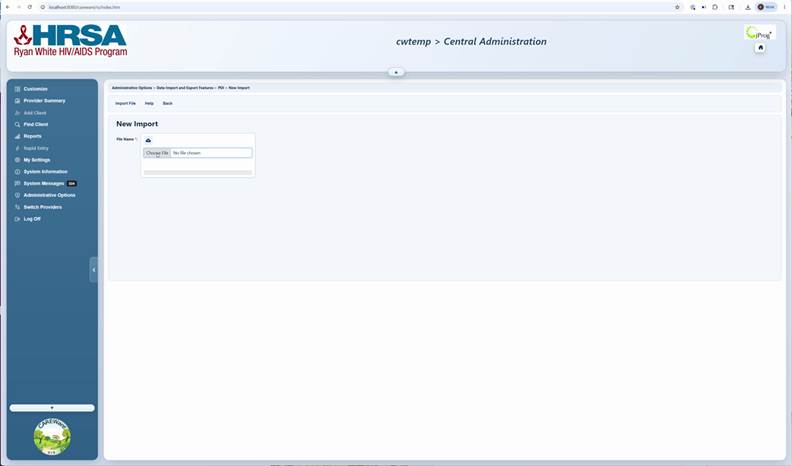
Choose File step from the source video.
How to confirm it worked
1. The ZIP contains CSV files and an attachments folder at the root level.
2. Every attachment file name matches an att_pk value.
3. After processing, the attachment appears on the expected client record or custom field location.
Troubleshooting and common questions
The attachment did not appear. What should I check?
Verify att_pk, file name, att_record_fk, att_field_location_rfk, and custom field activation.
Can attachments reference different tables?
Yes. Use att_record_fk and att_field_location_rfk to point to the correct table/location.
Related guides
|
Related Guide |
Description |
|
Steps for uploading the prepared PDI file (ZIP) to start a new import |
|
|
Guide to reviewing past imports, resolving errors, and processing data |
|
|
Import data into active custom fields using the CAREWare PDI template |
|
|
A general guide to the Provider Data Import process |


