


|
|
|
|
|
|
|
|
|
|
|
|
|
|
|
|
Before You Begin
- Be familiar with performance measures in CAREWare.
- For HIVQM submission through the Electronic Handbooks (EHB), review instructions for HIVQM Setup.
Open Performance Measure Groups
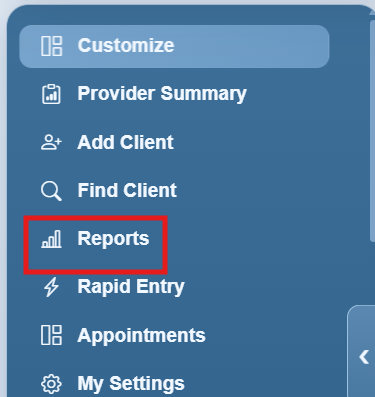
Step 1. Click Reports.
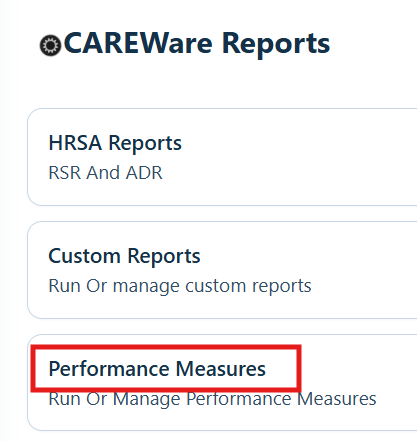
Step 2. Click Performance Measures.
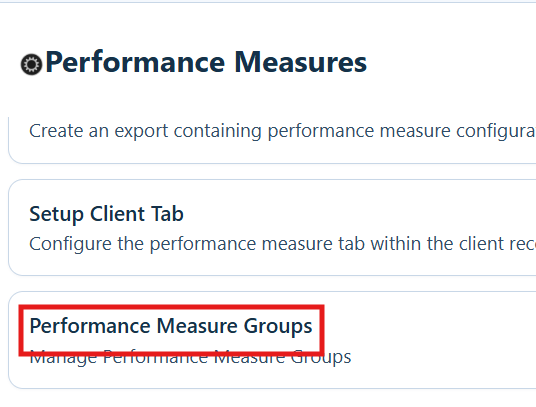
Step 3. Click Performance Measure Groups.
Create or Add Measures to a Group
Step 1. Click Add.
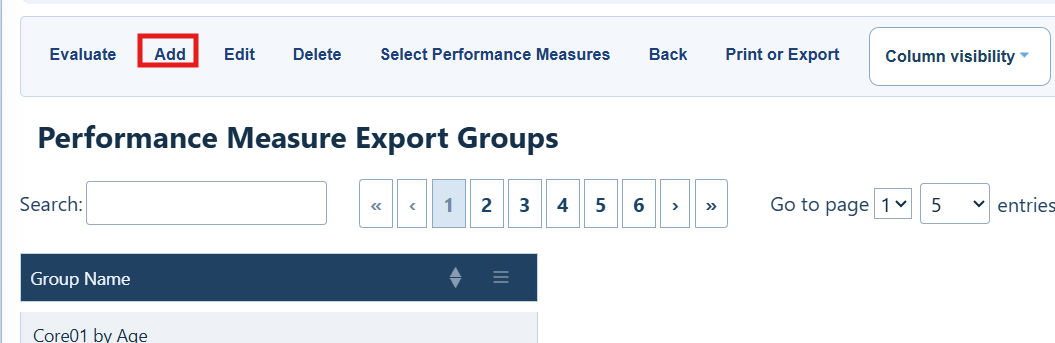
Performance Measure Export Groups Menu Options
|
|
|
|
|
|
|
|
|
|
|
|
|
|
|
|
|
|
|
|
|
|
|
|
Step 2. Enter a name for the group.
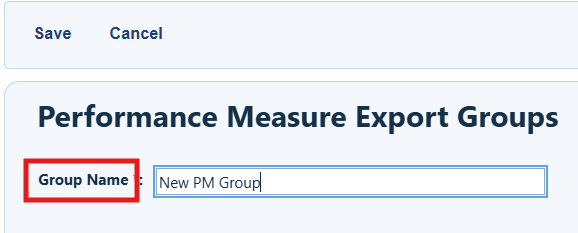
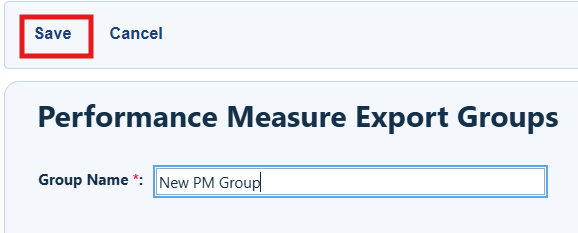
Step 3. Click Save.
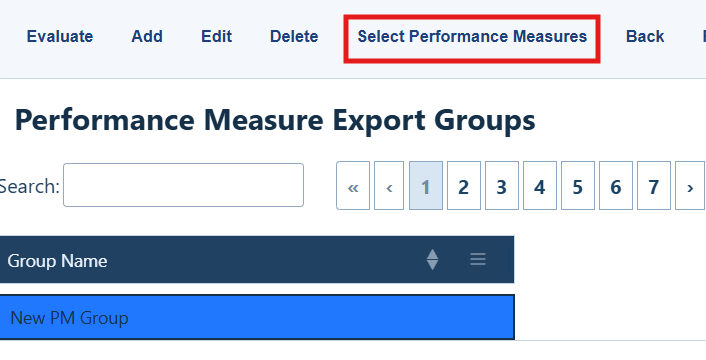
Step 4. Select the group name, and then click Select Performance Measures.
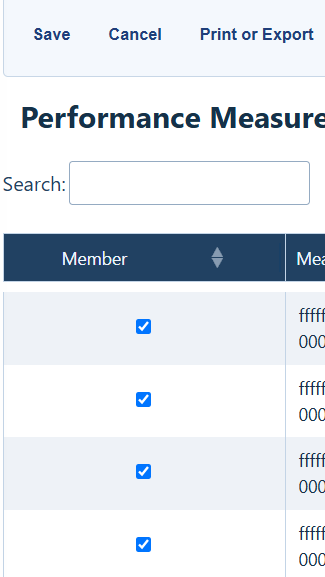
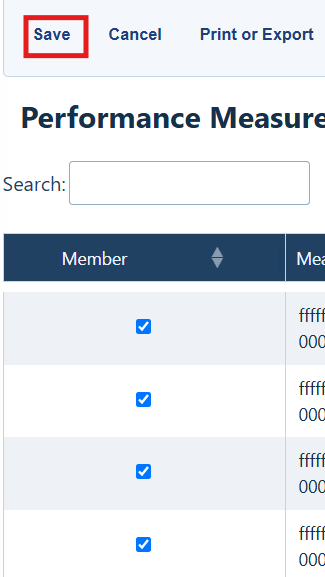
Step 5. Check each performance measure you want to include.
|
|
Step 6. Click Save.
Run the Group of Measures
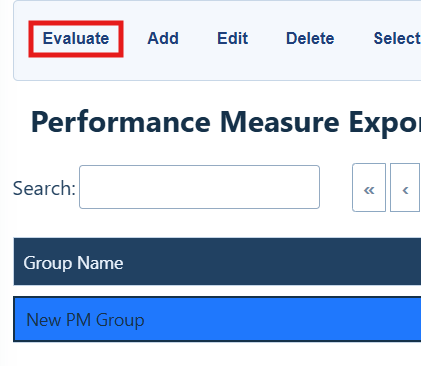
Step 1. Select the performance measure group, and then click Evaluate.
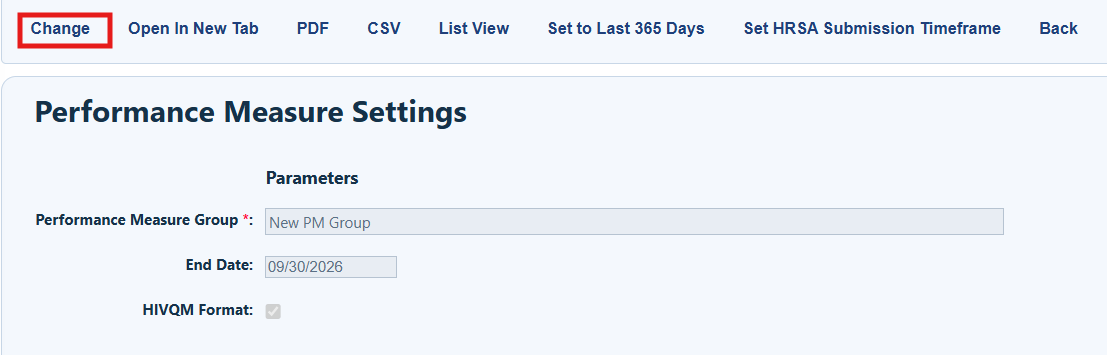
Step 2. Select Change to edit the Performance Measure Group and End Date. Check the box for HIVQM Format if the report is being submitted in the EHB.
Performance Measure Settings Menu Options
|
|
|
|
|
|
|
|
|
|
|
|
|
|
|
|
|
|
|
|
|
|
|
|
Select a Date Range for the Report
You can use a specific end date, the last 365 days, or the HRSA submission timeframe for HIVQM reporting.
Use a Specific End Date
Step 1. Click Change.
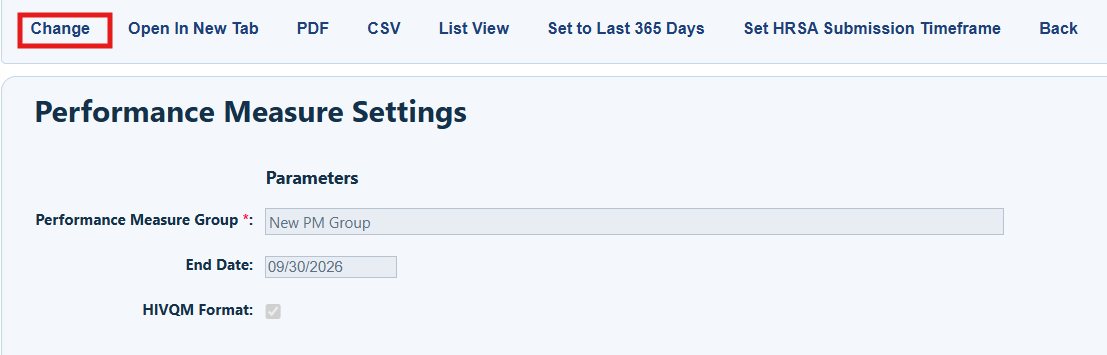
Step 2. Select the End Date.
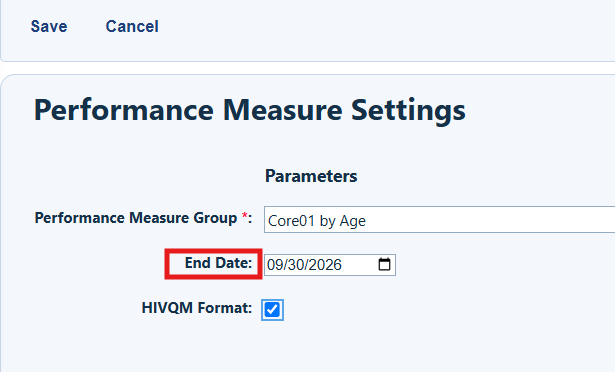
Step 3. Click Save.
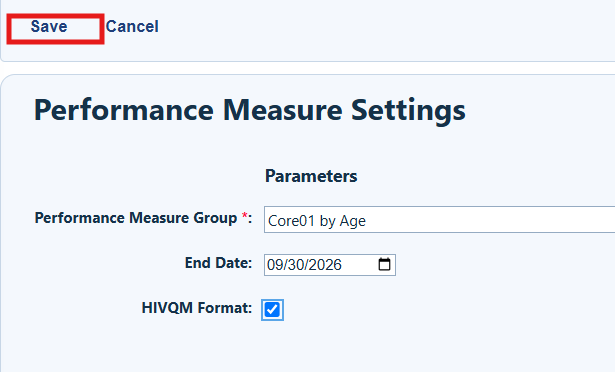
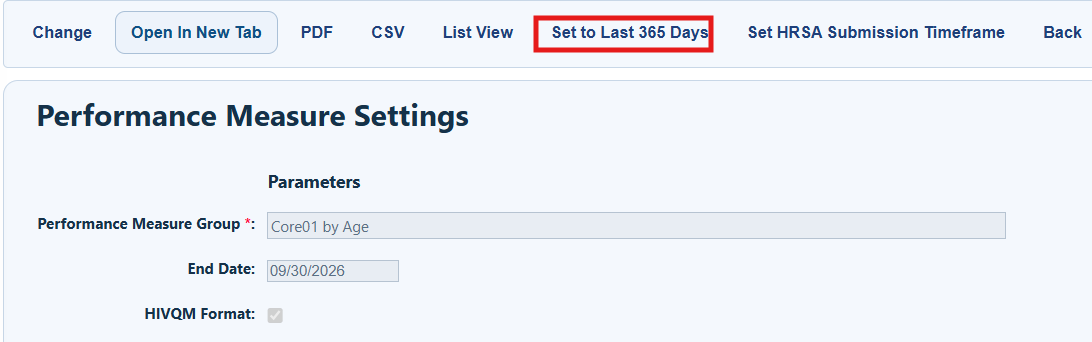
Use the Last 365 Days
Step 1. Click Set to Last 365 Days.
Use the HRSA Submission Timeframe
|
|
Step 1. Click Set HRSA Submission Timeframe.
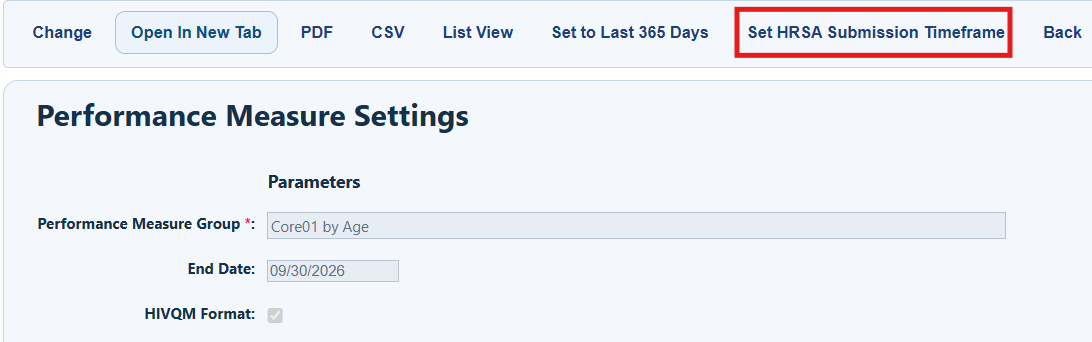
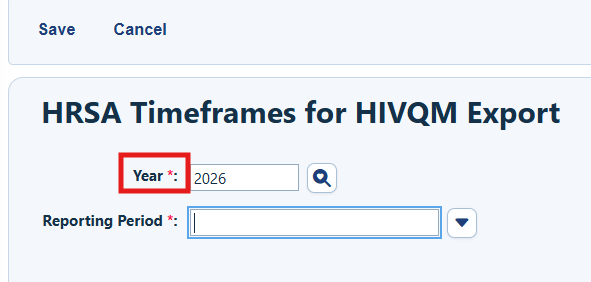
Step 2. Choose the report year.
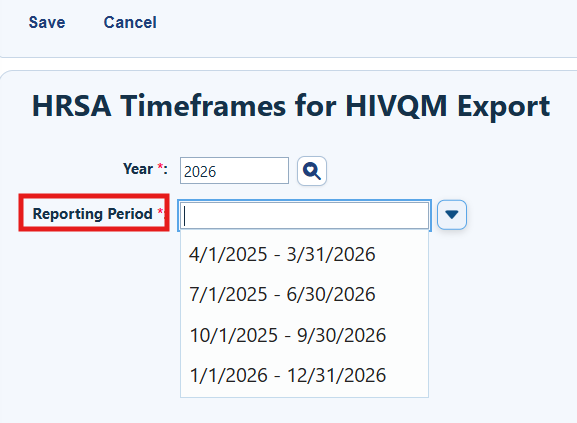
Step 3. Select the Reporting Period.
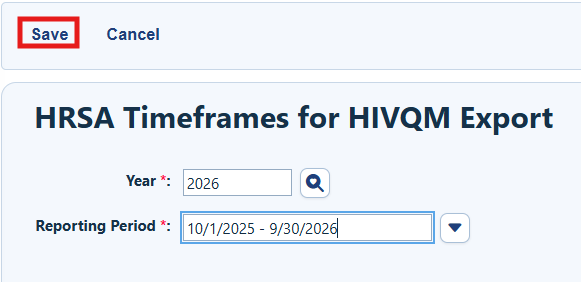
Step 4. Click Save.
Check the Results
Run the report as a PDF or open it in a new browser tab.
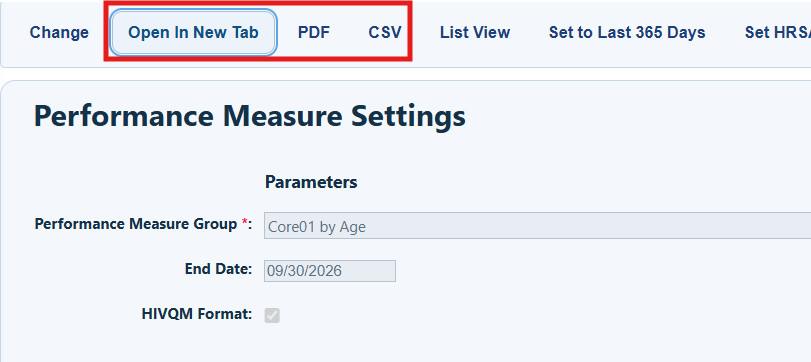
The report shows the numerator, denominator, and percentage for each measure.
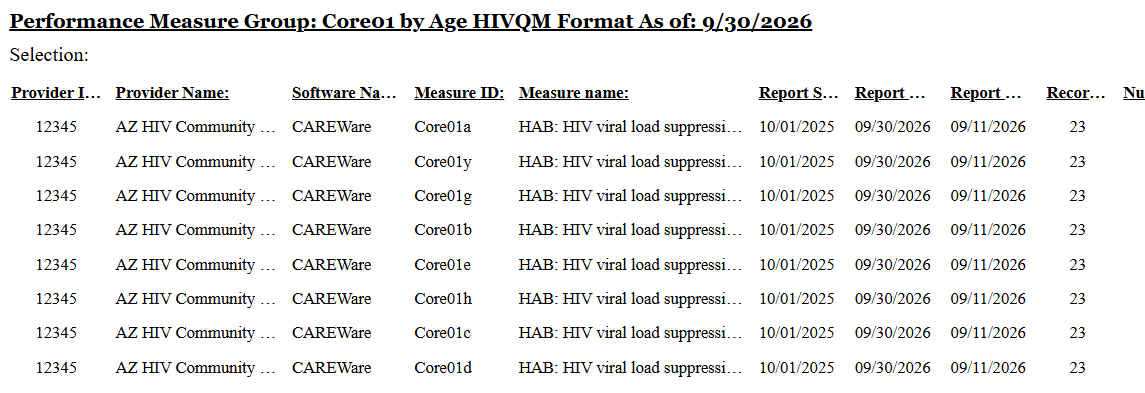
Real-Time Lookup List View
Step 1. Select List View.
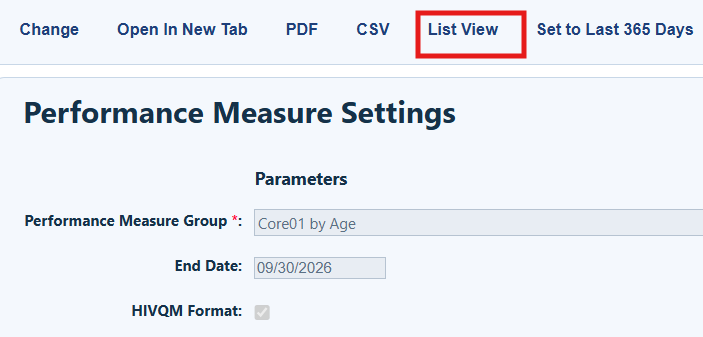
CAREWare displays a table with the measure ID, measure name, report start date, reports end date, number of records reviewed, number of clients in the numerator, and number of clients in the denominator.
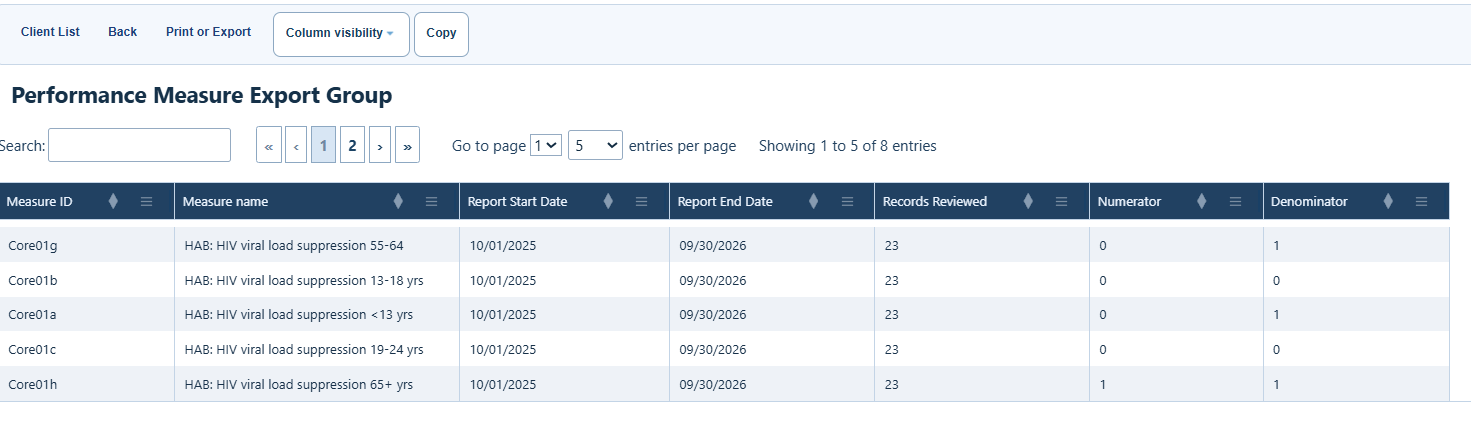
Step 2. Select a performance measure and select Client List.
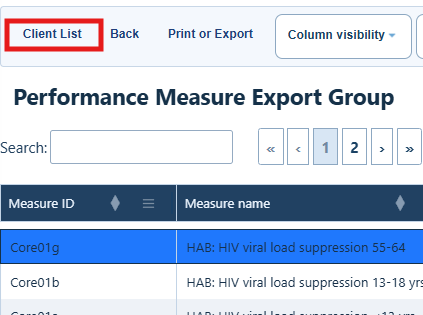
Performance Measure Export Group Menu Options
|
|
|
|
|
|
|
|
|
|
|
|
Step 3. Select Edit to change the settings for the client list.
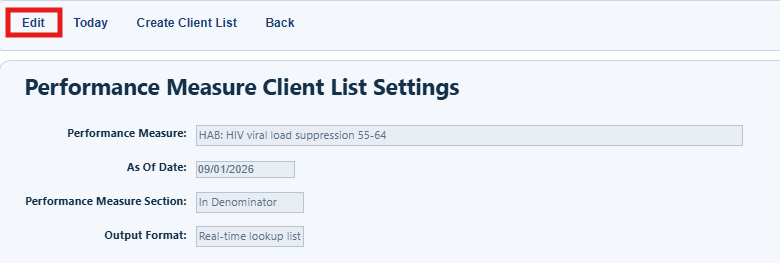
Performance Measure Client List Settings Menu Options
|
|
|
|
|
|
|
|
|
|
|
|
|
|
|
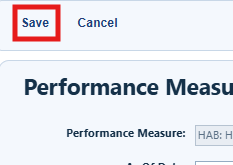
Step 4. Select Save.
Step 5. Select Create Client List.
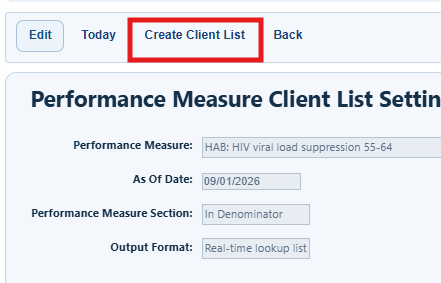
CAREware displays a real-time lookup list of clients or a printable list.
How to confirm it worked
• The group appears in Performance Measure Export Groups.
• The report shows a numerator, denominator, and percentage for each measure.
• For HIVQM reporting, the CSV file downloads after you select HIVQM Format and the correct reporting period.
Troubleshooting and common questions
Why is a measure missing from the report?
Open Select Performance Measures and confirm that the measure is checked for the group.
Why is the report using the wrong dates?
Open Performance Measure Settings. Use Change, Set to Last 365 Days, or Set HRSA Submission Timeframe to set the correct period.
Why is the HIVQM export not ready for upload?
Confirm that you selected HIVQM Format and the correct HRSA submission timeframe before creating the CSV file.
Related References
|
|
|
|
|
|
|
|
|


