Author: Jennifer Eggerton
Last updated: Sep 10, 2026
 894
views
894
views
|
Purpose
|
Run performance measures and review the results for one or more providers.
|
|
Who should do this
|
CAREWare users who review clinical quality and performance measure results.
|
|
Use this guide when you need to
|
Count eligible clients, see how many met a measure, and calculate the percentage that met it.
|
|
Main warning
|
For multiple providers, confirm whether shared data should be included before you run the measures.
|
|
Quick path Reports > Performance Measures > Run Performance Measures
|
Before you begin
Become familiar with performance measures in CAREWare.
Structure of a Performance Measure
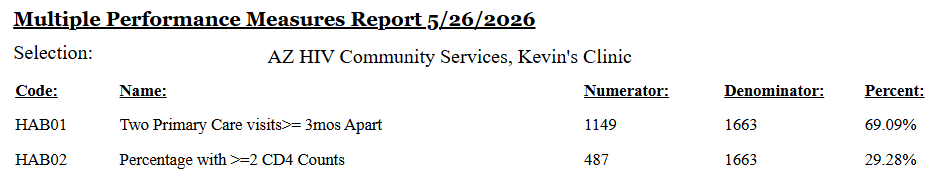
A performance measure compares two counts. The denominator is the group of clients who qualify for the measure. The numerator is the number of those clients who met the measure. CAREWare also calculates the percentage who met the measure.
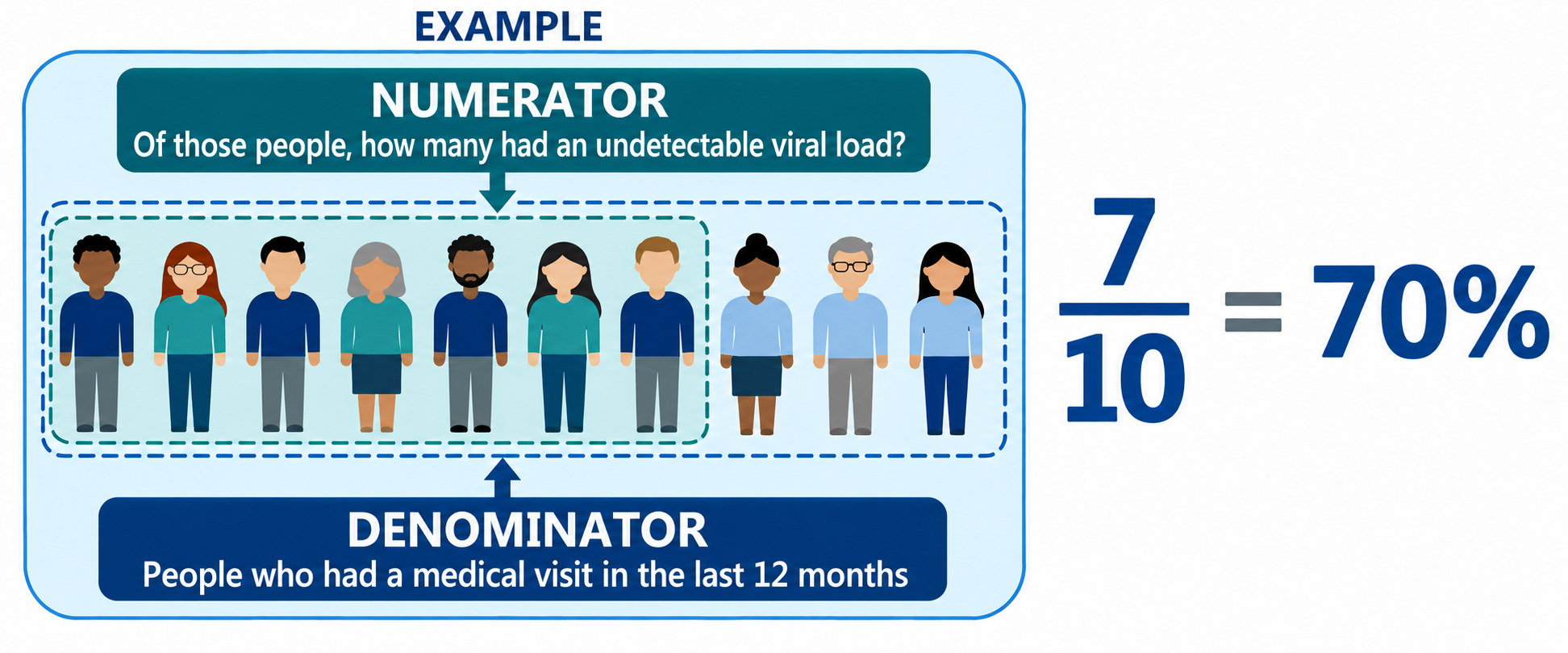
Run performance measures
|
Important: When you run measures for several providers, decide whether the results should use only data entered by those providers or also include shared data. HRSA performance measures set the Cross-Provider subfilter to No by default, so shared data is excluded.
|
|
TIP
Users can run a single measure or a group of measures, as well as measures for one or more providers.
|
Step 1. Select Reports.
Step 2. Select Performance Measures.
Step 3. Select Run Performance Measures.
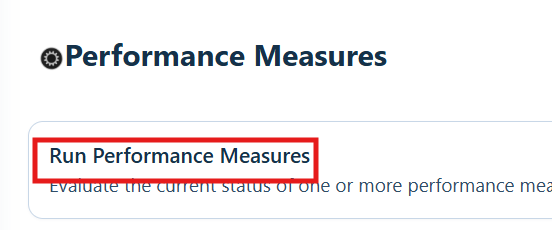
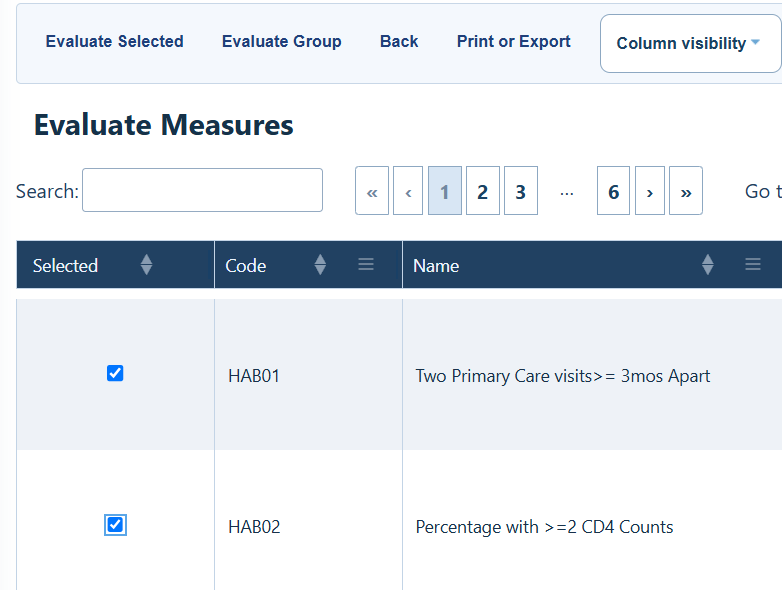
Step 4. Select one or more measures to evaluate.
Step 5. Select Evaluate Selected.
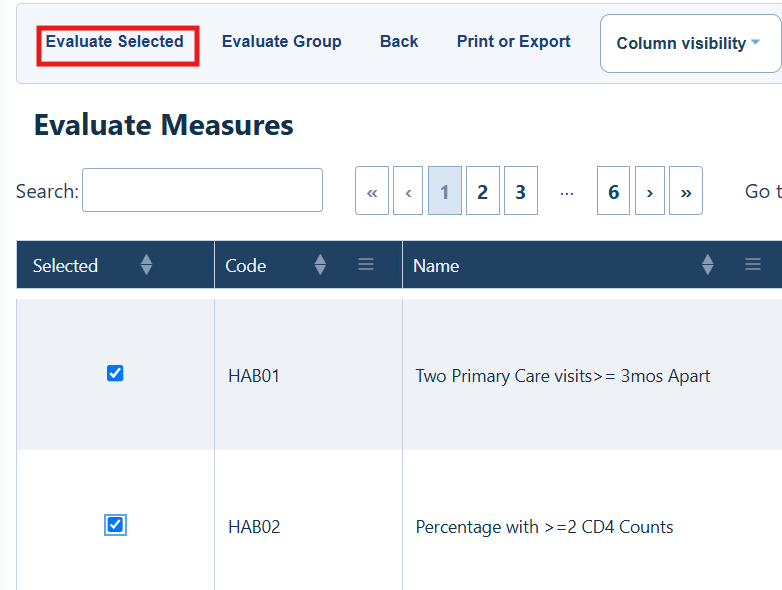
Evaluate Measures Menu Options
|
Button
|
What it does
|
|
Evaluate Selected
|
Create a report of the selected performance measures.
|
|
Evaluate Group
|
Create a report using a Performance Measure Group.
|
|
Back
|
Return to the Performance Measures menu.
|
|
Print or Export
|
Print or export a list of the performance measures.
|
|
Column Visibility
|
Show or hide columns in the list of performance measures.
|
Step 6. Choose an As of Date.
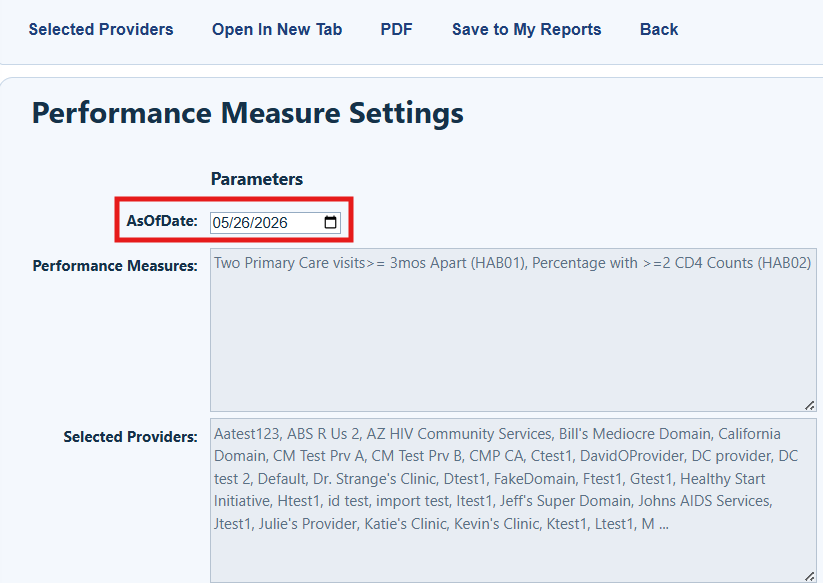
Performance Measures Settings Menu Options
|
Button
|
What it does
|
|
Selected Providers
|
Central Administration only. Select the providers to be included in the performance measure report.
|
|
Open in New Tab
|
Open the report in a new browser tab.
|
|
PDF
|
Open the report in PDF format.
|
|
Save to My Reports
|
Save the performance measure settings and format under My Reports.
|
|
Back
|
Return to the Evaluate Measures menu.
|
Step 7. If the report is being run in Central Administration, click Selected Providers to choose the providers (domains) to be included in the report.
Step 8. Select Open in New Tab or PDF to run and view the report.
Related References


