


|
|
|
|
|
|
|
|
|
|
|
|
|
|
|
|
Create a client list
Create Client List turns performance measure totals into a client-level list. You can use the list to review records, update client data, and run the measure again to check the results.
Step 1. Click Reports.
Step 2. Click Performance Measures.
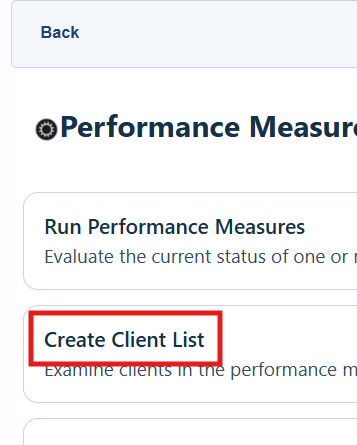
Step 3. Click Create Client List.
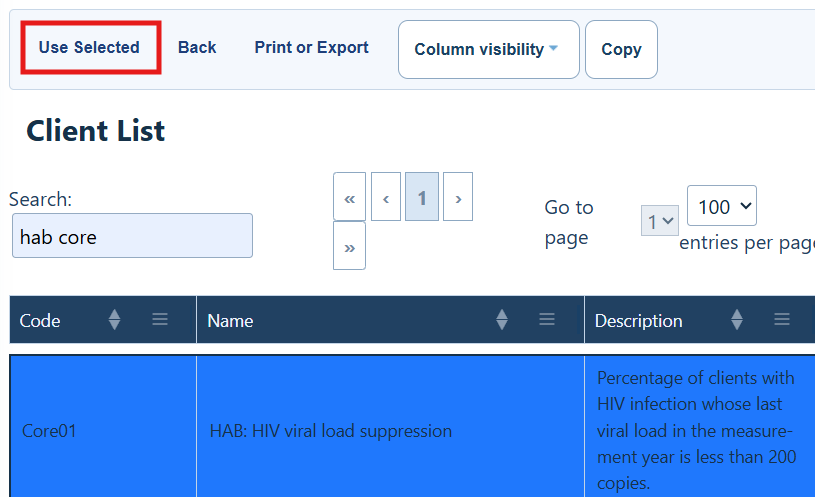
Step 4. Click a performance measure to highlight it.
Step 5. Click Use Selected.
Step 6. Click Edit.
Step 7. Select an As of Date. This date acts as the end date for the report.
Step 8. Select a Performance Measure Section.
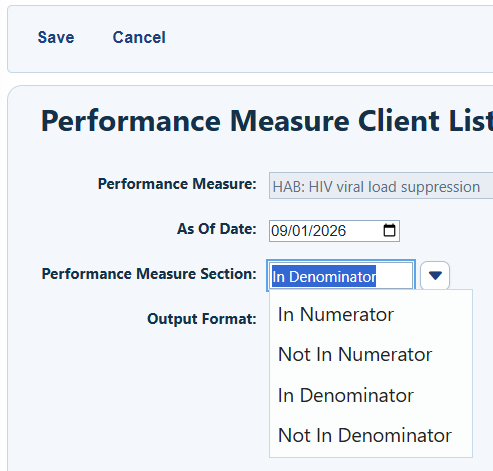
Performance Measure Sections
|
|
|
|
|
|
|
|
|
|
|
|
Step 9. Select an Output Format.
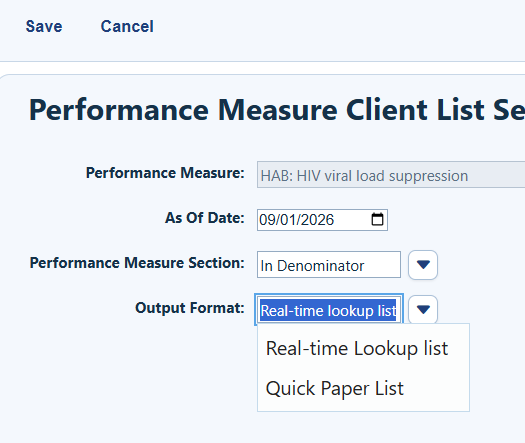
Output Formats
|
|
|
|
|
|
Step 10. Click Save.
Step 11. Click Create Client List.
Using the Real-Time Lookup List
To review or edit a client record, select the client and click Go To Client. CAREWare marks the record in the Viewed column. After you update records, run the performance measure again to see whether the results changed.
How to confirm it worked
• The client list opens for the performance measure and section you selected.
• The list shows the expected provider or providers and the correct As of Date.
• For a real-time lookup list, you can select a client and use Go To Client.
Troubleshooting and common questions
Why are expected clients missing from the list?
Check the As of Date, selected providers, and performance measure section. Each setting changes which clients appear.
How do I print the list?
Select Quick Paper List as the output format. You can also use Print or Export when that option appears on the list.
How do I check updated results?
Update the client records, then run the performance measure again.
Related References
|
|
|
|
|
|


