


|
|
|
|
|
|
|
|
|
|
|
|
|
|
Create a performance measure
Step 1. Click Reports.
Step 2. Click Performance Measures.
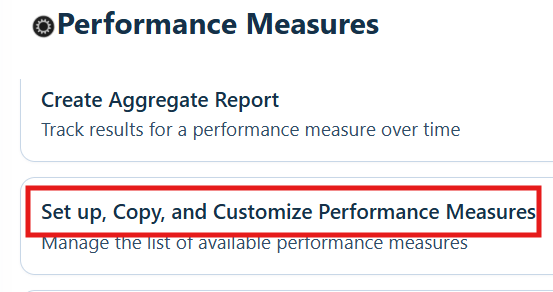
Step 3. Click Setup, Copy, and Customize Performance Measures.
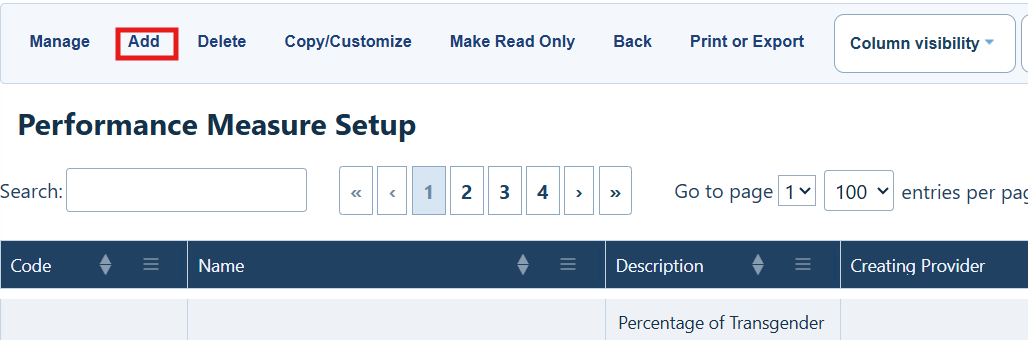
Step 4. Click Add.
Performance Measure Setup Menu Options
|
|
|
|
|
|
|
|
|
|
|
|
|
|
|
|
|
|
|
|
|
|
|
|
|
|
|
Step 5. Enter a clear Name for the measure.
|
|
Step 6. Enter a Code.
|
|
Step 7. Enter a description of the measure.
Step 8. Enter a Numerator Description.
Step 9. Enter a Denominator Description.
|
|
Step 10. Click Save.
Add the denominator filter
Start with the denominator. The denominator defines the full group of clients who should be included in the measure. For example, all clients who received at least one Outpatient/Ambulatory Health Service or viral load lab in the past 12 months.
|
|
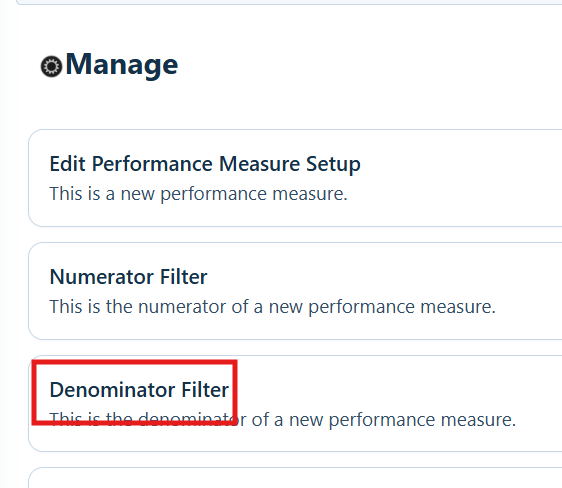
Step 11. Click Denominator Filter.
Step 12. Click Add.
Step 13. Enter the filter name or a keyword in the search box.
Step 14. Click the field to select it.
Step 15. Click Use Field.
Step 16. Complete all required subfilters. In this example, select Medical Case Management, enter 12 for Max Months, enter 0 for Min Months, and select No for Cross-Provider.
Step 17. Click Next.
Step 18. Complete the required Criterion Details. In this example, enter 1 for >=.
Step 19. Click Save.
Add the numerator filter
The numerator defines the clients who met the goal within the denominator group.
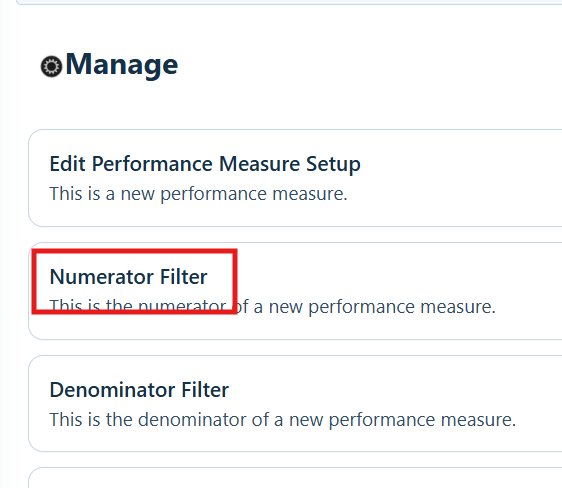
Step 20. Click Numerator Filter.
Step 21. Click Add.
Step 22. Enter the filter name or a keyword in the search box.
Step 23. Click the field to select it.
Step 24. Click Use Field.
Step 25. Complete all required subfilters. In this example, select Viral Load for Lab, enter 12 for Max Months, enter 0 for Min Months, and select No for Cross-Provider.
Step 26. Click Next.
Step 27. Complete any required Criterion Details.
Step 28. Click Save.
Copy and customize a measure
Copy a measure when you want to change a Read Only measure or use an existing measure as a starting point.
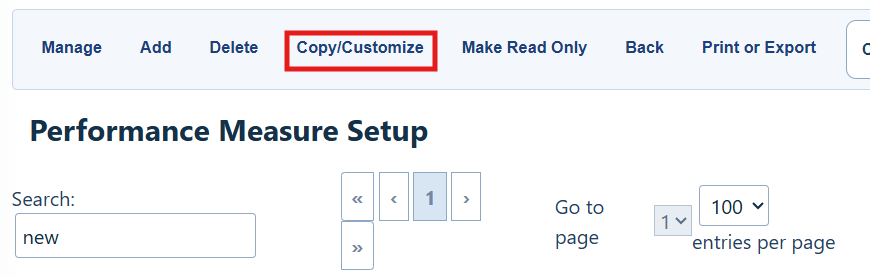
Step 29. Click a measure to select it.
Step 30. Click Copy/Customize.
|
|
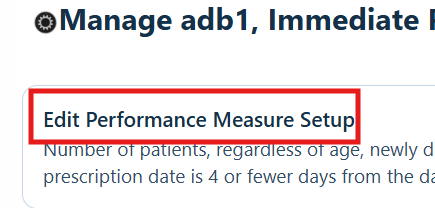
Step 31. Click Edit Performance Measure Setup.
Step 32. Change the name and code so users can identify the new measure.
Step 33. Update the descriptions so they match the new measure.
Step 34. Click Save.
Use the same steps in this guide to update the denominator and numerator filters. Start with the denominator so the full client group is clear before you define which clients met the goal.
How to confirm it worked
• The measure name, code, and descriptions are saved.
• The denominator and numerator filters appear under Manage.
• Run Performance Measures returns results without an error.
Related References
|
|
|
|
|
|
|
|
|
|
|
|


