


|
|
|
|
|
|
|
|
|
|
|
|
|
|
Before you begin
- Confirm that you are working in the correct provider domain.
- Have the client’s legal name, sex at birth, and date of birth available.
- Search for the client first, and review all possible matches before creating a new record.
Add a client
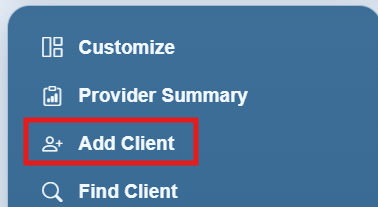
Step 1. Log into a provider domain and click Add Client in the left menu.
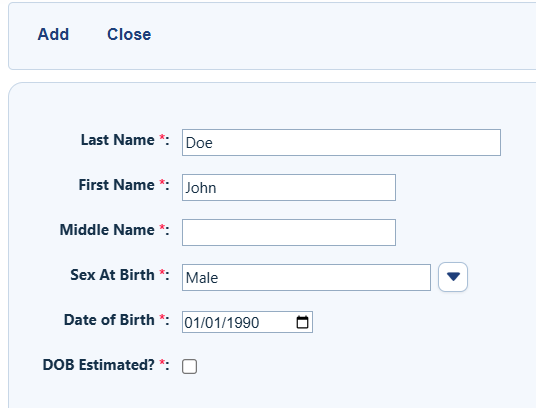
Step 2. Enter the client’s last name, first name, middle name (optional), sex at birth, and date of birth. If the date of birth is unknown, enter an estimated date and check DOB Estimated?.
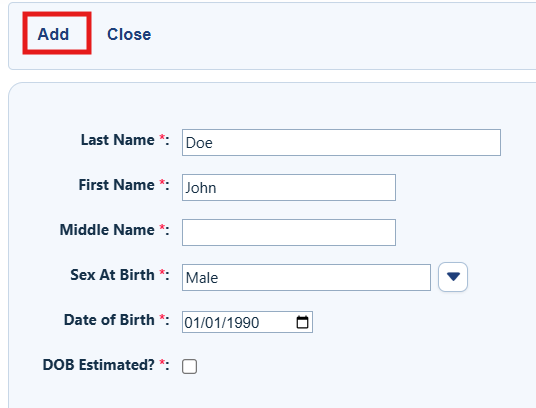
Step 3. Click Add.
Duplicate client warning
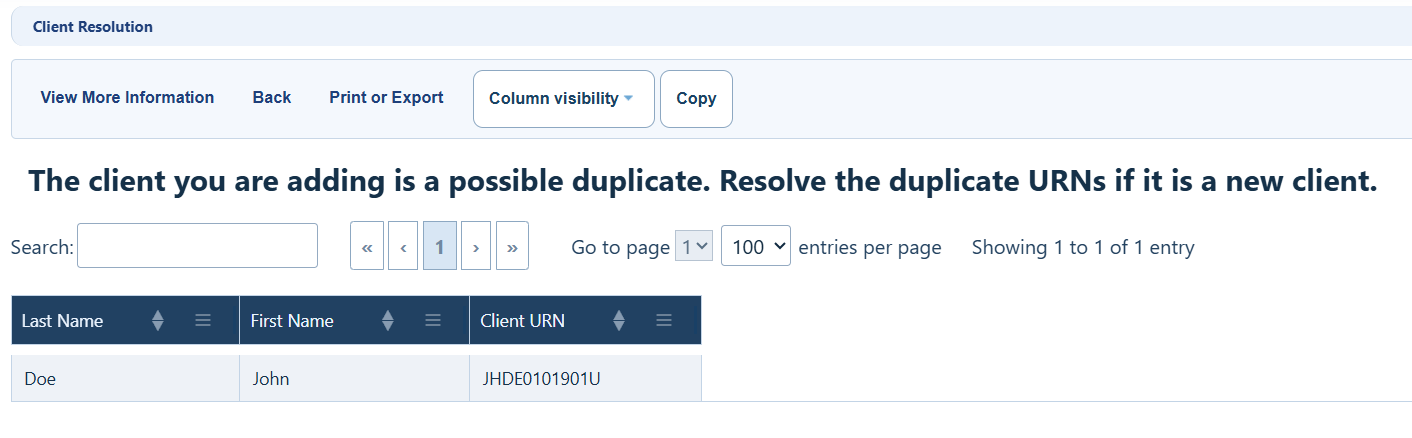
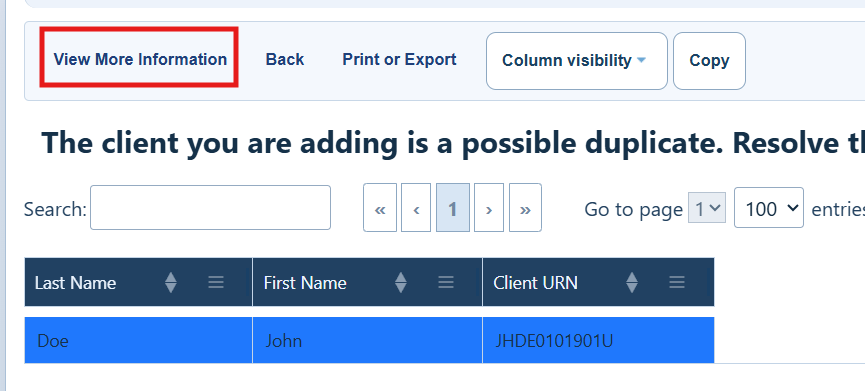
If matches are found, CAREWare displays a list of potential matches. Review the list before deciding whether to add a new client or open an existing record.
Choose an action for a possible match
View More Information: Open the existing client record to determine whether it belongs to the same person.
Back: Return to the Add Client screen to review or correct the information entered.
Print or Export: Print or export the list of possible matches.
Column Visibility: Add or remove columns from the possible-matches list.
Step 4: Select a record to verify if it is the same client or a different client.
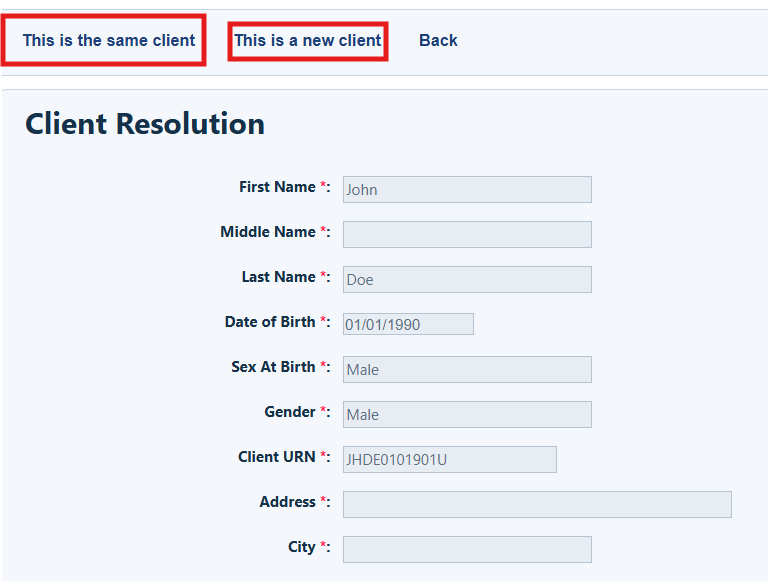
Step 5: After reviewing the record, select This is the same client if the record under Client Resolution is the same client as the client being added Select This is a new client if the client being added is different from the one shown under Client Resolution.
How to confirm it worked
1. The client record opens after a new client is added.
2. The client’s identifying information appears in the record.
3. The new record is available from Find Client in the correct provider domain.
Troubleshooting and common questions
What if the client already exists?
Use Go To Client to open and review the existing record. Do not create a second record for the same person.
What if I entered the wrong information?
Select Back from the possible-matches screen, correct the Add Client fields, and submit again.


