

Labs

|
|
|
|
|
|
|
|
|
|
|
|
|
|
Standard and Custom Labs in CAREWare
- Albumin
- ALT
- AST
- CD4 Count
- CD4 Percent
- Creatinine
- Glucose
- HDL
- Hemoglobin
- LDL
- Platelets
- Total Cholesterol
- Triglyceride
- Viral Load
- WBC
Authorized staff can add provider-specific and custom labs in Administrative Options > Clinical Setup > Lab Setup.
Labs used for the RSR and ADR
CD4 Count and Viral Load records are required for the RSR and the AIDS Drug Assistance Program Data Report (ADR).
- RSR Q.49: CD4 Count date and result
- RSR Q.50: Viral Load date and result
- ADR Q.32: CD4 Count date
- ADR Q.33: CD4 Count result
- ADR Q.34: Viral Load date
- ADR Q.35: Viral Load result
Add a lab to a client record
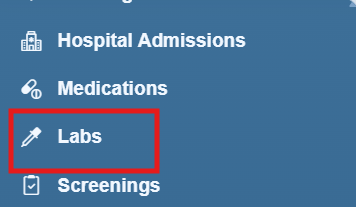
Step 1. Open the client record. Select Labs from the left menu.
Step 2. Select Add.
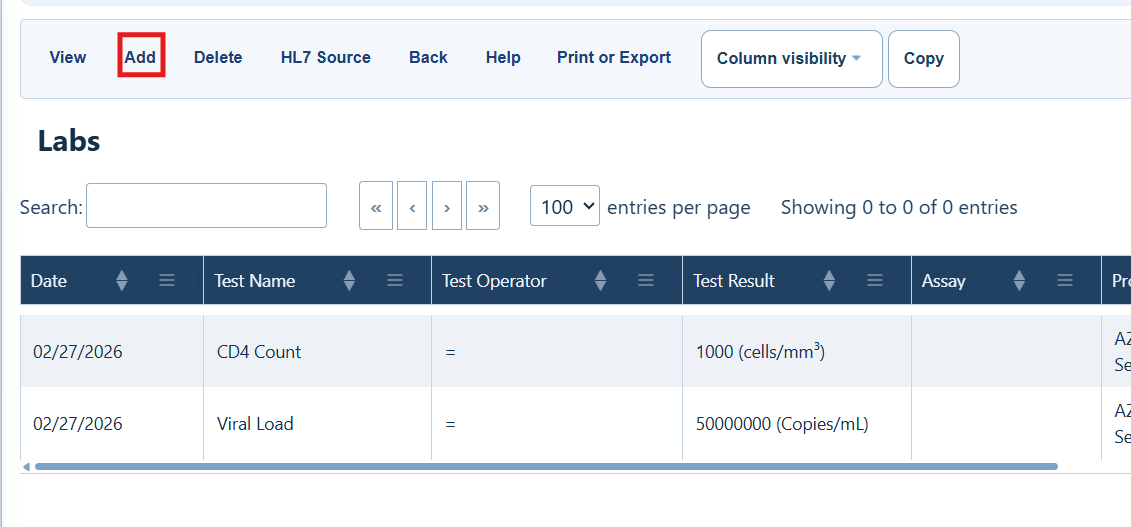

Labs Menu Options
|
|
|
|
|
|
|
|
|
|
|
|
|
|
|
|
|
|
|
|
|
|
|
|
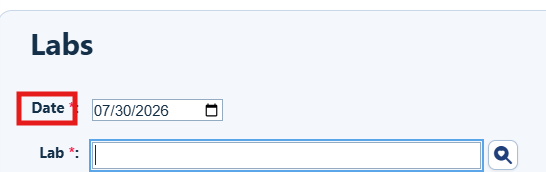
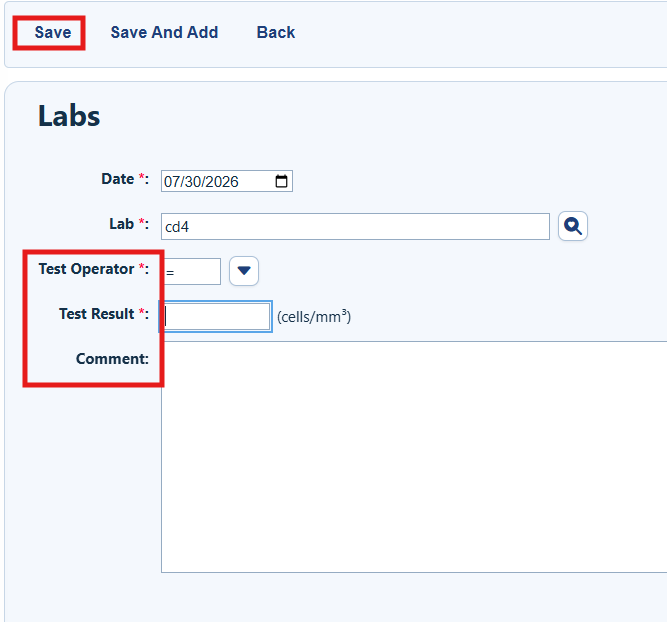
Step 3. Enter the date of the lab.
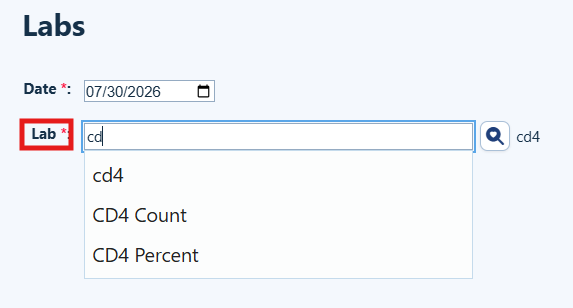
Step 4. Select the lab from the list. To shorten the list, enter the first letters of the lab name.
Step 5. Complete the Test Operator, Test Result, Assay (if applicable), and Comment (optional) fields and click Save.

|
|
How to confirm it worked
- The saved lab appears in the client’s Labs list.
- The lab date, test name, operator, and result are correct.
Troubleshooting and common questions
How do I find the lab I need?
Enter the first letters of the lab name. If the lab is still missing, ask an authorized administrator to review Lab Setup.
How do I correct an error in an existing lab record?
Return to the Labs list and review the record. Correct it if your permissions allow changes. If not, contact your CAREWare administrator.
What information is required?
Enter the lab date, lab name, test operator, and test result. Assay and Comment are optional.
Related References
|
|
|
|
|
|
|
|
|


