


|
|
|
|
|
|
|
|
|
|
|
|
|
|
|
|
Set Up a Medication Regimen
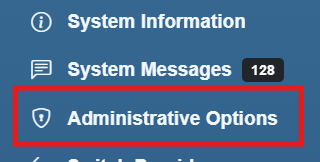
Step 1. Select Administrative Options from the left menu.
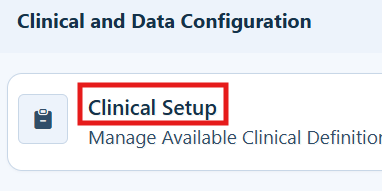
Step 2. Select Clinical Setup.
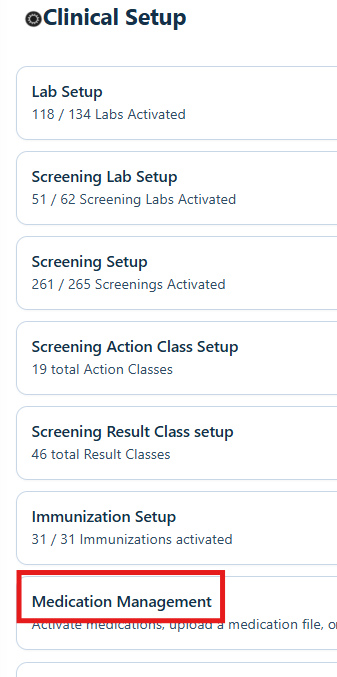
Step 3. Select Medication Management.
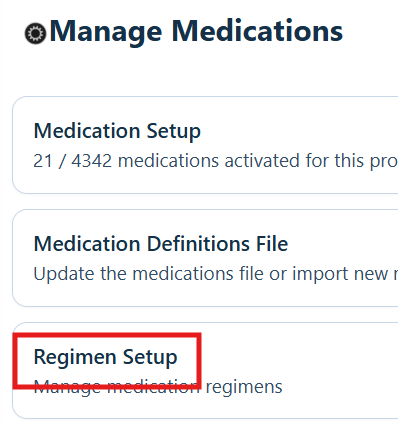
Step 4. Select Regimen Setup.
Step 5. Select Add.
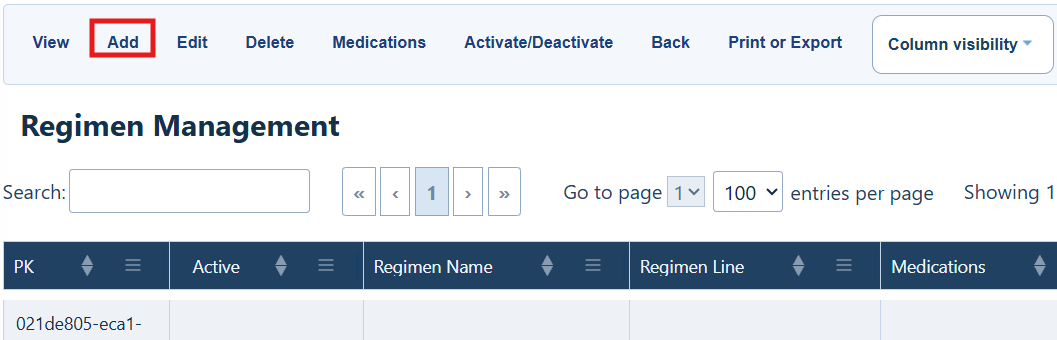
Regimen Management Menu Options
|
|
|
|
|
|
|
|
|
|
|
|
|
|
|
|
|
|
|
|
|
|
|
|
|
|
|
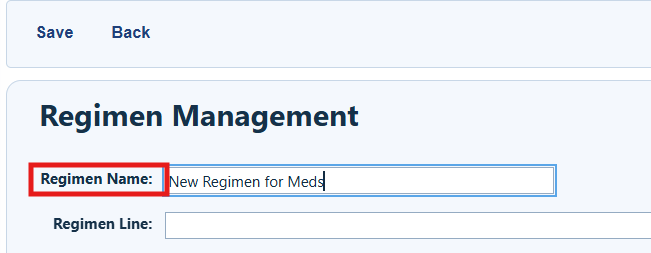
Step 6. Enter a Regimen Name.
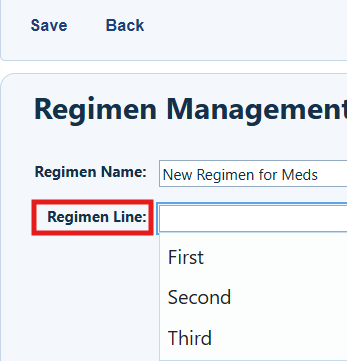
Step 7. Select the Regimen Line from the dropdown list.
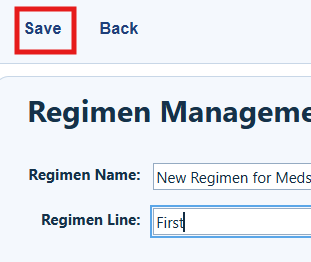
Step 8. Select Save.
|
|

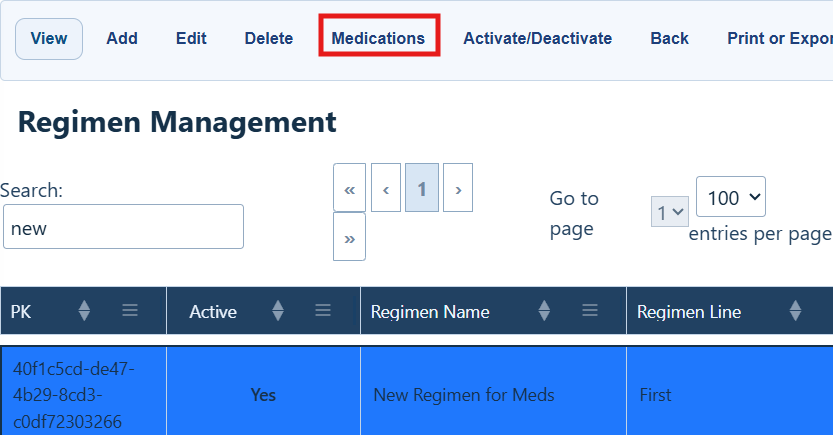
Step 9. Select the regimen, and then select Medications.
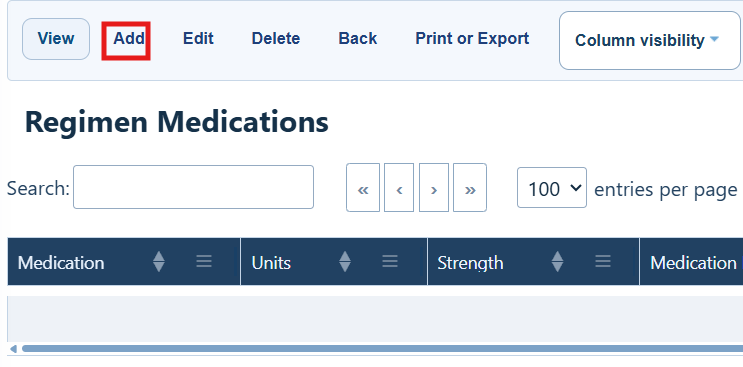
Step 10. Select Add.
Regimen Medications Menu Options
|
|
|
|
|
|
|
|
|
|
|
|
|
|
|
|
|
|
|
|
|
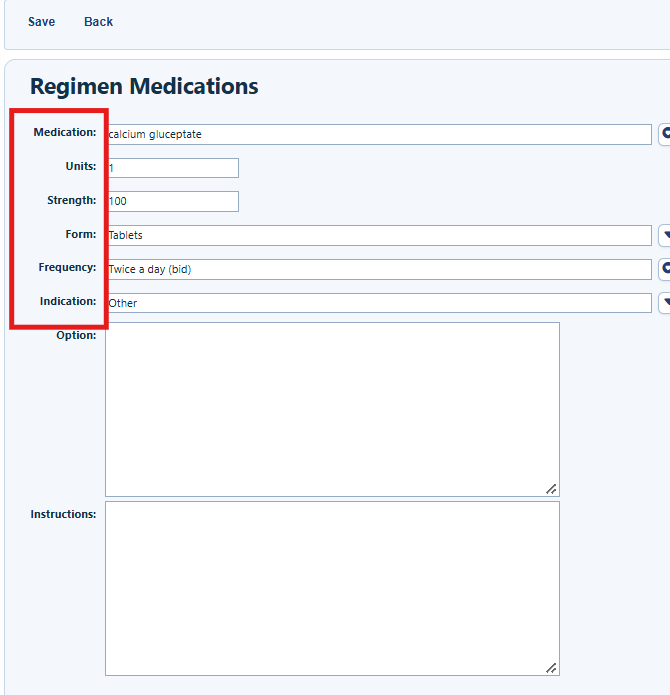
Step 11. Select the medication name. Complete the Units, Strength, Form, Frequency, and Indication fields. The Option and Instructions fields are optional.
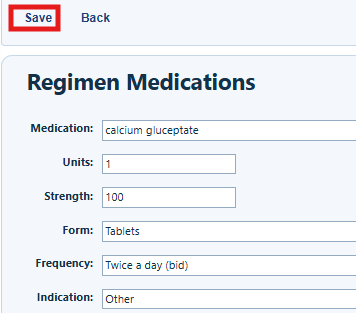
Step 12. Select Save.
Step 13. Repeat Steps 10 through 12 for each medication in the regimen.
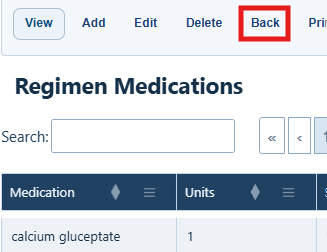
Step 14. Select Back.
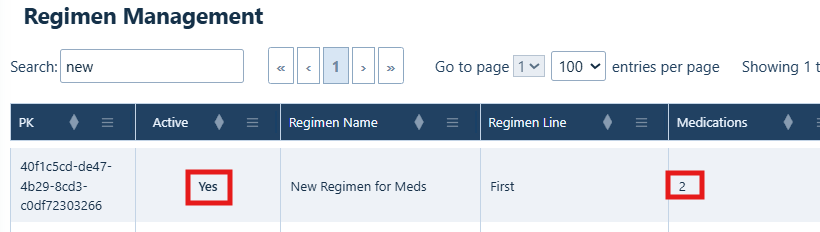
Step 15. Verify that the regimen is set to active and that it includes the correct number of medications.
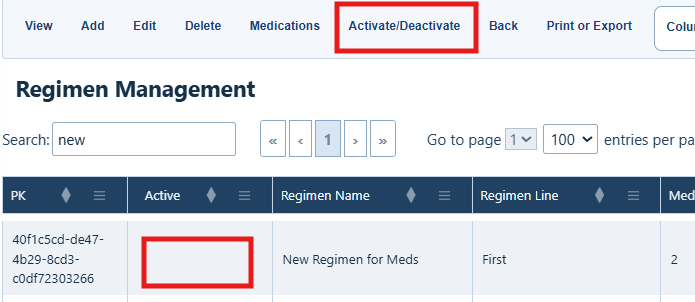
If the Active column is blank, select the regimen and then select Activate/Deactivate.
How to confirm it worked
• The regimen appears in Regimen Management.
• The Active column shows Yes.
• The medication list includes each medication in the regimen.
The regimen is available in client records under Medications > All Start/Stop > Start Regimen.
Troubleshooting and common questions
Why is a medication not showing in the list when adding it to a regimen.
The medication may need to be set active for the provider domain.
Why doesn’t the regimen show up when adding medications to a client record?
Verify that the regimen is set as Active and has at least one medication.
Related References
|
|
|
|
|
|
|
|
|
|
|
|


