


|
|
|
|
|
|
|
|
|
|
|
|
|
|
Before you begin
• Open the correct client record.
• Confirm that the case note author is available in Employee Setup.
• Have the case note date, author, comment, and note text ready.
Add a case note to a client record
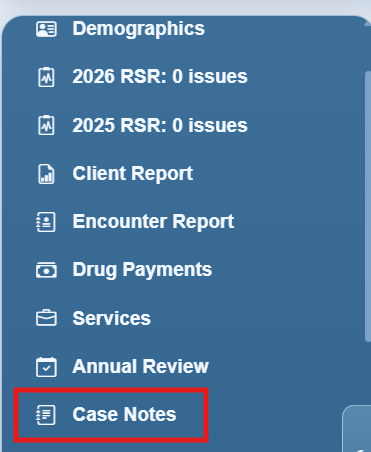
Step 1. Click Case Notes from the client menu.
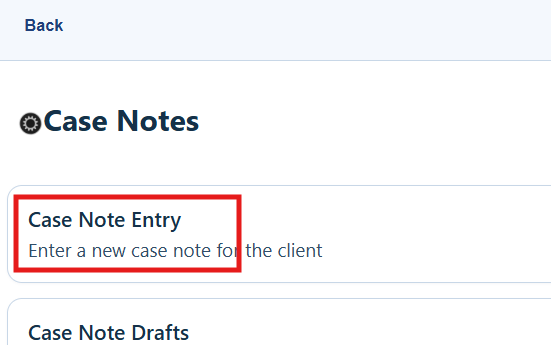
Step 2. Click Case Note Entry.
Step 3. Click Add.
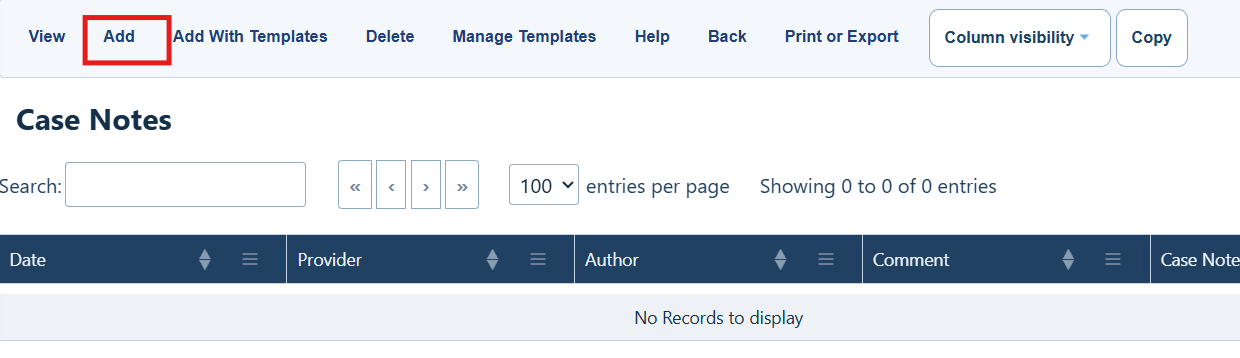
Case Note Entry buttons
|
|
|
|
|
|
|
|
|
|
|
|
|
|
|
|
|
|
|
|
|
|
|
|
|
|
|
|
|
|
|
|
|
|
|
|
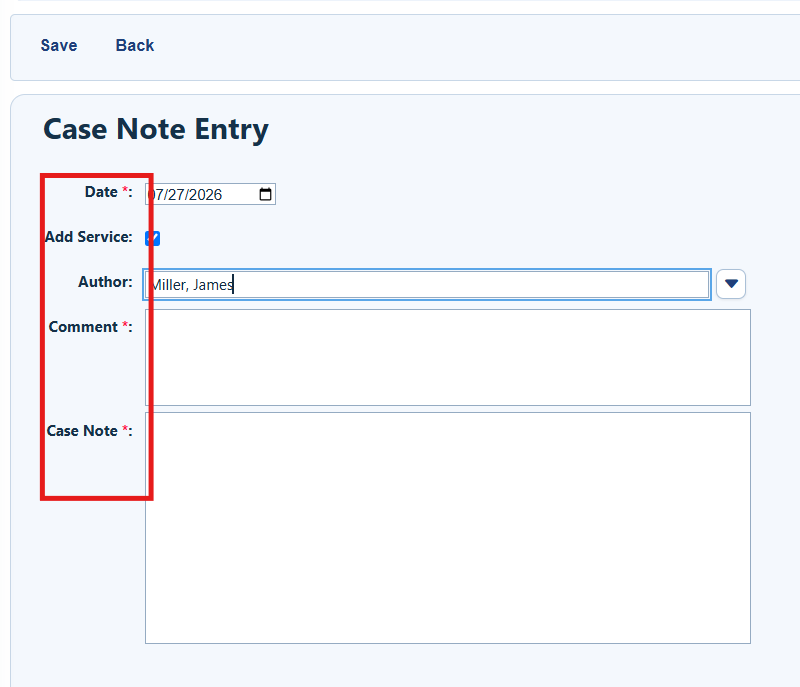
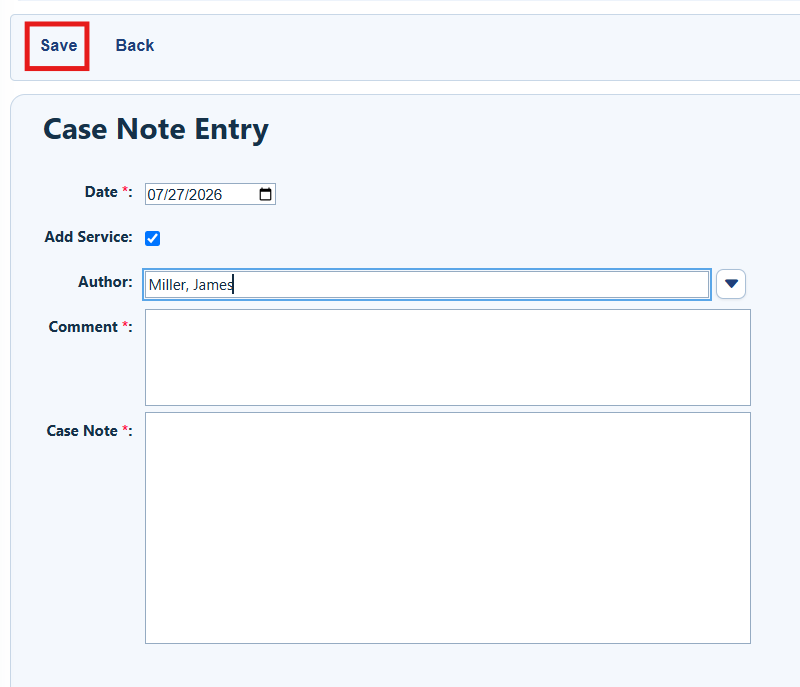
Step 4. Complete Date, Add Service, Author, Comment, and Case Note.
|
|
Step 5: Click Save.
Work with case note drafts
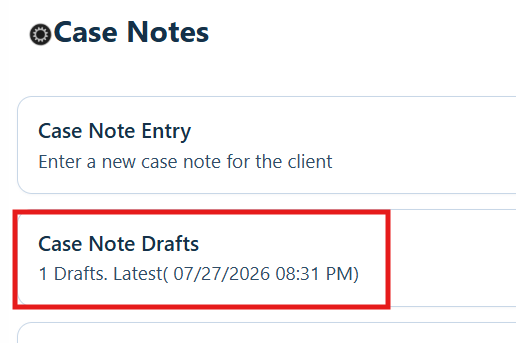
Step 1. From the Case Notes menu, click Case Note Drafts.
Step 2. Select the draft and click Resume Add.
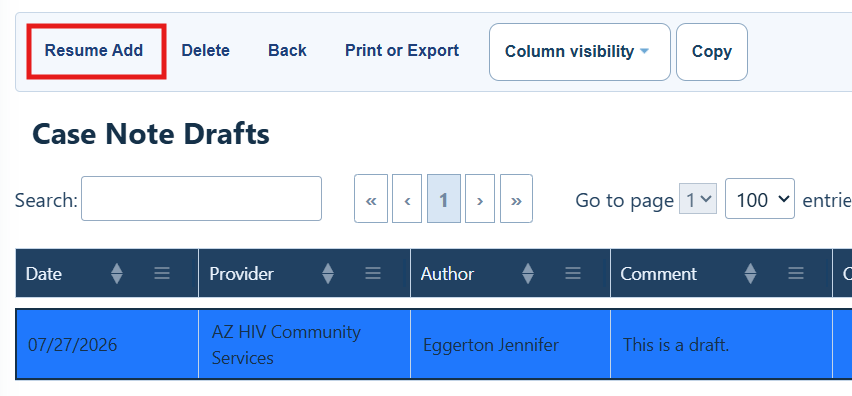
Case Note Draft buttons
|
|
|
|
|
|
|
|
|
|
|
|
|
|
|
|
|
|
|
|
Step 2. Edit the draft as needed, then click Save.
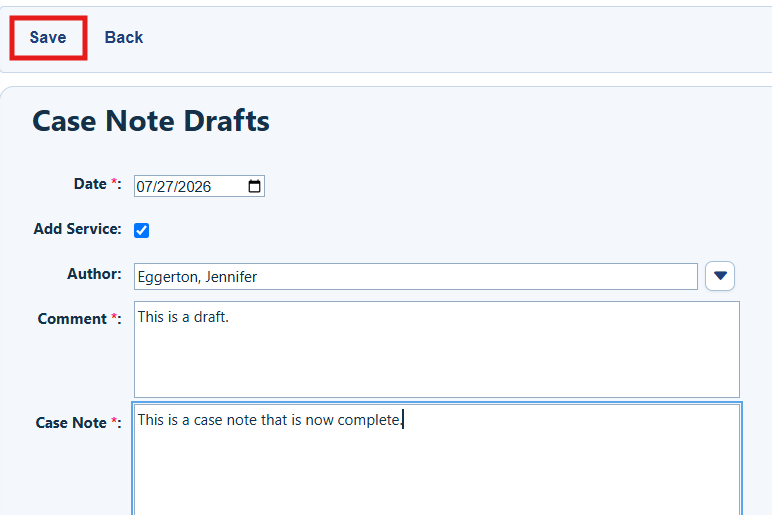
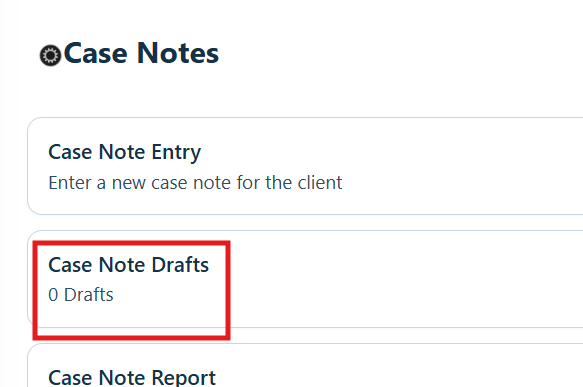
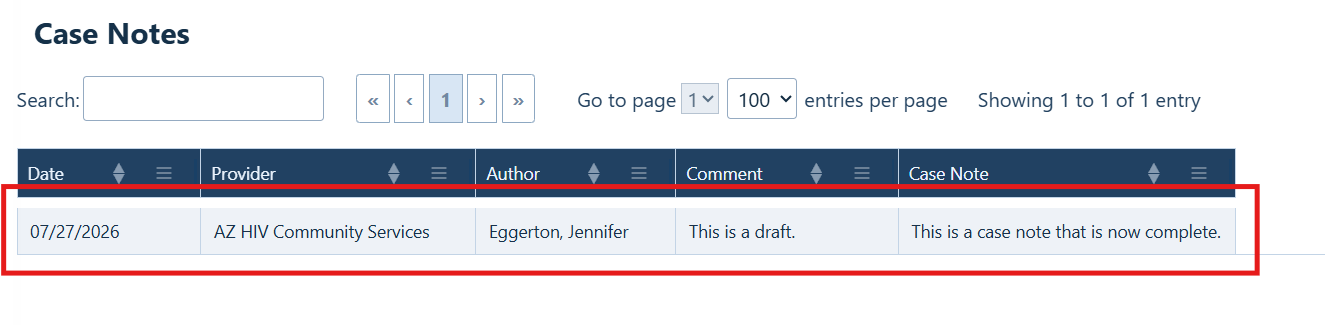
The note is removed from drafts and saved in Case Note Entry.
How to confirm it worked
1. The saved note appears in Case Note Entry for the client.
2. A saved draft no longer appears in Case Note Drafts.
3. The report displays the expected date span and case note records.
Troubleshooting and common questions
Why is an author missing?
Ask an authorized administrator to verify the person is listed under Employee Setup and identified as a Case Note Author.
Why can’t I find my draft?
Confirm that you are in the same client record and signed in as the user who created the draft.
What happens when Add Service is selected?
After the case note is saved, CAREWare opens the client’s Services tab.
Related References
|
|
|
|
|
|
|
|
|


