


|
|
|
|
|
|
|
|
|
|
|
|
|
|
Before you begin
• Open the correct client record.
• Determine the date span needed for the report.
• Decide whether the report should include shared case notes from other provider domains.
Run a case note report
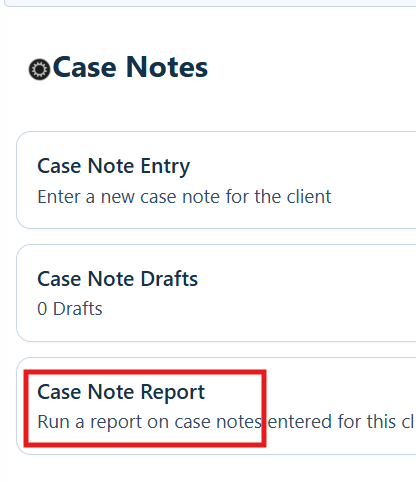
Step 1. From the Case Notes menu, click Case Note Report.
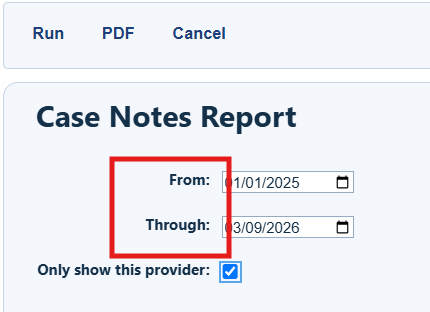
Step 2. Set the report date span. Select Only show this provider to limit results to the current domain; clear it to include case notes shared from other domains.
Step 3. Click Run.
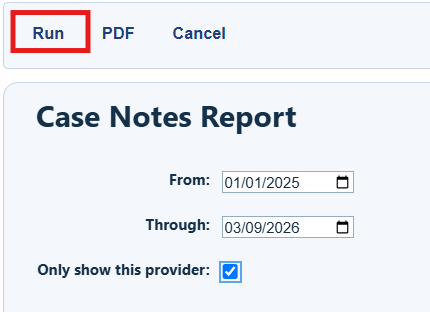
Case Note Report buttons
|
|
|
|
|
|
|
|
|
|
|
|
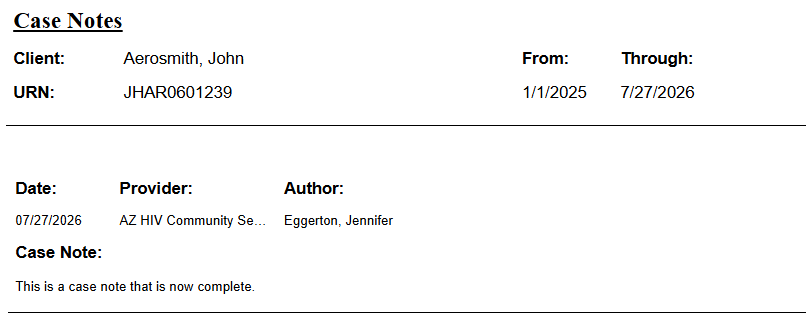
Step 4. Click View Case Notes Report to open the completed report.
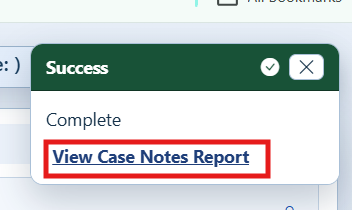
The report shows the client name, URN, date span, and case notes. Each note includes its date, provider domain, author, and text.
How to confirm it worked
1. The report opens for the correct client.
2. The report header shows the expected date span.
3. The report contains the expected case note records and provider domains.
Troubleshooting and common questions
Why are no case notes listed?
Confirm the report date span and verify that case notes exist for the client during that period.
Why are notes from other domains missing?
Clear Only show this provider and confirm that the applicable domains share case notes.
Why does the report show the wrong client or date span?
Close the report, return to the correct client record, and run it again with the intended dates.
Related References
|
|
|
|
|
|


