


|
|
|
|
|
|
|
|
|
|
|
|
|
|
Add a Counseling and Testing record
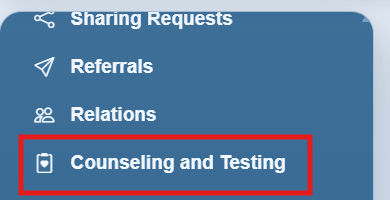
Step 1. Click Counseling and Testing in the left menu.
Step 2. Click Add.
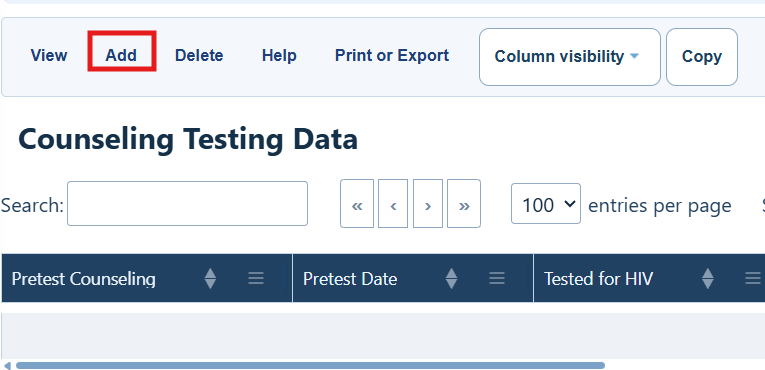
Counseling and Testing menu options
Use these options from the client’s Counseling and Testing history.
|
|
|
|
|
|
|
|
|
|
|
|
|
|
|
|
|
|
|
|
|
|
|
|
|
|
|
|
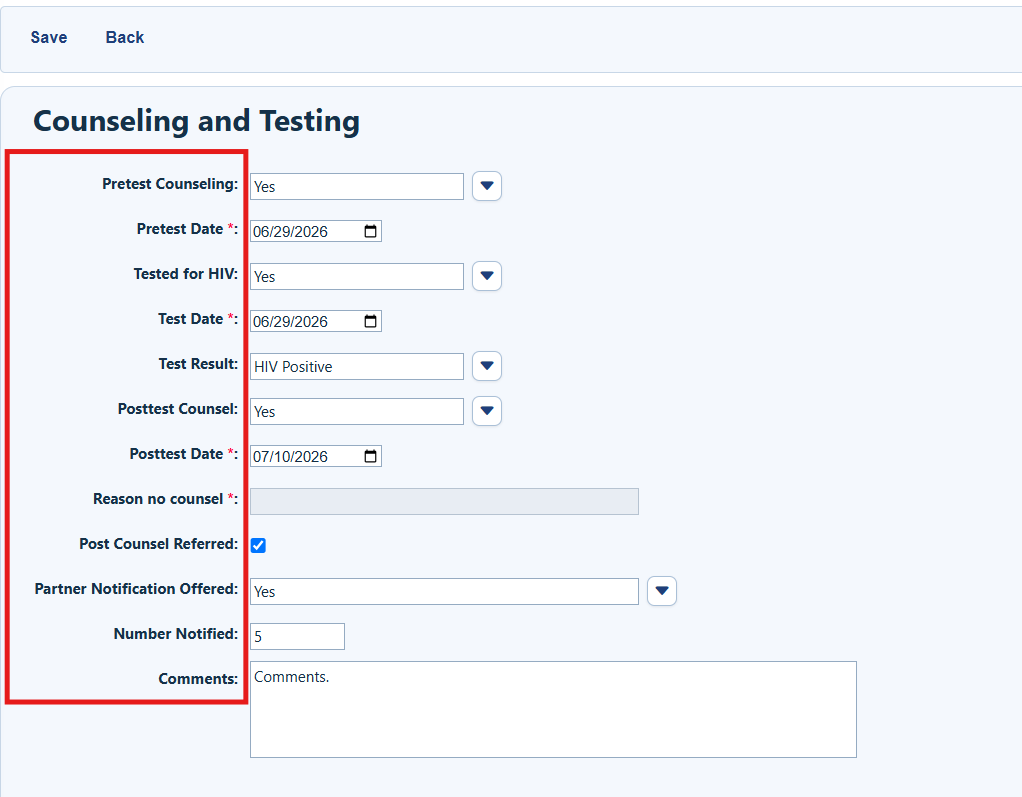
Step 3. Complete the applicable fields. If Posttest Counsel is No, complete Reason no Counsel.
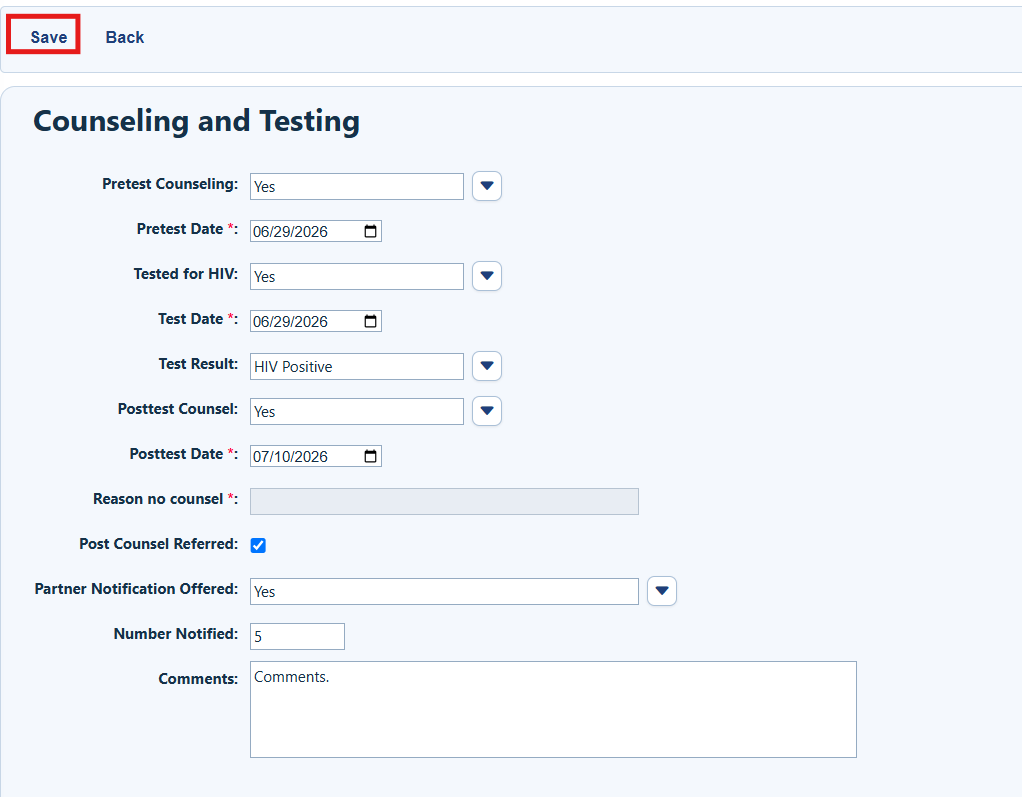
Step 4. Click Save.
How to confirm it worked
1. CAREWare returns to the client’s Counseling and Testing history.
2. The new record appears in the list with the expected dates and result.
3. Open the record with View to confirm the saved details.
Troubleshooting and common questions
Why can’t I add or edit a record?
Confirm that you are working in the correct provider domain and that your account has permission to update the client record.
What if Posttest Counsel is No?
Select the appropriate Reason no Counsel before saving.
What if I entered the wrong information?
Click View to open the record, and click Edit to make the changes. Click Save when done with the changes.


