


|
|
|
|
|
|
|
|
|
|
|
|
|
|
|
|
|
Before you begin
Both clients must have records in CAREWare. Confirm that you have the correct client records before creating a link, especially when clients have similar names. You may want to search for both clients first using the Find Client feature. If one of the clients is not in CAREWare, use Add Client to create the record.
|
|
Relationship types
The Relations tab can track the following links:
- Aunt/uncle
- Brother/sister
- Child
- Cousin
- Grandchild
- Grandparent
- Niece/nephew
- Not Family
- Other
- Parent
Add a relationship between client records
Step 1. Open the record of the index client.
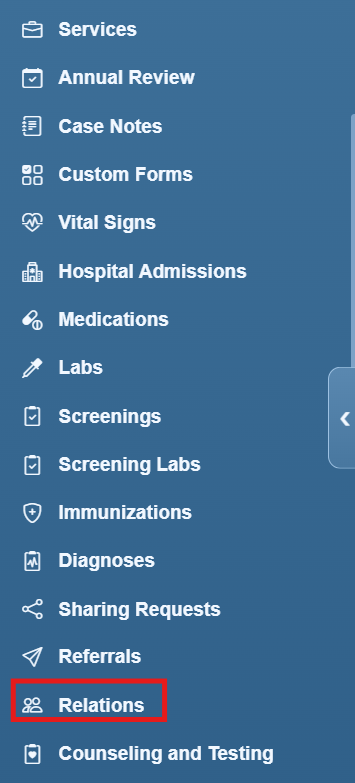
Step 2. Click Relations.
Step 3. Click Append Relationship to add a new relationship record.
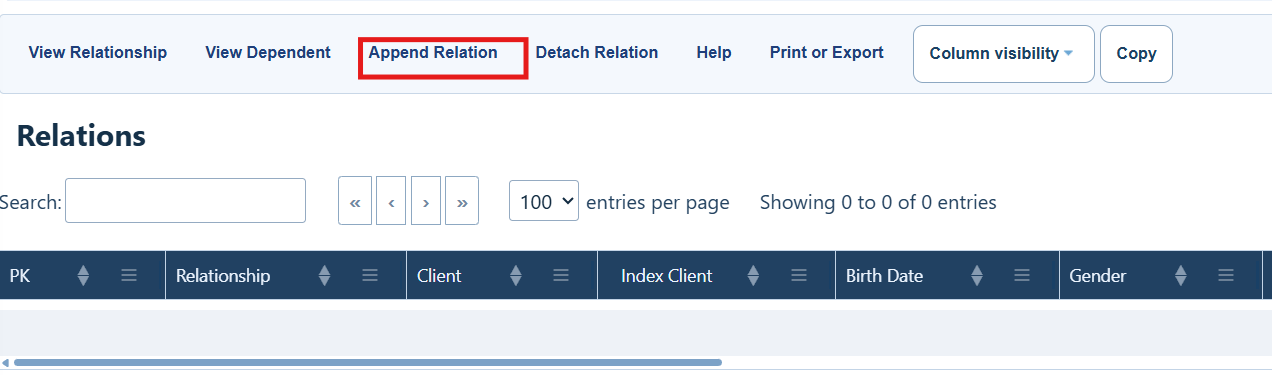
What each button does on the Relations page
|
|
|
|
|
|
|
|
|
|
|
|
|
|
|
|
|
|
|
|
|
|
|
|
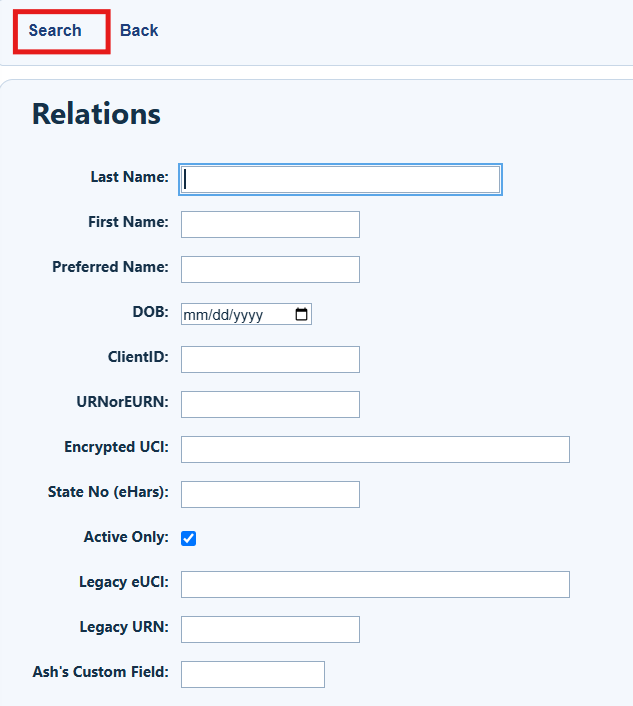
Step 4. Search for the dependent (secondary) client.
|
|
Step 5. Highlight the secondary client’s name in the list and click Append Selected.
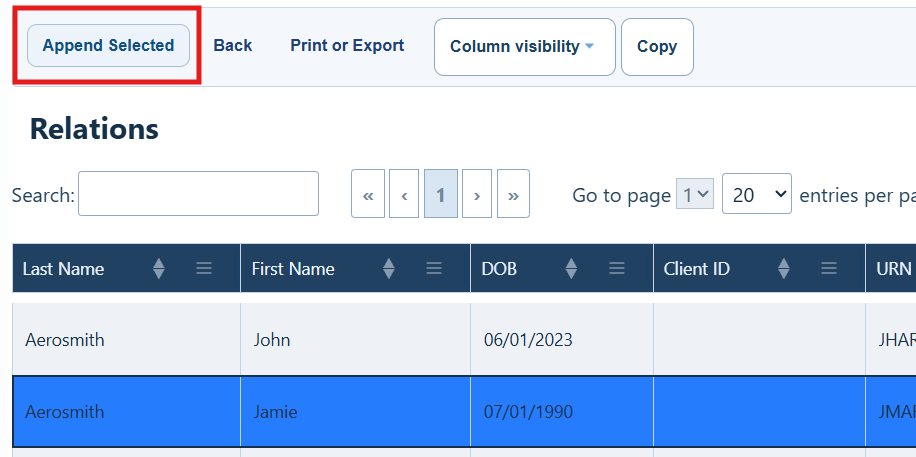
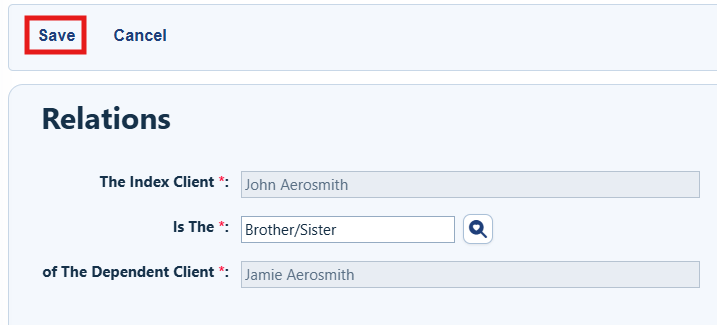
Step 6. Choose the type of relationship in the Is The field, then click Save.
Review the saved relationship
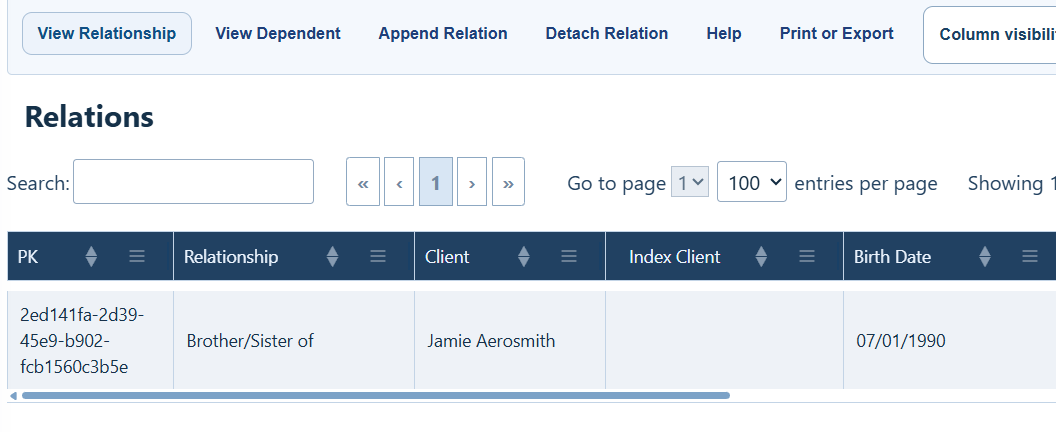
The Relations list shows the relationship type, the appended client’s name, date of birth, and other available information.
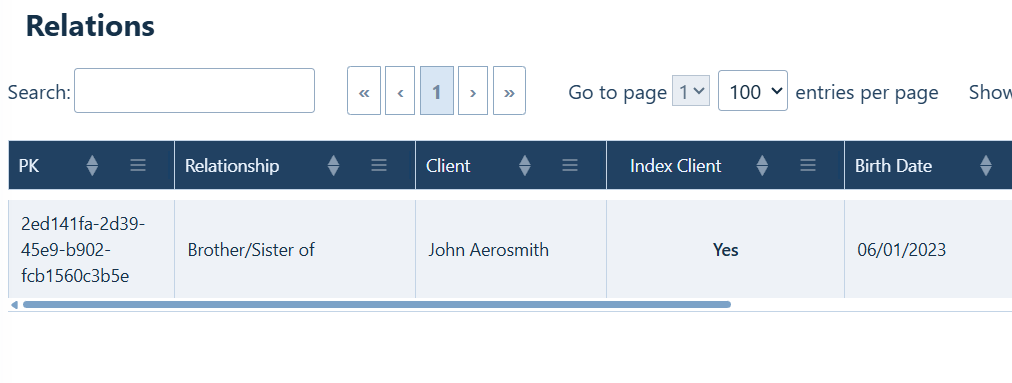
CAREWare automatically adds the corresponding relationship record to the dependent client.
How to confirm it worked
- Confirm the expected relationship appears in the index client’s Relations list.
- Select the relationship and use View Dependent to open the related client.
- Open Relations in the dependent client’s record.
- Confirm the corresponding relationship points back to the index client.
|
|
Remove a relational link between two client records
Detaching a relationship removes the link from both the index and dependent client records.
Step 1. Click Relations in the index or dependent client record.
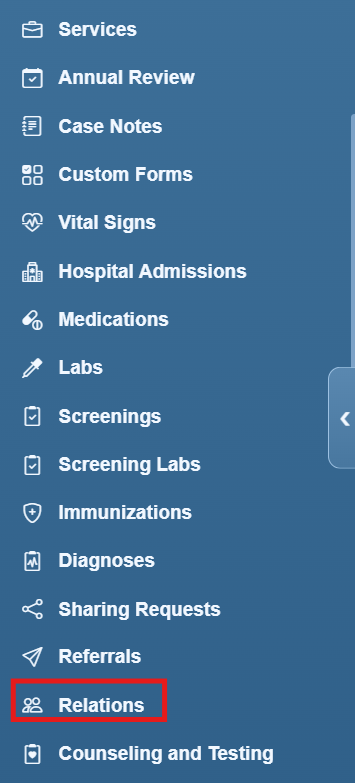
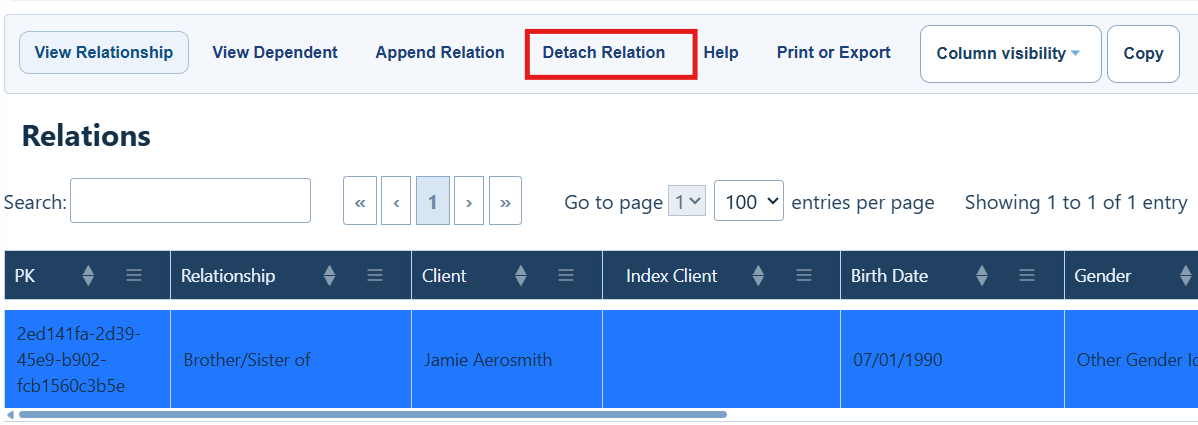
Step 2. Highlight the existing relationship record and click Detach Relation.
How to confirm it worked
- Refresh or reopen the Relations list for the first client.
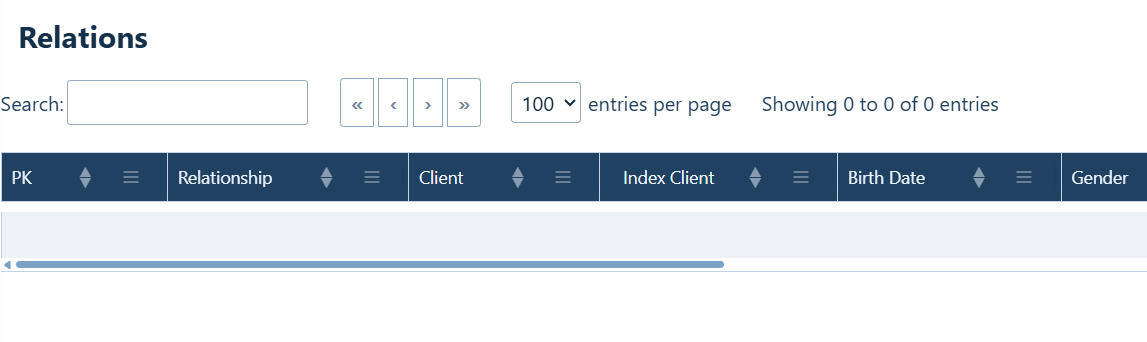
- Confirm the detached relationship no longer appears in the list of relations.
- Open the other client record and confirm the corresponding entry no longer appears in the list of relations.
|
|
Troubleshooting and common questions
Why can’t I find the dependent client?
Check the spelling and search criteria. Use fewer criteria if the search is too narrow, then verify the correct person with date of birth or other identifying information.
Why is Append Selected unavailable?
Highlight one client in the search-results list. If the button remains unavailable, confirm you have the necessary permissions to add and edit relations in client records.
Can I correct a relationship after saving it?
If the client or relationship type is wrong, detach the incorrect relationship and append the correct one. Confirm both records afterward.
Related References
|
|
|
|
|
|
|
|
|


