


|
Purpose |
Review where custom fields are used in custom records and custom reports before changing their definitions. |
|
Who should do this |
CAREWare administrators, data managers, or designated support staff with access to Administrative Options and Custom Fields. |
|
Use this setup when |
You need to identify dependencies, troubleshoot a field, document usage, or evaluate a proposed change. |
|
Main warning |
A blank usage indicator does not prove a field is unused everywhere. Review forms, templates, imports, exports, and staff workflows separately. |
|
Video walkthrough |
Quick path
|
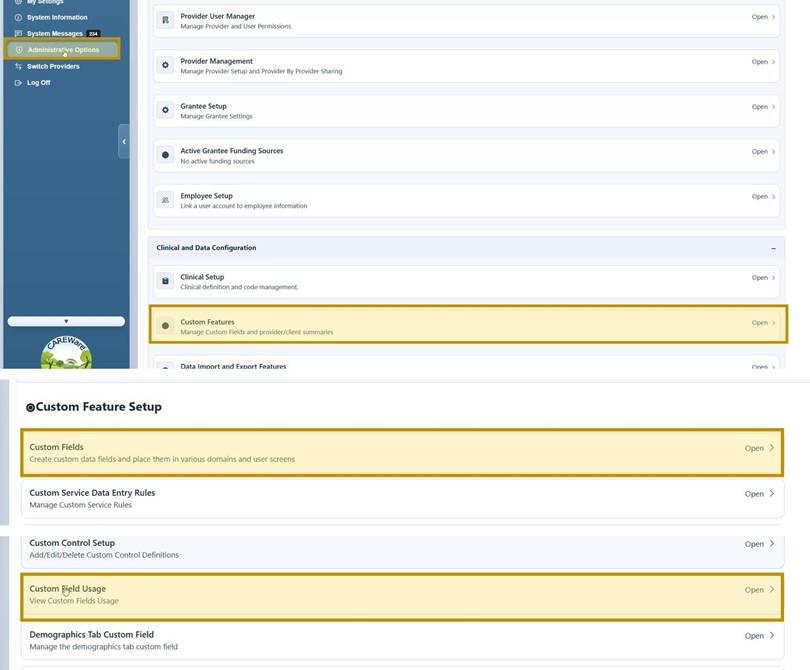
Administrative Options > Custom Features > Custom Fields > Custom Field Usage |
Before you begin
● Know the exact field name and the change being considered.
● Review the field definition in Custom Control Setup when needed.
● Use a test environment or approved change-control process for production changes.
|
Important |
Open Custom Field Usage
Step 1. Click Administrative Options.
Step 2. Click Custom Features.
Step 3. Click Custom Fields.
Step 4. Click Custom Field Usage.
Review the usage list
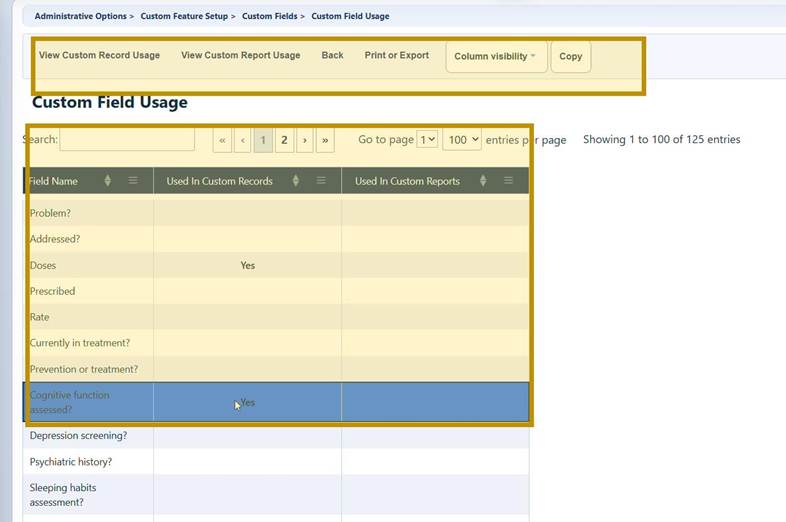
Step 5. Use Search to locate a field, or click a column heading to sort the list.
Step 6. Review the usage indicators for the field.
Step 7. Select the field you want to investigate.
|
Column |
How to use it |
|
Field Name |
Identifies the custom control definition. |
|
Used in Custom Records |
Sort this column to group fields that have custom-record dependencies. |
|
Used in Custom Reports |
Sort this column to group fields that have custom-report dependencies. |
View custom record usage
Step 8. Select a field with Yes under Used in Custom Records.
Step 9. Click View Custom Record Usage.
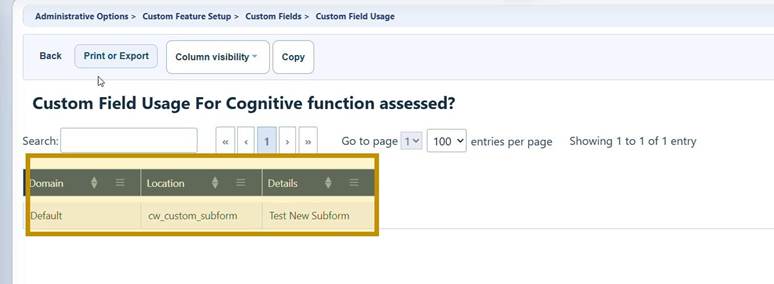
Step 10. Review each Domain, Location, and Details entry.
|
Column |
What it identifies |
|
Domain |
The provider or administrative domain using the field. |
|
Location |
The CAREWare custom-record location, which may appear as a technical name. |
|
Details |
The specific custom tab, subform, or other custom-record item. |
View custom report usage
Step 11. Click Back to return to the Custom Field Usage list.
Step 12. Sort Used in Custom Reports to group fields marked Yes.
Step 13. Select a field, then click View Custom Report Usage.
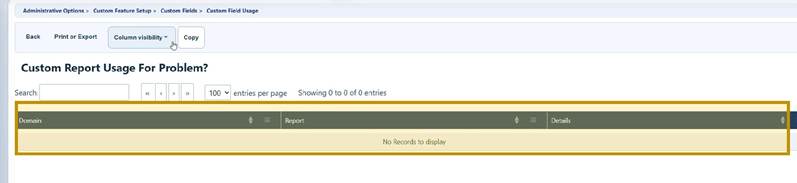
Step 14. Review the Domain, Report, and Details entries.
When no report dependency is listed
The report-usage page displays No Records to display when the selected field has no listed custom-report dependency.
Find fields used in reports
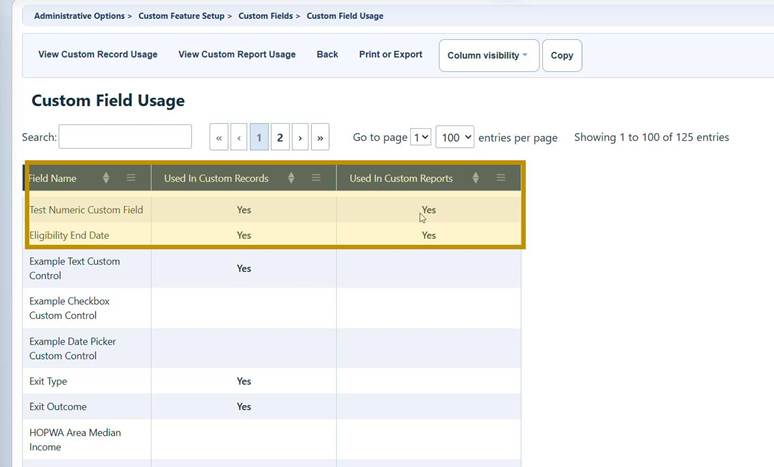
Custom Field Usage buttons
|
Button or control |
What it does |
When to use it |
|
View Custom Record Usage |
Lists custom-record locations that use the selected field. |
Use before changing a field marked Yes in Custom Records. |
|
View Custom Report Usage |
Lists custom reports that reference the selected field. |
Use before changing a field marked Yes in Custom Reports. |
|
Search |
Filters the field list by entered text. |
Use to find a known field name quickly. |
|
Column headings |
Sort the grid by field name or usage indicator. |
Use to group Yes values or alphabetize the list. |
|
Back |
Returns to the previous page. |
Use after reviewing usage details. |
|
Print or Export |
Opens options to print or export the grid. |
Use for documentation or change control. |
|
Column visibility |
Shows or hides grid columns. |
Use to simplify the display. |
|
Copy |
Copies displayed grid data. |
Use when recording review results. |
Before changing a field
● Review the Custom Control Setup definition and confirm the control type, required setting, default value, and permissions.
● Check reports, forms, custom field templates, imports, exports, and staff procedures that may depend on the field.
● Create a replacement control instead of changing the meaning of a field that contains production data.
● For a used ComboBox value, deactivate the value instead of deleting it.
Troubleshooting and common questions
Why can’t I see Custom Field Usage?
Confirm that your account can access Administrative Options, Custom Features, and Custom Fields. Ask a local administrator to review permissions.
Why is the field missing?
Verify the current domain, clear Search, check additional pages, and use Resetting the Custom Field List when appropriate.
Why does a usage detail look unfamiliar?
Confirm the domain and review all Domain, Location, and Details rows. Some locations use technical names.
Why does a renamed field still have an old template name?
Refresh the Custom Field Template by removing and re-adding the field, then verify the generated column name.
Related CAREWare guides and resources
|
Resource |
How it helps |
|
Add or edit custom control fields |
|
|
Review how custom reports select fields and filters. |
|
|
Review and refresh custom fields used in import and export templates. |
|
|
Refresh a list when a new or changed field is not displayed. |


