


|
Purpose |
Restrict selected fields in CAREWare custom reports for assigned users, including exported results. |
|
Who should do this |
CAREWare administrators responsible for report security and provider user accounts. |
|
Use this setup when |
Staff must run reports without viewing designated personal or sensitive client information. |
|
Main warning |
Test restrictions with an affected user before sharing report output; report-field restrictions are distinct from general user permissions. |
|
Video walkthrough |
Quick path
Central Administration > Administrative Options > Advanced Security Settings > User Group Admin (Reports)
Before you begin
- Identify the report fields that require masking, the affected users, and their provider assignments. The Default User Group has no report-field restrictions; the PII Restricted Group restricts common identifying fields. A separate custom group can restrict additional fields.
- Important: In this screen, selecting Granted for a report field adds that field to the group’s restrictions; it does not grant permission to view the field.
Create or select a report restriction group
Step 1. Log into Central Administration.
Step 2. Click Administrative Options > Advanced Security Settings > User Group Admin (Reports).
Step 3. Select an existing group and click Manage. To create a custom group, click add option, enter its name, and save.
Step 4. Click Edit Group Restrictions.
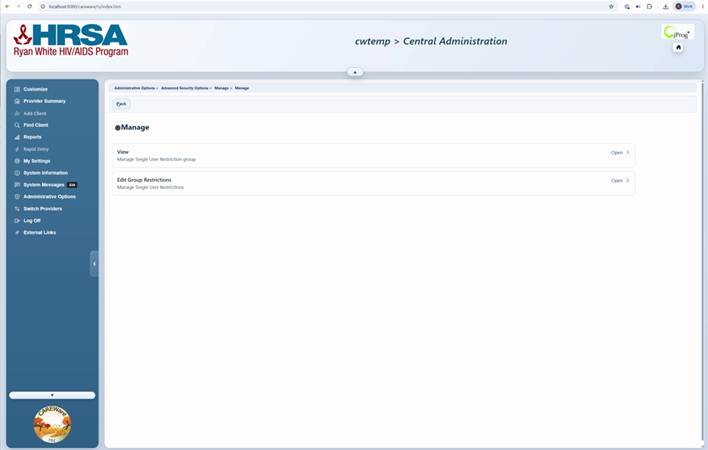
Managing User Group Restrictions Screen
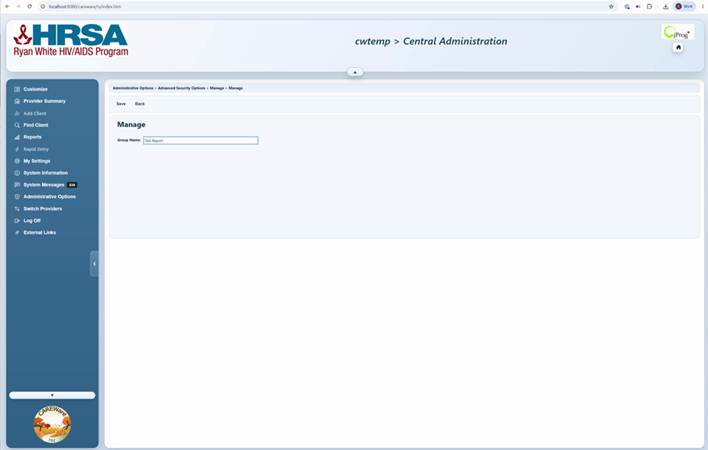
Changing name for User Group Admin (Reports) Restrictions
Choose restricted report fields
Step 5. In Custom Report Restrictions, enter part of the report field name in Search.
Step 6. Check Granted for each field that must be hidden for users in this group.
Step 7. Click Save. Repeat for other fields as needed.
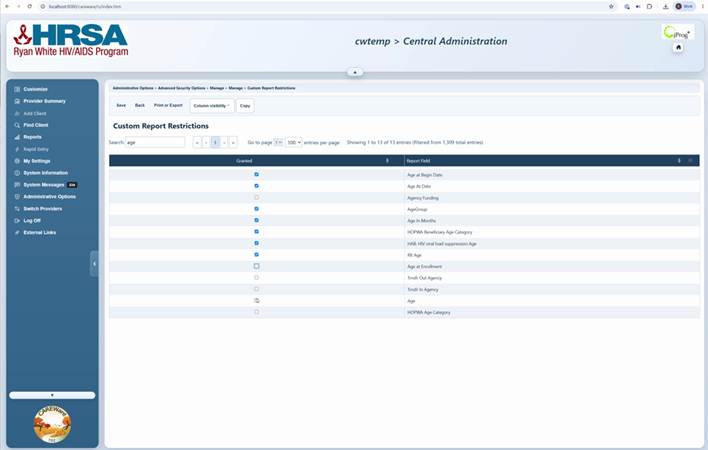
Report field selection and restriction checkboxes.
|
Important: Restricted field values are masked in custom reports. The supplied reference describes asterisks or X marks in place of values; the display can vary by report or version. |
Assign the restriction group to a user
Step 8. Click Administrative Options > Provider User Manager > Manage Providers.
Step 9. Select the provider and click Manage > Manage Users.
Step 10. Select the user and click Manage > Manage Report Field Restrictions.
Step 11. Click Manage Restrictions.
Step 12. Check Granted next to the restriction group name, then click Save.
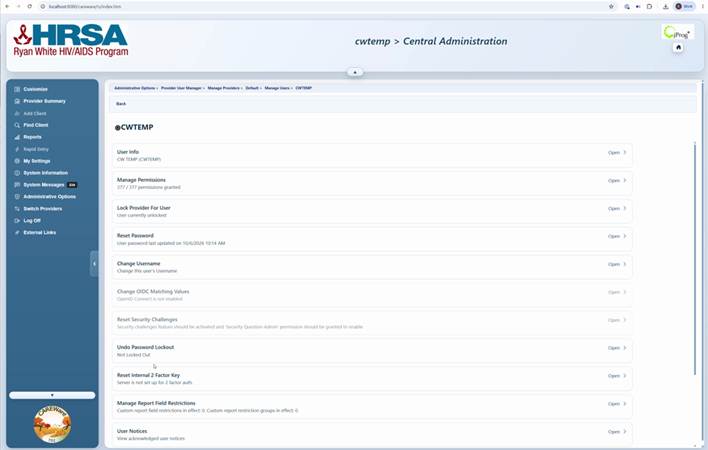
Provider and user management options.
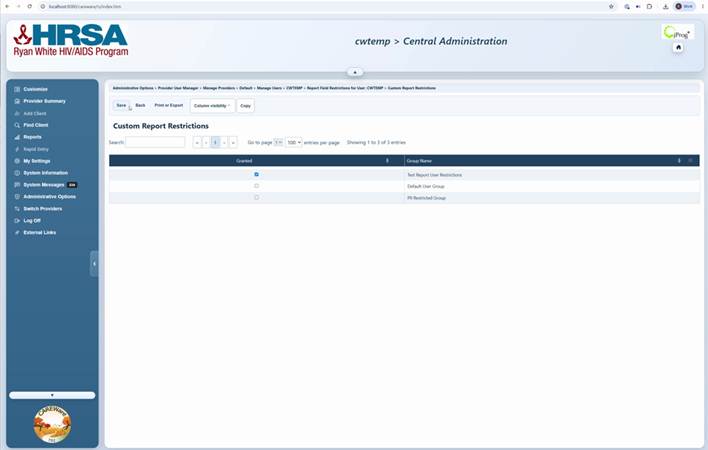
Available report restriction groups.
Verify report restrictions
Step 13. Reopen the user’s Report Field Restrictions and confirm the expected field names appear.
Step 14. Run a custom report as a test user with the assigned group.
Step 15. Confirm restricted fields are masked in the report and its exported output, while unrestricted fields remain visible.
Common controls
|
Control |
What it does |
|
View |
Opens the selected group for review. |
|
Edit Group Restrictions |
Opens the list of report fields that can be masked. |
|
Search |
Finds a field or group in the current list. |
|
Granted (report field) |
Includes the field in the selected group’s restrictions. |
|
Granted (group) |
Assigns that restriction group to the selected user. |
|
Save |
Applies the selected changes. |
Tips and troubleshooting
If a user still sees restricted values, verify the correct provider and user account, group assignment, field selection, and saved changes. If a report field is unexpectedly blank, review report-field restrictions as well as provider and cross-provider permissions.
|
Tip: Use a small test report with known field values to verify masking. Review both on-screen output and exported files before distributing sensitive reports. |
Related CAREWare guides and resources
|
Resource |
How it helps |
|
Manage provider-level user accounts and permissions. |
|
|
Assign users and review access. |
|
|
Understand permission groups, which differ from report restriction groups. |
|
|
Build reports and select fields to test. |
|
|
Run and export reports and troubleshoot masked fields. |


