You are using an unsupported browser. Please update your browser to the latest version on or before July 31, 2020.
You are viewing the article in preview mode. It is not live at the moment.
IMPORTANT: Upcoming Changes in CAREWare > Learn More
Home > Reports > Performance Measures > Setup Client Tab (Performance Measure Status)
Setup Client Tab (Performance Measure Status)
print icon


Purpose

Choose which performance measures appear in each client record.

Who should do this

Staff who manage performance measures for a provider.

Use this guide when you need to

Add, remove, reorder, or review measures on the client tab.

Main warning

Missing or outdated client data can change a performance measure result.


Quick path
Reports > Performance Measures > Setup Client Tab

Terms to Know

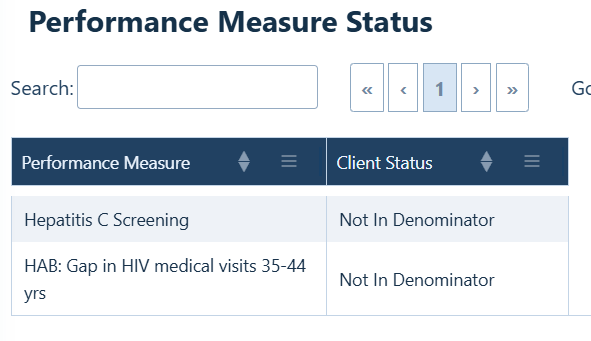
CAREWare shows a client's status for each performance measure selected by the provider. The status identifies which clients may need follow-up and other services.
 

Status

What It Means

In Numerator

The client meets the requirements of the performance measure.

Not In Numerator

The client is included in the measure (denominator), but does not meet the requirements of the measure.

Not In Denominator

The client does not meet the rules for inclusion in the measure.


Set up measures on the client tab

Follow these steps to choose the measures staff can view in client records.

Step 1. Click Reports.

Step 2. Click Performance Measures.

Step 3. Click Setup Client Tab.
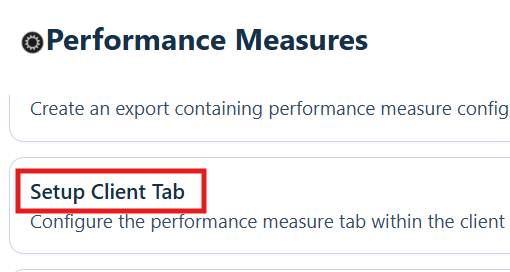
Step 4. Click a measure to highlight it.

Step 5. Click Select.
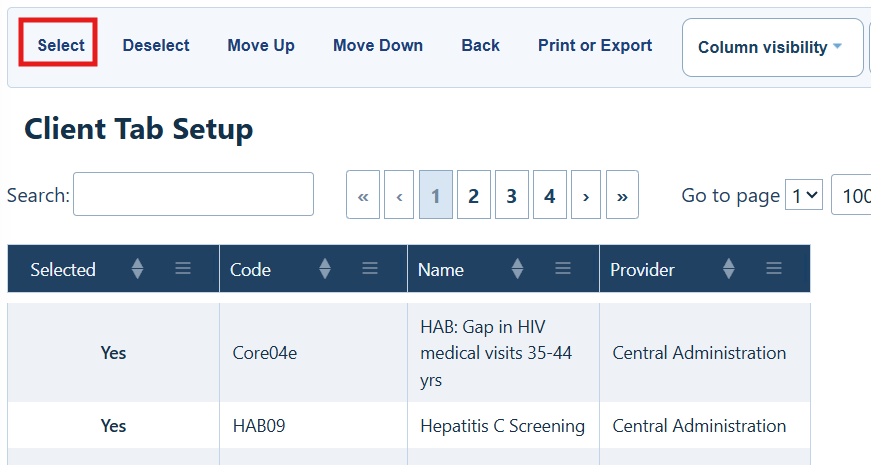
Client Tab Setup Menu Options

Button

What it does

Select

Adds the highlighted measure to the client tab.

Deselect

Removes the highlighted measure from the client tab.

Move Up

Moves the highlighted measure higher in the list.

Move Down

Moves the highlighted measure lower in the list.

Back

Return to the Performance Measures menu.

Print or Export

Print or export the list of performance measures.

Column Visibility

Show or hide columns in the list of performance measures.

Generate a client status

After the measures are set for the provider, you can generate the status in any client record for that provider.

Step 1. Use Find Client to open a client record.

Step 2. Click Performance Measure Status.
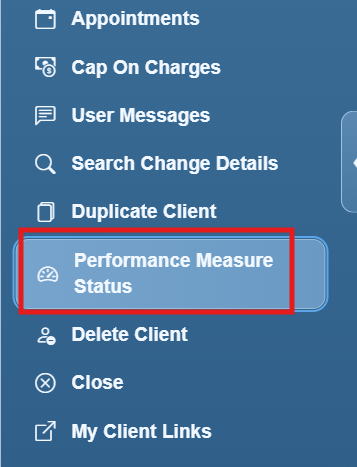
Review the results
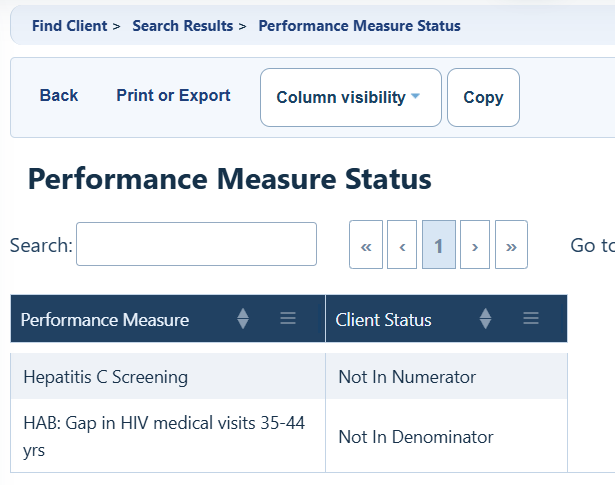
Performance Measure Status Menu Options

Button

What it does

Back

Return to the Client Summary.

Print or Export

Print or export the list of performance measures.

Column Visibility

Show or hide columns in the list of performance measures.


How to confirm it worked

  • The selected measures appear in the chosen order on the Setup Client Tab page.
  • Performance Measure Status shows a result for each selected measure.

Troubleshooting and common questions

Why does a measure indicate Not in Numerator?

The client may not meet the measure, or CAREWare may be missing a required visit, test, or result. Review the client record for missing or outdated information.

Why does a measure show Not in Denominator?

The client does not meet the measure's inclusion rules. Review the measure definition to see which clients are included.

Why is a measure missing from the client record?

Return to Setup Client Tab and confirm that the measure is selected for the provider.


Related References

Document

Use it for

Performance Measures

Learn about performance measures in CAREWare

Setup, Copy, and Customize Performance Measures

Create new measures, copy existing measures, and edit measures.


Feedback
0 out of 0 found this helpful

Attachments

CAREWare_User_Guide__Setup_Client_Tab.pdf
scroll to top icon
