


|
|
|
|
|
|
|
|
|
|
|
|
|
|
Before you begin
• Confirm the client record is correct and you have access to Annual Review.
• Gather the assessment date, household size, and household income.
• Determine whether your program also requires individual income.
Open Poverty Level Assessments
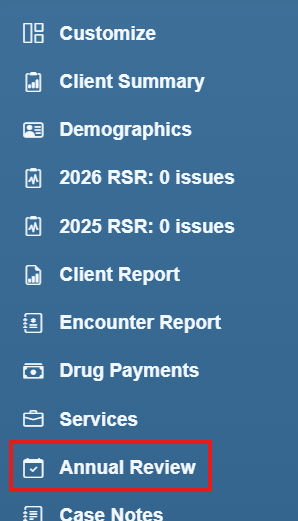
Step 1. Click Annual Review in the client record’s left menu.
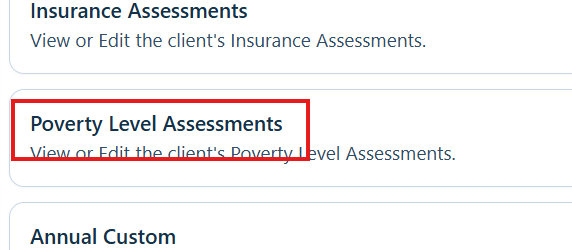
Step 2. Click Poverty Level Assessments.
Step 3. Click Add.
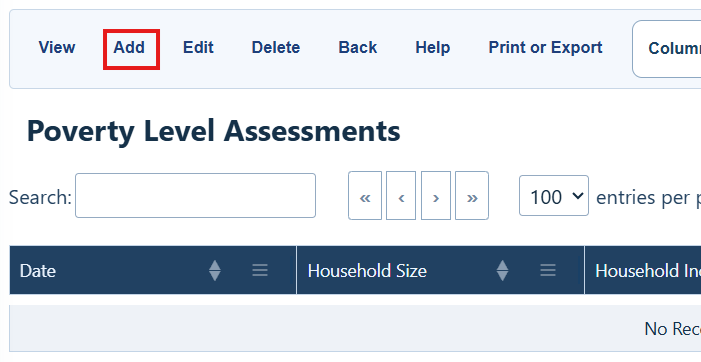
Poverty Level Assessments buttons
Use these commands to manage assessment records.
|
|
|
|
|
|
|
|
|
|
|
|
|
|
|
|
|
|
|
|
|
|
|
|
|
|
|
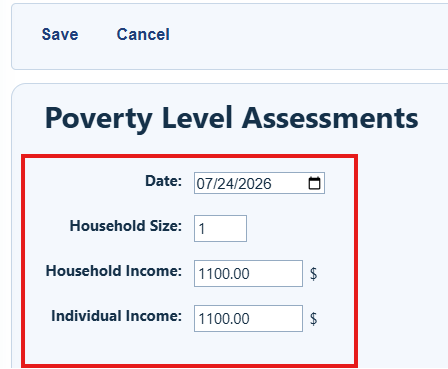
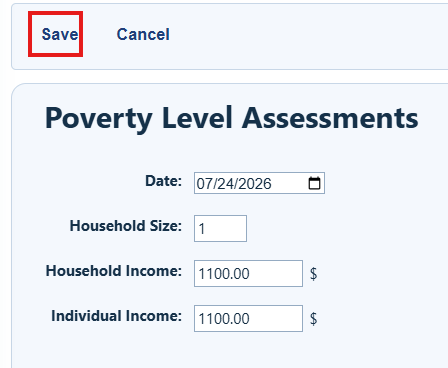
Step 4. Complete Date, Household Size, and Household Income. Enter Individual Income if required by your program.
|
|
Step 5. Click Save.
How to confirm it worked
- The saved assessment appears in the Poverty Level Assessments list.
- The record shows the assessment date, household size, household income, individual income when entered, and calculated federal poverty level.
- Use View to confirm the selected record’s details.
RSR and ADR reporting
|
|
How to update FPL calculations in CAREWare
The U.S. Department of Health & Human Services releases updated federal poverty guidelines each year, typically in late January. After the guidelines are released, upgrade CAREWare to the build that contains the latest FPL calculations.
Using imports to update Poverty Level Assessments
CAREWare data import options can be used to update poverty level assessments in client records.
Troubleshooting and common questions
Why is the FPL not calculated?
Confirm that Date, Household Size, and Household Income are complete, then save the assessment.
Why might the calculated percentage change after an upgrade?
A newer CAREWare build may contain updated annual federal poverty guidelines.
Related References
|
|
|
|
|
|
|
|
|


