


|
|
|
|
|
|
|
|
|
|
|
|
|
|
Annual Screenings for the Ryan White Services Report (RSR)
The following Annual Screenings fields are required for the RSR:
• Date: RSR Question 11 — the client’s housing status collection date.
• Type and Result: RSR Question 10 — the client’s housing status.
Track Annual Screenings in CAREWare 6
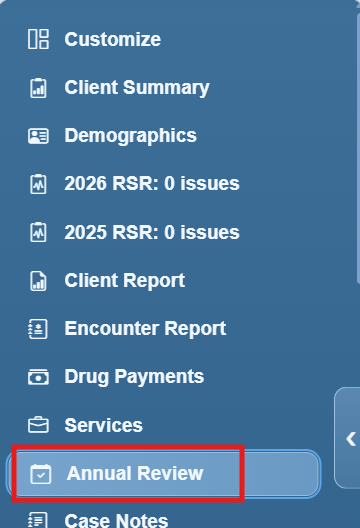
Step 1. Click Annual Review in the left menu of the client record.
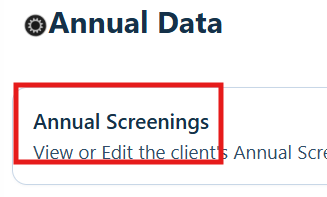
Step 2. Click Annual Screenings.
Step 3. Click Add.
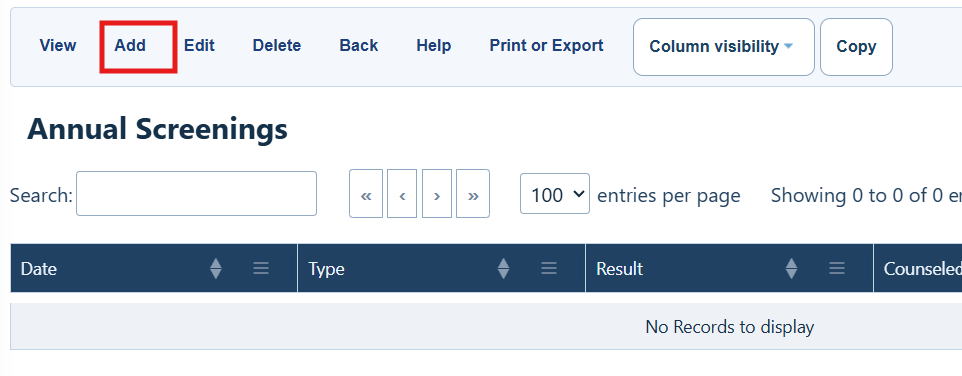
Annual Screenings menu options
|
|
|
|
|
|
|
|
|
|
|
|
|
|
|
|
|
|
|
|
|
|
|
|
|
|
|
Step 4. Enter the date of the annual screening.
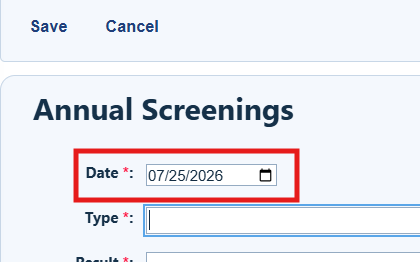
Step 5. Select the type of annual screening from the dropdown list.
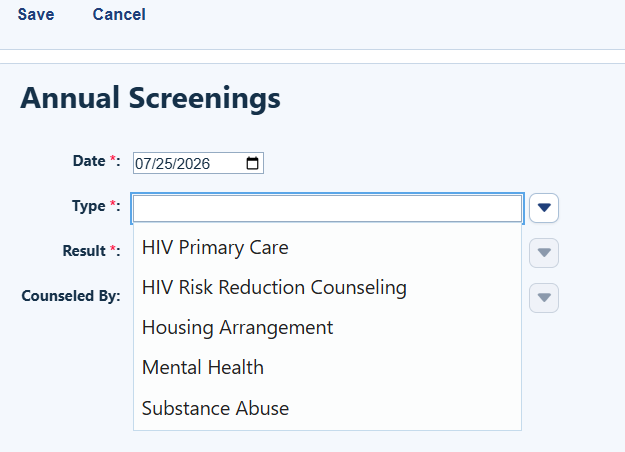
Step 6. Enter the result of the Annual Screening.
Result options
HIV Primary Care: Emergency Room; Hospital Outpatient Center; No Primary Source of Care; Other; Private Practice; Publicly-funded Clinic or Health Department; or Unknown.
HIV Risk Reduction Counseling: Yes or No.
Housing Arrangement: HRSA-defined Institution; Non-permanently Housed; Other; Stable/Permanent; Temporary; or Unstable. Refer to the current RSR instructions for definitions.
Mental Health: No; Not Medically Indicated; or Yes.
Substance Abuse: No; Not Medically Indicated; or Yes.
Step 7. If HIV Risk Reduction Counseling is selected, complete the Counseled By field.
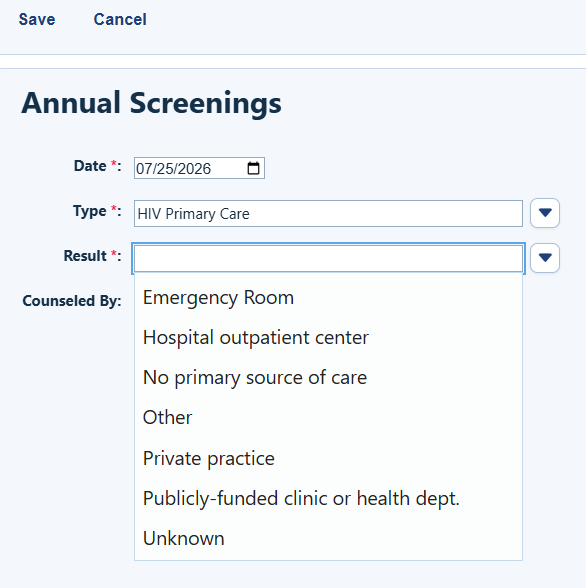
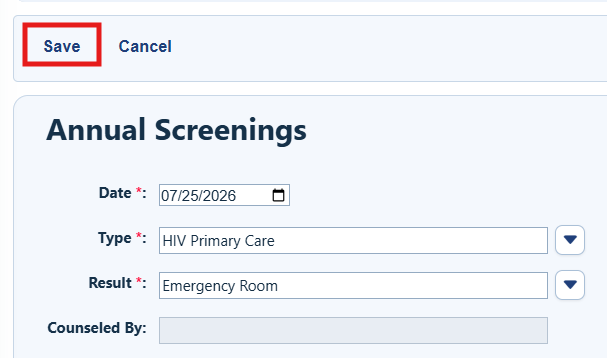
Step 8. Click Save.
Troubleshooting and common questions
How do I edit an existing record?
Select the record from the list and click Edit.
Related References
|
|
|
|
|
|


