


|
|
|
|
|
|
|
|
|
|
|
|
|
|
Standard and Custom Screening Labs
CAREWare includes these common screening labs:
- Chlamydia
- Cytomegalovirus (CMV)
- Epstein-Barr virus (EBV)
- Genital herpes
- Gonorrhea
- Hepatitis A, B, and C screening labs
- Human papillomavirus (genital warts)
- Interferon-gamma release assay (IGRA)
- Measles, mumps, and rubella (MMR)
- Non-specific urethritis
- Syphilis
- Toxoplasma IgG antibody
- Varicella (chicken pox)
Add provider-specific and custom labs in Screening Lab Setup under Clinical Setup.
RSR Reporting Requirement
The following screening field is required for this RSR question:
|
|
How to Add Screening Labs to a Client Record
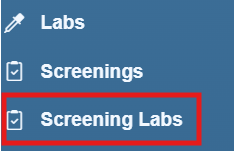
Step 1. Select Screening Labs in the left menu of the client record.
Step 2. Select Add.
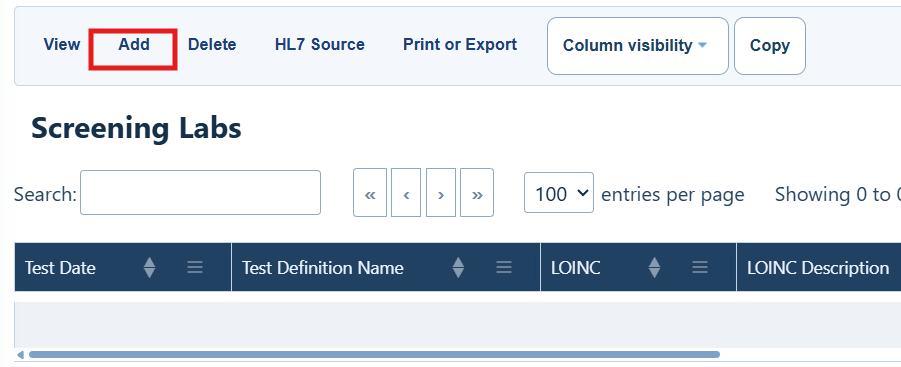
Screening Labs Menu Options
|
|
|
|
|
|
|
|
|
|
|
|
|
|
|
|
|
|
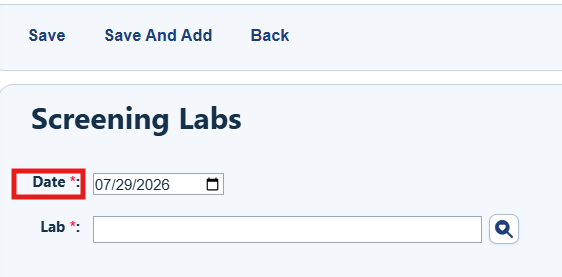
Step 3. Enter the date of the screening lab.
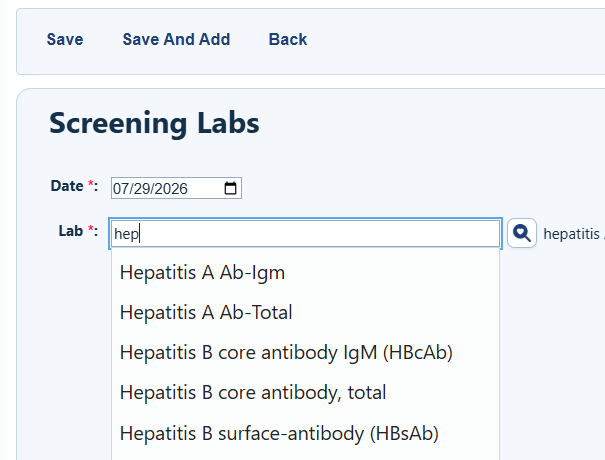
Step 4. Select the screening lab from the list. To shorten the list, type the first letters of the lab name.
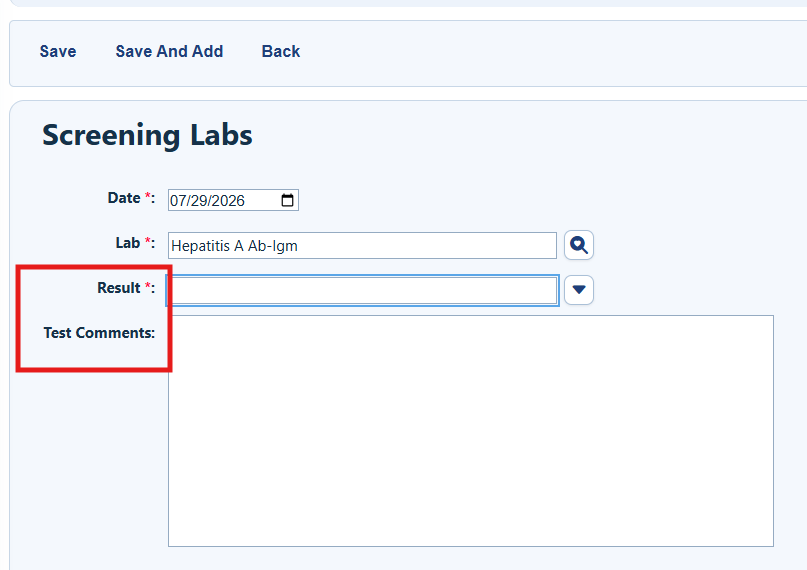
Step 5. Select the screening lab result. Entering a comment is optional.
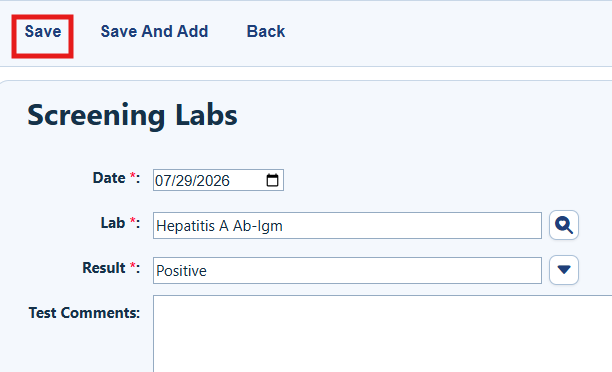
Step 6. Select Save.
|
|
How to Confirm It Worked
- The saved screening lab appears in the Screening Labs list for the client.
- The test date, lab name, and result match the information you entered.
Troubleshooting and Common Questions
How do I find a lab in a long list?
Type the first letters of the lab name to shorten the list. You can also use the page controls to move through all results.
How do I enter several screening labs?
Select Save and Add after each entry until you have entered all screening labs.
Where do I add a custom lab?
Add provider-specific and custom labs in Screening Lab Setup under Clinical Setup.
Related References
|
|
|
|
|
|
|
|
|


