


|
|
|
|
|
|
|
|
|
|
|
|
Quick path
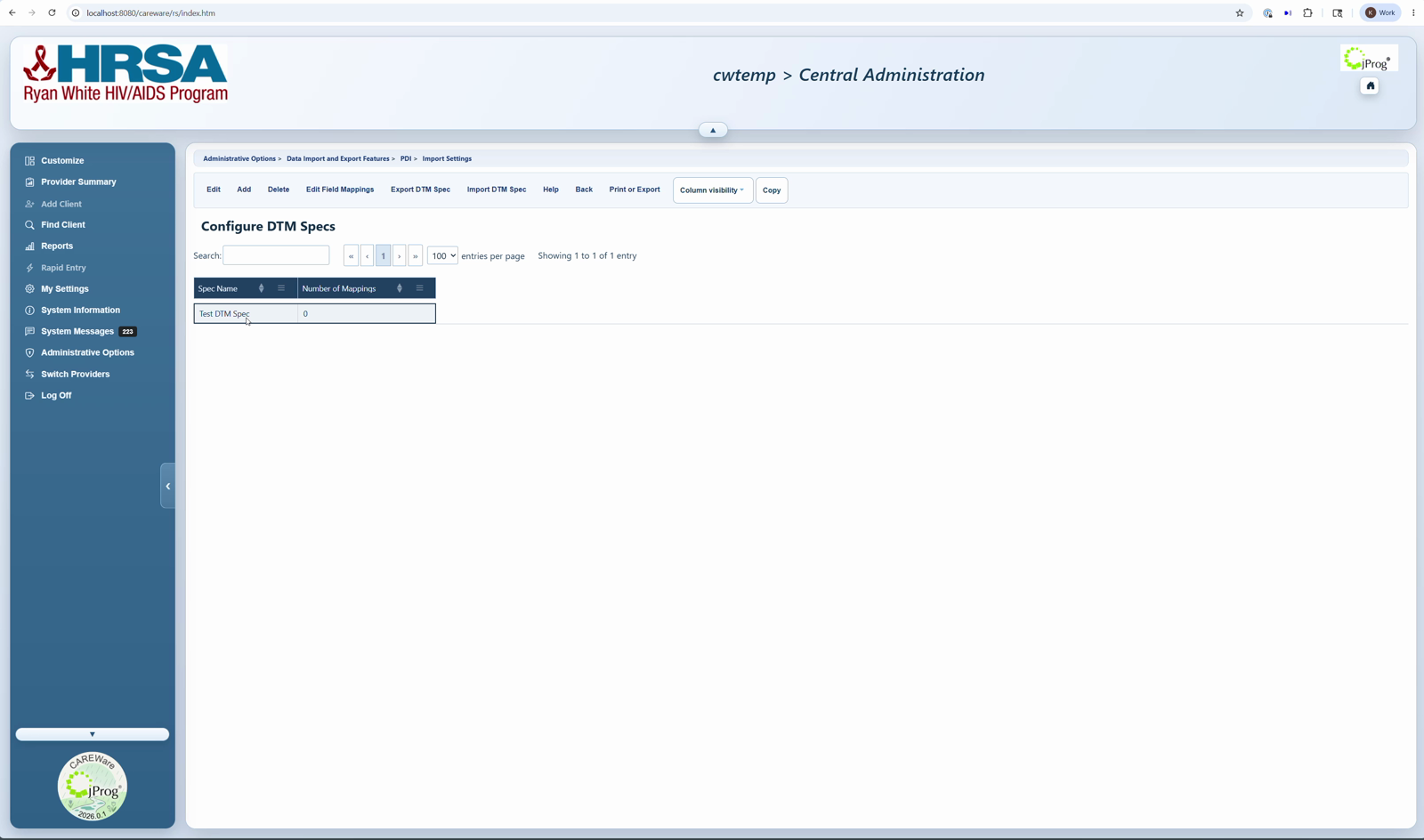
Export: provider with existing spec > Import Settings > Configure DTM Specs > select Spec Name > Export DTM Spec > Download Export File.
Import: target provider > Import Settings > Configure DTM Specs > Import DTM Specs > Choose File > Import Files.
Before you begin
- Confirm the source DTM Spec has been tested with a representative import file.
- Create or confirm the DTM import setting exists in the target provider.
- Confirm the target provider will receive files with the same headers, delimiter, and column order.
|
|
Export a DTM Spec
1. Log into the provider where the DTM Spec exists.
2. Click Administrative Options.
3. Click Data Import and Export Features.
4. Click Import Settings.
5. Click the DTM setting for that DTM Spec.
6. Click Edit.
7. Click Configure DTM Specs.
8. Click the Spec Name.
9. Click Export DTM Spec.
10. Click Download Export File.
Import a DTM Spec into another provider
1. Click Switch Providers.
2. Select the target provider.
3. Click Switch Providers.
4. Click Administrative Options.
5. Click Data Import and Export Features.
6. Click Import Settings.
7. Click the DTM setting that will receive the DTM Spec.
8. Click Edit.
9. Click Configure DTM Specs.
10. Click Import DTM Specs.
11. Click Choose File.
12. Select the CSV_Specs.zip file.
13. Click Open.
14. Click Import Files.
|
|
How to confirm it worked
1. Confirm the imported Spec Name appears in Configure DTM Specs.
2. Review the Search String and Source Folder.
3. Open Edit Field Mappings and verify the target fields.
4. Run a small test import and check Import History.
Related CAREWare guides
Configure DTM Specs | Edit Field Mappings | Importing DTM Files | Import History


