


|
|
|
|
|
|
|
|
|
|
|
|
Quick path
Manual import: Provider Data Import > New Import > upload ZIP > review Import History.
Folder import: SFTP or drop unzipped files into the CAREWare server folder > review Import History.
Before you begin
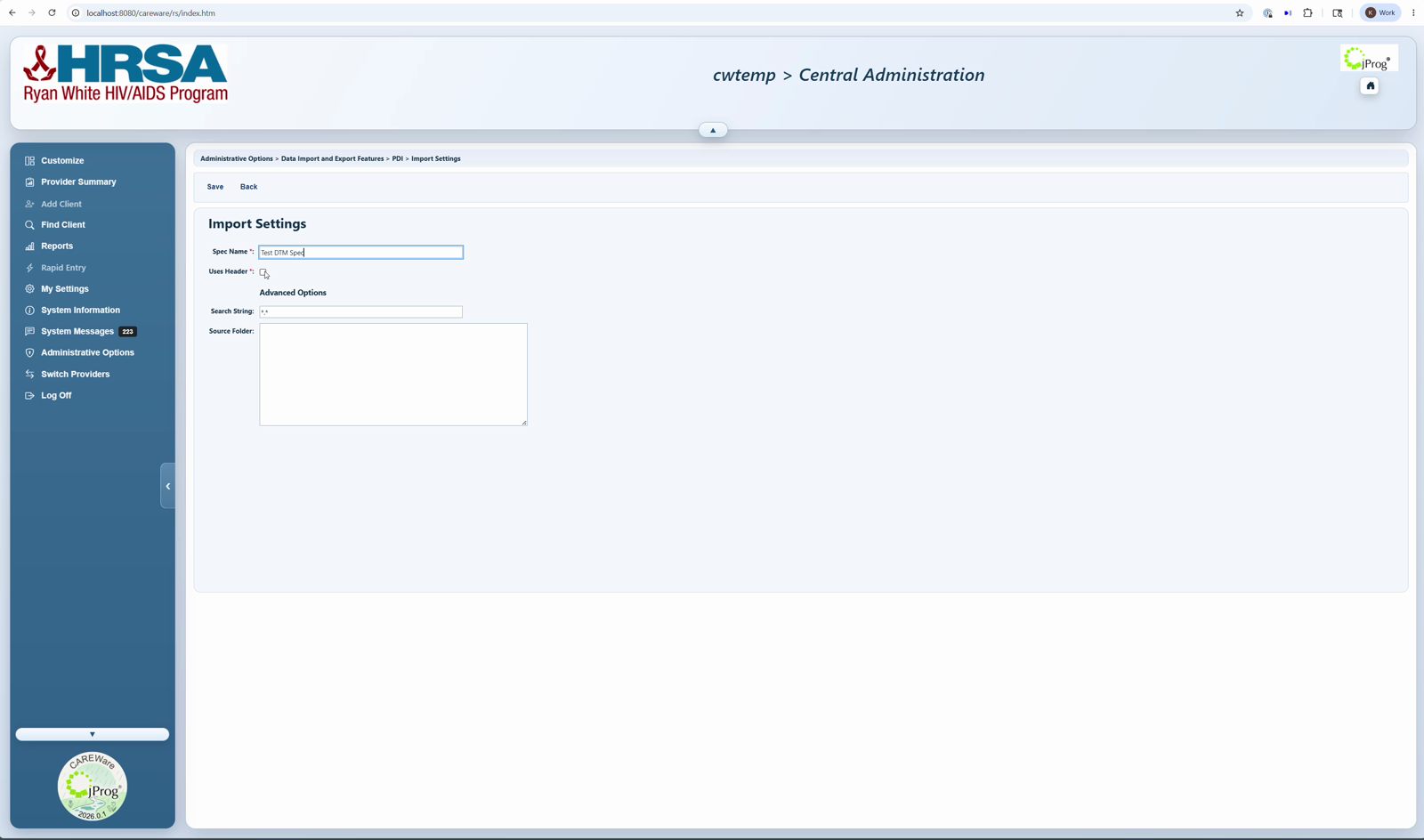
- Confirm the DTM import setting is saved.
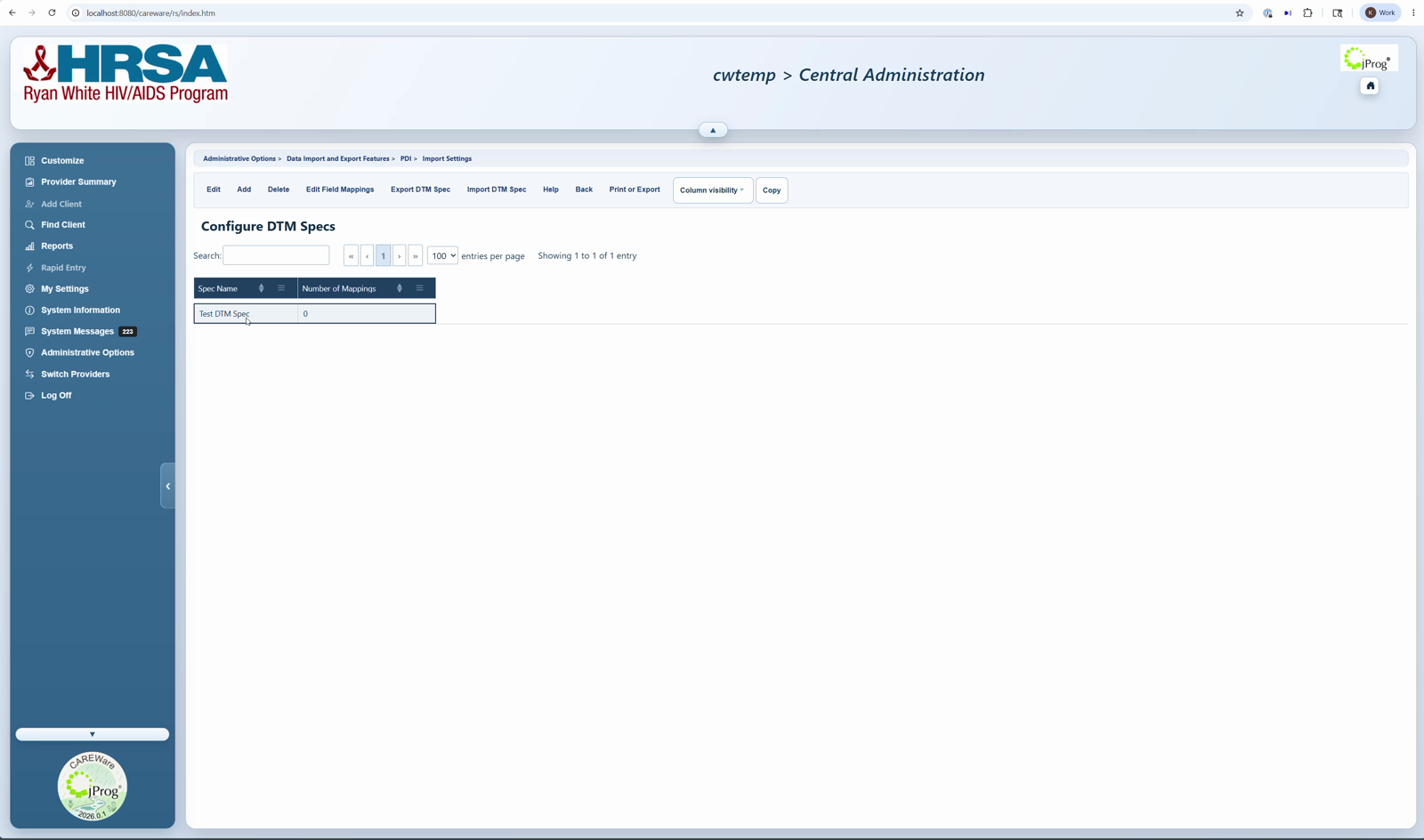
- Confirm the DTM Spec exists and the file format is mapped.
- For manual imports, know the provider name and Source Name to set exp_provider.csv to point CAREWare to the correct import setting.
- For folder imports, confirm the Source Folder exists on the CAREWare server and the file name includes the Search String as a separate word.
|
|
Option 1: Import a zipped DTM file manually
1. Create exp_provider.csv with three columns: prv_pk, prv_name, and prv_source.
2. Enter a 1 under prv_pk.
3. Enter the provider name under prv_name.
4. Enter the exact DTM Source Name under prv_source.
5. Zip exp_provider.csv with the DTM data file or files. Include the search string in the file name.
5. In CAREWare, open Provider Data Import.
6. Click New Import.
7. Choose the ZIP file and import it.
8. Open Import History to review progress, errors, and processing status.
|
|
Option 2: Import through a DTM source folder
1. Confirm the DTM Spec includes a valid Source Folder path on the CAREWare server.
2. Confirm the source file name includes the DTM Spec Search String.
3. Place the unzipped CSV file in the source folder, or send it to that folder by SFTP.
4. Open Import History to confirm CAREWare detected the file and placed records in the holding tanks.
|
|
After the file imports
1. Review the file in Import History.
2. Open Import Details for record counts, missing mappings, or errors.
3. Resolve client matching, value mapping, and field mapping issues.
4. Process records that are Ready to Process unless Automatically Process Imports is enabled and trusted for this setting.
5. Spot-check affected client records.
Related CAREWare guides
Data Translation Module Import Settings | Configure DTM Specs | Edit Field Mappings | Import DTM Specs | New Import | Import History | Provider Data Import


