


|
|
|
|
|
|
|
|
|
|
|
|
|
|
Before you begin
- Open the correct client record.
- Confirm that ICD-10 diagnosis codes have been activated under Clinical Setup.
- Confirm that your user account has permission to add or update diagnosis records.
Add a diagnosis to a client record
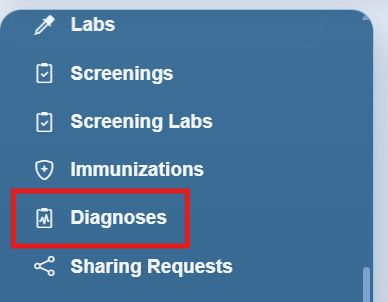
Step 1. Click Diagnoses in the client record menu.
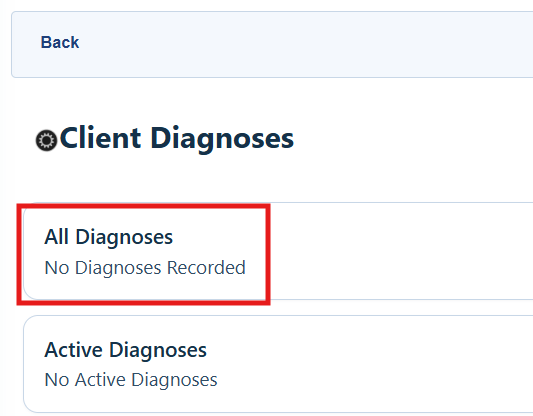
Step 2. Click All Diagnoses.
Step 3. Click Add.
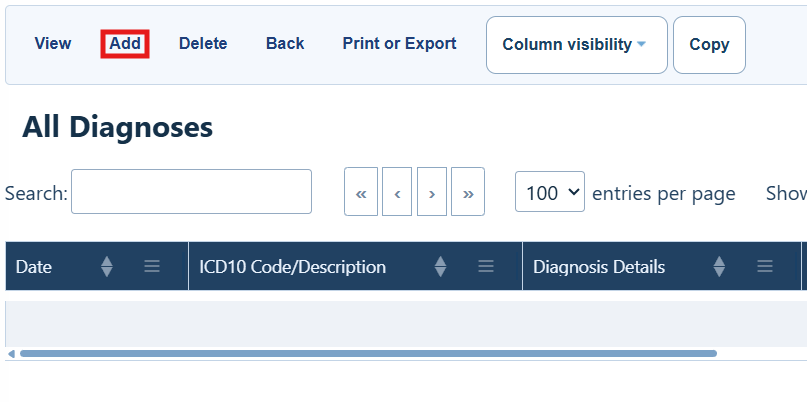
All Diagnoses buttons
|
|
|
|
|
|
|
|
|
|
|
|
|
|
|
|
|
|
Step 4. Enter the date of the diagnosis.
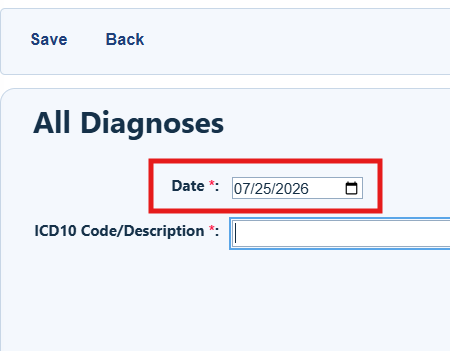
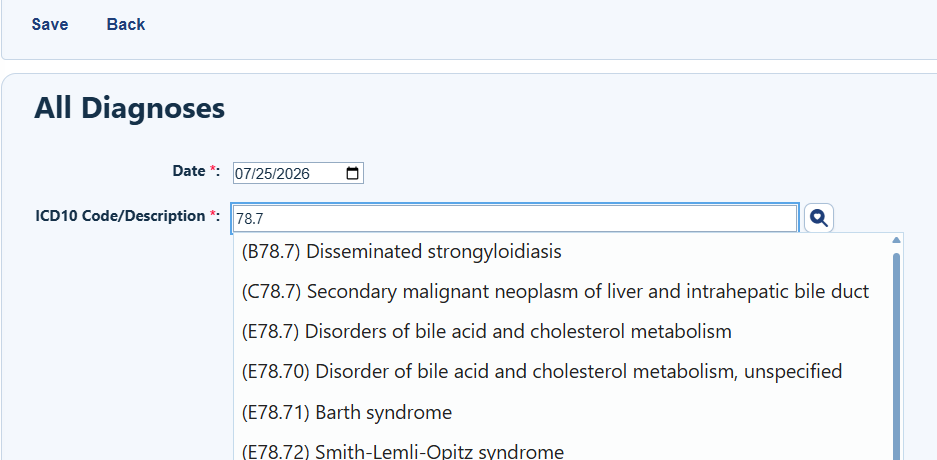
Step 5. Search in the ICD10 Code/Description box. Search by the diagnosis name or by the ICD-10 code.
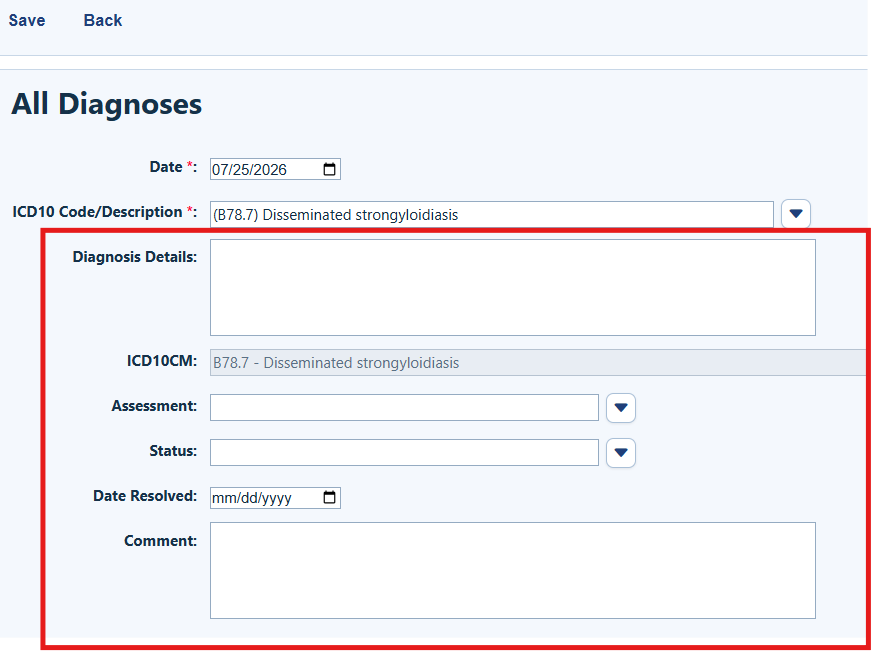
Step 6. Complete Diagnosis Details, Assessment (Definitive, Presumptive, or Unknown), Status (Active, Inactive, or Resolved), Date Resolved, and Comment.
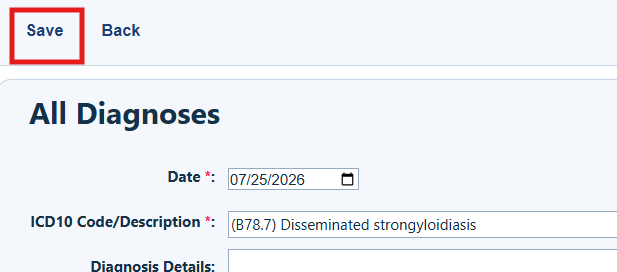
Step 8. Click Save.
Review active diagnoses for a client
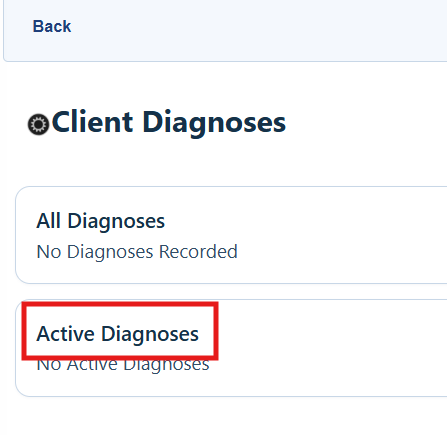
The All Diagnoses list includes active, inactive, and resolved diagnoses. The Active Diagnoses list shows only diagnoses with an Active status.
From All Diagnoses, click Active Diagnoses.
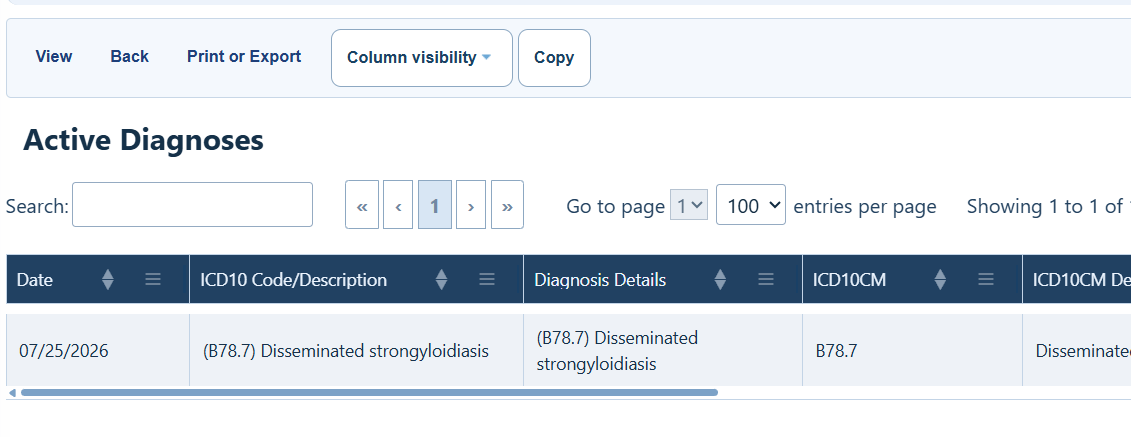
Active Diagnoses buttons
|
|
|
|
|
|
|
|
|
|
|
|
|
|
|
|
Troubleshooting and common questions
Why does a diagnosis not appear in Active Diagnoses?
Confirm that the diagnosis Status is set to Active. Inactive and Resolved records remain available under All Diagnoses.
How can I find a diagnosis code?
Search the ICD10 Code/Description box by diagnosis name or ICD-10 code, then select the correct result.
Related References
|
|
|
|


