


|
|
|
|
|
|
|
|
|
|
|
|
|
|
Before you begin
Confirm that Immunizations is active under Clinical Setup.
Add an immunization to a client record
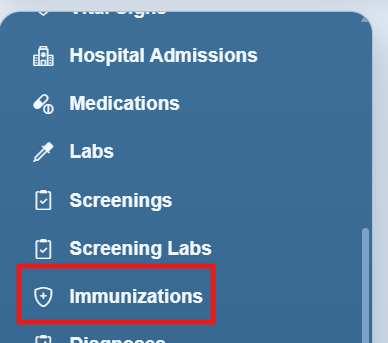
Step 1. Click Immunizations in the client record menu.
Step 2. Click Add.
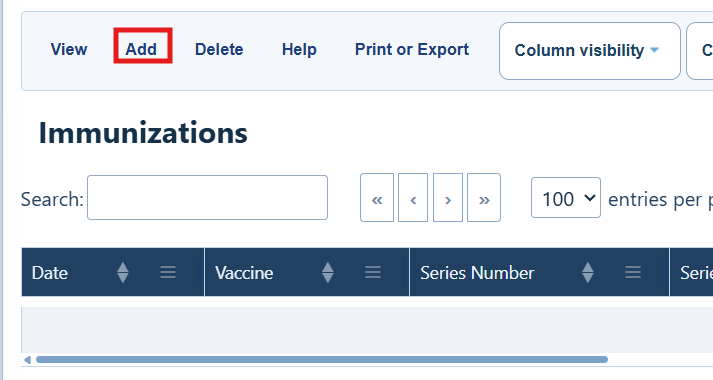
Immunizations toolbar
|
|
|
|
|
|
|
|
|
|
|
|
|
|
|
|
|
|
Enter the immunization details
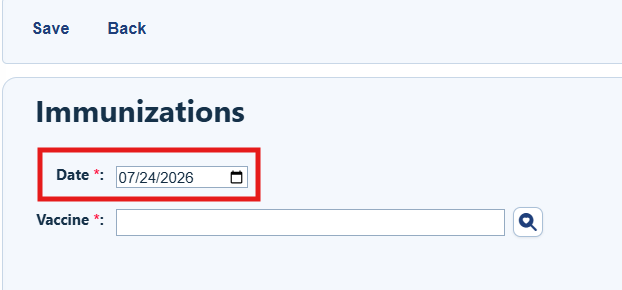
Step 3. Enter the date of the immunization.
Step 4. Search for the immunization in the dropdown.
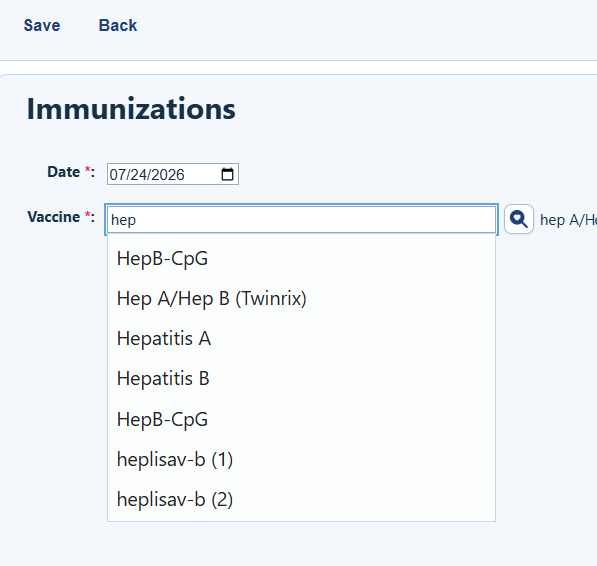
Step 5. Select the immunization. CAREWare automatically fills the CVX and CVX Code fields based on your selection.
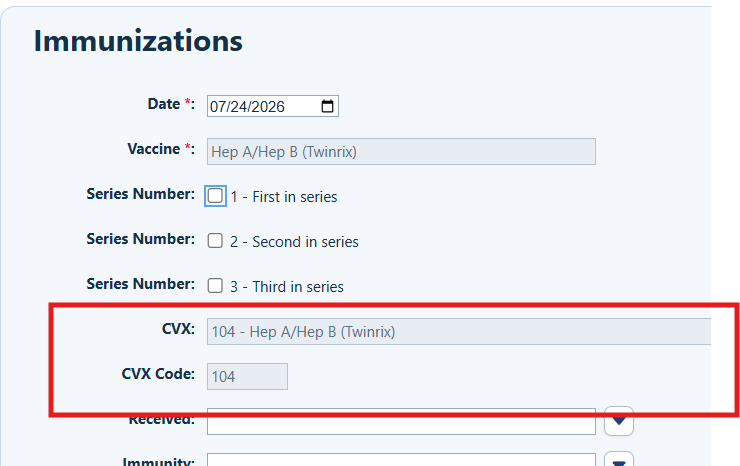
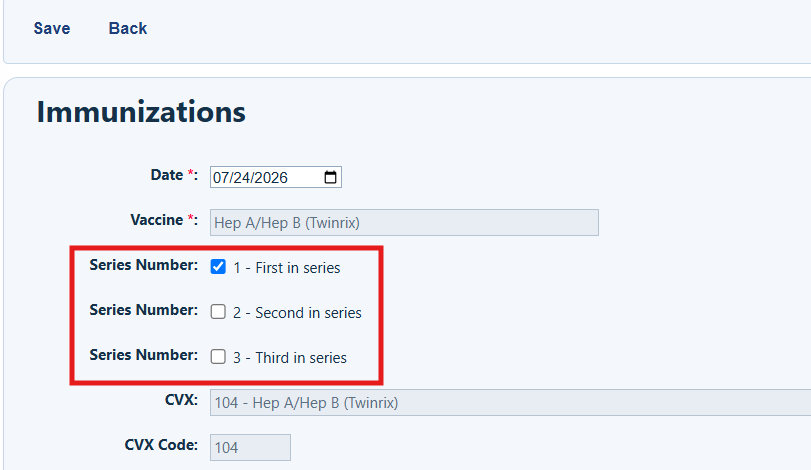
Step 6. If the vaccine is part of a series, select the appropriate Series Number checkbox.
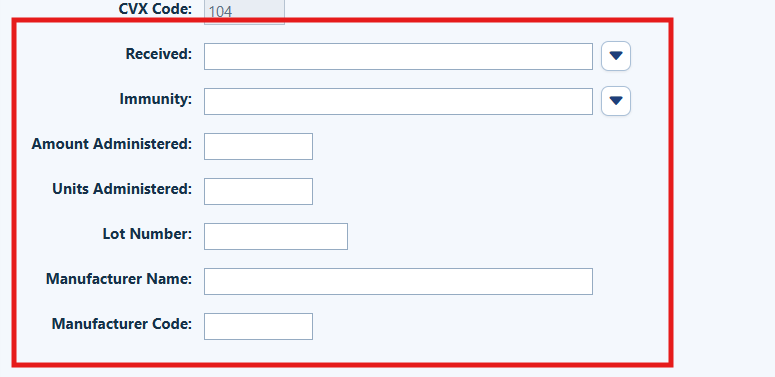
Step 7. Complete the remaining fields: Received, Immunity, Amount Administered, Units Administered, Lot Number, Manufacturer Name, and Manufacturer Code.
Field choices
|
|
|
|
|
|
|
|
|
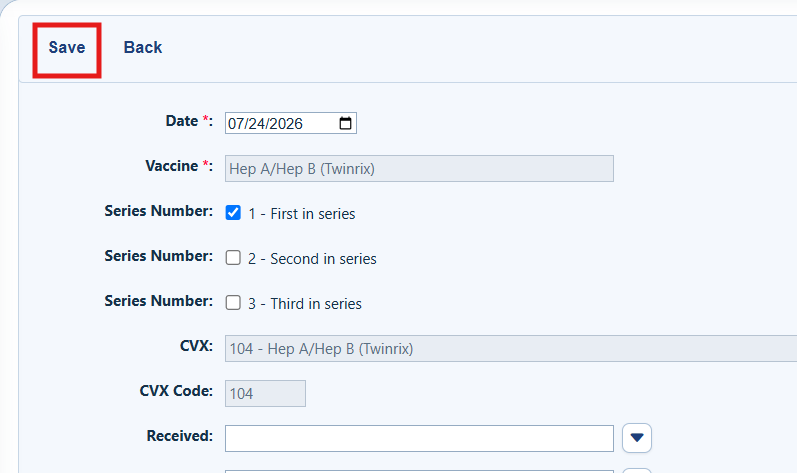
Step 8. Click Save.
How to confirm it worked
The saved immunization appears in the client’s Immunizations list.
Troubleshooting and common questions
Why is the immunization not available in the dropdown?
Verify that Immunizations are activated under Clinical Setup. If the vaccine is still unavailable, contact your CAREWare administrator.
Why are CVX and CVX Code blank?
Select a vaccine from the immunization dropdown rather than entering free text. CAREWare fills these fields from the selected vaccine.
Related References
|
|
|
|
|
|


