


|
|
|
|
|
|
|
|
|
|
|
|
|
|
Before you begin
- Check that the medication for the drug payment is active under Formulary Management.
- Verify that you are logged into the ADAP domain.
- Verify the payment date, drug name, and other relevant information.
Add an ADAP drug payment
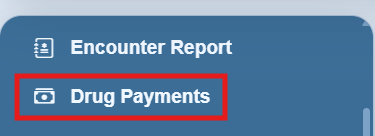
Step 1. Open the client record. Select Drug Payments in the left menu.
Step 2. Select Add.
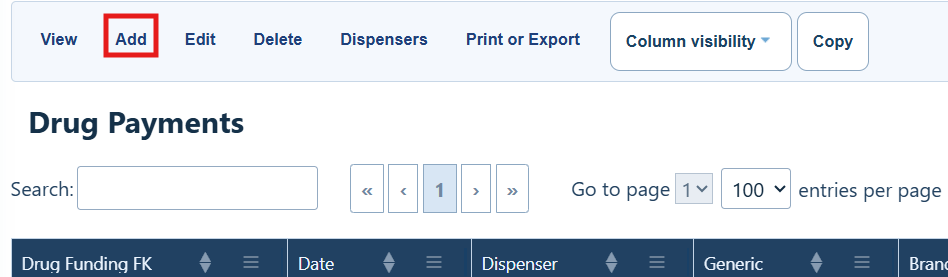
Drug Payment Menu Options
|
|
|
|
|
|
|
|
|
|
|
|
|
|
|
|
|
|
|
|
|
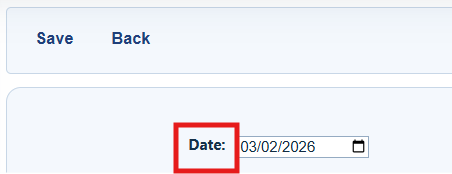
Step 3. Enter the date of the drug payment.
|
|

Step 4. Select the dispenser, drug name, and funding source.

Step 5. Enter the days supplied, total units, unit price, and dispense fee, if there is one. CAREWare calculates the drug cost and total cost.
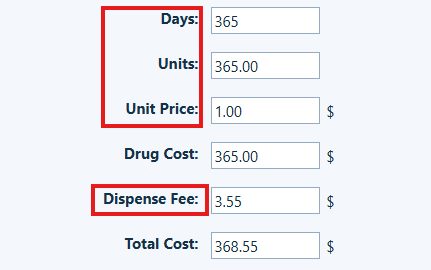
How these fields are used in the ADR
|
|
|
|
|
|
|
|
|
|
|
|
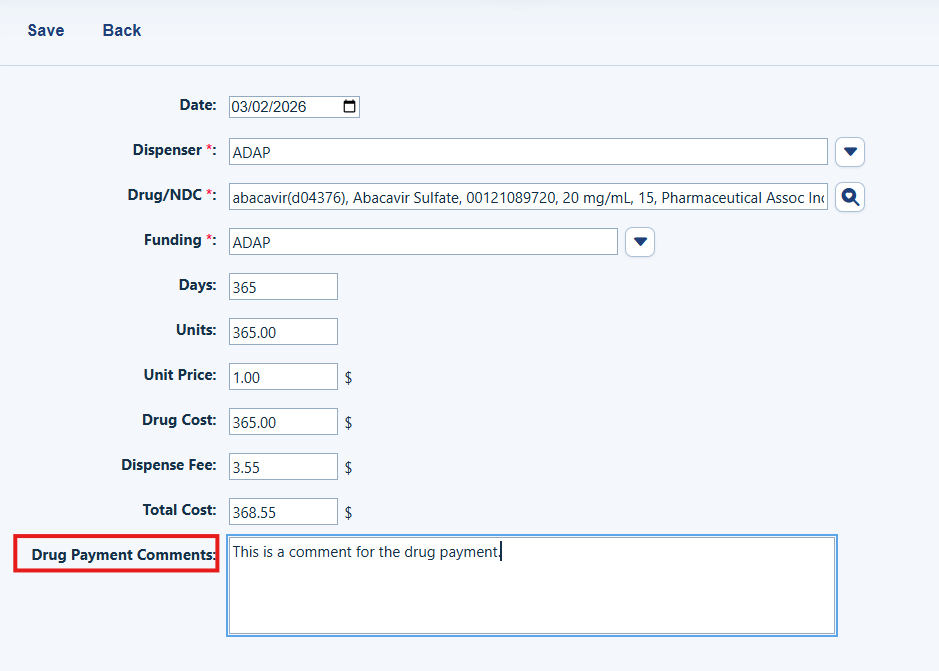
Step 6. Add a Drug Payment Comment if needed. This field is optional.
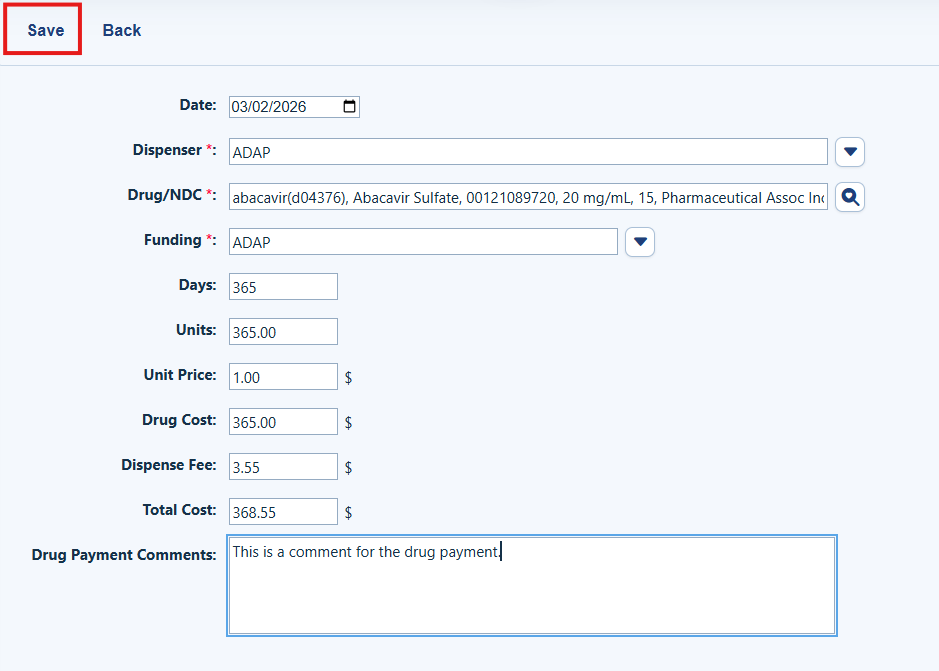
Step 7. Select Save.
How to confirm it worked
- The saved payment appears in the Drug Payments list for the client.
- Review the date, drug, funding source, and total cost. Correct any item that is wrong.
Quality checks and common questions
What if the payment date is before the first ADAP enrollment date?
CAREWare shows a warning. Check the client’s ADAP enrollment record and the drug payment date. Fix any date that is wrong, then save again.

What if the drug was not active in the formulary on the payment date?
CAREWare shows a warning after you select Save. Check the payment date and the drug’s active date in the formulary. Correct the record that is wrong, then save again.

Related references
|
|
|
|
|
|


