


|
Purpose |
Activate quarterly custom controls for a provider and enter client values for Quarter 1 through Quarter 4 by calendar year. |
|
Who should do this |
CAREWare administrators or data managers who configure fields, and authorized staff who enter quarterly client data. |
|
Use this setup when |
You need to collect, review, or update custom information separately for each calendar quarter. |
|
Main warning |
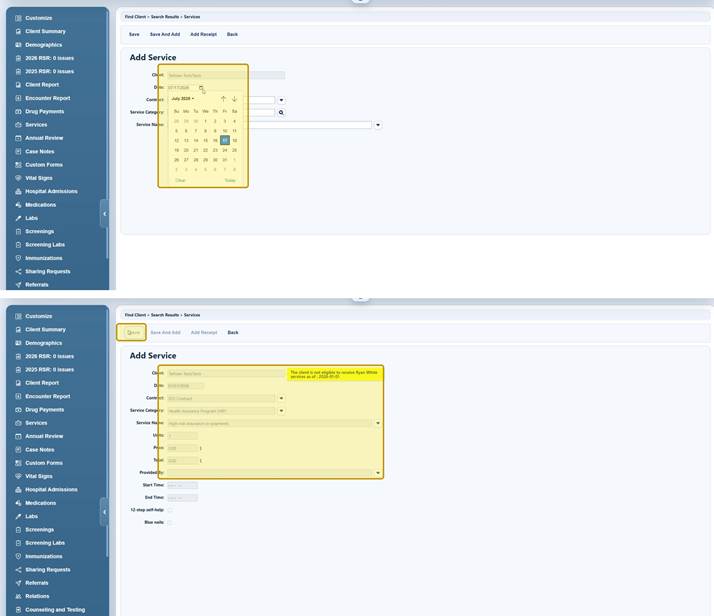
Verify the provider, client, year, and quarter. Quarterly rows are tied to service dates, so a service needs to be entered during the calendar year for a row to appear. |
|
Video walkthrough |
Quick path
|
Setup: Administrative Options > Custom Features > Custom Fields > Quarterly Custom Fields > select provider > Manage Selected Provider |
Before you begin
• The custom control definition must already exist in Custom Control Setup.
• Confirm whether you are working in Central Administration or inside a provider, and verify the provider shown in the top banner.
• Decide the field order, valid values, required status, default value, and edit permissions before activation.
• Confirm the client has a valid service in the quarter and year you need to document. Enter only services that actually occurred.
• Use a test or non-production record when available.
|
Important |
Open Quarterly Custom Fields
Step 1. Click Administrative Options.
Step 2. Click Custom Features.
Step 3. Click Custom Fields.
Step 4. Click Quarterly Custom Fields.
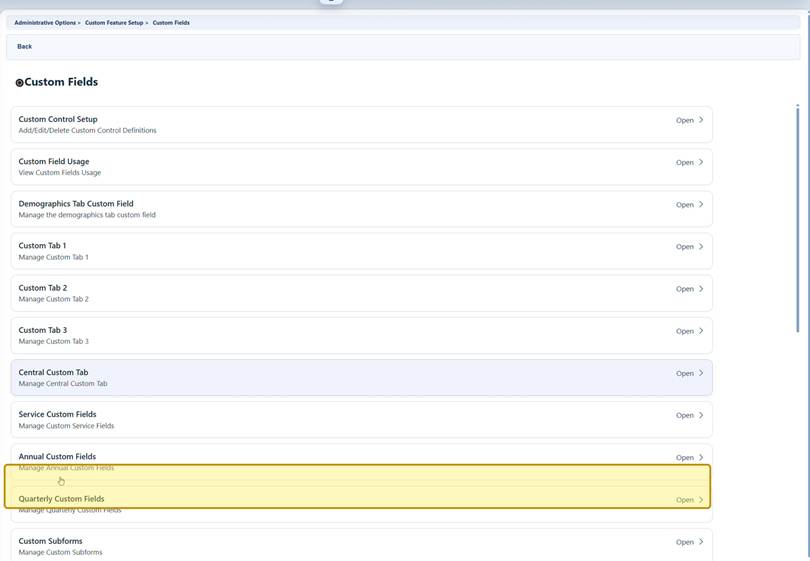
|
Tip |
Select the provider
Step 5. In Central Administration, select the provider and click Manage Selected Provider. If you are already inside one provider, skip this step.
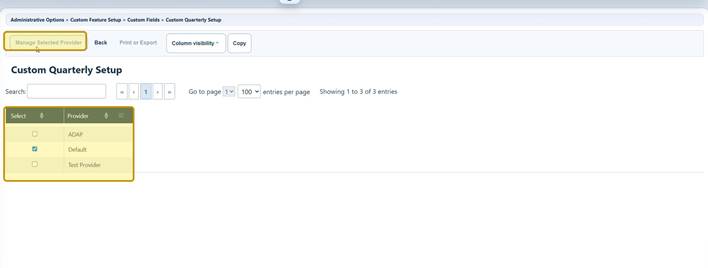
|
Important |
Activate and place a field
Step 6. Enter part of the control name or description in Search.
Step 7. Select the control, then click Activate.
Step 8. Select the active control and click Move Up or Move Down until it appears in the preferred order.
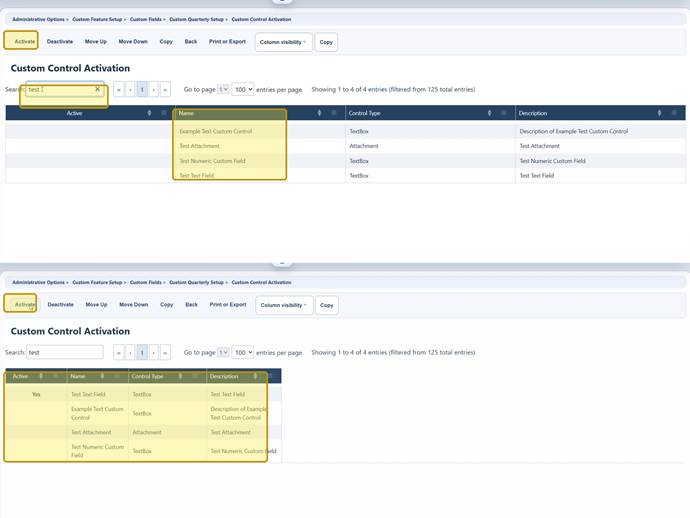
Find a client and open an annual quarterly assessment record
Step 9. Switch to the provider used for the quarterly setup.
Step 10. Click Find Client, enter search criteria, and click Client Search.
Step 11. Select the client and click View Details.
Step 12. Click Annual Review.
Step 13. Open Quarter 1, Quarter 2, Quarter 3, or Quarter 4.
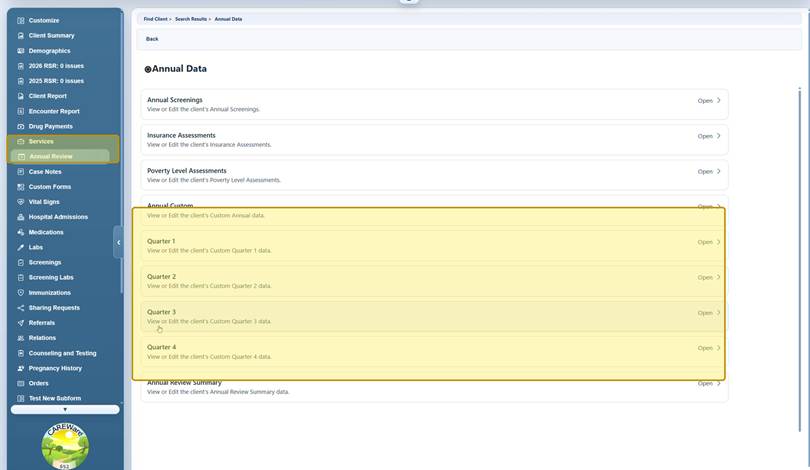
Create the quarter-year row when needed
If the quarter list does not contain the needed year, verify whether the client has a valid service dated in that quarter.
Step 14. Click Services, then add a service record.
Step 15. Set the Date within the quarter you need to document.
|
Quarter |
Calendar dates |
|
Quarter 1 |
January 1 through March 31 |
|
Quarter 2 |
April 1 through June 30 |
|
Quarter 3 |
July 1 through September 30 |
|
Quarter 4 |
October 1 through December 31 |
Step 16. Select the Contract, Service Category, and Service Name. Complete all required service fields.
Step 17. Click Save and resolve any eligibility or validation warning according to local policy.
Step 18. Return to Annual Review and open the target quarter.
|
Important |
|
Important |
Enter quarterly custom field values
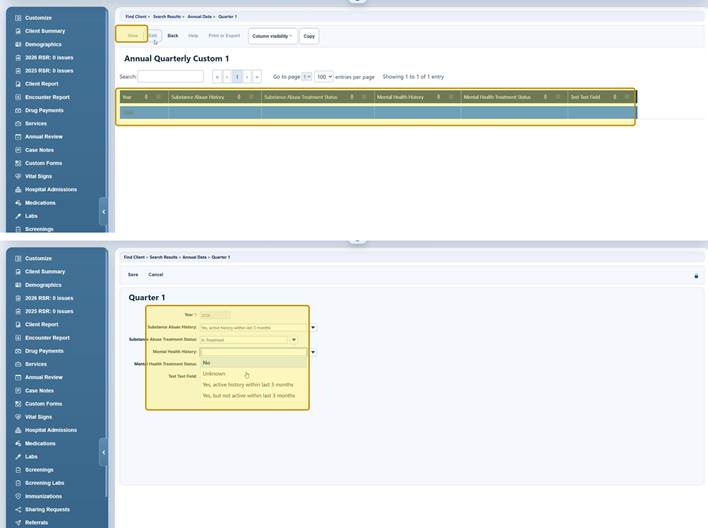
Step 19. Select the year row and click Edit.
Step 20. Complete each quarterly custom field. Use the available drop-down values when the control is a ComboBox.
Step 21. Click Save.
Step 22. Repeat the process for each additional quarter and year that requires data.

Helpful data-quality tips
• Use a ComboBox for standardized values that must be counted, grouped, or reported consistently.
• Use a DatePicker for dates so CAREWare can enforce a valid date format.
• Keep identifiers and codes as text when leading zeros or punctuation must be preserved.
• Use default values sparingly; a blank value is safer than an incorrect value accepted without review.
|
Important |
Custom Control Activation buttons
|
Button |
What it does |
When to use it |
|
Activate |
Adds the selected control to the provider’s quarterly forms. |
Use when the field should appear in Quarter 1 through Quarter 4. |
|
Deactivate |
Stops displaying the selected control for future quarterly entry. |
Use to retire a field without deleting its definition or historical data. |
|
Move Up / Move Down |
Changes the field order on the quarterly edit page. |
Use after activation to place fields in a logical order. |
|
Back |
Returns to the provider selection page. |
Use when changing providers or leaving setup. |
|
Print or Export |
Opens options to print or export the grid. |
Use for review, documentation, or change control. |
|
Column visibility |
Shows or hides grid columns. |
Use to simplify the list or display optional details. |
How to confirm it worked
• Open a test client in the selected provider and confirm the field appears in the expected order on each applicable quarter.
• Confirm the year row matches the year of the service date used for that quarter.
• Save values, reopen the quarter, and confirm the values remain.
• For ComboBox controls, confirm that only intended active values are available.
• Confirm required behavior, default values, length limits, and edit permissions for each role.
• If the fields are used in reports, imports, exports, forms, or templates, verify those workflows after the change.
|
Important |
Troubleshooting and common questions
Why can’t I see Quarterly Custom Fields?
Confirm that your account can access Administrative Options, Custom Features, and Custom Fields. Ask a local administrator to review permissions.
Why is there no row for the year in a quarter?
Confirm that the client has a valid service dated in that calendar quarter and year for the selected provider.
Why can’t a user edit the field?
Review Toggle Edit by Permission and the user’s permission group. Test each applicable role.
Why are expected ComboBox choices missing?
Open the control definition, review Edit Values, and confirm the intended values are active.
Related CAREWare guides and resources
|
Resource |
How it helps |
|
Create and maintain control definitions before activation. |
|
|
Locate the client record used for quarterly entry. |
|
|
Add and review valid client service records. |
|
|
Manage ComboBox choices, including activation and deactivation. |
|
|
Refresh custom field lists when a new or changed control is not displayed. |
|
|
Use custom fields in CAREWare import and export templates. |
|
|
Review or adjust user access and individual permissions. |
|
|
Manage permission groups for users and providers. |
|
|
Add, Update, or copy contracts for providers |


