


|
Purpose |
Create a labeled, standardized list of note choices that staff can select while entering client eligibility records. |
|
Who should do this |
CAREWare administrators, data managers, or designated support staff with access to Central Administration and Custom Fields. |
|
Use this setup when |
Staff need a consistent eligibility-note dropdown instead of entering the same status or documentation note as free text. |
|
Main warning |
Plan and approve the labels before use. Changing or deleting choices after they are stored in eligibility records can affect historical interpretation and staff workflows. |
|
Video walkthrough |
Quick path
|
Central Administration > Administrative Options > Custom Features > Custom Fields > Eligibility Note List |
Before you begin
● Prepare the organization-approved field label and list of note choices prior to adding the values to CAREWare.
● Use concise, distinct values relevant to eligibility status that staff can select consistently.
● Confirm that your account can access Central Administration, Administrative Options, Custom Features, and Custom Fields.
● Plan to test the setup in a provider with a non-production client record when available.
|
Important The Eligibility Note List supplements the required eligibility fields with a custom drop down list. This field is not a custom control, it is only activated for the Eligibility tab and only accessible in custom reports using the Eligibility report type. |
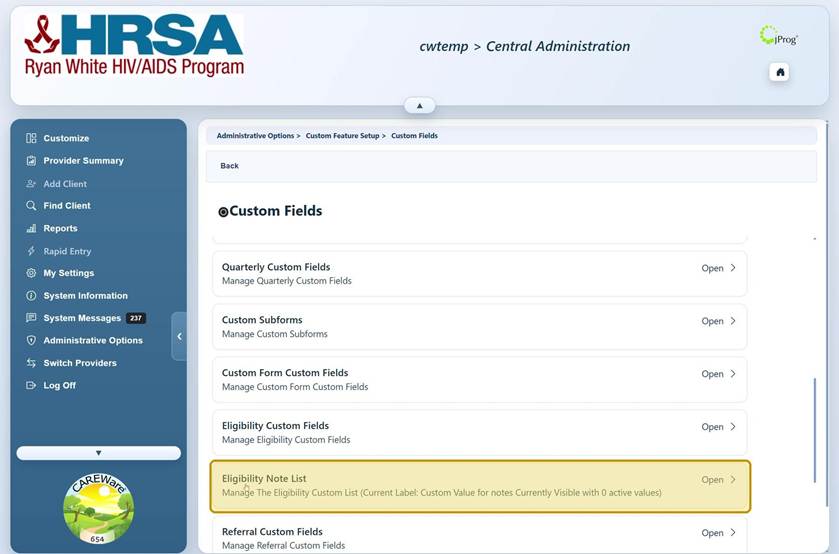
Open Eligibility Note List
Step 1. Log into Central Administration.
Step 2. Click Administrative Options.
Step 3. Click Custom Features, then click Custom Fields.
Step 4. Click Eligibility Note List.
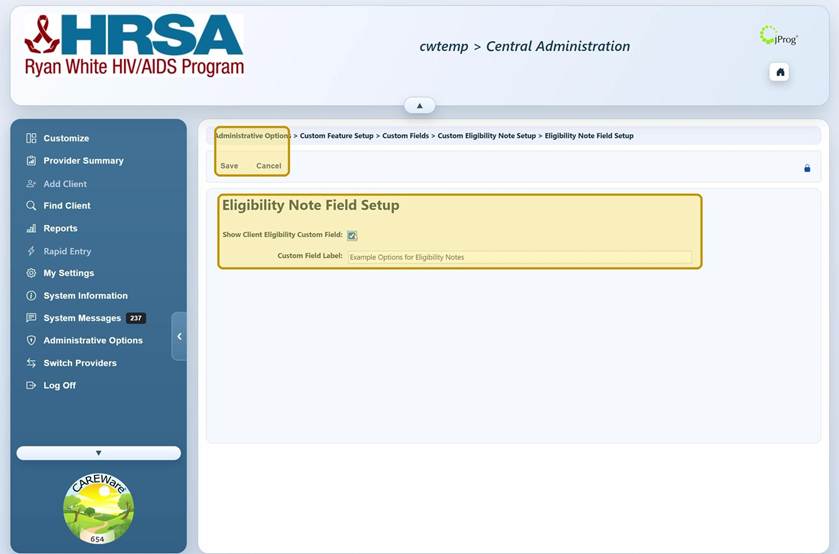
Configure the eligibility note field
Step 5. On Custom Eligibility Note Setup, click Eligibility Custom Notes Field.
Step 6. Click Edit.
Step 7. Select Show Client Eligibility Custom Field.
Step 8. Enter a clear Custom Field Label.
Step 9. Click Save, then click Back.
|
Important The field is available in Eligibility History once the Show Client Eligibility Custom Field is checked. Choose a durable label that will remain understandable in records, exports, reports, and training materials. |
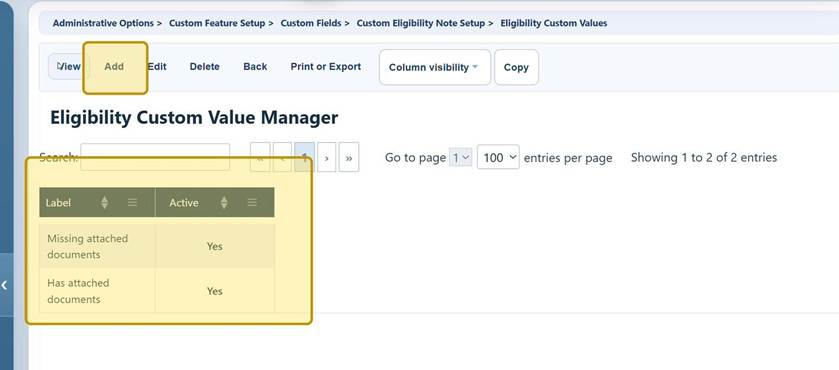
Add eligibility note values
Step 10. On Custom Eligibility Note Setup, click Eligibility Custom Values.
Step 11. Click Add.
Step 12. Enter one approved Label, then click Save.
Step 13. Repeat Add and Save for each value.
Step 14. Review the list and confirm that each intended value displays as active.
|
Important Once values are added, deactivate them instead of deleting them as deleting them may affect historical data. Coordinate production list changes and document the reason for each change. |
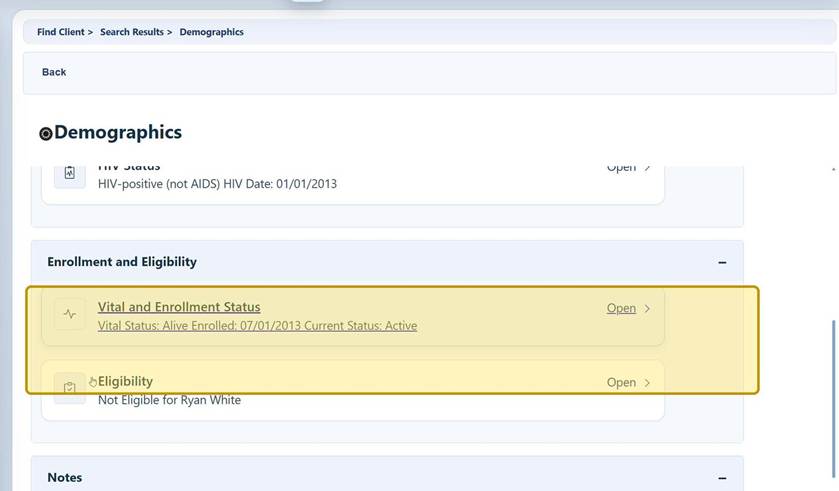
Open a client eligibility record
Step 15. Click Switch Providers and open the provider used for testing or data entry.
Step 16. Click Find Client.
Step 17. Search for the client, select the record, and click View Details.
Step 18. Click Demographics.
Step 19. Under Enrollment and Eligibility, click Eligibility.
|
Tip Eligibility access depends on provider and user permissions. If the Eligibility option is unavailable, ask a local administrator to review Status/Eligibility permissions. |
Use the Eligibility Note List
Step 20. Click Start to add an eligibility record, or open the record that needs to be updated.
Step 21. Complete the required eligibility fields, including the Eligibility Date and Funding Source.
Step 22. Open the custom eligibility-note dropdown and select the applicable value.
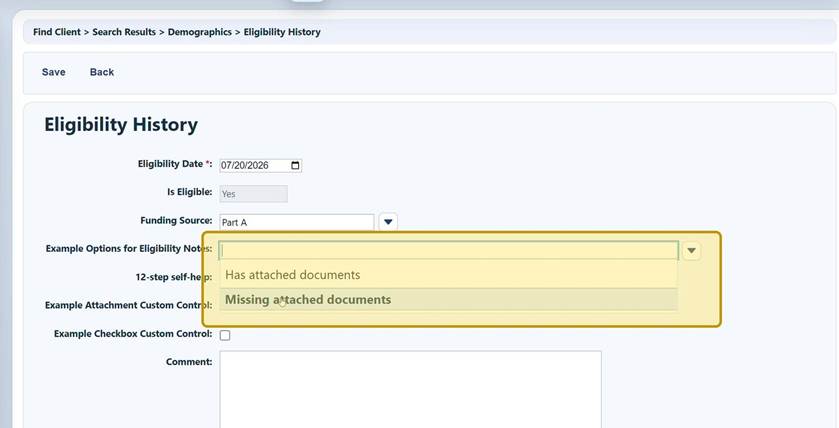
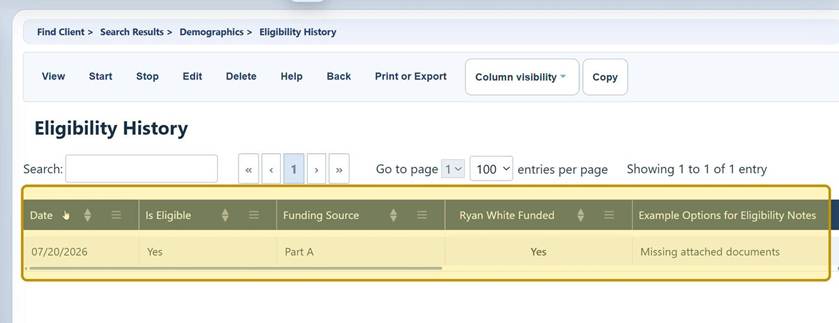
Step 23. Enter a Comment when additional context is needed, then click Save.
|
Important Use the structured note value for the standardized condition and the Comment field for case-specific context. Avoid placing sensitive information in a label that will be reused across many client records. |
Eligibility Note List buttons
|
Button |
What it does |
When to use it |
|
Edit |
Opens the eligibility note field settings. |
Use to show or hide the field or change its display label. |
|
Save |
Stores changes to the field setup or a list value. |
Use after reviewing the label or value for accuracy. |
|
Back / Cancel |
Returns without continuing the current action. |
Use to leave the page or discard an unfinished edit. |
|
View |
Opens the selected value for review. |
Use before editing or assessing whether a value is still needed. |
|
Add |
Creates a new list value. |
Use for an approved eligibility-note option. |
|
Edit |
Changes the selected value. |
Use cautiously; wording changes can alter how historical selections are interpreted. |
|
Delete |
Removes the selected value. |
Use only after confirming the value has never been used and deletion is approved. |
|
Print or Export |
Opens options for the value list. |
Use for review, documentation, or change control. |
|
Column visibility |
Shows or hides columns in the list. |
Use to simplify the manager grid. |
|
Copy |
Copies the visible grid data. |
Use for documentation or review outside CAREWare. |
Helpful setup and data-quality tips
● Use short labels that describe one condition clearly, such as a documentation status or follow-up need.
● Avoid overlapping options that staff may interpret differently.
● Keep the list limited to values that are useful for workflow, review, or reporting.
● Use consistent capitalization and terminology across related eligibility guidance.
● Document who approved the field label and values, when they were activated, and how changes will be managed.
● Test each applicable user role before production use.
Troubleshooting and common questions
Why is the custom note field missing from Eligibility History?
Open Eligibility Custom Notes Field, click Edit, select Show Client Eligibility Custom Field, and save. Then refresh or reopen the client record.
Why is the dropdown empty?
Return to Eligibility Custom Values and add the approved values. Confirm the manager lists the values as active.
Why can’t a user open Eligibility?
Review provider and user-group Status/Eligibility permissions and confirm that the user is working in the correct provider.
Why is the wrong label displayed?
Review the Custom Field Label in Eligibility Note Field Setup. Coordinate label changes because they affect staff instructions and the appearance of eligibility records.
Why should a used value not be deleted?
Removing a stored choice can make historical records harder to interpret and may create downstream data issues. Review usage before any deletion.
Related CAREWare guides and resources
|
Resource |
How it helps |
|
Review eligibility entry, funding sources, RSR implications, and permissions. |
|
|
Search for and open a client record before reviewing Eligibility History. |
|
|
Apply naming, standardization, testing, and change-management practices for custom data. |
|
|
Configure additional custom controls used with eligibility records. |
|
|
Review general guidance for managing structured custom-field values. |
|
|
Identify where custom fields are active before making changes. |
|
|
Refresh custom field lists when a new or changed field is not displayed. |
|
|
Update provider and user permissions using groups. |
|
|
Create eligibility custom report type reports. |


