


|
Purpose |
Activate existing custom controls on referral records and control whether they appear for all service categories or selected categories. |
|
Who should do this |
CAREWare administrators, data managers, or designated support staff with access to Administrative Options and Custom Fields. |
|
Use this setup when |
You need to activate, deactivate, reorder, or limit referral custom fields by provider and service category. |
|
Main warning |
Confirm the provider and service category scope before activation. All Categories applies the field to every referral category for that provider. |
|
Video walkthrough |
Quick path
|
Administrative Options > Custom Features > Custom Fields > Referral Custom Fields > select provider > Manage Selected Provider |
Before you begin
• Create the control definition first in Custom Control Setup.
• Confirm whether you are in Central Administration or inside a provider, and verify the provider shown in the top banner.
• Decide whether the field should appear for All Categories or only one referral service category.
• Plan the field order and test the setup with a non-production record when available.
|
Important Defining a custom control and activating it for referrals are separate tasks. Do not repurpose a control after it contains data; create a replacement control when the business meaning changes. |
Open Referral Custom Fields
Step 1. Click Administrative Options.
Step 2. Click Custom Features.
Step 3. Click Custom Fields.
Step 4. Click Referral Custom Fields.
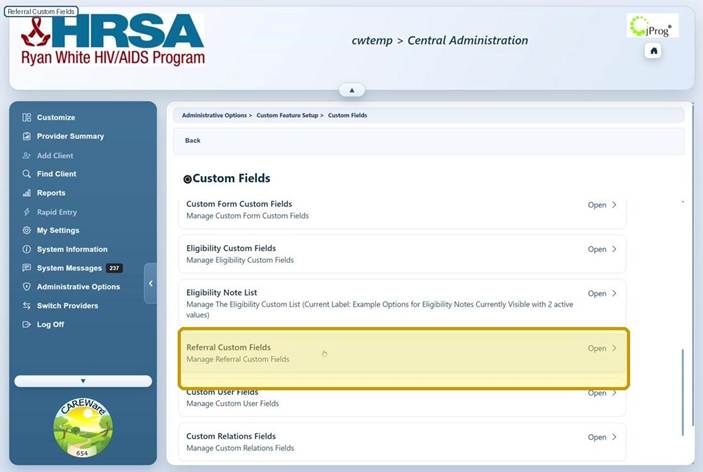
|
Tip If Referral Custom Fields is not visible, ask a local administrator to review access to Administrative Options, Custom Features, Custom Fields. and custom control setup to verify the field exists. See Provider User Manager for permission guidance. |
Select the provider and field scope
Step 5. In Central Administration, select the provider and click Manage Selected Provider. If you are already inside one provider, skip this step.
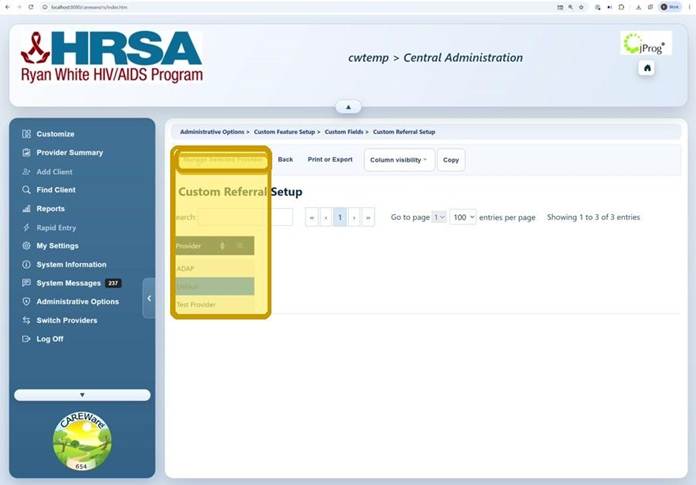
|
Important Changes apply to the selected provider. Verify the provider before activating, deactivating, or reordering fields. |
Step 6. Select All Categories to display the field for every referral service category, or select one category for category-specific use.
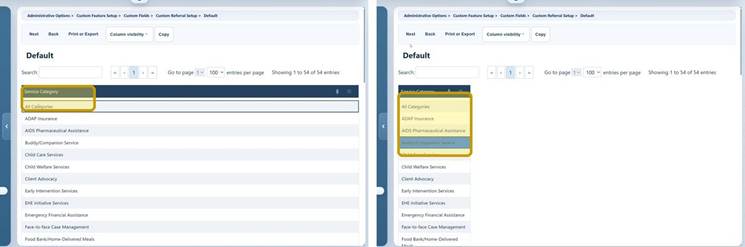
Activate and arrange referral custom fields
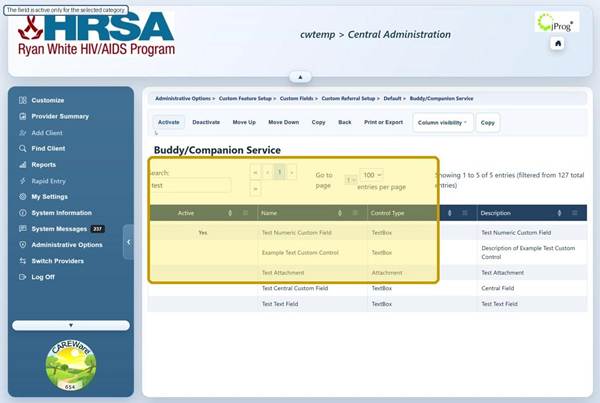
Step 7. Enter part of the control name or description in Search.
Step 8. Select the control, then click Activate.
Step 9. Select an active field and click Move Up or Move Down to set the display order.
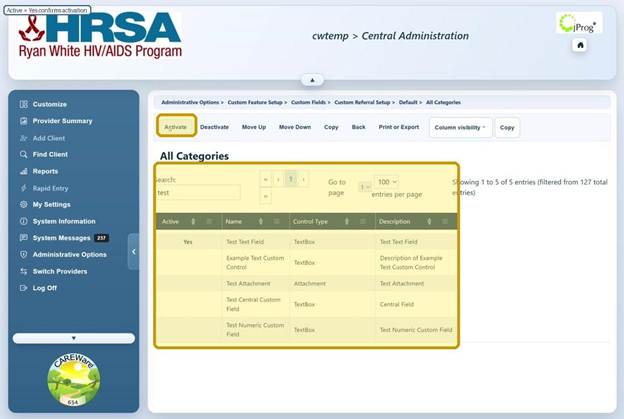
Use category-specific fields when needed
Step 10. Click Back, select a service category, and activate any fields that should appear only for that category.
|
Important A field activated under All Categories appears for every referral category. A field activated under a specific category appears only when that category is selected on the referral. |
Referral custom field setup controls
|
Control |
What it does |
When to use it |
|
Activate |
Makes the selected control available for the current provider and category scope. |
Use after confirming the correct provider and service category. |
|
Deactivate |
Stops displaying the selected control in the current scope. |
Use to remove it from new referral entry without deleting the control definition. |
|
Move Up / Move Down |
Changes the field order on the referral detail page. |
Use after activation to place related fields together. |
|
Search |
Filters the list by control name or description. |
Use to locate a control in a long list. |
|
Back |
Returns to the service category or provider list. |
Use to change scope or leave the setup. |
|
Next |
Opens the selected provider or category. |
Use when progressing through provider and service category selection. |
|
Print or Export |
Opens options to print or export the grid. |
Use for review, documentation, or change control. |
|
Column visibility |
Shows or hides grid columns. |
Use to simplify the list or display additional details. |
Deactivate a field
Step 11. Select the active field and click Deactivate.
|
Important Deactivation does not delete the custom control definition or existing referral data. Before making changes, review reports, imports, exports, and staff workflows that may depend on the field. |
|
Tip For a ComboBox value already used in client data, if it should be active for referrals instead of client custom or client demo tabs, deactivate the value instead of deleting it. This preserves historical records. |
Verify the field on a client referral
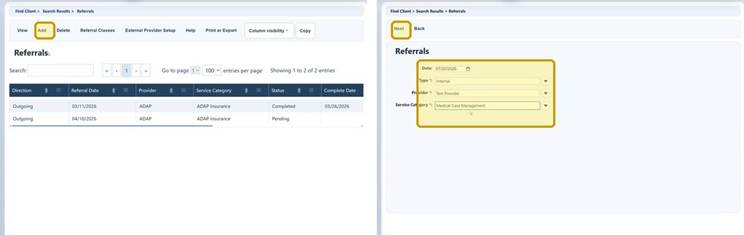
Step 12. Switch to the provider, find a test client, and open Referrals.
Step 13. Click Add.
Step 14. Enter the referral Date, Type, Provider, and Service Category, then click Next.
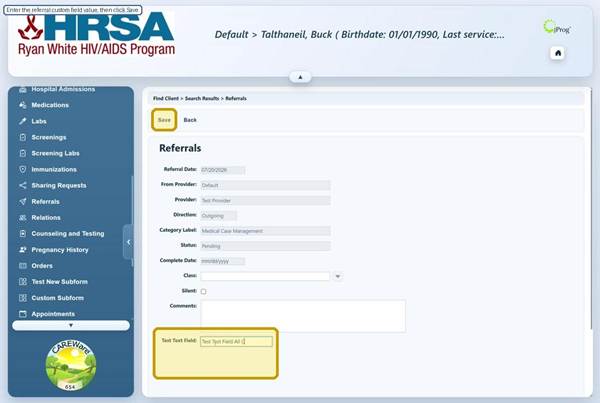
Step 15. Enter the referral details and the custom field values displayed near the bottom of the page.
Step 16. Click Save.
Confirm the configuration
How to confirm it worked
• Confirm Active displays Yes for each intended provider and service category scope.
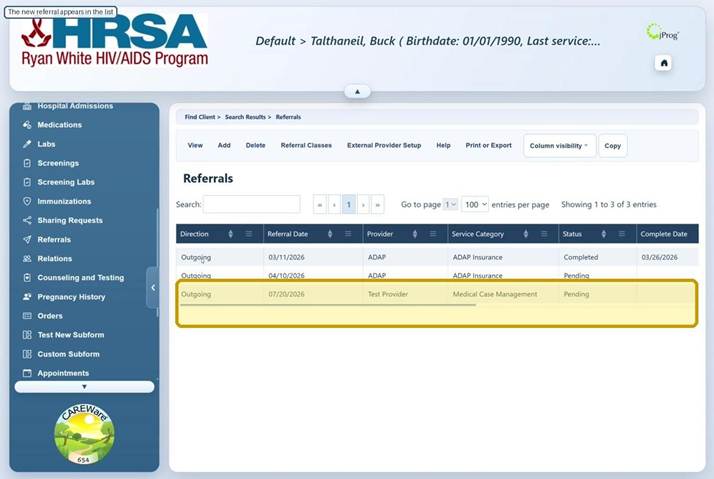
• Create a test referral and confirm the fields appear in the intended order.
• Confirm a field under All Categories appears for multiple referral categories.
• Confirm a category-specific field appears only when its matching service category is selected.
• Verify required behavior, default values, edit permissions, and active ComboBox values.
Helpful data-quality tips
• Use a ComboBox for standardized values that must be counted, grouped, or reported consistently.
• Use a DatePicker for dates and a TextBox for identifiers that may include leading zeros or punctuation.
• Use default values sparingly; a blank value is safer than an incorrect value accepted without review.
• Choose durable field names that remain understandable in reports, exports, and templates.
|
Important Required fields and default values affect every referral screen where the control is active. Require a value only when staff can consistently obtain it, and test all applicable user roles before release. |
Troubleshooting and common questions
Why can’t I see Referral Custom Fields?
Confirm that your account can access Administrative Options, Custom Features, and Custom Fields. Ask a local administrator to review your permissions.
Why does the field appear for every service category?
The control is probably active under All Categories. Deactivate it there, then activate it only under the intended category.
Why does the field not appear on a referral?
Confirm the correct provider, verify Active displays Yes, and make sure the referral Service Category matches the category where the field is active.
Why can’t a user edit the field?
Review Toggle Edit by Permission in Custom Control Setup and the user’s permission group. Test each applicable role before production use.
Related CAREWare guides and resources
|
Resource |
How it helps |
|
Create and maintain control definitions before activating them for referrals. |
|
|
Review where custom controls are active and how they are used. |
|
|
Manage ComboBox choices, including activation and deactivation. |
|
|
Refresh lists when a new or changed control is not displayed. |
|
|
Configure custom fields for service entry workflows. |
|
|
Review or adjust permission groups and user access. |
|
|
Edit referral setup or enter referral records for clients. |

