

Custom Service Data Entry Rules

|
Purpose |
Create provider-specific service data comparisons that display a message or stop a service record from being saved when the rule condition is met. |
|
Who should do this |
CAREWare administrators, data managers, or designated support staff with access to Administrative Options and Custom Features. |
|
Use this setup when |
Service entry must be checked against another service field, eligibility date, or compatible custom service field. |
|
Main warning |
Prevent record save can block service entry. Confirm the provider and subservice scope, then test the rule before production use. |
|
Video walkthrough |
Quick path
|
Administrative Options > Custom Features > Custom Service Data Entry Rules > select provider > Manage Selected Provider > Add |
Before you begin
• Identify the provider and the subservice scope. Use All Subservices only when the rule should apply broadly.
• Write the comparison that should trigger the rule, including the two fields and the operator.
• Compare compatible data types, such as a date field with another date field.
• Create and activate any custom service field first using Custom Control Setup and Service Custom Fields.
• Draft a brief user message that explains how the service value must be corrected.
|
Important A rule is provider-specific. If Prevent record save is selected, CAREWare can block the service record whenever the configured comparison is true. Test both valid and invalid values before release. |
Open Custom Service Data Entry Rules
Step 1. Click Administrative Options.
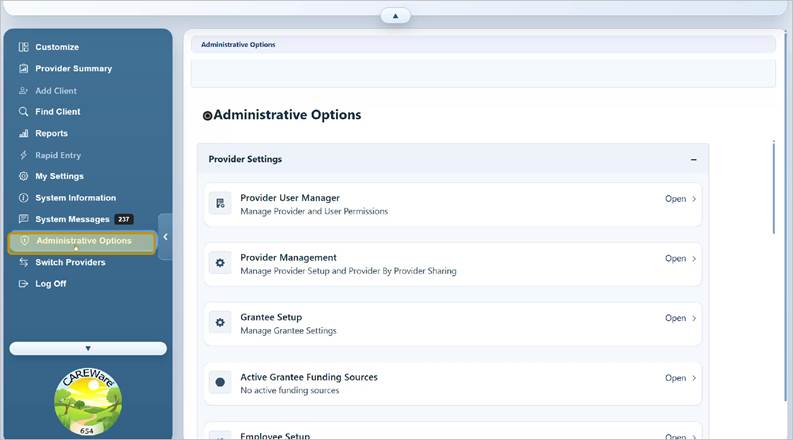
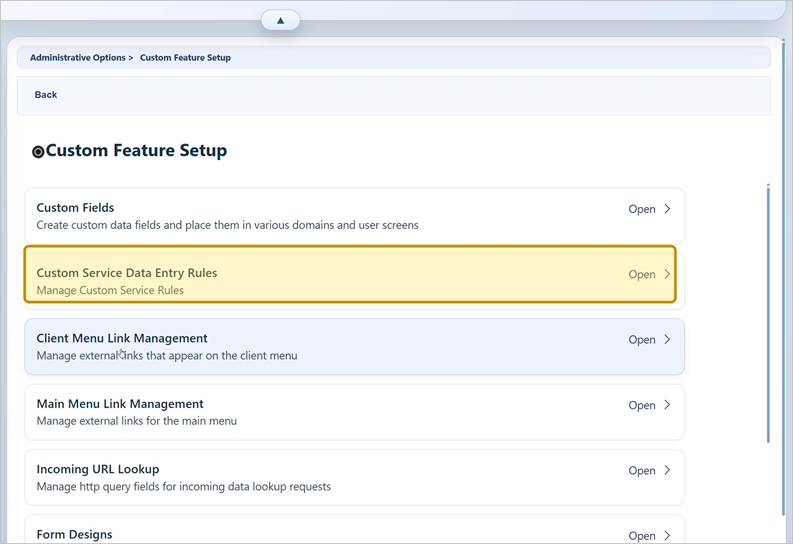
Step 2. Open Custom Features.
Step 3. Click Custom Service Data Entry Rules.
Select the provider
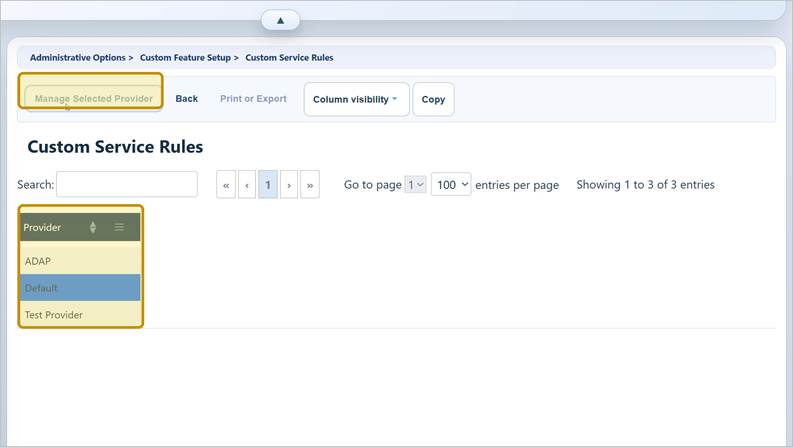
Step 4. In Central Administration, select the provider and click Manage Selected Provider. If you are already inside one provider, skip this step.
|
Important Changes made here apply to the selected provider. Verify the provider before adding, deleting, copying, or filtering rules. |
Start a new rule
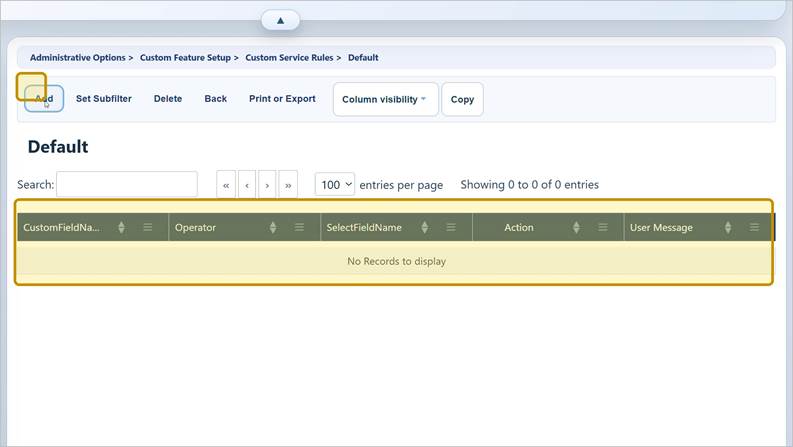
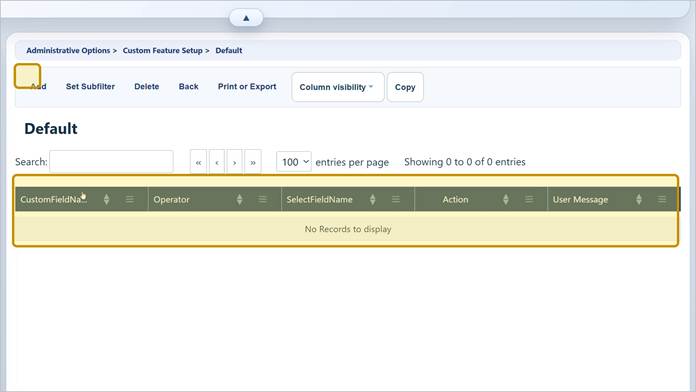
Step 5. Click Add.
Configure the comparison
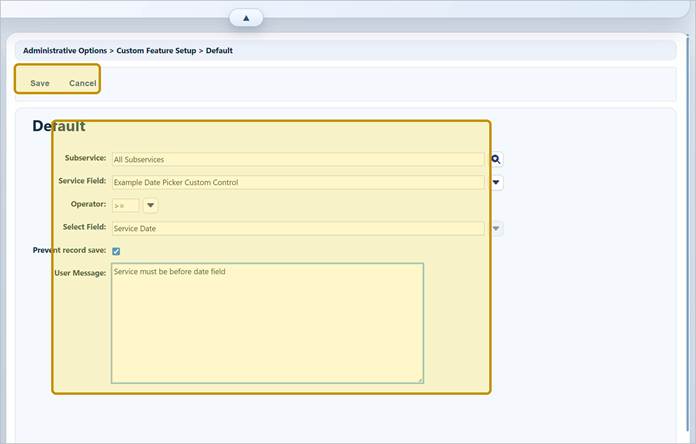
Step 6. In Subservice, keep All Subservices or use the search button to select a subservice.
Step 7. Select the Service Field that CAREWare should evaluate.
Step 8. Select the comparison Operator.
Step 9. Select the second field in Select Field.
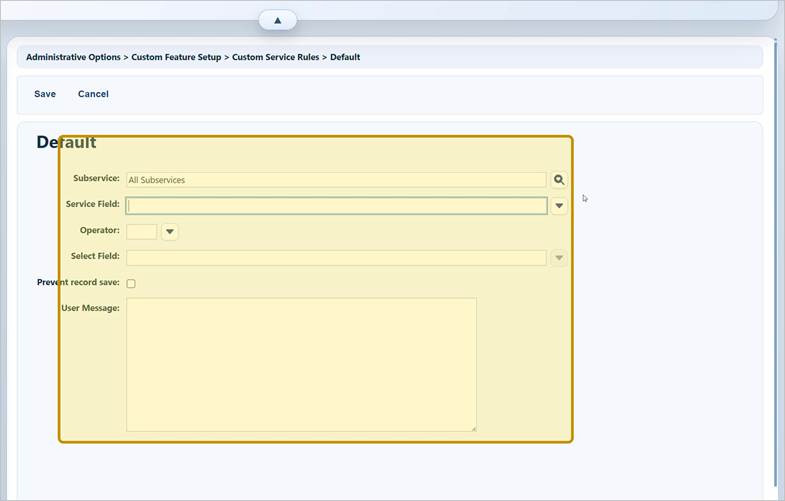
Step 10. Select Prevent record save when the comparison should block saving.
Step 11. Enter a clear User Message.
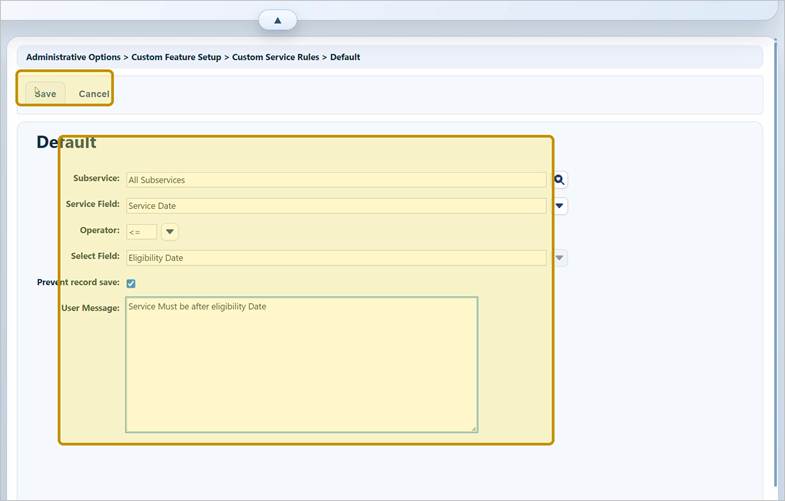
Step 12. Click Save.
Review the completed rule
The rule condition is Service Date <= Eligibility Date, and the message tells the user that the service must occur after the eligibility date.
Operator reference
|
Operator |
Meaning |
|
< |
The first field is earlier than or less than the selected field. |
|
<= |
The first field is earlier than, less than, or equal to the selected field. |
|
= |
The two field values are equal. |
|
> |
The first field is later than or greater than the selected field. |
|
>= |
The first field is later than, greater than, or equal to the selected field. |
|
Tip Write the rule as a sentence before saving it: "When [Service Field] [Operator] [Select Field], show this message and optionally prevent saving." This makes reversed operators easier to plan. |
Use a custom service field in a rule
A custom control must be activated for service entry before it appears in the Service Field list.
Step 13. Open Administrative Options > Custom Features > Custom Fields > Service Custom Fields.
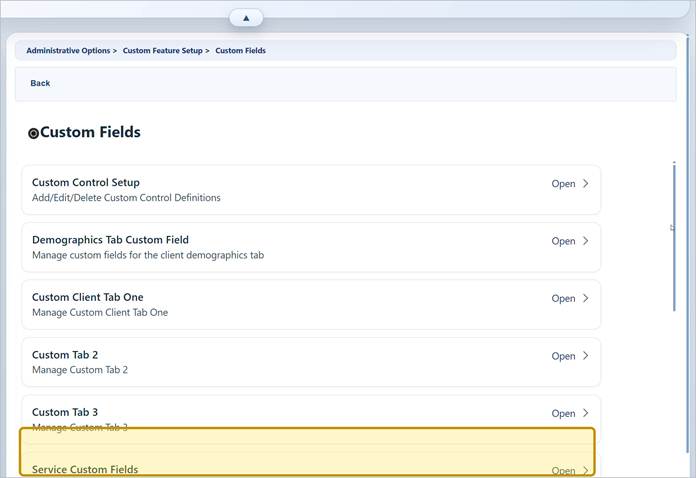
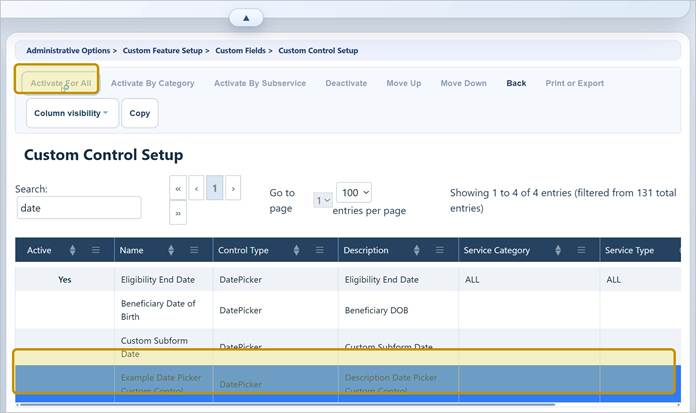
Step 14. Search for and select the custom control.
Step 15. Click Activate For All, Activate By Category, or Activate By Subservice, based on the intended scope.
|
Important Create the control with a compatible type before activation. For date comparisons, use a DatePicker. See Custom Control Setup for control-type guidance. Do not repurpose a control after it contains production data. |
Create a rule with the custom service field
Step 16. Return to Custom Service Data Entry Rules for the provider, then click Add.
Step 17. Select the activated custom service field in Service Field.
Step 18. Choose the Operator and a compatible comparison field.
Step 19. Set Prevent record save as needed, enter the User Message, and click Save.
|
Important Selecting Prevent record save produces a red error message containing the user message when a user attempts to save a record that violates the rules. If that is unchecked, users get a yellow message as a warning, however can still save the record. |
Rule fields and list actions
|
Field |
How to use it |
|
Subservice |
Limits the rule to All Subservices or a selected subservice. |
|
Service Field |
The first value in the comparison. This list can include built-in fields and activated custom service fields. |
|
Operator |
Defines how the first field is compared with the selected field. |
|
Select Field |
The second value in the comparison. |
|
Prevent record save |
Blocks saving when the comparison is true. |
|
User Message |
Explains why the value is not accepted and what the user should correct. |
List actions
|
Button |
Use |
|
Add |
Create a new service data entry rule. |
|
Set Subfilter |
Limit the rule list to a selected subset for review. |
|
Delete |
Remove the selected rule after confirming its provider and scope. |
|
Print or Export |
Document the current rule list for review or change control. |
|
Column visibility |
Show or hide optional grid columns. |
|
Copy |
Copy selected list data where supported; verify the destination before use. |
Validation checklist
• Test values that are before, equal to, and after the comparison date or threshold.
• Confirm the rule appears for the intended provider and subservice only.
• Verify the message is specific enough for staff to correct the entry.
• Confirm blocking behavior when Prevent record save is selected.
• Test with a non-production client and service record when available.
|
Important Coordinate rule changes with staff training and reporting workflows. A reversed operator or broad All Subservices scope can affect many service records immediately. |
Troubleshooting and common questions
Why does the rule not apply?
Verify the provider, subservice scope, operator direction, selected fields, and the actual values entered on the service record.
Why are users blocked from saving valid services?
Review the operator and field order. Test the equality boundary, especially when using <= or >=.
Why does the rule affect more services than intended?
Check whether All Subservices was selected. Recreate or update the rule for the correct subservice scope.
Related CAREWare guides and resources
|
Resource |
How it helps |
|
Create and maintain control definitions before using them in service rules. |
|
|
Activate custom controls for service entry by provider, category, or subservice. |
|
|
Review where custom controls are active and how they are used. |
|
|
Refresh lists when a new or changed custom field is not displayed. |
|
|
Include custom service fields in import and export templates. |
|
|
Open the CAREWare Custom Fields knowledge-base section. |


