

Incoming URL Lookup

|
Purpose |
Configure the CAREWare query-key names used when an approved external application sends an incoming client lookup request. |
|
Who should do this |
CAREWare administrators, interface analysts, data managers, or designated support staff with access to Central Administration and Custom Features. |
|
Use this setup when |
An external application, including a CAREWare FHIR-connected workflow, must locate a client by an approved CAREWare identifier or search-enabled custom demographics field. |
|
Main warning |
Query-key changes can interrupt integrations or cause the wrong client search. Coordinate changes with the sending application, test with non-production data, and do not place credentials or access tokens in the URL. |
|
Video walkthrough |
Quick path
|
Central Administration > Administrative Options > Custom Features > Incoming URL Lookup > Edit |
Before you begin
• Confirm that Central Administration appears in the top banner.
• Document the exact query-key names expected by the sending application configuration.
• Decide which stable client identifier will be used. Prefer a unique identifier over a name-only lookup.
• When a custom identifier is needed, create it as a durable TextBox control and activate it on the Demographics tab before configuring this screen.
• Use a test environment or non-production client whenever possible.
|
Important Incoming URL Lookup maps incoming URL parameters to CAREWare search fields. It does not configure the FHIR endpoint, authentication, authorization scopes, or data-exchange mappings. Coordinate those items with the interface owner and CAREWare support. |
Open Incoming URL Lookup
Step 1. Click Administrative Options.
Step 2. Click Custom Features.
Step 3. Click Incoming URL Lookup.
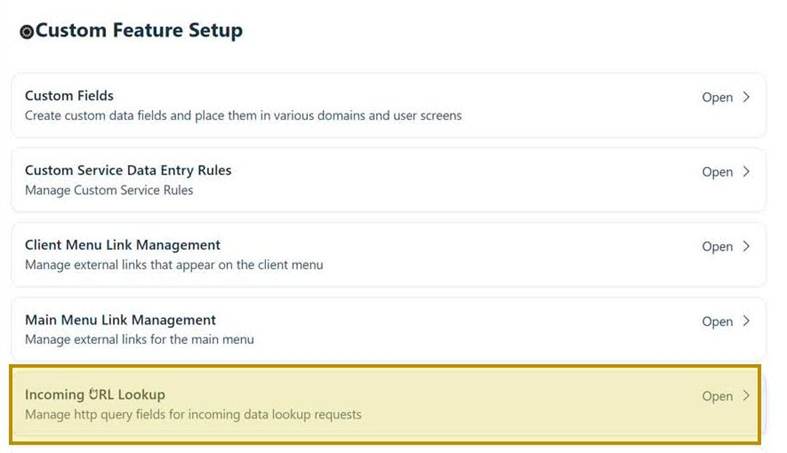
Step 4. Click Edit.
|
Important Complete this configuration in Central Administration. A change here can affect every external application that uses the configured incoming lookup URL. |
Configure the lookup keys
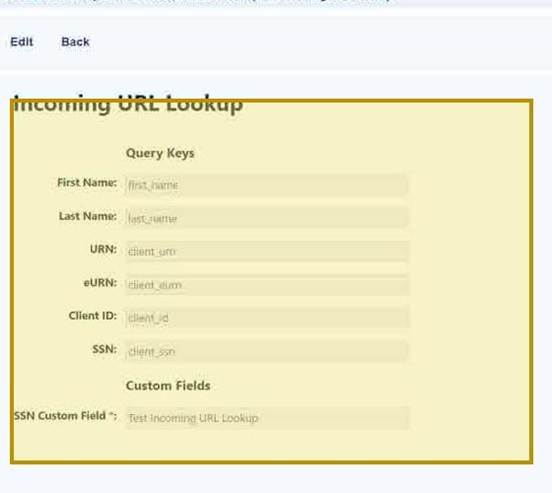
Step 5. Enter the query-key name supplied by the sending application for each CAREWare field that will be used.
Step 6. Leave an unused query key blank only when the integration design does not send that field.
Step 7. Under SSN Custom Field, select the approved search-enabled custom demographics field when the interface uses an additional identifier.
Step 8. Click Save.
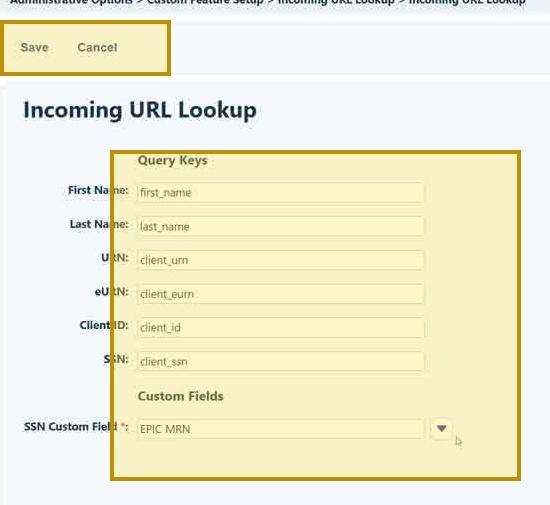
|
Important Query-key names are case-sensitive for many integrations. Change them only after the sending application is updated and a coordinated test is scheduled. |
Make a custom field available for URL lookup
Complete these steps when the required identifier is not listed under SSN Custom Field.
Step 9. Return to Custom Feature Setup and click Custom Fields.
Step 10. Click Demographics Tab Custom Field.
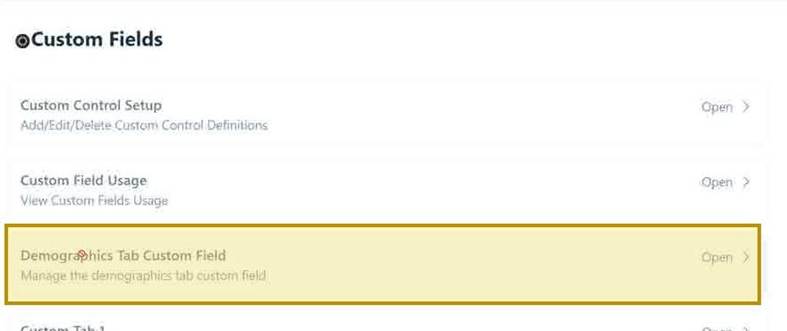
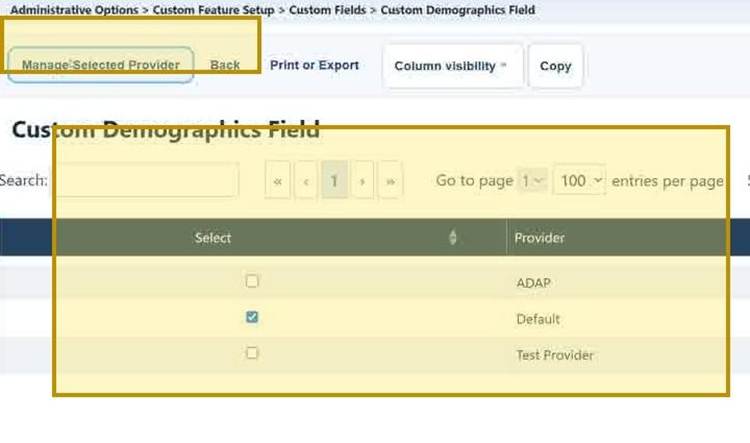
Step 11. Select the provider that owns the client records used by the interface.
Step 12. Click Manage Selected Provider.
|
Important Verify the provider before changing activation or search settings. A custom field can exist centrally but still be unavailable for incoming lookup in the intended provider. |
Enable custom-field searching
Step 13. Enter part of the control name or description in Search.
Step 14. Confirm that Active displays Yes. If not, select the control and click Activate.
Step 15. Select the control and click Toggle Search until Search By displays Yes.
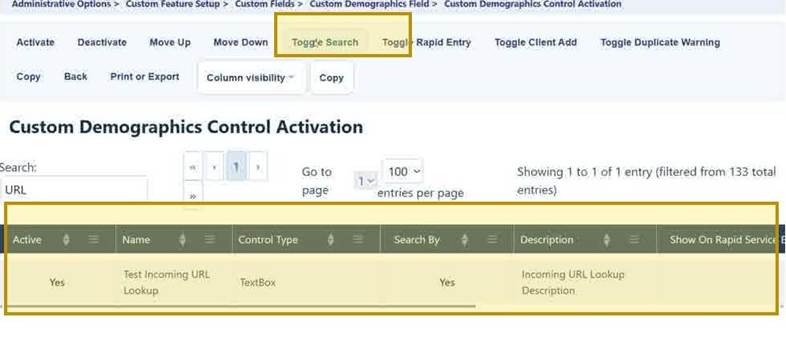
Step 16. Return to Custom Feature Setup and open Incoming URL Lookup.
Step 17. Click Edit and select the custom control under SSN Custom Field.
Step 18. Click Save.
|
Important Use a custom field only for one durable identifier meaning. If the identifier definition changes, create a new control instead of repurposing a field that already contains production data. |
Incoming URL Lookup field reference
|
Field |
What it controls |
Use with care |
|
First Name |
Incoming parameter used for the client first-name search. |
Names can change and may not be unique. |
|
Last Name |
Incoming parameter used for the client last-name search. |
Names can change and may not be unique. |
|
URN |
Incoming parameter for the CAREWare URN (video: client_urn). |
Confirm the correct identifier format with the interface owner. |
|
eUCI |
Incoming parameter for the CAREWare eUCI value used. |
Use the exact definition established for the interface. |
|
Client ID |
Incoming parameter for the CAREWare client ID |
Verify uniqueness within the applicable Provider.. |
|
SSN |
Incoming parameter for SSN-based lookup. |
Transmit only when legally and operationally approved. |
|
SSN Custom Field |
One search-enabled demographics custom field available as an additional identifier. |
The field must be active and Search By must display Yes. |
Custom Demographics Control Activation buttons
|
Button |
What it does |
When to use it |
|
Manage Selected Provider |
Opens the selected provider’s demographics-control activation list. |
After confirming the correct provider. |
|
Activate |
Makes the custom control available on the provider’s Demographics tab. |
When the identifier field is not active. |
|
Deactivate |
Stops displaying the control for new or edited records. |
Only after confirming the interface no longer depends on it. |
|
Toggle Search |
Changes whether the field can be used as a searchable client identifier. |
Set Search By to Yes for the field used by Incoming URL Lookup. |
|
Move Up / Move Down |
Changes the display order on the Demographics tab. |
For staff workflow; it does not change the incoming query-key name. |
Validation and maintenance
Validation checklist
• Confirm that the query-key names exactly match the sending application configuration.
• Send a test request using one stable identifier and confirm that CAREWare opens or returns the intended client lookup.
• Test identifiers with leading zeros, punctuation, mixed case, and URL-encoded characters when applicable.
• Test duplicate first and last names to confirm that the workflow does not select a client based on an ambiguous name-only match.
• Confirm that the selected custom field is active, Search By displays Yes, and the field is populated for test clients.
• Review network, application, and proxy logs to confirm that sensitive query values are handled according to local policy.
• Retest after a CAREWare upgrade, FHIR interface change, reverse-proxy change, or identifier-mapping change.
Helpful configuration tips
|
Topic |
Recommended practice |
|
Change control |
Document the old and new key names, affected applications, approval, test evidence, and rollback plan. |
|
Stable naming |
Use concise lowercase parameter names without spaces when the interface design permits. |
|
Custom identifiers |
Keep one identifier meaning per control and preserve leading zeros. |
|
Provider scope |
Confirm that the selected provider is the same provider used by the incoming workflow. |
|
Security review |
Review TLS, authentication, authorization, logging, and minimum-necessary data before production release. |
|
Support handoff |
Provide the CAREWare build, exact test URL structure with redacted values, timestamp, and error details when opening a support request. |
Before changing an existing setup
• Confirm which applications and environments currently use the URL.
• Compare the planned keys with the sender’s production configuration.
• Identify reports, custom-field workflows, or duplicate-check rules that use the same identifier.
• Schedule a coordinated test and rollback window.
|
Important Do not rename or remove a production query key as an isolated CAREWare change. Update and test the sending application at the same time, or the integration may stop locating clients. |
Troubleshooting and common questions
Why is the custom field missing from SSN Custom Field?
Confirm that the control is activated under Demographics Tab Custom Field for the intended provider and that Search By displays Yes. Refresh the list or use Resetting the Custom Field List when appropriate.
Why does the incoming request return no client?
Compare the exact query-key names, capitalization, encoding, provider scope, and identifier value with the sending application. Confirm that the identifier is populated on the CAREWare client record.
Why does the request find more than one client?
Use a stable unique identifier instead of name-only matching. Review duplicate client records and confirm that the external identifier is unique within the provider.
Related CAREWare guides and references
|
Resource |
How it helps |
|
Create a durable TextBox custom control and apply identifier, naming, and change-management guidance. |
|
|
Activate the identifier field for the intended provider and enable Search By. |
|
|
Review where a custom control is active before changing or replacing it. |
|
|
Refresh custom-field lists when a new or changed control is not displayed. |
|
|
Review secure URL and HTTP-field guidance for links opened from client records. |
|
|
Review shared-link URL security, testing, and change-control practices. |


