

Subservice Manager

|
|
|
|
|
|
|
|
|
|
|
|
|
|
|
|
Before you begin
- Confirm the service category, short name, and long name you plan to use.
- Determine whether the service is custom or supplied by an ADAP, HIP, or HOPWA module.
Open Subservice Manager
Step 1. Click Administrative Options.
Step 2. Click Service/Contract Setup.
Step 3. Click Subservice Manager.
Step 4. Click Add.
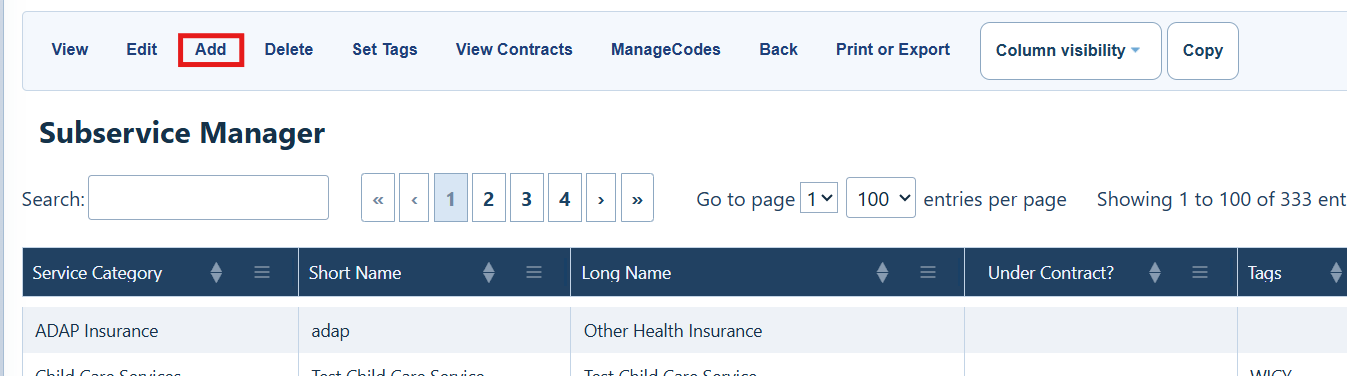
Subservice Manager Menu Options
|
|
|
|
|
|
|
|
|
|
|
|
|
|
|
|
|
|
|
|
|
|
|
|
|
|
|
|
|
|
|
|
|
Step 5. Select a Service Category.
Step 6. Enter a Short Name.
Step 7. Enter a Long Name.
Step 8. Trigger medication prompt upon entry. When selected, adding the service to a client displays a prompt asking whether to add a medication. Choosing Yes opens the Start Medication tab
Step 8. Click Save.
How to confirm it worked
Step 1. Open the contract and verify that the new subservice is activated.
Step 2. Open a client record and confirm that the service is available on the Services tab.
Step 3. After delivery, return to View Contracts and verify the service count and funding source.
|
|
ADAP Insurance Services
ADAP Insurance Services exist only in the ADAP provider, which is designed for completing the ADR. These built-in subservices all belong to the ADAP Insurance service category and are the services that count for the ADR. Custom services are automatically excluded from ADR reporting.
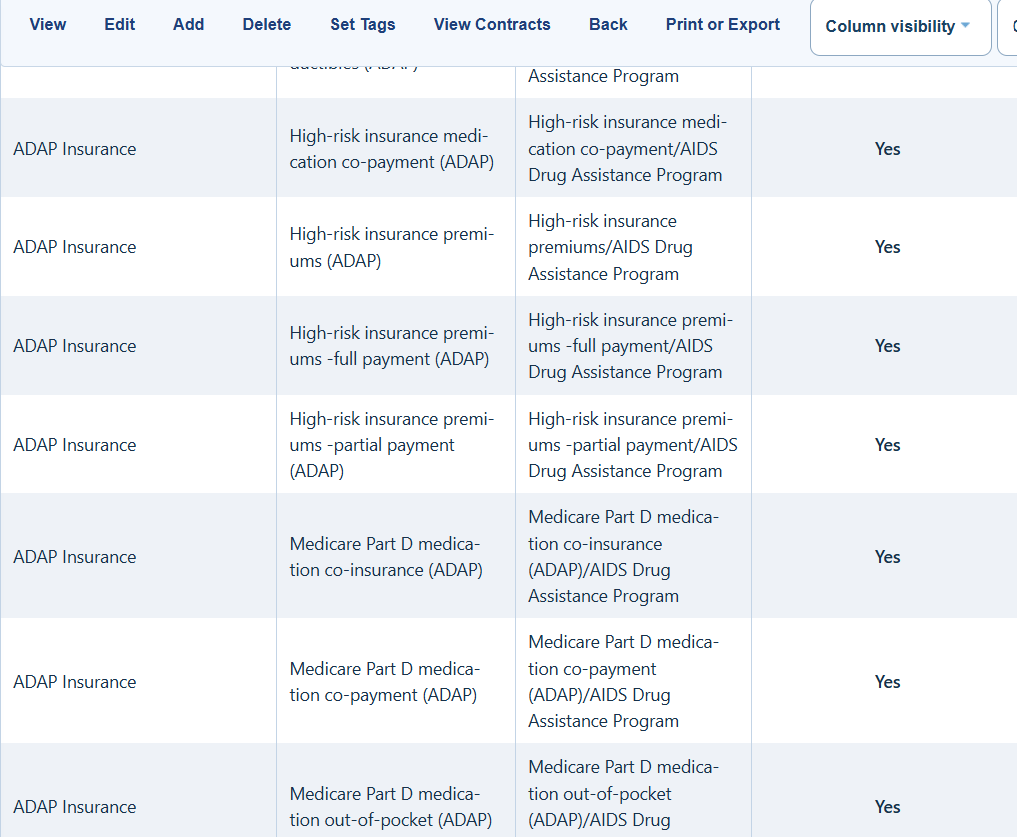
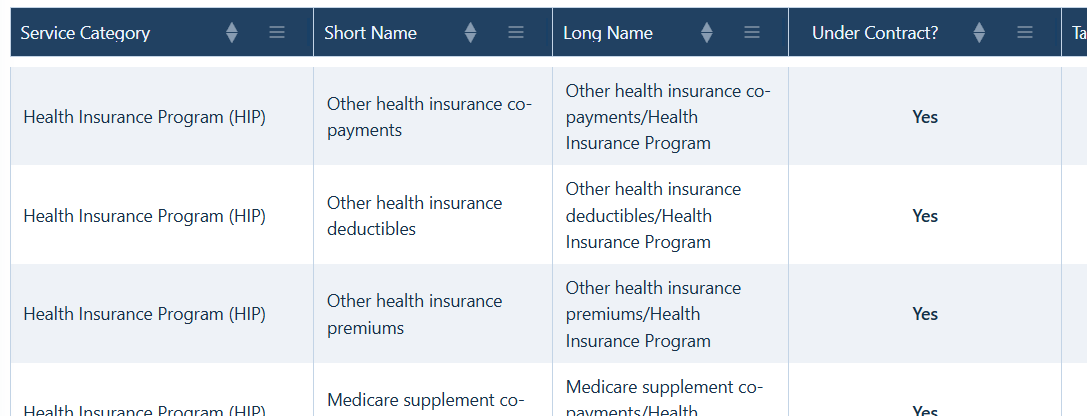
Health Insurance Premium and Cost Sharing Assistance (HIP)
Activate the HIP module
Step 1. Click Administrative Options.
Step 2. Click Provider Setup.
Step 3. Click Care Act Program(s).
Step 4. Check HIP.
Step 5. Click Save.
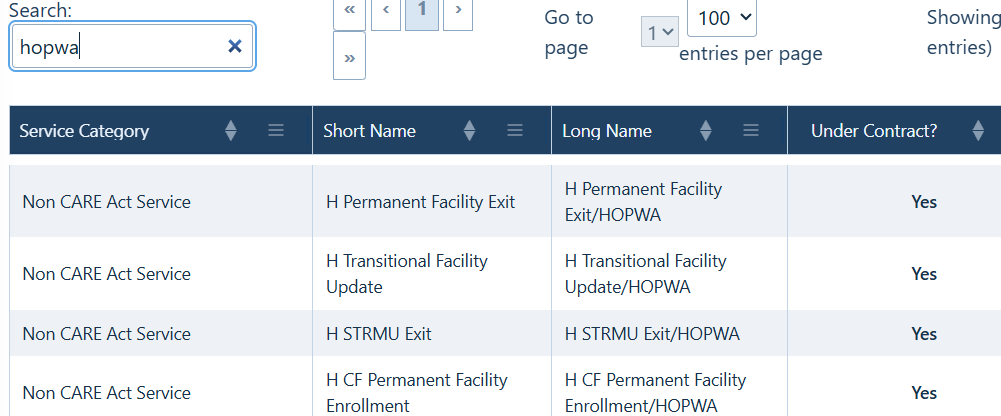
HOPWA module
Activate the HOPWA module
Step 1. Click Administrative Options.
Step 2. Click HOPWA Setup.
Step 3. Click Activate HOPWA. After HOPWA is activated, its services appear in Subservice Manager.
Related references
|
|
|
|
|
|
|
|
|
|
|
|


