

CAREWare HIV Quality Measures (HIVQM) Module User Guide

CAREWare HIV Quality Measures (HIVQM) Module User Guide
Published October 2026
Please contact the CAREWare Helpdesk with any questions regarding the CAREWare HIVQM Module:
- Phone: 877-CWHELP1 or 877-294-3571
- Email: [email protected]
Table of Contents
Section 1. Introduction and Background
Section 2. CAREWare Performance Measure Module
2.1. Introduction To Performance Measures in CAREWare
2.2. CAREWare Configuration for Performance Measures
2.3. How To Create Performance Measures
2.4. How To Copy And Edit Performance Measures
2.5. How To Create An HIVQM Performance Measure Group
2.6. How To Run An HIVQM Performance Measure Group
2.7. How To Review HIVQM Performance Measure Results
2.8. How To Export And Import Performance Measures
Section 3. HIVQM Performance Measures Available in CAREWare
3.1. CORE01 - Viral Load Suppression
3.2. CORE02 - Prescription Of Antiretroviral Therapy
3.3. CORE05 - Annual Retention In Care
Section 4. Frequently Asked Questions and Troubleshooting
Section 1. Introduction and Background
This user guide provides instructions for using CAREWare to calculate and export HIV Quality Measures (HIVQM) performance results for reporting in the HIVQM Module.
HAB developed the HIV Quality Measures (HIVQM) Module, a tool within the existing RSR portal, to enable recipients to voluntarily enter provider-level aggregate data on the HAB performance measures. The HIVQM Module is located in the RSR portal of the Health Resources and Services Administration (HRSA) Electronic Handbooks (EHBs). This guide was developed by jProg, the creators of CAREWare, in collaboration with the HRSA HIV/AIDS Bureau (HAB).
The HIVQM Module provides Ryan White HIV/AIDS Program (RWHAP) recipients and subrecipients with a way to report and monitor performance measure results over time. To support HIVQM reporting, CAREWare includes two HAB Performance Measures that can be used to calculate HIVQM results (see Section 3). These two HAB Performance Measures in CAREWare cannot be edited, but they can be copied and then modified. Additional performance measures that are not included in CAREWare may be created (e.g., Cervical Cancer Screening, Oral Health Exam, etc.), and others may be downloaded from the jProg CAREWare Knowledge Base and imported into CAREWare. CAREWare users can organize selected HRSA/HAB approved measures into a performance measure group and generate an HIVQM-formatted file for upload to the HIVQM Module in the EHBs.

The lightbulb icon indicates helpful tips, suggestions, or recommendations.

The megaphone indicates important information, limitations, or requirements.
Section 2. CAREWare Performance Measure Module
2.1 INTRODUCTION TO PERFORMANCE MEASURES IN CAREWARE
Performance measures in CAREWare can be used to assess clinical outcomes, identify gaps in clinical data, report quality assurance data to HRSA, and monitor changes in health outcomes over time. They can also be used to generate client lists that help staff identify incomplete data needed for other HRSA reports, such as the RSR, ADR, and EHE Triannual reports.
When you run a performance measure for a provider, CAREWare calculates:
- The number of clients who meet the measure's denominator criteria;
- The number of those clients who meet the numerator criteria; and
- The percentage of clients in the denominator who meet the numerator criteria.
Performance measures can be run from either the Central Administration domain or individual provider domains.
When running performance measures from the Central Administration domain, you can calculate results for a single provider or for multiple providers. When selecting multiple providers, you will need to determine whether the results should be based only on data entered by those providers or whether shared data from other providers should also be included.
Some performance measures may include subfilters, which is how CAREWare narrows down the information it needs to report on a specific field. Examples of subfilters can be found in Section 3. For HAB Performance Measures, the cross-provider subfilter is set to No by default, which will exclude shared data. More information on cross-provider sharing can be found in the jProg Knowledge Base Data Sharing article.
Performance measures can be run individually or as part of a performance measure group. Running a performance measure group produces a single report containing results for multiple performance measures.
While this user guide will focus on running performance measures from individual provider domains, more information on running performance measures from the Central Administration domain can be found on the jProg Knowledge Base.
2.2 CAREWARE CONFIGURATION FOR PERFORMANCE MEASURES
Provider domains and users need specific permissions to be able to access and run performance measures in CAREWare.
To run performance measures in the Central Administration domain, users must be granted the following permissions in the Central Administration domain:
- View performance measure tab
- Run performance measure reports
- Setup performance measures
To run performance measures in a provider domain, both the provider domain and its users must be granted the following permissions:
- View performance measure tab
- Run performance measure reports
- Setup performance measures
More information on how to edit provider permissions can be found in the jProg Knowledge Base Manage Providers article. Additional information on how to edit user permissions can be found in the jProg Knowledge Base Manage Users article.
2.3 HOW TO CREATE PERFORMANCE MEASURES
This section provides step-by-step instructions for creating a performance measure from scratch in CAREWare. There are only two HAB Performance Measures built into CAREWare (see Section 3 for more information), so there may be times when users need to create approved HAB Performance Measures in CAREWare. A list of the currently approved HAB Performance Measures can be found on the HIV/AIDS Bureau Performance Measures website.
1. In the left navigation panel, click Reports.
2. Click Performance Measures.
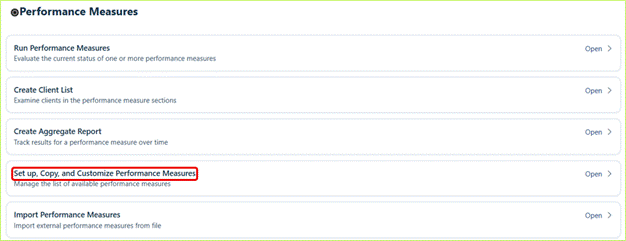
3. This screen is what is referred to as the performance measure main menu in this user guide. It contains all the performance measure functionality in CAREWare. Click Setup, Copy, and Customize Performance Measures.
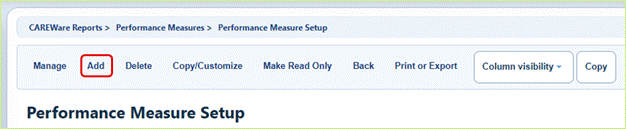
4. Click Add.
5. On the next screen, enter a Name, Code, Description, Numerator Description, and Denominator Description.
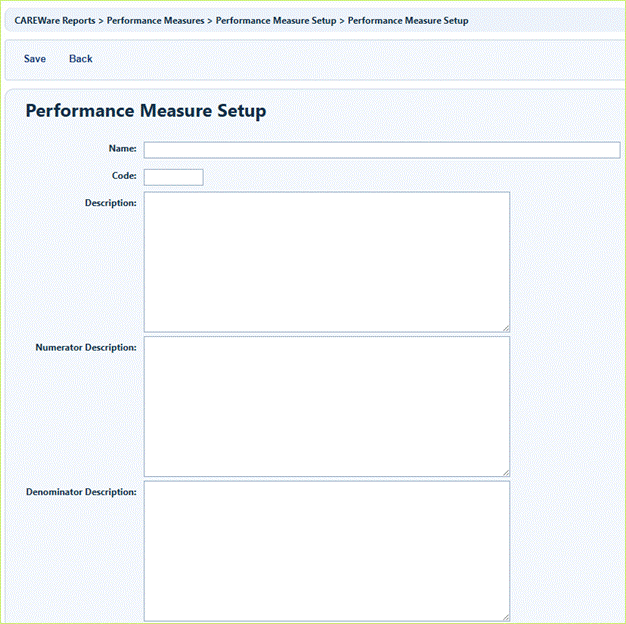
The performance measure name appears in custom reports as field and filter options. Make sure to use a name users may recognize for other reports for the measure.
The code can be used to group measures used for a similar purpose together. This may make it easier to set up performance measure groups. The code can be any eight letters and/or numbers. Example: A performance measure for clients with viral loads and Medical Case Management services could be coded as VLMCM100.
These descriptions are a good opportunity to write out the definition of the measure. That is an important first step to writing a performance measure as preparation for selecting filters. The description of the measure informs which filters are required in the measure.
6. Click Save.
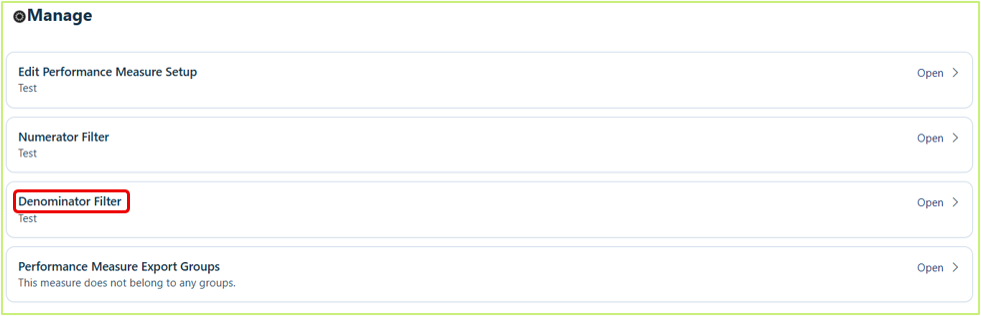
7. Click Denominator Filter.
8. Click Add.

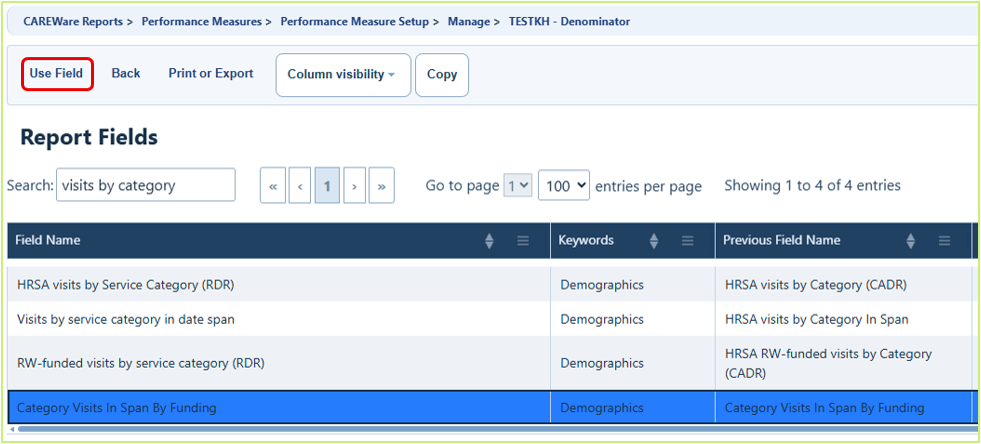
9. Enter keywords or search terms into the Search bar. When you find the field you are looking for click on it to highlight it, then click Use Field. In the example below, “visits by category” is typed into the Search bar, which narrowed the options listed in the table, and “Category Visits in Span by Funding” is highlighted as the selected measure.
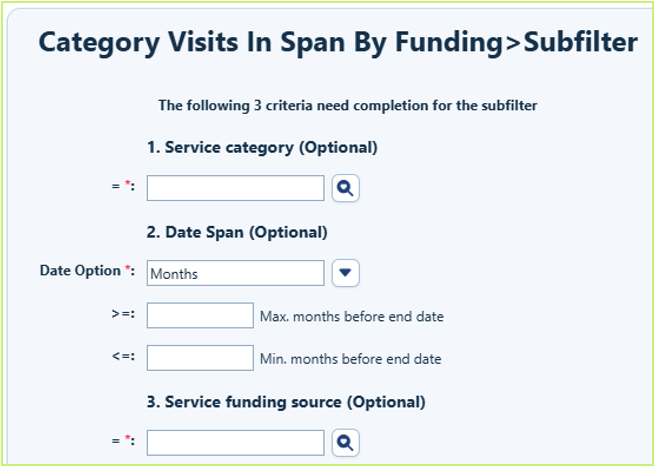
10. Complete any required subfilters, then click Next. In the example below, select the service category, a date span for the services, and a funding source.
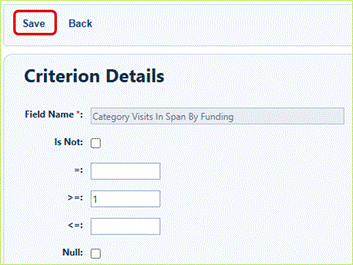
11. Enter the criterion details, then click Save.
12. When you’ve finished with the Denominator Filter, repeat the same steps for the Numerator Filter.
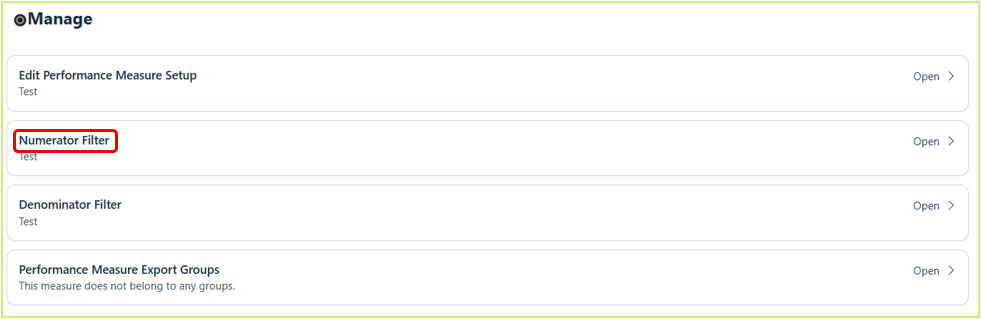
Please note that denominator filters do not need to be repeated in the numerator.
2.4 HOW TO COPY AND EDIT PERFORMANCE MEASURES
There may be times when copying an existing performance measure, then editing it, is more efficient than creating a measure from scratch. This is particularly true when evaluating measures for differences in performance. For example, to evaluate viral suppression by race, copy CORE01 – Viral Load Suppression and add a denominator filter for the race being evaluated. Use the following instructions to copy and edit performance measures
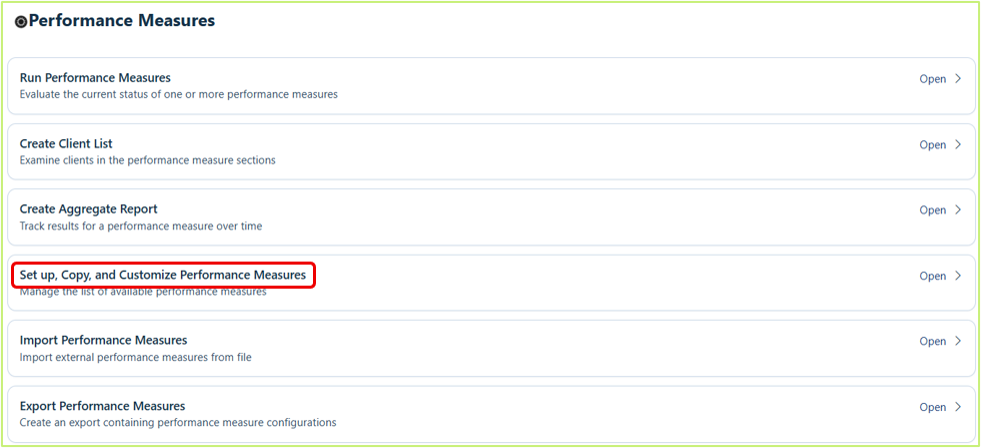
1. Go to the Performance Measure main menu and click Set up, Copy, and Customize Performance Measures.
2. Click on the performance measure you want to copy to highlight it, then click Copy/Customize.
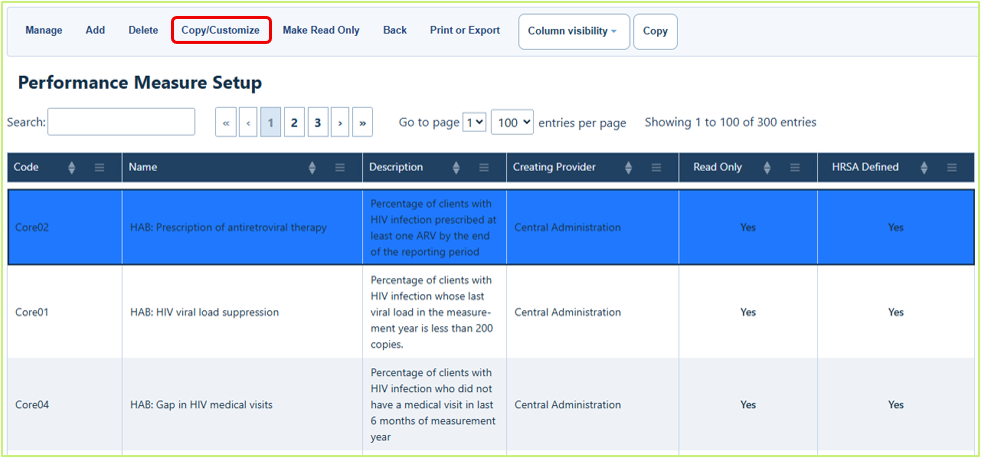
Once copied, CAREWare adds additional text to the name and generates a random code making the measure name unique from the original.
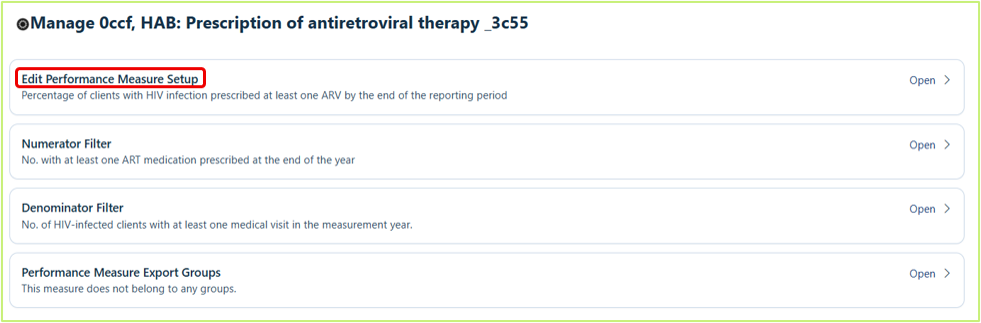
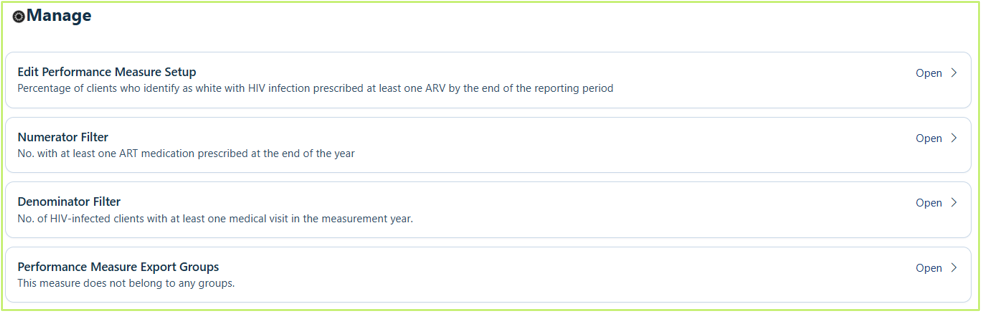
3. Click Edit Performance Measure Setup.
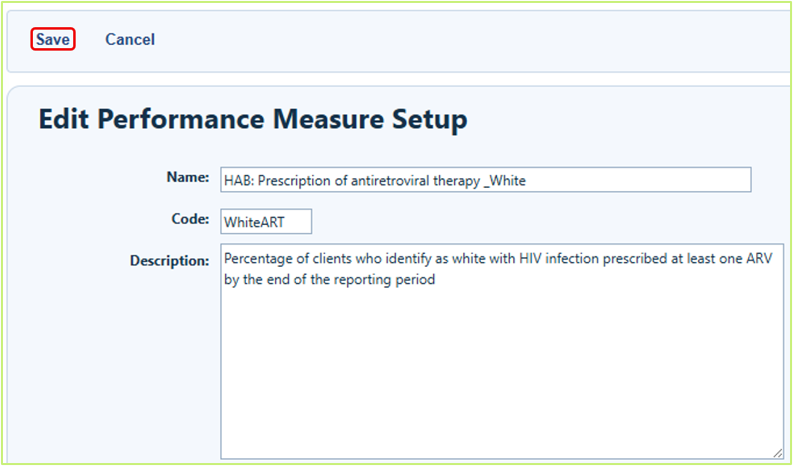
4. Change the name and code so that they are recognizable for the new measure. Update descriptions to match the new definition of the measure. Then click Save.
5. Once the name, code, and descriptions are updated, the measure can be edited using the same steps used to create a new measure. Again, it is ideal to use the descriptions as a guide for the filters and to start with the denominator filters first to define which clients are included in the measure and of those clients which ones meet the measure based on the numerator filters.
2.5 HOW TO CREATE AN HIVQM PERFORMANCE MEASURE GROUP
In CAREWare, performance measure groups allow users to produce a single report that includes multiple performance measures. Furthermore, performance measure groups can be specifically formatted for HIVQM. Follow these steps to create an HIVQM performance measure group in CAREWare.
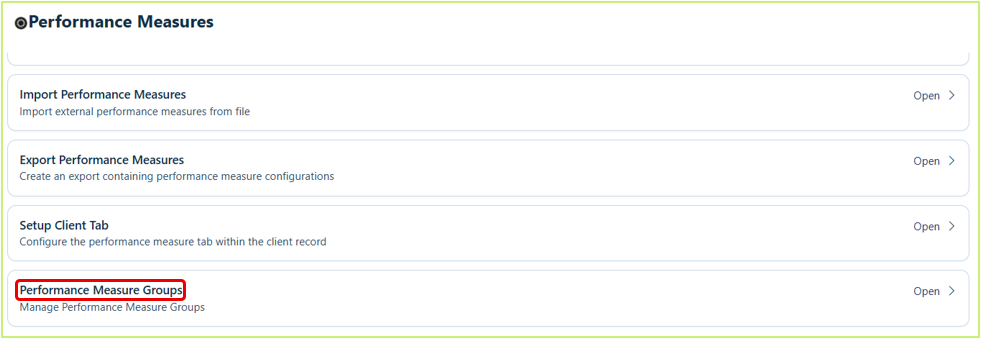
1. From the Performance Measure main menu, scroll down and click Performance Measure Groups.
2. Click Add.

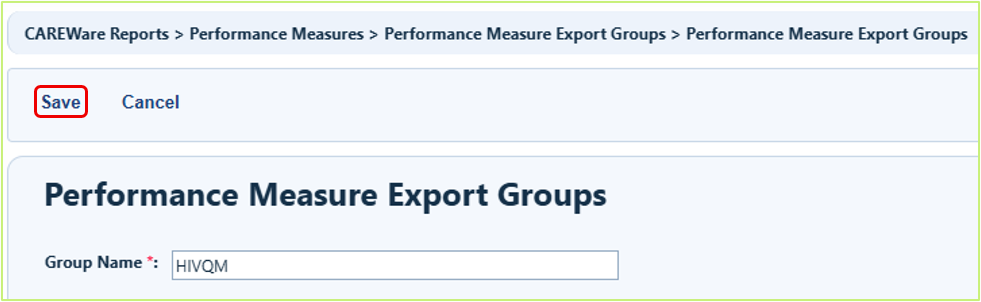
3. Enter a name for the performance measure group, then click Save.
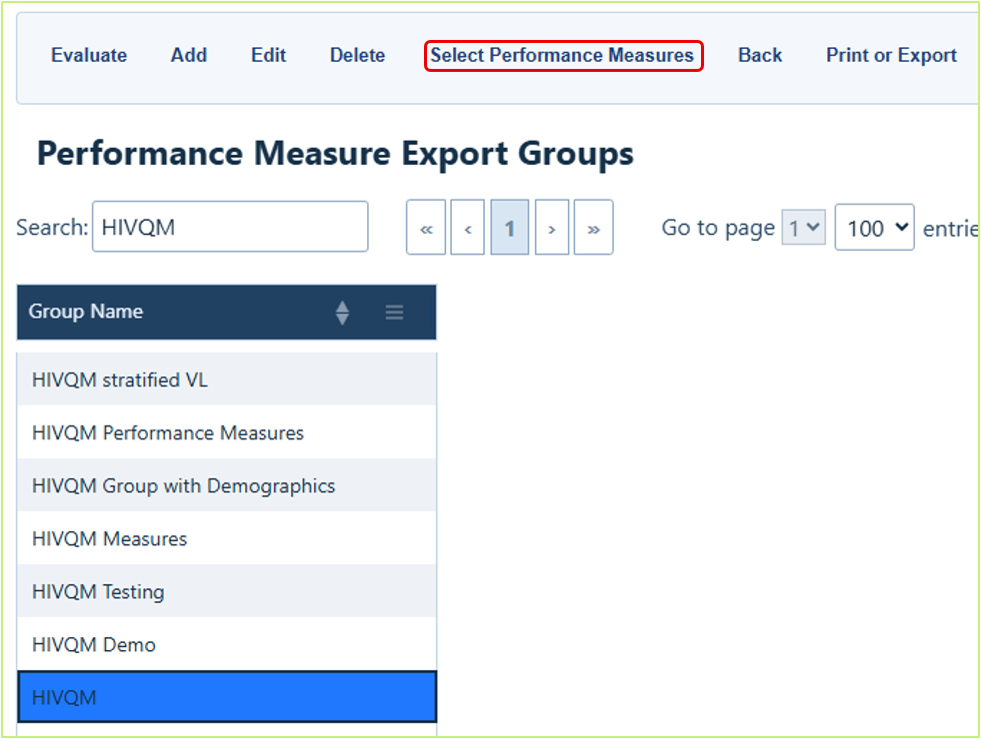
4. You’ll be sent back to the previous screen. Here, find the group you just created (which may involve entering keywords into the Search field), click on the group to highlight it, then click Select Performance Measures.
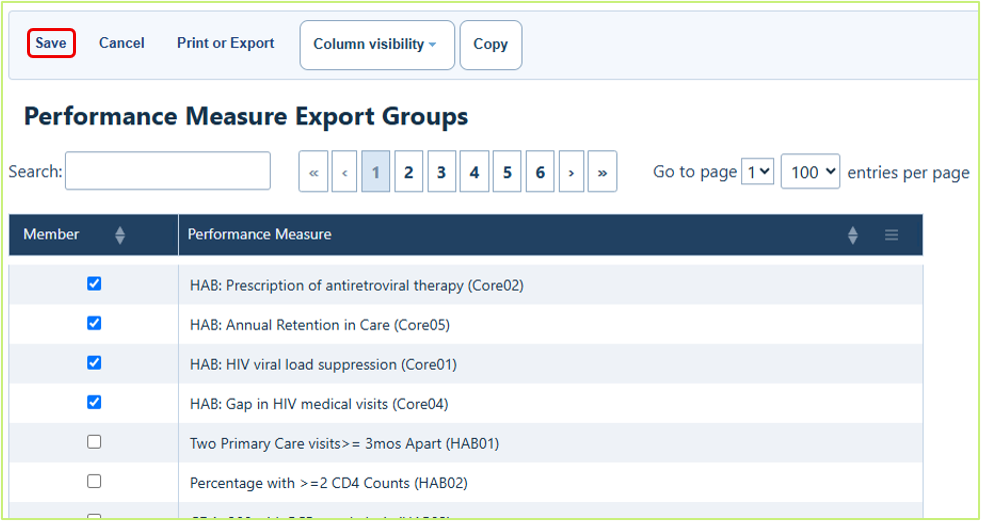
5. Check the performance measures to be included in the HIVQM reporting group, then click Save.
2.6 HOW TO RUN AN HIVQM PERFORMANCE MEASURE GROUP
An HIVQM performance measure group in CAREWare allows users to run all selected HIVQM performance measures in CAREWare in one report. The instructions below provide detailed steps on how to run a performance measure group formatted specifically for upload into the EHBs.
1. Navigate to the Performance Measure Group page in CAREWare (Reports → Performance Measures → Performance Measure Groups).
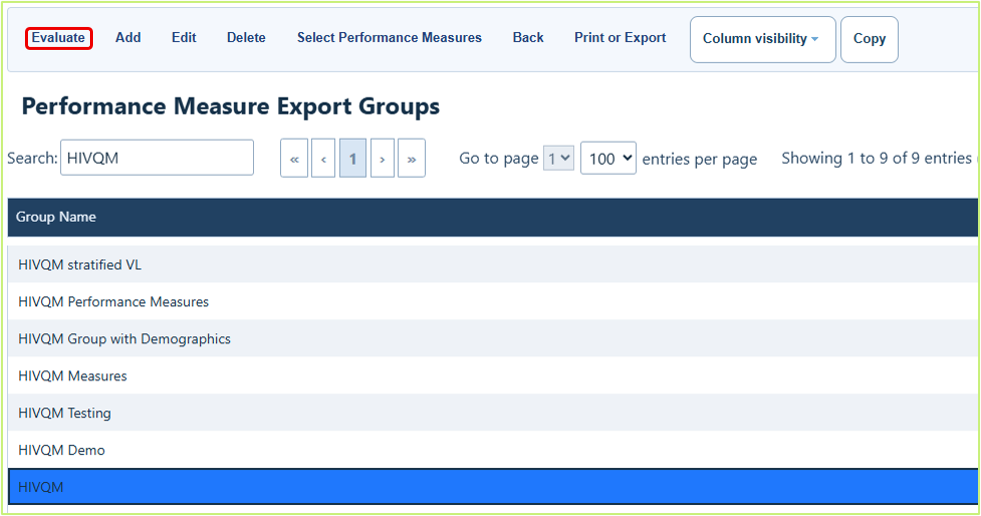
2. Find the group you want to calculate (which may involve entering keywords into the Search field), click on the group to highlight it, then click Evaluate.
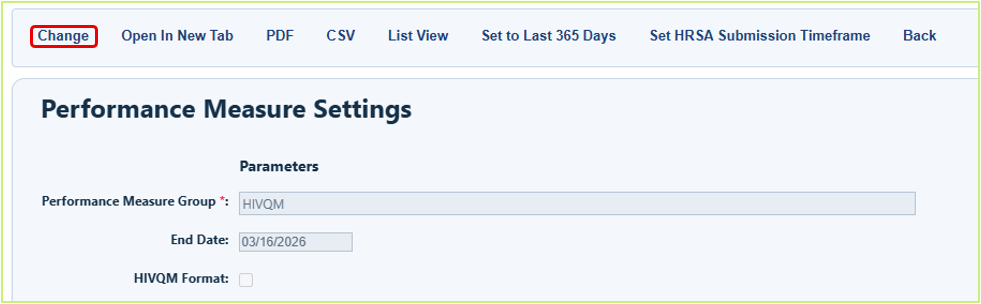
3. Click Change to make the fields editable.
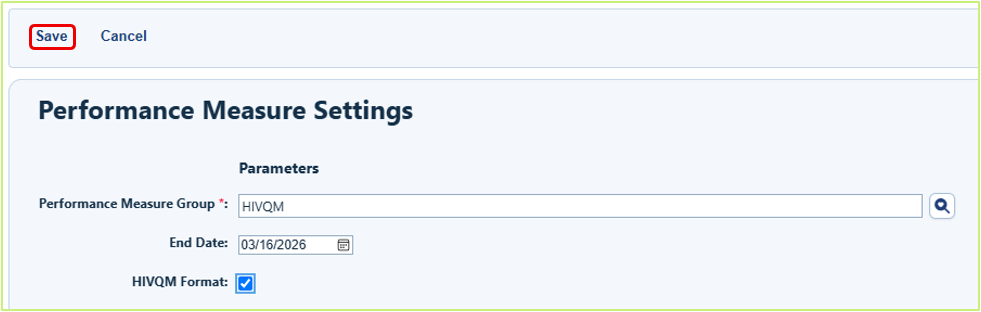
4. Check HIVQM Format and click Save.
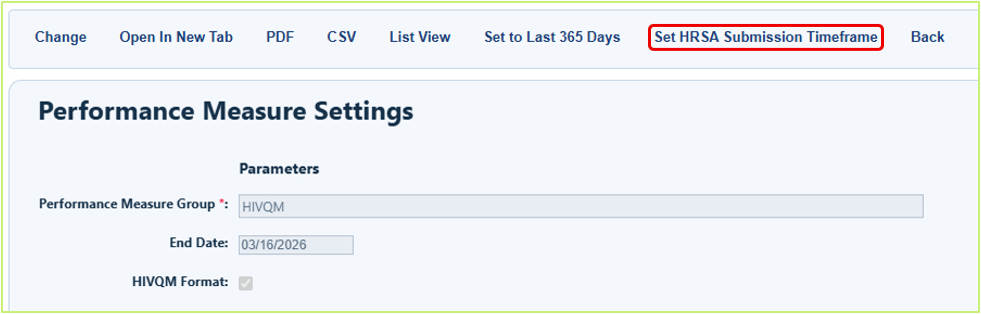
5. Click Set HRSA Submission Timeframe.
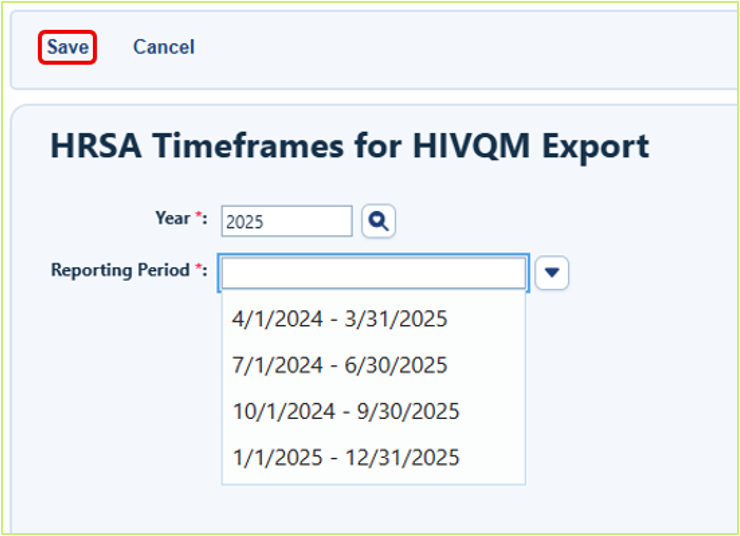
6. Set the Year, select the Reporting Period, then click Save.
7. There are multiple options for reviewing the results.
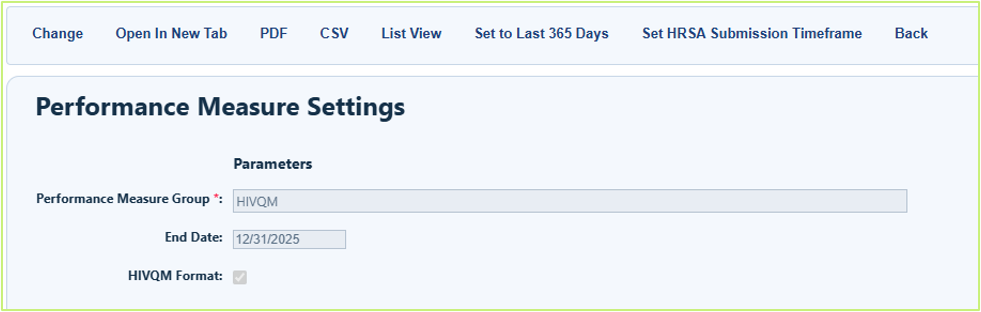
a. Open In New Tab - Displays the performance measure group results in a new browser tab.
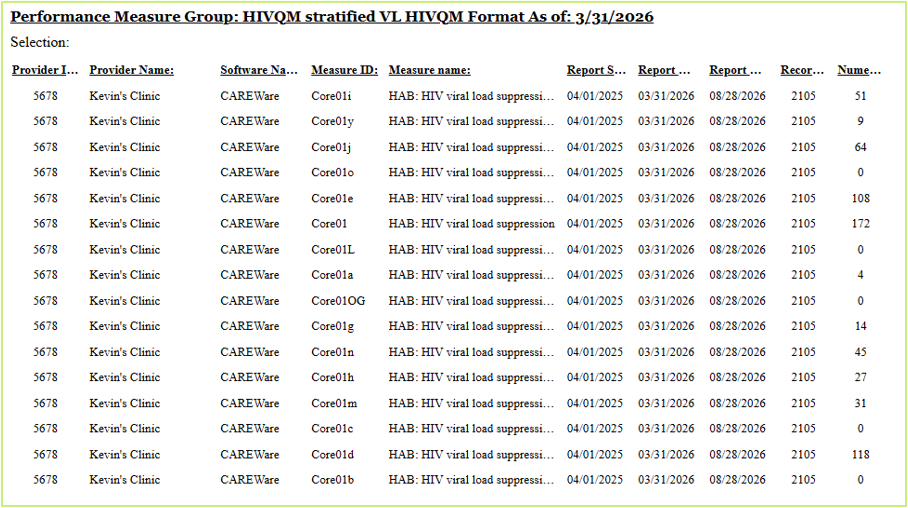
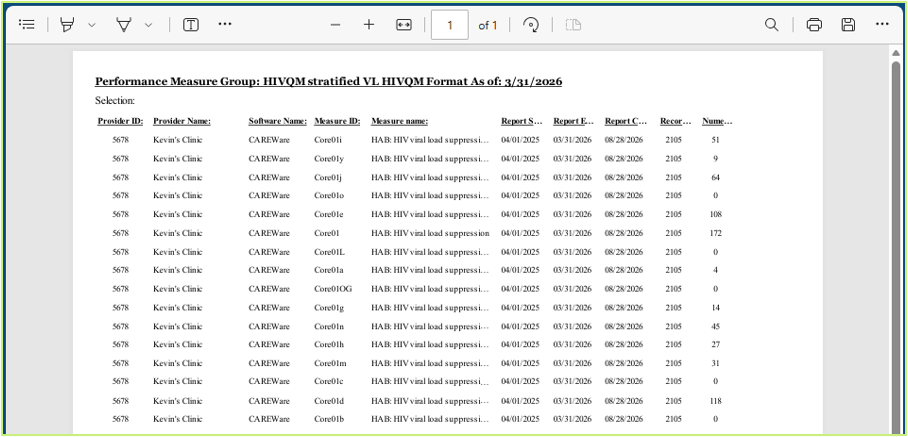
b. PDF - Produces a downloadable PDF document with the performance measure group results.
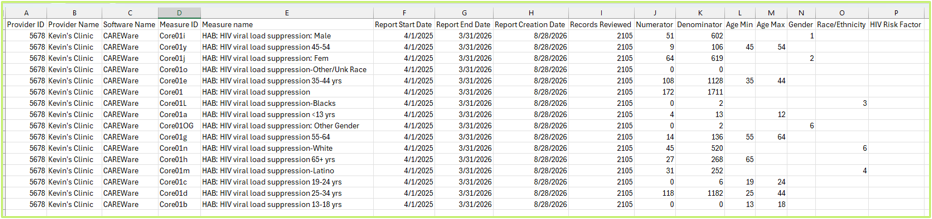
c. CSV - Produces a downloadable CSV file with the performance measure group results.
d. List View - Produces the results in a table on the same CAREWare browser tab.
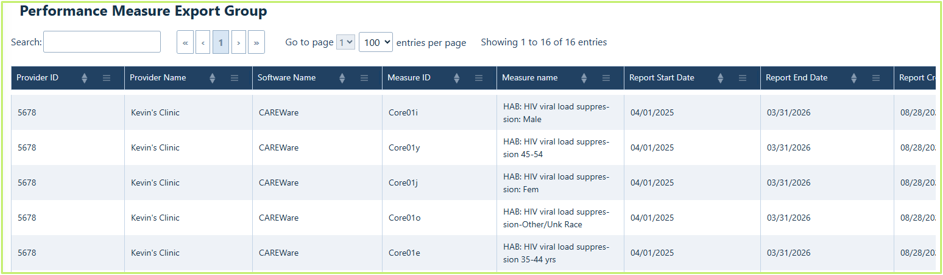
List View can be used to review the results in CAREWare before creating the CSV file for upload to the EHBs.
8. To produce the file for upload to the EHBs, make sure HIVQM Format is checked, and click CSV.
2.7 HOW TO REVIEW HIVQM PERFORMANCE MEASURE RESULTS
After an HIVQM performance measure group has been run and exported as a CSV file, users should evaluate the results for data quality, and ensure the results are formatted for upload into the EHBs.
The first thing to review is the results themselves. Make sure the following results align with what was expected:
- Records Reviewed
- Numerator
- Denominator
If any results are much greater or smaller than what was expected, further investigation should occur.
Next, review the Measure ID and Measure Name in the CSV file. CAREWare does not allow duplicate Measure IDs or Measure Names, so each measure must have a unique value. In the example below, viral load suppression is being evaluated by sex at birth. Because the three measures represent separate calculations in CAREWare, each has a different Measure ID and Measure Name.

Before uploading the CSV file to the EHBs, however, the Measure ID and Measure Name must be updated to match the options available in the EHBs. As a result, users may need to edit these fields in the exported CSV file. In the example above, each Measure ID would be changed to “Core01,” and each Measure Name would be changed to “HIV viral load suppression,” as shown in the screenshot below.

Finally, review the Provider Name in the CSV file and confirm that it matches the provider name listed in the EHBs. In the examples above, the provider is listed as “Kevin’s Clinic” in CAREWare, while the EHBs list the provider as “The Kevin HIV Clinic.” Before uploading the file, the Provider Name in the CSV file would therefore need to be changed to “The Kevin HIV Clinic.”
2.8 HOW TO EXPORT AND IMPORT PERFORMANCE MEASURES
Performance measures in CAREWare can be exported, shared, and imported into another CAREWare instance.
To export a performance measure:
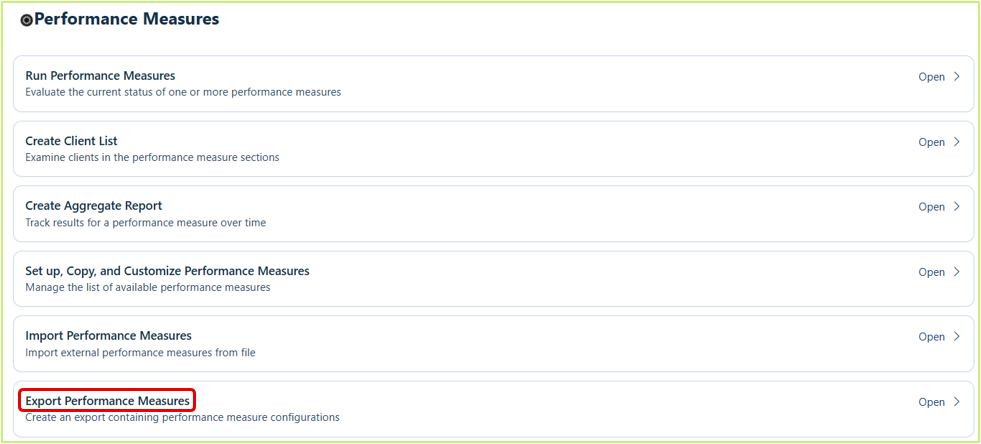
1. Navigate to the performance measure main menu and click Export Performance Measures.
2. Check the performance measure, or measures you’d like to export, then click Export Selected.
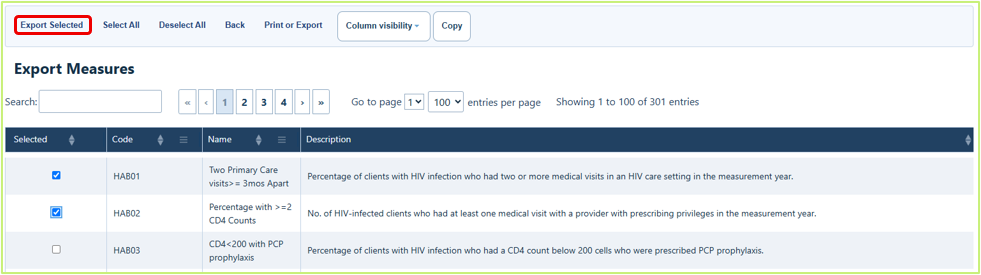
3. An XML file will be downloaded to your device containing the performance measure(s).
Additional HAB Performance Measure files can be downloaded from the Performance Measures for Data Quality article on the jProg CAREWare Knowledge Base and imported for use in CAREWare. To import a performance measure:
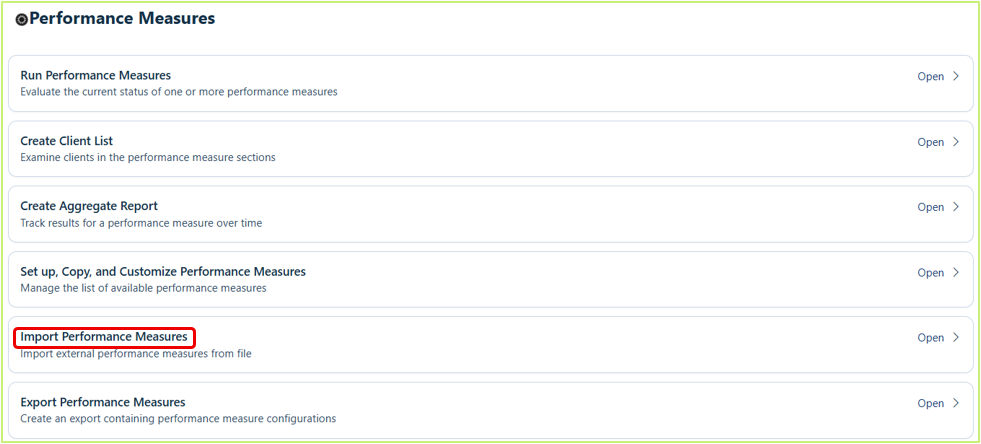
1. Navigate to the performance measure main menu and click Import Performance Measures.
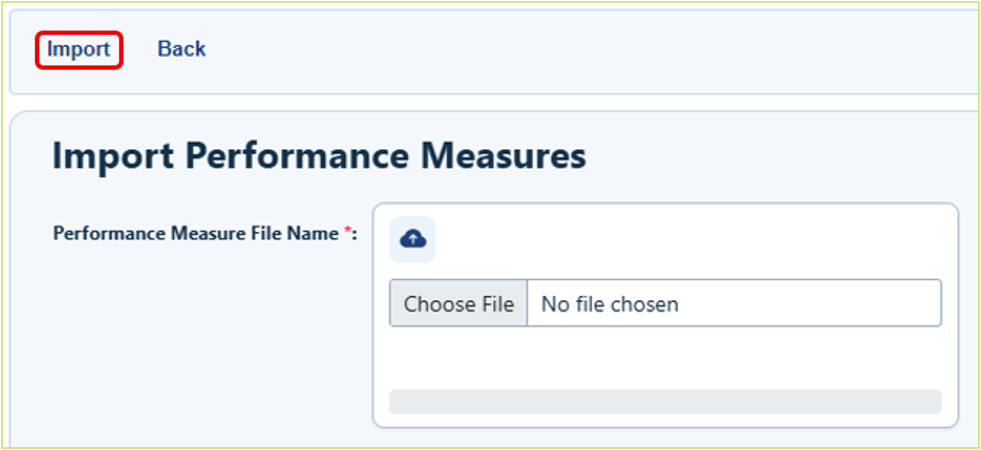
2. Upload the performance measure XML file, then click Import.
3. The imported performance measure(s) will now be available for use.
Section 3. HIVQM Performance Measures Available in CAREWare
The HIVQM Module includes HAB Performance Measures across multiple categories, including Core, All Ages, Adolescent and Adult, Children, HIV-Exposed Children, Medical Case Management, Oral Health, AIDS Drug Assistance Program (ADAP), and Systems-Level measures. Organizations select the performance measures that are appropriate for their HIVQM reporting and quality management activities.
CAREWare includes two Core HAB Performance Measures by default: CORE01 and CORE02. CORE05 – Retention in Care, along with additional HAB Performance Measures, can be downloaded from the jProg CAREWare Knowledge Base and imported into CAREWare. jProg plans to make additional performance measures available over time in collaboration with HRSA HAB.
The built-in HAB Performance Measures can be easily identified in the Performance Measure Setup table by referencing the Read Only and HRSA Defined columns, as shown in the figure below.
This section focuses on the three Core measures and provides detailed information about how they are configured and calculated in CAREWare.
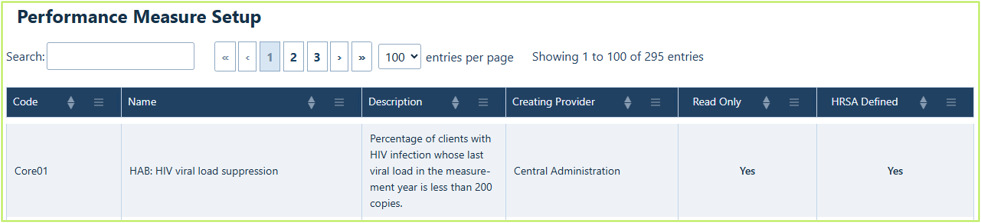
It’s important to note that the built-in HAB Performance Measures cannot be edited in CAREWare. However, you can copy them and then modify the performance measure.
Make copies of the HAB Performance Measures to evaluate gaps in care, e.g., to evaluate viral suppression by race, copy CORE01 - Viral Load Suppression and add a filter for a specific race. The performance measure will then calculate the viral suppression of that race group.
3.1 CORE01 - VIRAL LOAD SUPPRESSION
This performance measure is part of the HAB Core Performance Measures group.
Description: Percentage of patients, regardless of age, with a diagnosis of HIV with a HIV viral load less than 200 copies/ml at last viral load test during the measurement year.
Numerator: Number of patients with a HIV viral load less than 200 copies/ml at last HIV viral load test during the measurement year.
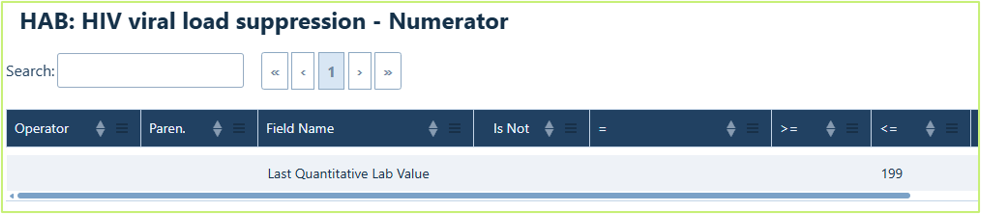
Denominator: Number of patients, regardless of age, with a diagnosis of HIV with at least one medical visit in the measurement year.
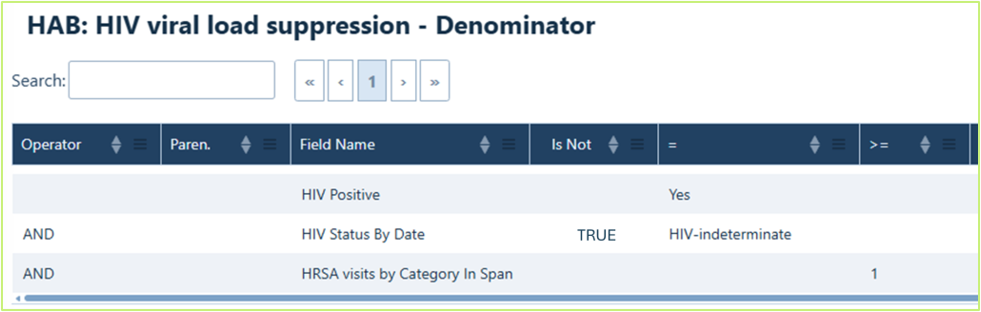
The “HRSA visits by Category In Span” field filters for clients who received at least one Outpatient/Ambulatory Health Service within the past 12 months from the end date of the performance measure.

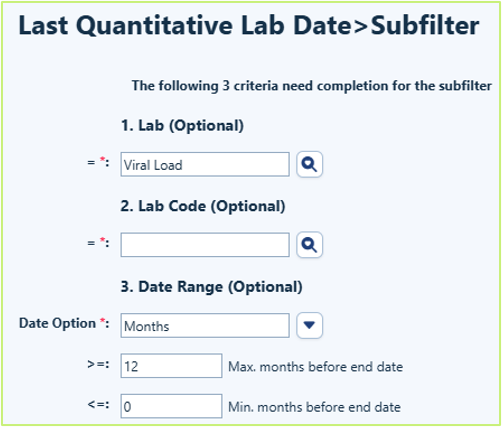
For RWHAP recipients that do not provide OAHS services, consider using viral load results as a proxy. Replace “HRSA visits by Category in Span,” with “Last Quantitative Lab Date.” Set the date range for the field subfilter to 12 months max and 0 months min from the end date.
Patient Exclusions: None
3.2 CORE02 - PRESCRIPTION OF ANTIRETROVIRAL THERAPY
This performance measure is part of the HAB Core Performance Measures group.
Description: Percentage of patients, regardless of age, with a diagnosis of HIV prescribed antiretroviral therapy (ART) for the treatment of HIV infection during the measurement year.
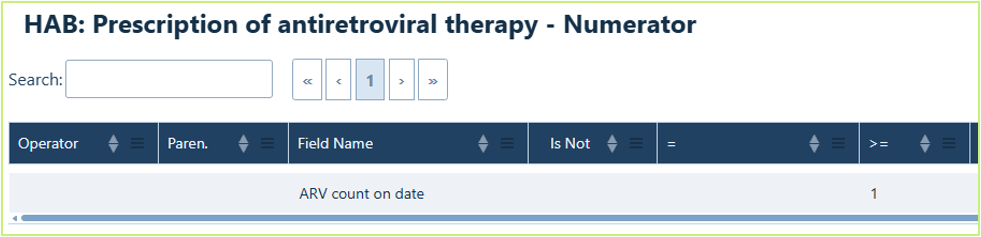
Numerator: Number of patients prescribed HIV ART during the measurement year.
Denominator: Number of patients, regardless of age, with a diagnosis of HIV with at least one medical visit in the measurement year.
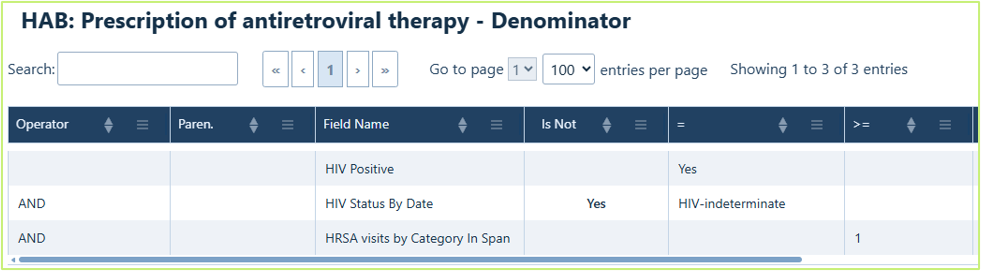
The “HRSA visits by Category In Span” field filters for clients who received at least one Outpatient/Ambulatory Health Service within the past 12 months from the end date of the performance measure.

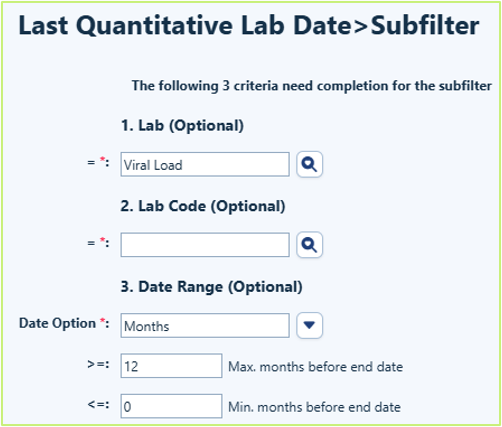
For RWHAP recipients that do not provide OAHS services, consider using viral load results as a proxy. Replace “HRSA visits by Category in Span,” with “Last Quantitative Lab Date.” Set the date range for the field subfilter to 12 months max and 0 months min from the end date.
Patient Exclusions: None
3.3 CORE05 - ANNUAL RETENTION IN CARE
This performance measure is set up differently than the others included in this user guide. First, this performance measure has built-in viral loads as a proxy measure. This means the RWHAP recipients that do not provide OAHS services do not need to modify the performance measure to use viral loads as a proxy for OAHS. Second, the performance measure must be downloaded from the jProg Knowledge Base and imported into CAREWare. It is not pre-loaded into CAREWare. Instructions for how to download and import performance measures can be found in Section 2.8 above.
This performance measure is part of the HAB Core Performance Measures group.
Description: Percentage of patients, regardless of age, with a diagnosis of HIV who had at least two encounters within the measurement year.
Numerator: Number of patients who had at least two HIV medical care encounters at least 90 days apart within a measurement year. At least one of the two HIV medical care encounters needs to be a medical visit with a provider with prescribing privileges.
Exclusions: Patients who died at any time during the measurement year.
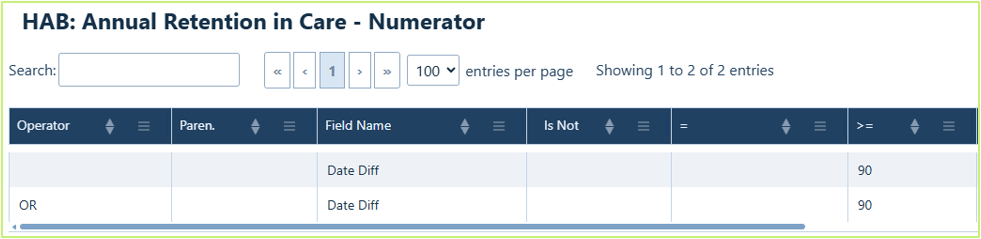
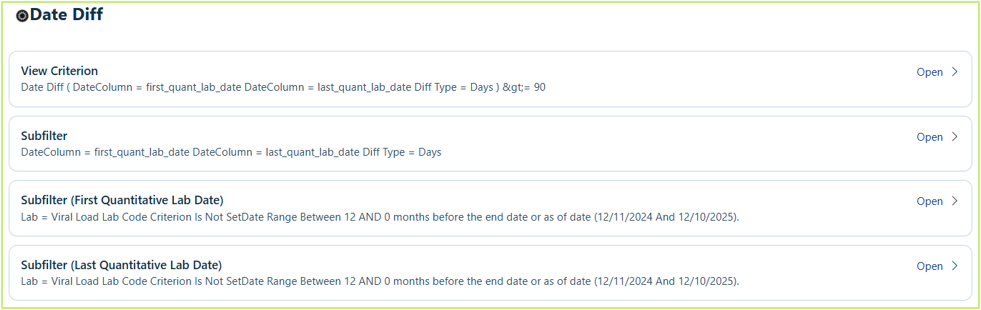
The first Date Diff field looks for the first and the last OAHS visits in the 12-month measurement period and ensures they are at least 90 days apart. If a client only has one OAHS visit, or the first and last OAHS visits aren’t at least 90 days apart, the client will not be included in the numerator.
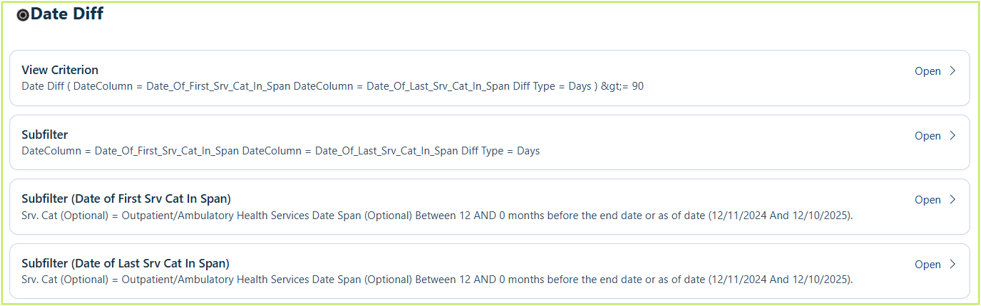
The second Date Diff field looks for the first and the last viral load result in the 12-month measurement period and ensures they are at least 90 days apart. If a client only has one viral load result, or the first and last viral load results aren’t at least 90 days apart, the client will not be included in the numerator.
Denominator: Number of patients, regardless of age, with a diagnosis of HIV who had at least one HIV medical encounter within the measurement year.
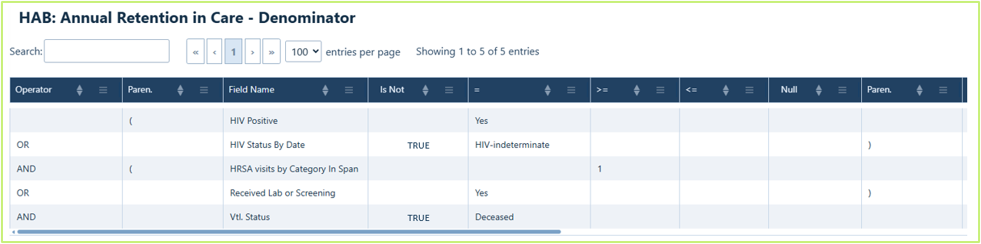
The “HRSA visits by Category In Span” field filters for clients who received an Outpatient/Ambulatory Health Service within the 12-month measurement period.

The “Received Lab or Screening” field filters for clients who had a viral load result within the 12-month measurement period.

Section 4. Frequently Asked Questions and Troubleshooting
This section contains common questions and issues reported by CAREWare users.
Where can I find the approved HAB Performance Measures?
A list of currently approved HAB Performance Measures can be found here: HIV/AIDS Bureau Performance Measures | Ryan White HIV/AIDS Program
What should I do if I cannot find the performance measure definition that I need?
First, review the list of approved HAB Performance Measures listed in 4.1 above. Then, review the HIVQM Module Instruction Manual (found on the HRSA Recipient Resources webpage under Data Reporting and Technical Assistance) to ensure the performance measure is part of the current HIVQM measure set.
What should I do if I cannot find the performance measure I need in CAREWare?
There are only two HAB Performance Measures built into CAREWare. They are Viral Suppression and Prescription of Antiretroviral Therapy. One additional measure, Annual Retention in Care, can be downloaded from the jProg Knowledge Base Performance Measures for Data Quality article and imported into CAREWare.
All other HAB Performance Measures need to be created in CAREWare. Instructions for creating a performance measure can be found in Section 2.3.
The performance measure options and/or buttons I need in CAREWare are grayed out. What should I do?
This is likely a permissions issue. Contact your CAREWare administrator and request the permissions listed in Section 2.2.
I’m getting an error in the EHBs when I upload my CSV file. What should I do?
There are a few things you should check in the CSV file.
- Ensure column headers match the required format exactly, including capitalization and spelling. By default, CAREWare will produce the CSV file with the correct headers, but they may have been edited during the data review process.
- Ensure the Measure ID and Measure Name in the CSV file match the performance measure options listed in the EHBs.
- Ensure the Provider Name in the CSV file matches the provider name listed in the EHBs.
Do I have to upload my performance measure results into the EHBs?
No. Data can be manually entered into the EHBs instead of uploading the CSV file produced by CAREWare.
Who do I contact if I have questions?
Please contact the free CAREWare Help Desk with any questions or issues. The CAREWare Help Desk open hours are:
- Monday - 12:00 PM - 5:00 PM Eastern Time.
- Tuesday - 10:30 AM - 6:30 PM Eastern Time.
- Wednesday - 12:00 PM - 5:00 PM Eastern Time.
- Thursday - 10:30 AM - 6:30 PM Eastern Time.
- Friday - 12:00 PM - 5:00 PM Eastern Time.
The number to call for assistance is 877-CWHELP1 or 877-294-3571. The CAREWare Help Desk can also be reached by email at [email protected].
What resources are available on the jProg Knowledge Base?
The following articles are related to performance measures and HIVQM in CAREWare:
- Performance Measures
- Setup, Copy, and Customize Performance Measures
- Run Performance Measures
- Performance Measure Groups
- HIVQM Setup
- Performance Measures for Data Quality
Appendix A. Acronyms
|
Acronym |
Definition |
|---|---|
| ADAP | AIDS Drug Assistance Program |
| ADR | ADAP Data Report |
| AIDS | Acquired Immunodeficiency Syndrome |
| ART | Antiretroviral Therapy |
| ARV |
Antiretroviral |
| CQM | Clinical Quality Management |
| CSV | Comma-Separated Values |
| EHBs | Electronic Handbooks |
| EHE | Ending the HIV Epidemic |
| HAB | HIV/AIDS Bureau |
| HIV | Human Immunodeficiency Virus |
| HIVQM | HIV Quality Measures |
| HRSA | Health Resources and Services Administration |
| OAHS | Outpatient/Ambulatory Health Services |
| RSR | Ryan White HIV/AIDS Program Services Report |
| RWHAP | Ryan White HIV/AIDS Program |
| VL | Viral Load |

