376
376
CAREWare 6 includes a Clinical Setup module in which users can activate and add labs, screening labs, screenings, immunizations, diagnoses, and medications. Clinical Setup can be considered as the “master list” of available options within client records. Specific labs, screening labs, screenings, immunizations, diagnoses, and medications need to be set as active before users can add them to client records. By default, CAREWare includes HRSA-defined options, and users may opt to add other options to each area.
- Accessing Clinical Setup in CAREWare
- Pre-Defined Labs, Screening Labs, Screenings, and Immunizations
- HRSA-Defined Labs Included with CAREWare
- HRSA-Defined Screening Labs Included with CAREWare
- Pre-Defined Screenings Included with CAREWare
- Activating Labs, Screening Labs, Screenings, and Immunizations
- Adding Labs, Screening Labs, Screenings, and Immunizations to CAREWare
- Updating Medications in CAREWare
- Updating Diagnoses in CAREWare
Accessing Clinical Setup in CAREWare
The Clinical Setup section is accessed in Central Administration or within a provider domain.
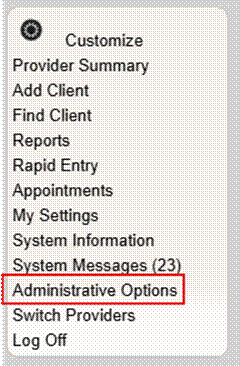
1. Click Administrative Options.
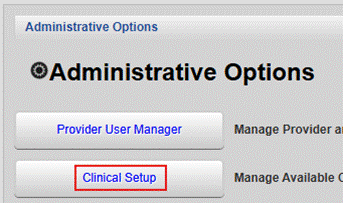
2. Click Clinical Setup.
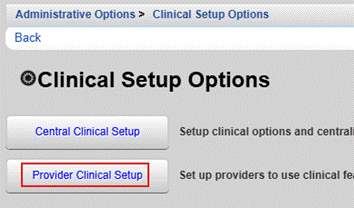
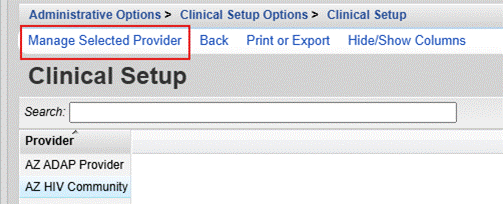
Central Administration Only: After clicking Clinical Setup, click Provider Clinical Setup, choose a provider domain, and click Manage Selected Provider.
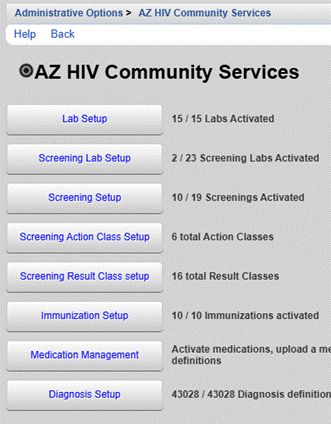
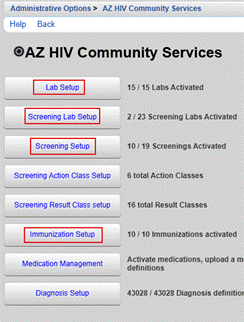
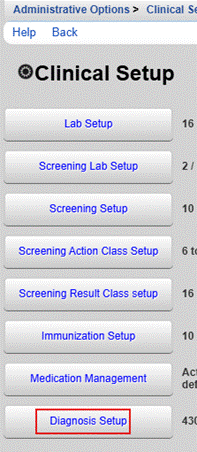
The Clinical Setup section includes modules for Lab Setup, Screening Lab Setup, Screening Setup, Screening Action Class Setup, Screening Result Setup, Immunization Setup, Medication Management, and Diagnosis Setup.
Pre-Defined Labs, Screening Labs, Screenings, and Immunizations
CAREWare 6 included pre-defined labs, screening labs, screenings and immunizations. Unless an organization manages extensive clinical data in CAREWare, the pre-defined options are typically adequate. Additional clinical tests can be added as needed.
HRSA-Defined Labs Included with CAREWare
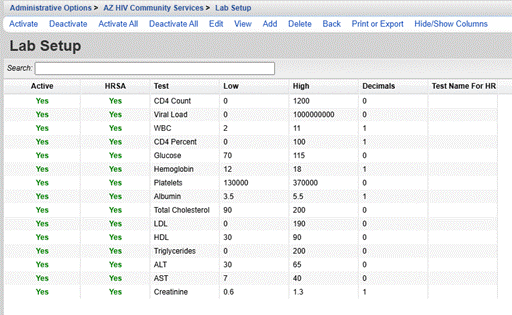
The following HRSA-defined labs are included with each CAREWare installation.
HRSA-Defined Screening Labs Included with CAREWare
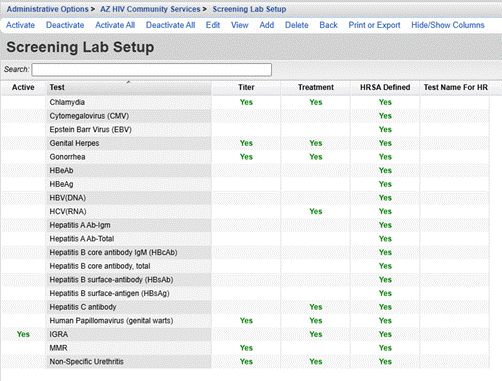
The following HRSA-defined screening labs are included with CAREWare.
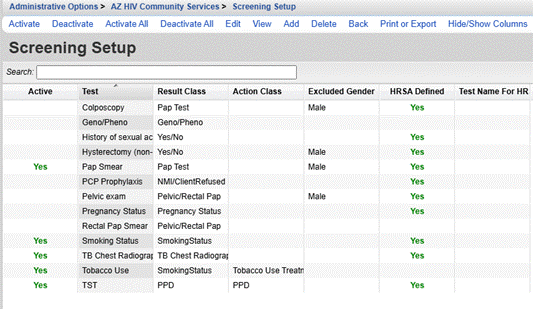
Pre-Defined Screenings Included with CAREWare
The following pre-defined screenings are included with CAREWare.
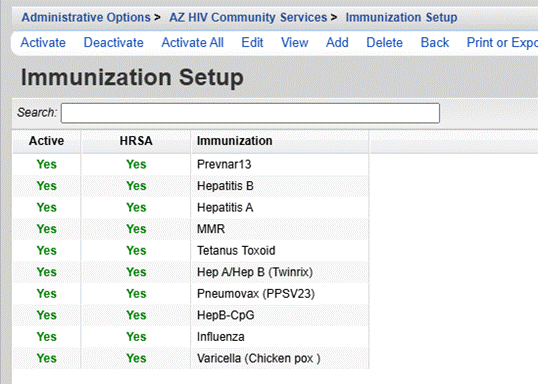
HRSA-Defined Immunizations Included with CAREWare
The following HRSA-defined immunizations are included with CAREWare.
Activating Labs, Screening Labs, Screenings, and Immunizations
The steps for activating and adding labs, screening labs, screenings, and immunizations are similar.
1. Click on the applicable setup area (i.e., Labs Setup, Screening Lab Setup, Screening Setup, Immunization Setup). The following steps use the Lab Setup, and users follow the same steps for screening labs, screenings, and immunizations.
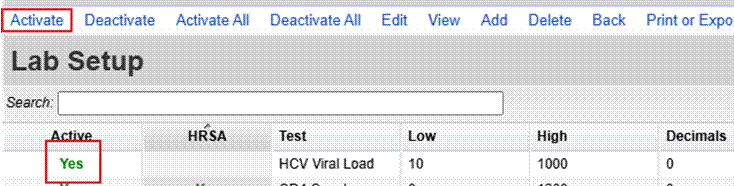
2. Select the name of the lab and click Activate.
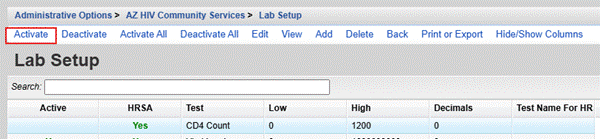
The Active column now shows Yes, which indicates that CD4 Count is now an available option in client records under Labs.
Activate: Activates the selected lab, screening lab, screening, or immunization.
Deactivate: Deactivates the selected lab, screening lab, screening, or immunization.
Activate All: Activates all the labs, screening labs, screenings, or immunizations.
Deactivate All: Deactivates all the labs, screening labs, screenings, or immunizations.
Edit: Edit the selected value.
View: View the selected value.
Add: Add a new value to the list.
Delete: Delete the selected value.
Back: Return to the Clinical Setup menu.
Print or Export: Print or export the list of labs, screening labs, screenings, or immunizations.
Hide/Show Columns: Hide or show columns in the list.
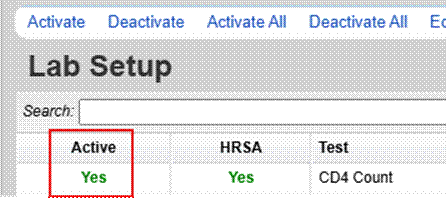
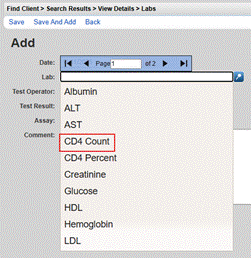
Figure 1 CD4 count shows Yes under Active, and CD4 count is now an available option under Labs in client records.
NOTE: If users are unable to locate a specific lab, screening lab, screening, or immunization in client records, check the Clinical Setup to see if the data element needs to be activated or added.
3. If a lab, screening lab, screening, or immunization is not needed, it can be deactivated under Clinical Setup. Highlight the name and click Deactivate. The data element no longer appears as an option under Labs in client records.
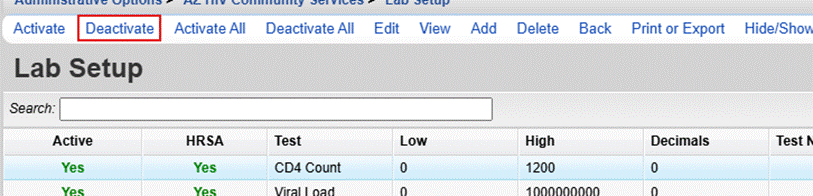
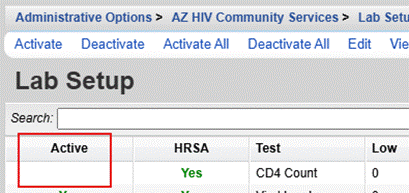
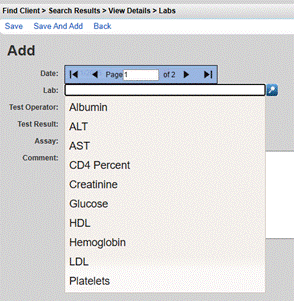
Figure 2 CD4 Count does not show Yes under Active, and it is no longer an option under Labs in client records.
Adding Labs, Screening Labs, Screenings, and Immunizations to CAREWare
Organizations can track labs, screening labs, screenings, and immunizations that are not pre-defined in CAREWare.
1. Click Add.
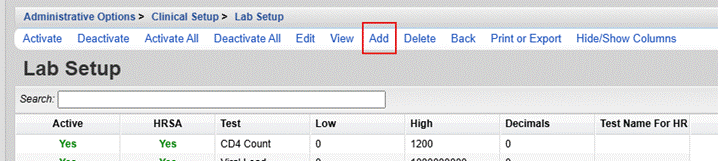
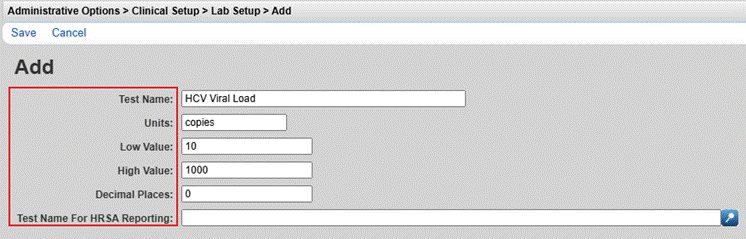
2. Complete the fields for the new value.
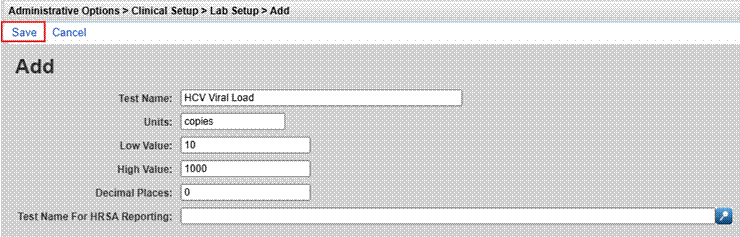
3. Click Save.
4. Verify that the new value shows Yes under Active. If the new value is not active, highlight it and click Activate.
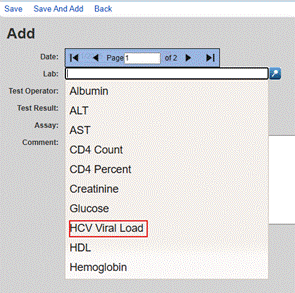
The new value is now available in the dropdown box for the applicable section of client records.
Updating Medications in CAREWare
HRSA maintains an XML file that includes the medications that are available to add to client records. The XML file needs to be uploaded into CAREWare before medications can be activated.
Managing Medications in CAREWare
Updating Diagnoses in CAREWare
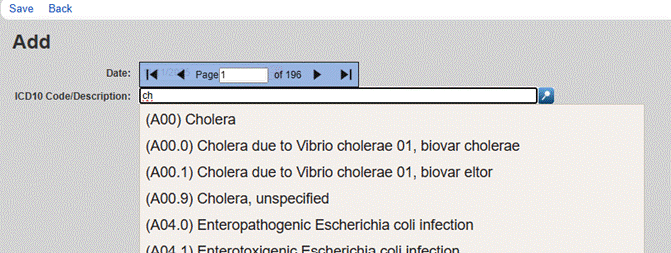
Like medications, diagnoses in CAREWare are not pre-loaded. Users need to upload an XML file before activating diagnoses. HRSA maintains the ICD-10 Diagnosis Codes XML file that is used for CAREWare.
1. Download the XML file that includes the ICD-10 diagnosis codes.
2. Click Diagnosis Setup.
3. Click Update Definitions.
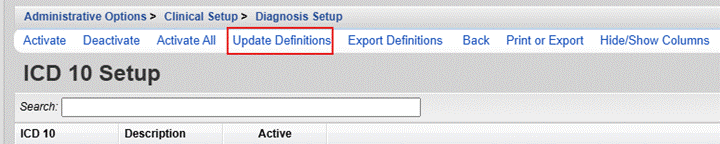
Activate: Activate the selected diagnosis code.
Deactivate: Deactivate the selected diagnosis code.
Activate All: Activate all diagnosis codes.
Deactivate All: Deactivate all diagnosis codes.
Updated Definitions: Update the list of diagnosis codes.
Export Definitions: Export the diagnosis codes in XML format.
Back: Return to the Clinical Setup menu.
Print or Export: Print or export the list of diagnosis codes in CSV or PDF format.
Hide/Show Columns: Select which columns to hide or show in the list of diagnosis codes.
4. Click Choose File, navigate to the XML file in Windows File Explorer, and click Open.
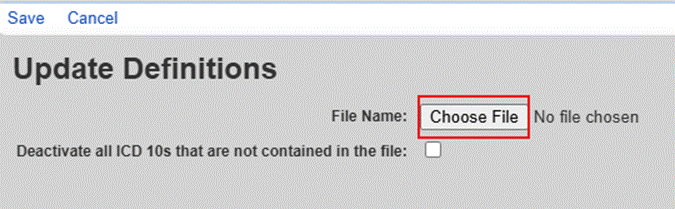
5. The XML file contains over 40,000 diagnosis codes. To preserve network and server resources, the codes default to inactive. Users can activate all the diagnosis codes or only the codes that are needed for client records. Please be advised that activating all the diagnosis codes may slow performance in the Diagnosis Setup, as well as client records when adding diagnoses.
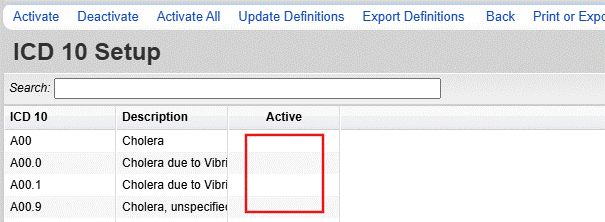
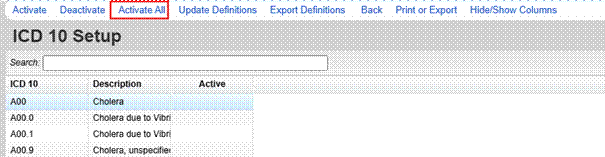
If all diagnosis codes need to be activated, click on Activate All.
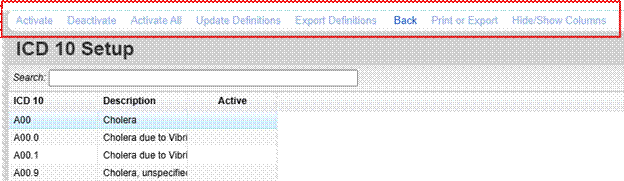
Depending on network resources, activating all diagnoses may take some time. The menu will be greyed out until the operation is complete.
If specific diagnosis codes need to be activated, select the codes and click Activate.
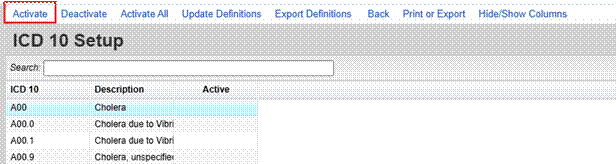
The active diagnosis codes are now available in client records under the Diagnoses tab.